Hardware and System Information Commands in Linux (original) (raw)
Last Updated : 7 Jan, 2026
Hardware and system information commands in Linux are used to display details about the system’s hardware components and resource usage. These commands help users and administrators monitor CPU, memory, disks, power status, and connected devices, making them essential for system monitoring, troubleshooting, and performance analysis.
These commands are commonly used to:
- View hardware configuration and system architecture
- Monitor memory, CPU, and disk usage
- Inspect connected devices and power information
- Diagnose hardware-related issues
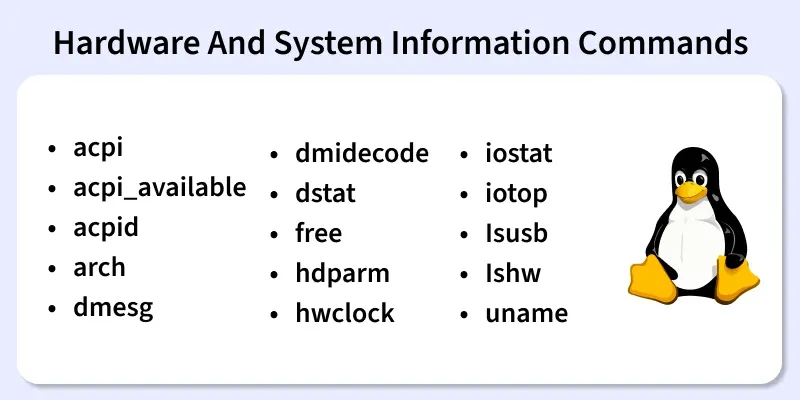
Below are some important Hardware and System Information Commands in Linux.
1. acpi
The acpi command displays power-related information such as battery status and thermal data.
- Shows battery charge and charging status
- Displays AC adapter information
- Useful for laptops and portable systems
**Syntax:
acpi [options]
**Example:
acpi -b

- The following is used for displaying the battery information including status, charge, and capacity.
2. acpi_available
The acpi_available command checks whether ACPI support is available on the system.
- Verifies ACPI subsystem availability
- Used for power management diagnostics
- Helps determine ACPI support
**Syntax:
acpi_available

3. acpid
The acpid command manages ACPI events and power management actions.
- Handles power button and lid events
- Enables intelligent power management
- Runs as a background daemon
**Syntax:
acpid [options]
**Examples:
acpid -help

This command in used to shows help and exits.
4. arch
The arch command displays the system architecture.
- Shows CPU architecture type
- Useful for software compatibility checks
- Helps identify 32-bit or 64-bit systems
**Syntax:
arch
**Example:
arch
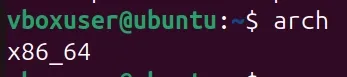
arch command is running it without any options to print the system's architecture.
5. dmesg
The dmesg command displays kernel ring buffer messages.
- Shows hardware detection messages
- Helps troubleshoot boot and driver issues
- Commonly used for debugging
**Syntax:
dmesg [options]
**Example:
dmesg | less
6. dmidecode
The dmidecode command displays detailed hardware information from the BIOS.
- Shows RAM, CPU, and motherboard details
- Provides system manufacturer information
- Requires root privileges
**Syntax:
dmidecode [options]
**Example:
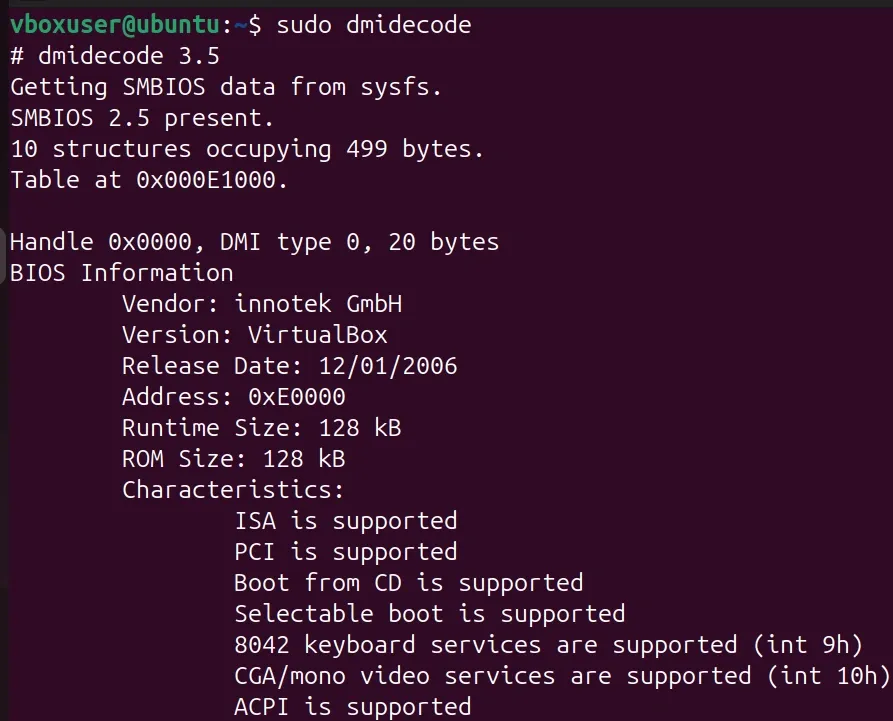
sudo dmidecode
7. dstat
The dstat command provides real-time system resource statistics.
- Monitors CPU, disk, network, and memory
- Combines multiple system statistics
- Useful for performance monitoring
**Syntax:
dstat [options]
**Example:
dstat

- This command will display CPU, Disk, Network, Paging and System stats.
8. free
The free command displays memory usage information.
- Shows used and available RAM
- Displays swap memory usage
- Commonly used with readable output
**Syntax:
free [options]
**Example:
free

Free command without any option shows the used and free space of swap and physical memory in **KB
9. hdparm
The hdparm command is used to view and configure hard disk parameters.
- Displays disk performance information
- Manages disk power settings
- Used for tuning storage devices
**Syntax:
hdparm [options] device
**Example:
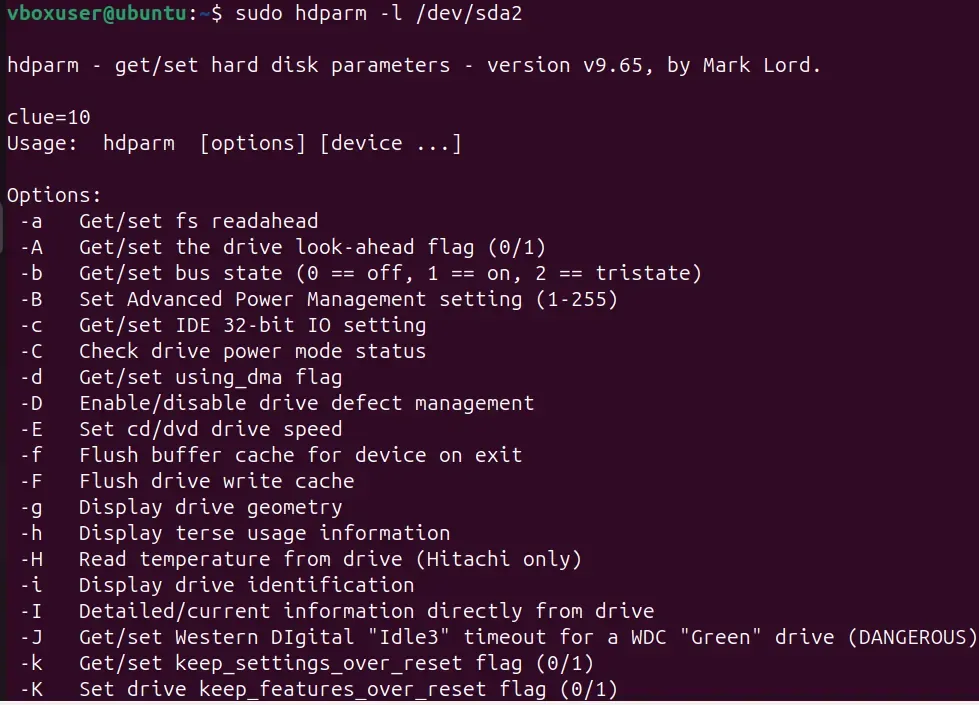
sudo hdparm -I /dev/sda2
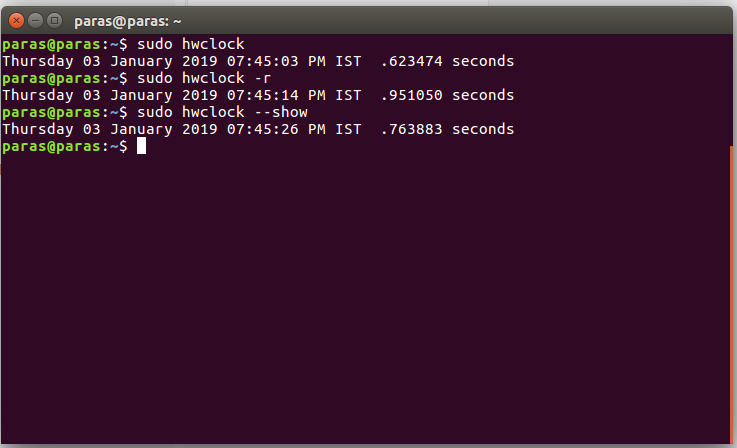
10. hwclock
The hwclock command displays or sets the hardware clock.
- Shows system hardware time
- Synchronizes system and hardware clocks
- Useful during system setup
**Syntax:
hwclock [options]
**Example:
hwclock
hwclock-r
hwclock --show
11. iostat
The iostat command displays CPU and disk I/O statistics.
- Monitors disk performance
- Displays CPU utilization
- Useful for performance analysis
**Syntax:
iostat [options]
**Example:
iostat

12. iotop
The iotop command monitors disk I/O usage by processes.
- Shows real-time disk usage
- Identifies high I/O consuming processes
- Requires root privileges
**Syntax:
iotop [options]
**Example:
sudo iotop
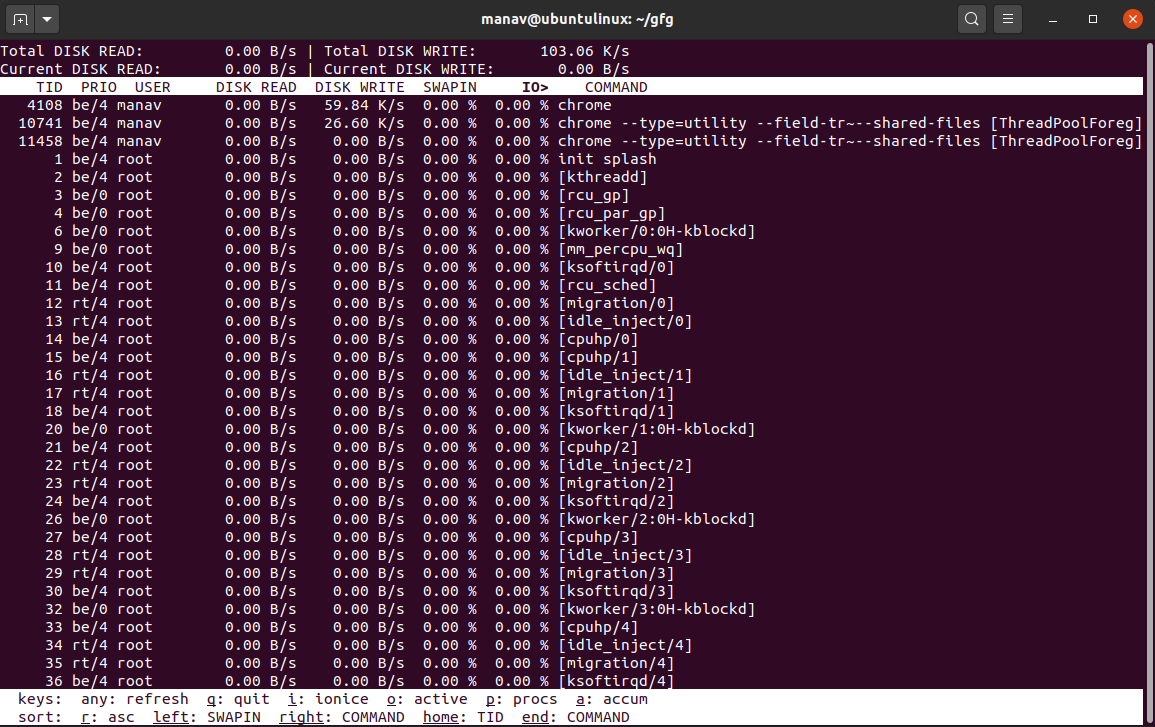
This command will now display the list of processes and their current disk usage and will keep on updating the same.
13. lsusb
The lsusb command lists USB devices connected to the system.
- Displays USB device information
- Helps identify connected peripherals
- Useful for hardware detection
**Syntax:
lsusb
**Example:
lsusb

Running the command without any options will list all USB devices connected to the system, showing basic information like the device ID and a brief description.
14. lshw
The lshw command displays detailed hardware configuration.
- Shows CPU, memory, storage, and network details
- Provides comprehensive hardware information
- Requires root access for full output
**Syntax:
lshw [-format] [-options ...]
**Example:
sudo lshw
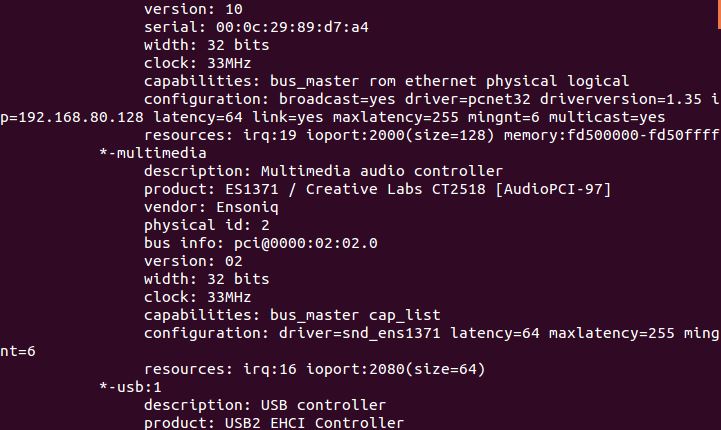
This command display full hardware information
15. uname
The uname command displays system and kernel information.
- Shows kernel name and version
- Displays system architecture
- Useful for system identification
**Syntax:
uname [options]
**Example:
uname -a

This prints all the system information in the following order: Kernel name, network node hostname, kernel release date, kernel version, machine hardware name, hardware platform, operating system.