How to Burn Linux ISO Files? (original) (raw)
Last Updated : 23 Jul, 2025
Burning Linux ISO files is an essential step for installing or running a Linux distribution on your computer. Whether you need to create a bootable USB drive or burn the ISO to a DVD, having the right tools and knowledge is crucial. In this guide, we will provide a comprehensive tutorial on how to burn Linux ISO files using various methods.
Whether you're a beginner or an experienced user, these steps will help you create bootable media for your Linux installation.
Burning an ISO File
Here "burn" means to **produce (a CD or DVD) by copying from an original or master copy. It should not be confused with its other meaning related to fire. Burning an ISO image to a physical disc or drive is done when we want to create a disc to install the software or OS on another machine or to boot a system.
In this article, we will burn a Linux (Ubuntu 20.04) ISO Image on a removable flash drive.
There are multiple ways to do it. In either, we have to format the pen-drive to make it bootable so make sure to back up its contents as they will be erased in this process.
Also Read: Linux/Unix Tutorial
Using Rufus
Rufus is the easiest and most convenient way of creating a bootable Linux flash drive. Also, it is open-source software so completely safe too.
**Step 1: Download the Rufus utility from the official website
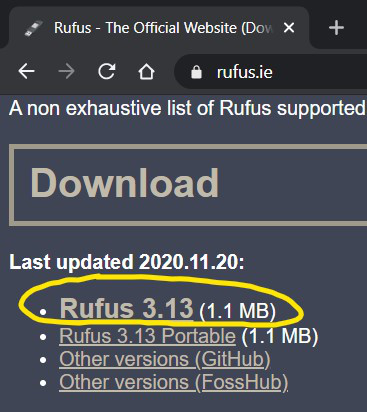
**Step 2: Open the downloaded executable file and allow the elevated privileges. The application runs directly, no need to install it. Once launched, you should get a similar screen.
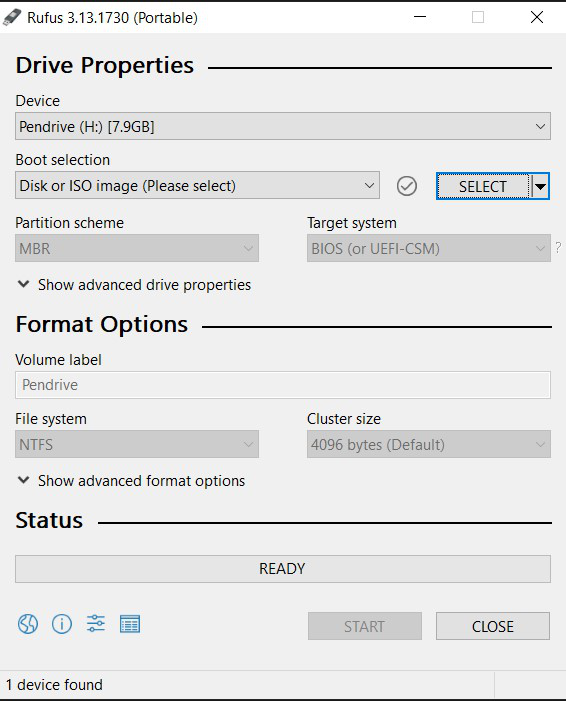
Rufus Interface
**Step 3: Ensure, the correct USB flash drive is selected in the Device heading.
**Step 4: Under the Boot selection heading, click on **SELECT and browse for the Linux ISO file which needs to be burned. Then, you shall see a similar output.
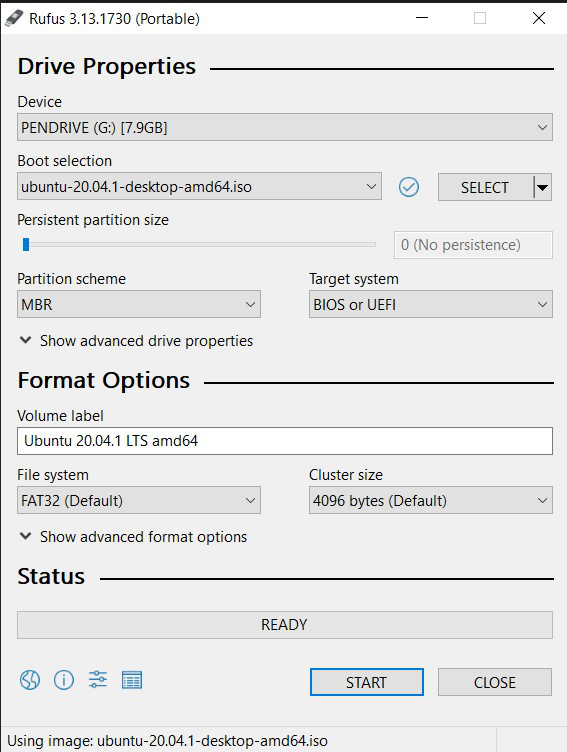
Ensure that these fields in the above image are correct as per your use case.
- **Device: The pen drive which needs to be burned
- **Boot selection: The ISO image which will be burned (or copied) on the flash drive.
Other options should be left as default.
**Step 5: Then just click on START to begin the burning process.
- If there is a prompt to download additional files, allow that.
- In case of an "ISO Hybrid" image, select the "Write in DD Image Mode" as this will prevent any possible issues while booting.
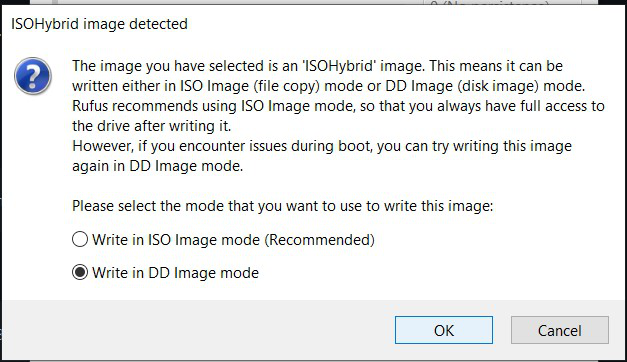
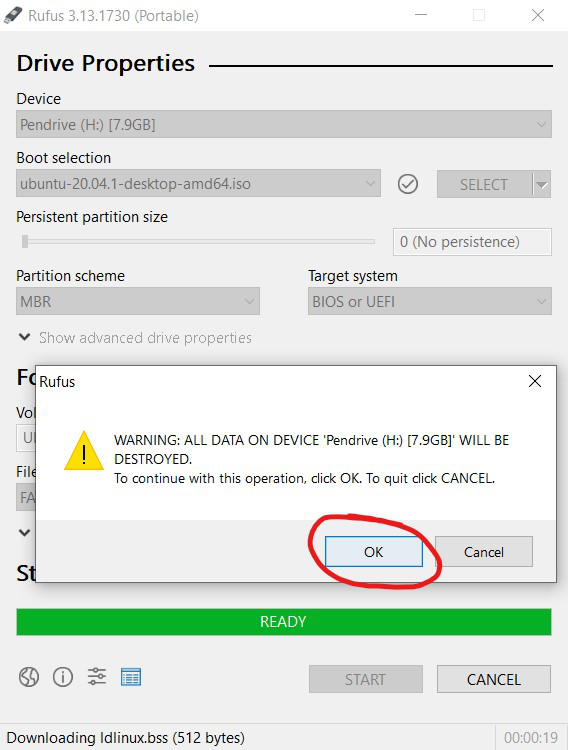
**Step 6: In the following prompt with a warning about the data being Destroyed, click OK after ensuring that the correct USB drive is being formatted.
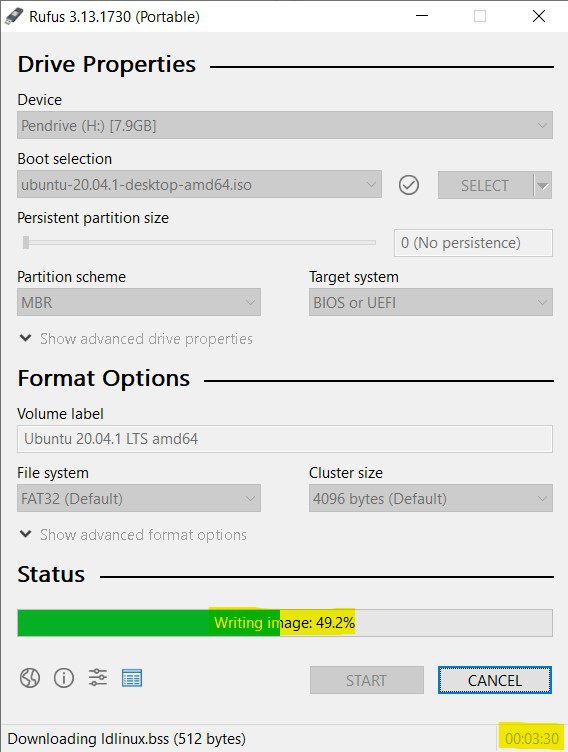
**Step 7: The Image writing process will now start and will take several minutes. Once the process is complete, the progress bar will be 100% green and show READY. Next, close the application window and the bootable drive is ready.
Using Balena Etcher
Balena Etcher is another such open-source software that can be used to Burn Linux ISO Files. However, its download size is more (100+MB) compared to Rufus (~1 MB) but has a more user-friendly UI.
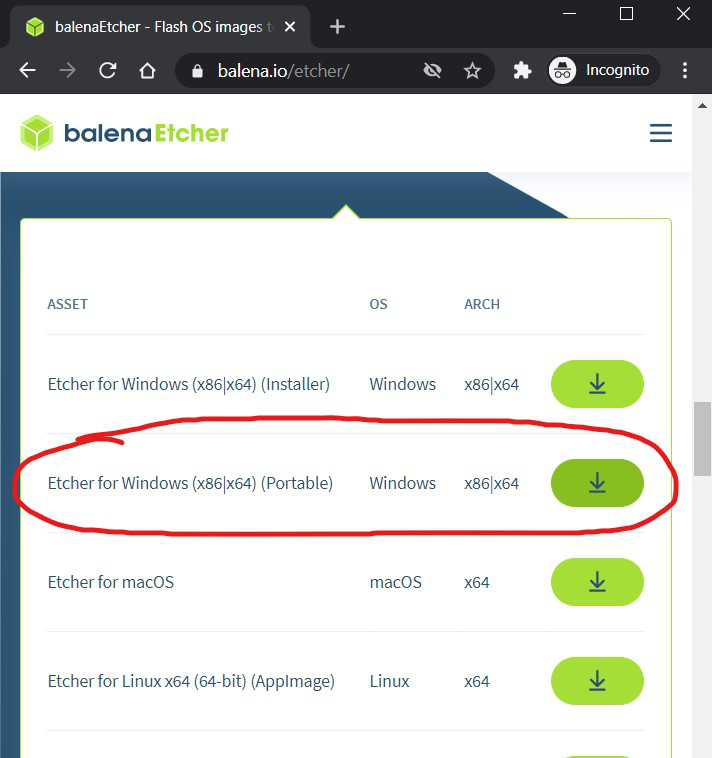
**Step 1: Download the portable version from the official website. This will allow us to run the application without installing it.
**Step 2: Open the downloaded file and you should get a similar interface.
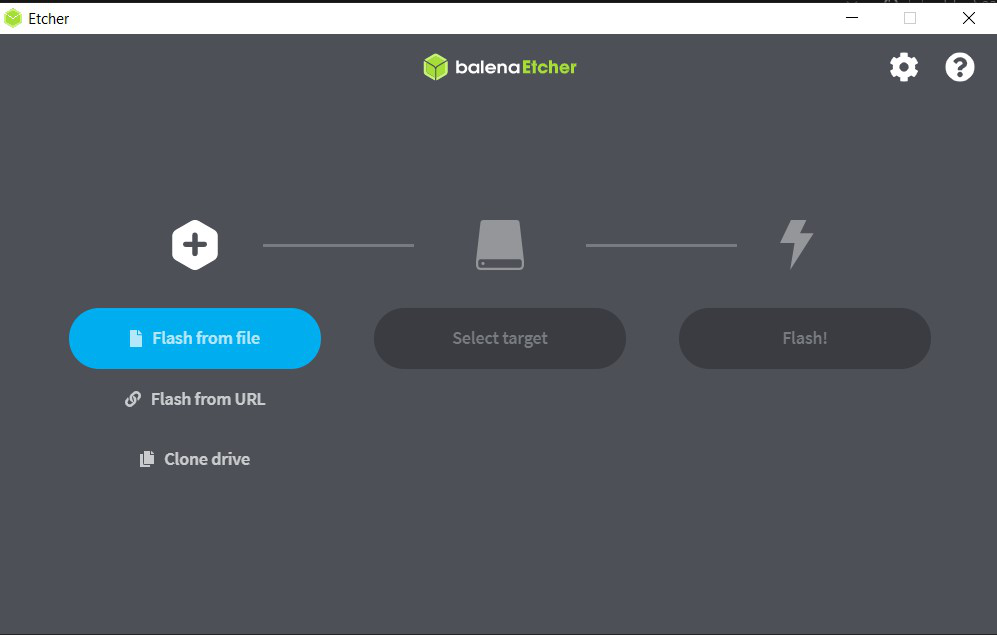
**Step 3: Click on Flash from the file and then select the required Linux ISO image.
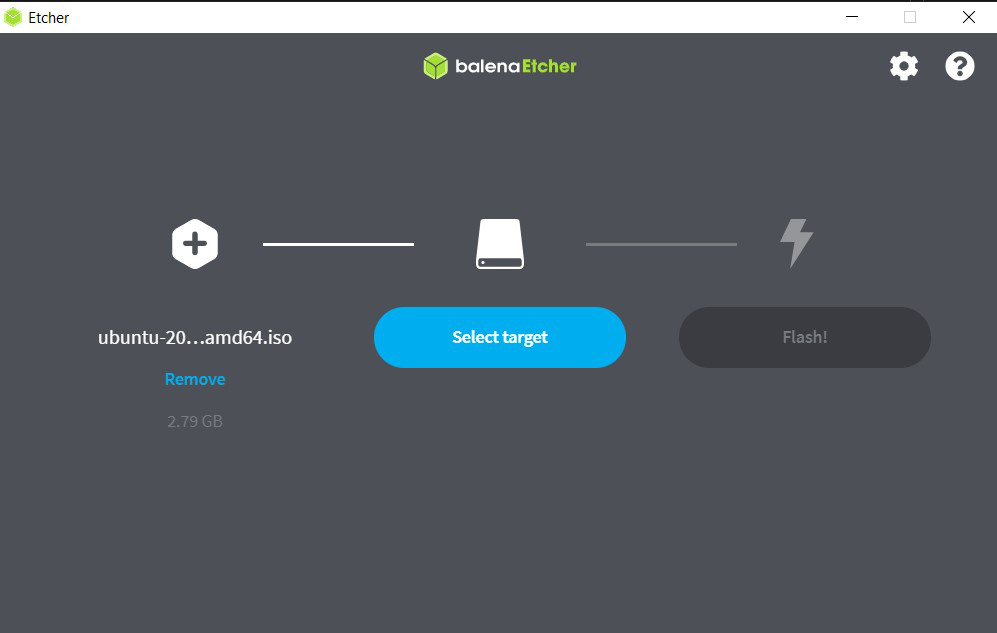
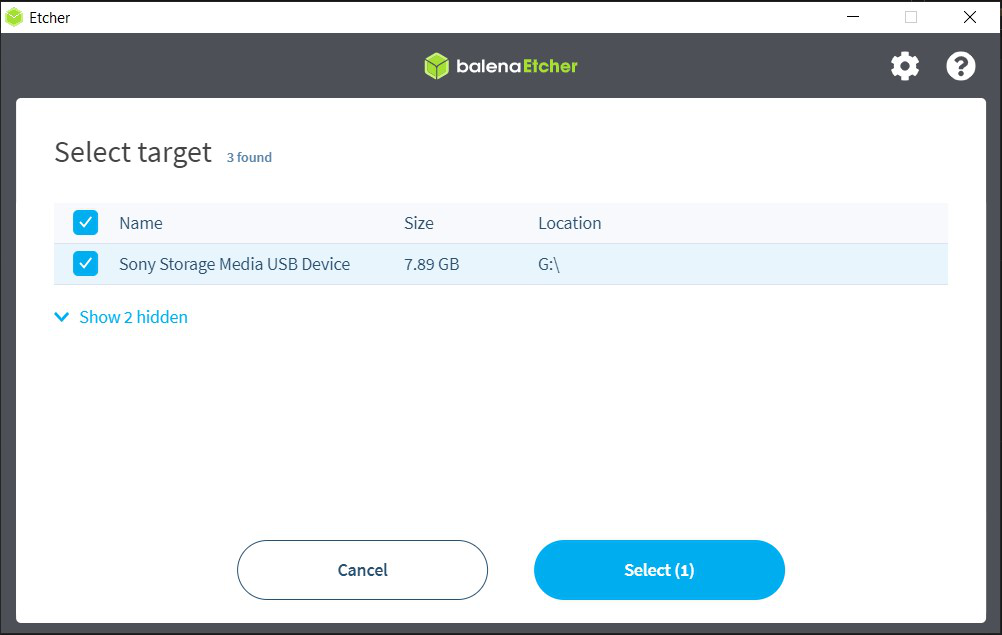
**Step 4: Then click on Select target and then select the target USB flash drive. Make sure to select the correct drive here.
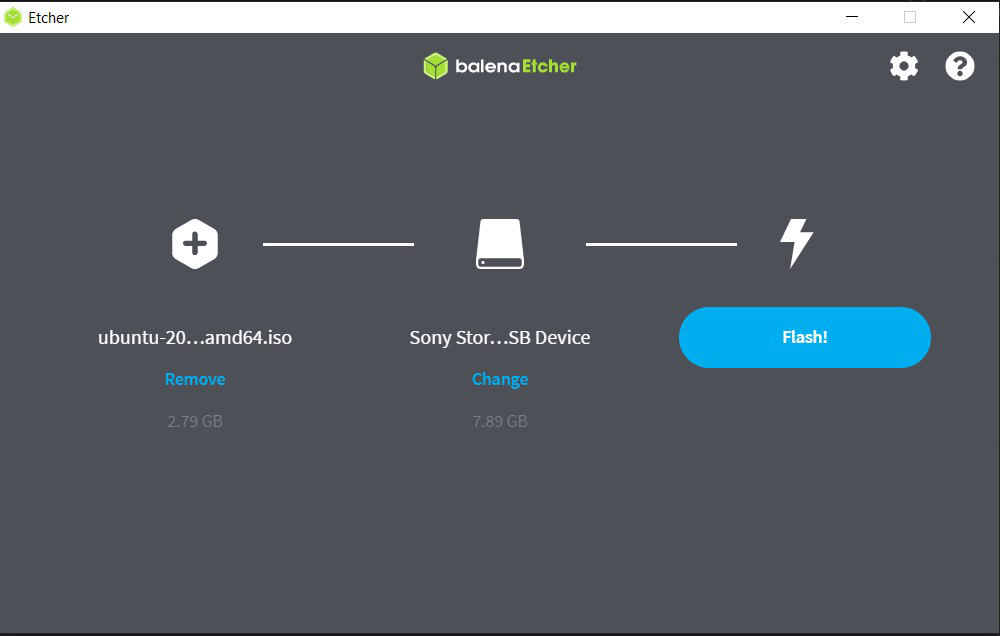
**Step 5: Then click on Flash and allow for any elevated privileges and the burning process will start Immediately.
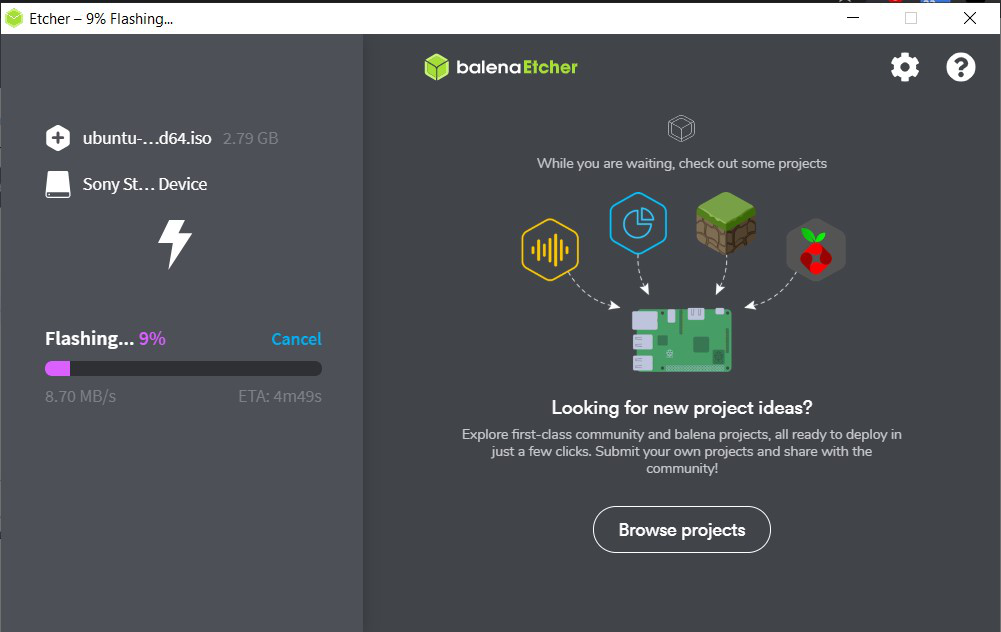
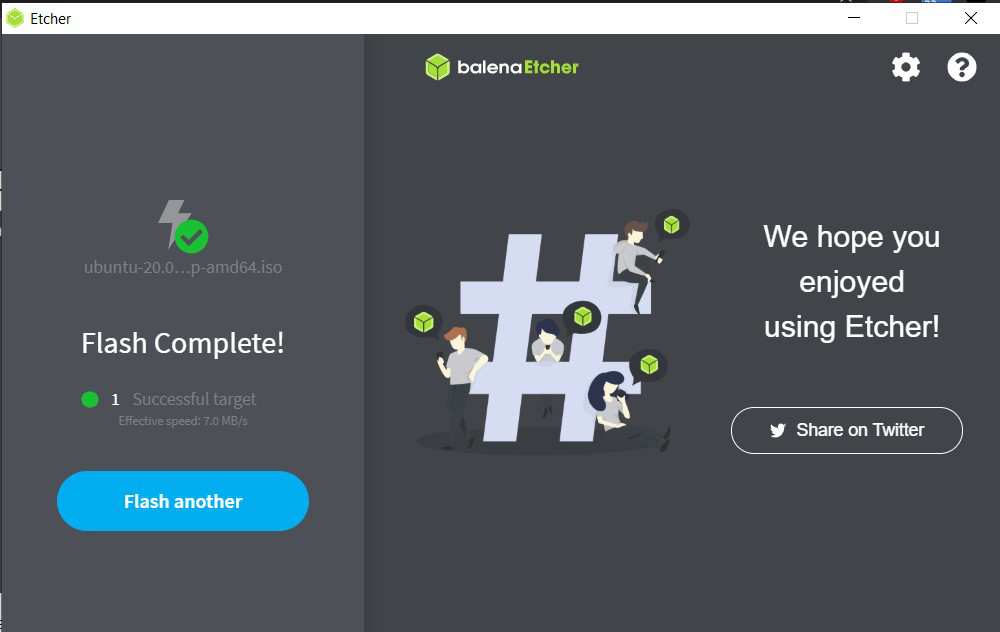
**Step 6: Once the process is complete, close the application and safely remove the pen drive and the bootable USB drive with Linux ISO is ready.
Burning Linux ISO files is a straightforward process that can be accomplished using a variety of tools and methods. By following the steps outlined in this guide, you can easily create bootable USB drives or DVDs to install or run Linux distributions. Ensure you choose the method that best suits your needs and follow the instructions carefully for a successful setup.
Conclusion
Burning a Linux ISO file is a critical step in setting up or installing a Linux distro, and with the proper tools, it's an easy and effective process. Whether you use Rufus for its lightweight, speedy nature or Balena Etcher for its ease of use, either way, you get to easily create a bootable USB drive or DVD.
As Linux operating systems become more popular, you need to have a bootable Linux USB flash drive to install, test, or troubleshoot distributions like Ubuntu, Fedora, Debian, and Arch Linux. This tutorial will guide you to burn the ISO file correctly and avoid falling into the usual mistakes of data loss or boot failures.