passwd Command in Linux (original) (raw)
Last Updated : 18 May, 2026
The passwd command is used to manage user passwords and account access. It allows users to change their own passwords, while administrators can reset passwords, lock or unlock accounts, and enforce password expiration policies.
- Allows secure password changes for users and administrators.
- Helps enforce password policies and expiration rules.
- Enables locking and unlocking of user accounts.
- Improves system security and access control.
**Example: To change your own password, run
**Command:
passwd
**Output:
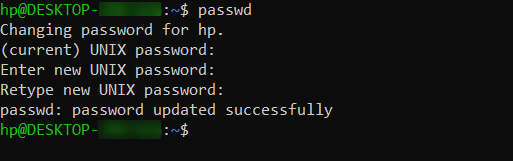
how to change user password in Linux
- If you are not the root user, you will be prompted to enter your current password to proceed.
- You will then be prompted to enter the new password. Type the new password and press Enter.
- Retype the new password when prompted to confirm.
- The password for the specified user account is now changed.
**Note: Linux does not display any characters on the screen while you type the password for security reasons.
Syntax:
passwd [options] [username]
Here,
- **[options] : include various parameters to customize the password-changing process.
- **[username] : the target user account for which you want to change the password.
'passwd' Command Table
| **Command | **Description |
|---|---|
| **passwd | Change your own password (interactive). |
| **sudo passwd [user] | Change another user's password (admin only). |
| **-l [user] | Locks the specified user's account. |
| **-u [user] | Unlocks the specified user's account. |
| **-e [user] | Expires the user's password, forcing a change on next login. |
| **-S [user] | Shows the Status of the account (very useful). |
| **-x [days] [user] | Sets the maximum number of days a password is valid. |
| **-n [days] [user] | Sets the minimum number of days between password changes. |
| **-w [days] [user] | Sets the number of warning days before a password expires. |
1. To Change Another User's Password
As a system administrator (using sudo or as the root user), you can change the password for any user. This is commonly used to reset a forgotten or compromised password.
**Command:
sudo passwd user1
**Output:
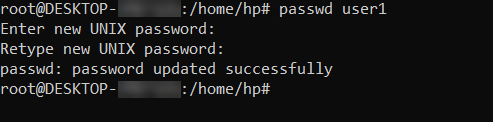
How to change another user password
If you are not logged in as the root user, you will be prompted to enter your own password to gain administrative privileges. After that, you must enter and confirm the new password for the target user.
**Note: Linux does not display any characters while typing passwords for security reasons.
You can also change the root user’s password:
**Command:
sudo passwd root
**Output:
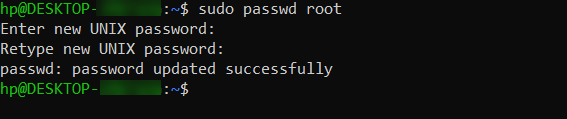
**Note: Use the above command with caution
2. To Force a User to Change Password on Next Login
This option expires the user’s password immediately and forces them to set a new password at their next login.
**Command:
passwd -e user1
**Output:

changing the user password forcefully
Once executed, the user will be required to change their password before accessing the system
3. To Lock and Unlock a User Account
Locking a user account disables login access (user may still be able to login using other options like SSH key), while unlocking restores it.
**To lock the account:
sudo passwd -l user2
The password for the user "user2" is now locked, preventing login.
**To unlock the account:
sudo passwd -u user2
The password for the user "user2" is now unlocked, allowing login again.
4. To Set Password Expiry (Maximum Password Age)
The -x option sets the maximum number of days a password remains valid.
**Command:
sudo passwd -x 30 user3
This means the user must change their password every 30 days.
Working of passwd
The passwd command safely modifies the /etc/shadow file, which stores encrypted passwords and password aging information. This file should never be edited manually.
Example:
user1:$6$x8wAJRpP$EWC97sXW5tqac10Q2TQyXkR.1l1jdK4VLK1pkZKmA2mbA6UnSGyo94Pis074viWBA3sVbkCptSZzuP2K.y.an/:17887:0:99999:7:::
**Output:
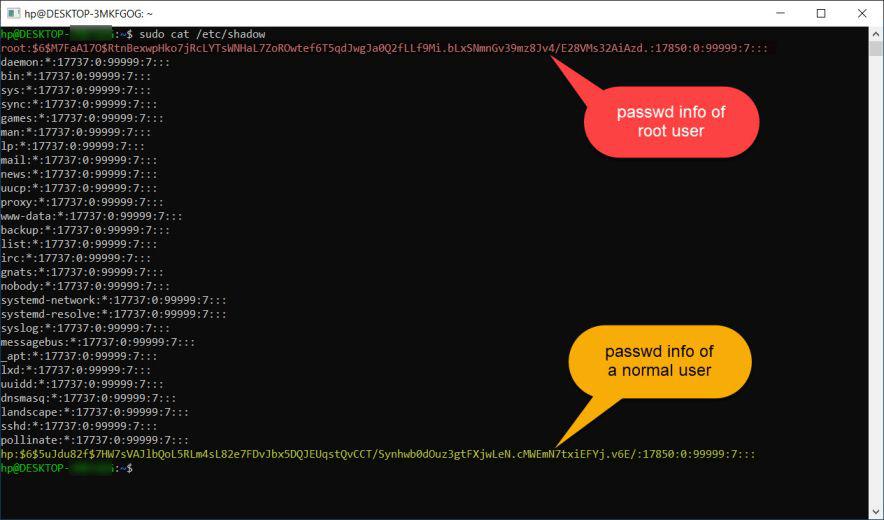
**Field Explanation:
- **User name: user1
- **Encrypted Password: 666x8wA...an/ (If this starts with ! or *, the account is locked).
- **Last Change: The date the password was last changed.
- **Min Age: Minimum number of days before a password can be changed (default 0).
- **Max Age: Maximum number of days a password is valid (default 99999, meaning never expires).
- **Warn Days: Number of days before expiration to warn the user.
- **Inactive Days: Number of days after expiration before the account is fully disabled.
- **Expire Date: A specific date when the account is disabled.
- **Reserved: Unused.