ps Command in Linux (original) (raw)
Last Updated : 14 May, 2026
The ps command in Linux is used to display information about currently running processes. It provides a snapshot of processes at the time the command is executed. System administrators commonly use it to monitor processes, troubleshoot issues, and identify resource usage.
- Display currently running processes on a Linux system
- Identify process IDs (PIDs) for management tasks like stopping processes
- View process ownership, CPU usage, and memory consumption
- Inspect background processes and system services
- Filter processes based on users, IDs, terminals, or command names
Example: Display Processes in the Current Terminal
This command displays the processes running in the current shell session. When executed without options, the ps command only shows processes associated with the current terminal.
**Command:
ps
**Output:
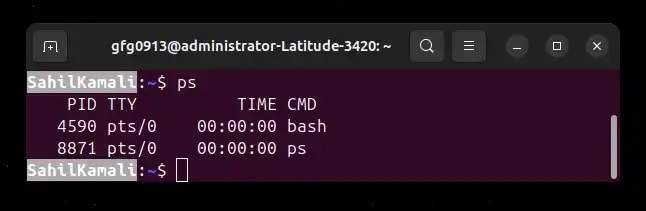
- **PID: the unique process ID
- **TTY: terminal type controlling the particular process
- **TIME: amount of CPU in minutes and seconds that the process has been running
- **CMD: name of the command that launched the process
Syntax
ps [options]
- **ps: The command used to display process information
- **[options]: Optional flags that modify how process information is displayed
**Note: Without any options, ps displays information about the processes associated with the current terminal session.
Options in ps Command
1. -e : Display All Running Processes
The -e option displays all running processes on the system. Use this option when you need a complete list of system processes, including background services and processes from other users.
**Command:
ps -e
**Output:

2. -f : Display Full Process Format
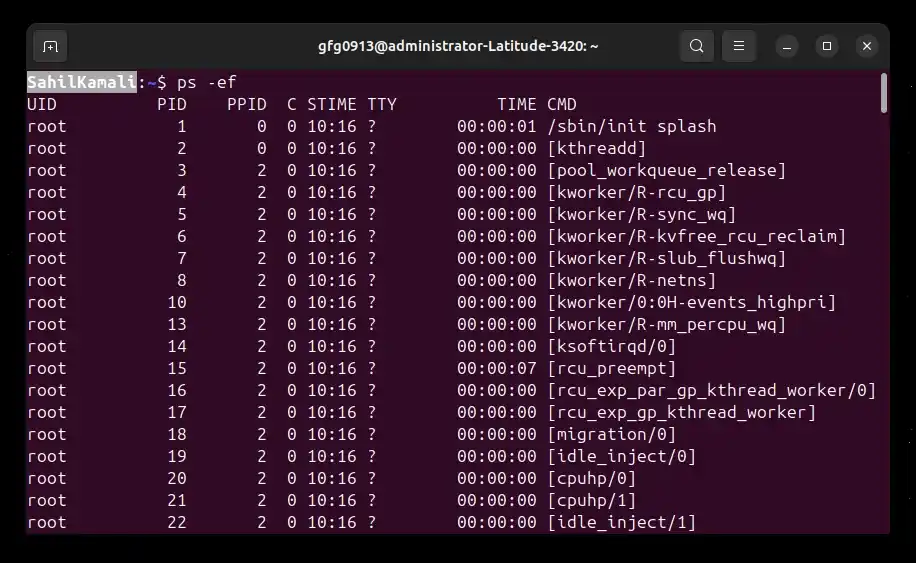
The -f option displays full-format listing, including additional columns like parent process ID. Use this option when you want detailed process information, such as process hierarchy and user ID.
**Example:
ps -ef
**Output:
3. -u : Display Processes for a Specific User
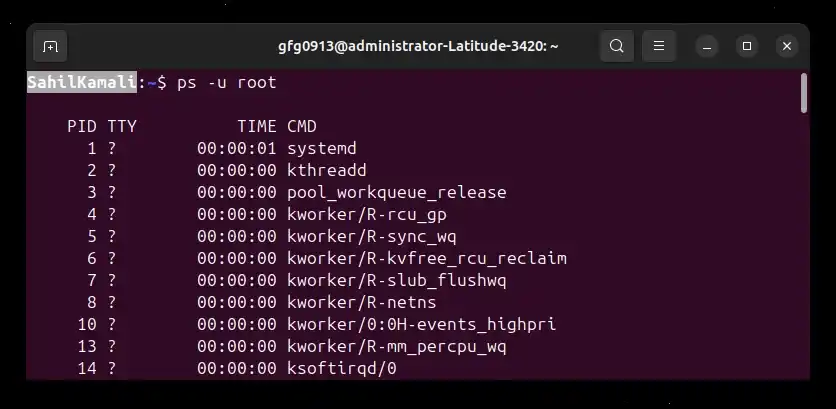
The -u option filters processes based on the user who started them. This option is useful when monitoring the activity of a particular user on a multi-user system.
**Syntax:
ps -u username
- **username: Replace with the name of the user whose processes you want to view.
**Example: View processes owned by the root user
**Command:
ps -u root
**Output:
4. -x : Show Processes Without a Controlling Terminal
The -x option displays processes that do not have a controlling terminal (TTY). These processes usually run in the background and include system services and daemons.
**Command:
ps -x
**Output:

5. -a : Display Processes for All Users With a Terminal
The -a option lists processes for all users that are associated with a terminal, except session leaders.
**Syntax:
ps -a
**Command:
ps -a
**Output:

**Note: A session leader is the first process in a session that starts other processes. Its process ID (PID) is usually the same as the session ID (SID).
6. -p : Display Process by Process ID
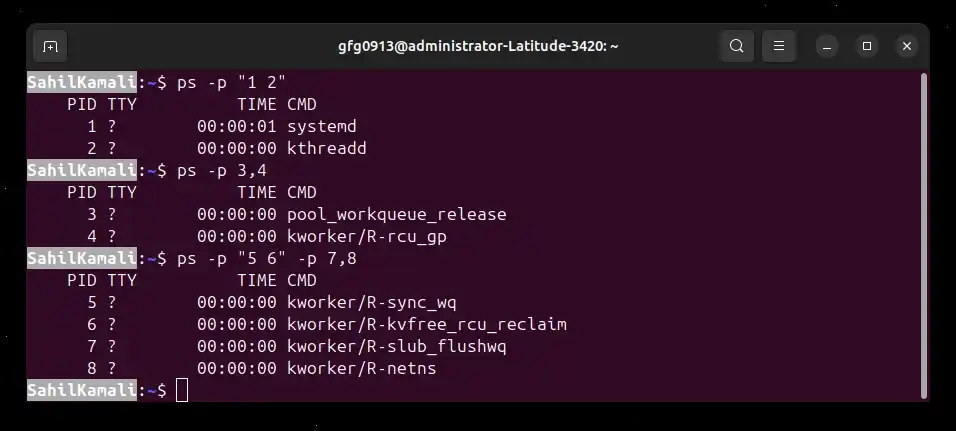
Every process in Linux has a unique Process ID (PID). The -p option allows users to display information about specific processes using their Process IDs (PIDs). Multiple PIDs can be provided as a space-separated or comma-separated list.
**Syntax:
ps -p process_id
**Multiple PIDs:
ps -p pid1,pid2,pid3
**Example: Display Specific Processes
**Command:
ps -p "1 2"
ps -p 3,4
ps -p "5 6" -p 7,8
- **ps -p "1 2": Displays information for PID 1 and PID 2.
- **ps -p 3,4: Demonstrates that comma-separated PIDs can also be used.
- **ps -p "5 6" -p 7,8: Shows that the -p option can be used multiple times, and ps will combine all specified PIDs into a single result.
**Output:
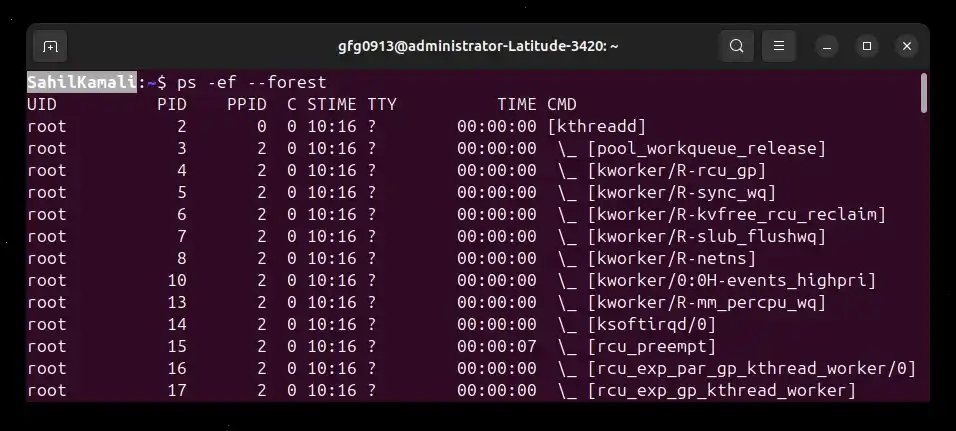
7. --forest : Display Process Tree Structure
The --forest option displays processes in a hierarchical tree format, showing parent-child relationships between processes.
**Syntax
ps -ef --forest
**Command:
ps -ef --forest
**Output:
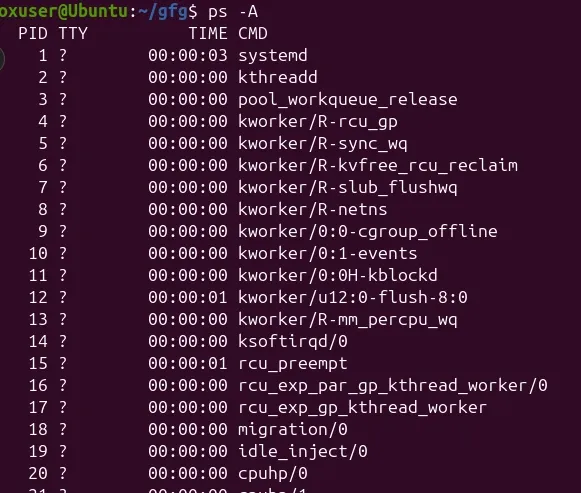
8. -A : View All Running Processes in Linux
The -A option displays all running processes on the Linux system. It is similar to the -e option and shows processes from all users including system services and background tasks.
**Syntax:
ps -A
**Output:
9. -d : List All Processes Except Session Leaders
The -d option lists all processes except session leaders. This helps filter out top-level processes when analyzing system activity.
**Syntax:
ps -d
**Output:

10. -N or --deselect : Exclude Specific Processes
The -N (or --deselect) option negates the selection criteria. Instead of showing matching processes, it shows all processes except those that match the given condition.
**Syntax:
ps [selection_option] -N
or
ps [selection_option] --deselect
**Example: Display Only Session Leaders and Processes Without a Terminal
**Command:
ps -a -N
**Output:
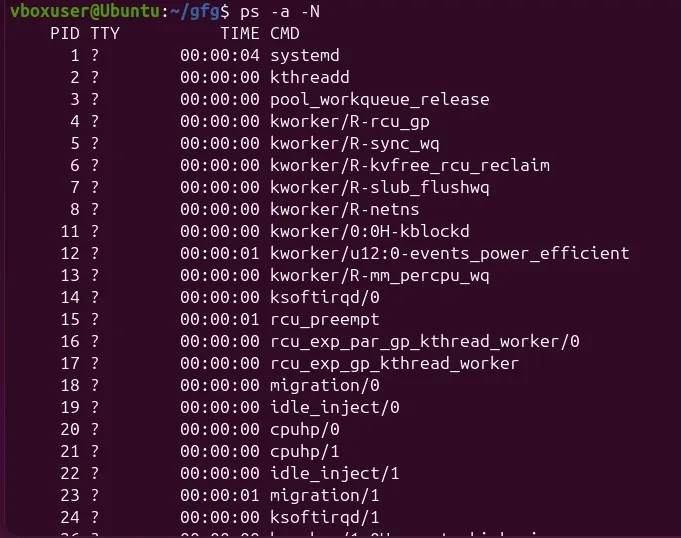
- Lists processes that do not match the selection criteria.
11. aux : Detailed Snapshot of All Running Processes
The ps aux format displays a detailed view of all running processes including user processes, system services, and background tasks. It provides information such as CPU usage, memory usage, process owner, start time, command name.
**Syntax:
ps aux
**Output:
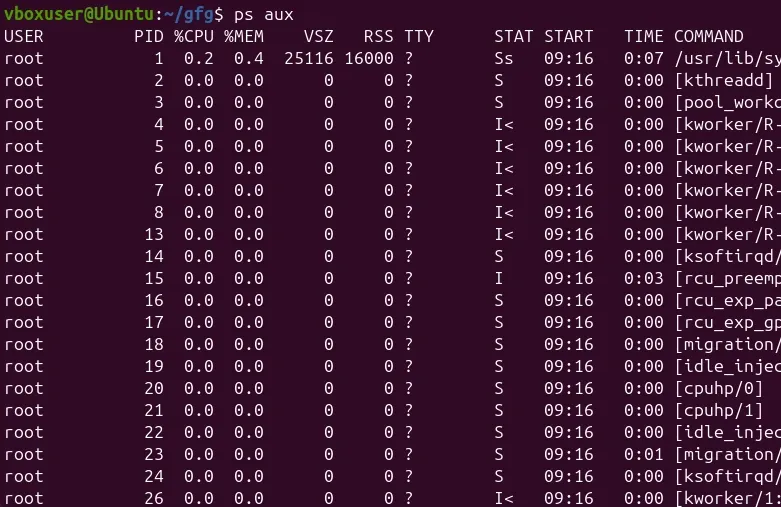
- Displays a detailed list of all system processes.
12. -T : List Processes Associated With the Current Terminal
The -T option displays all processes associated with the current terminal session. This helps users identify commands running within their terminal.
**Syntax:
ps -T
**Output:

- Shows processes linked to the current terminal.
13. -C: Select Processes by Command Name
The -C option filters processes based on the command name (executable name). This is useful when you know the program name but not its PID.
**Syntax:
ps -C command_name
**Example: View Processes for systemd
**Command:
ps -C systemd
**Output:

- Displays processes whose executable name matches the specified command.
14. -G or --Group: Select Processes by Group Name
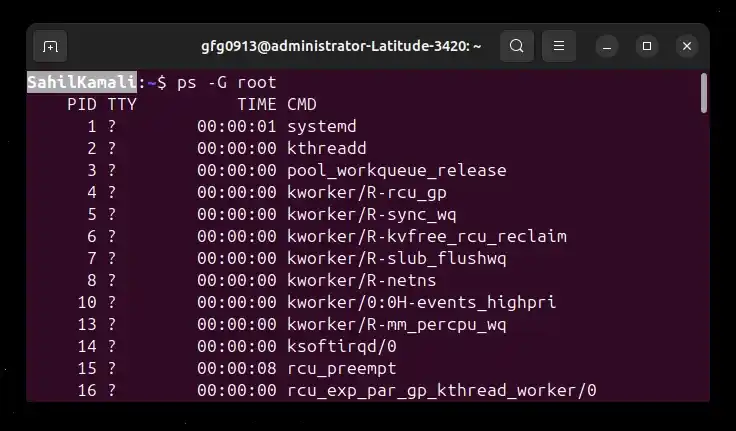
Every process belongs to a user group. The -G or --Group option displays processes belonging to a specific group.
**Syntax:
ps -G group_name
or
ps --Group group_name
**Example: View Processes for the root Group
**Command:
ps -G root
**Output:
15. -g: Select Processes by Group ID
The -g option displays processes belonging to a specific group ID (GID).
**Syntax:
ps -g group_id
**Example
ps -g 1
**Output:

- Shows processes associated with the specified group ID.
Additional Tools to List and Monitor Processes in Linux
Apart from the ps command, Linux provides several other utilities to monitor and list running processes. These tools are useful when you need real-time monitoring, interactive process management, or quick process lookup.
1. top Command to List Running Processes in Linux
The top command is an interactive and real-time process monitoring tool in Linux. It continuously updates system information such as CPU usage, memory usage, and running processes. Unlike ps, which provides a static snapshot, top updates the process list automatically every few seconds.
- Displays real-time system and process statistics
- Shows CPU and memory usage of processes
- Allows sorting processes by resource usage
- Enables users to manage processes interactively
**Command:
top
**Output:

list all processes running in Linux in top
**Process-related information including:
- **PID: Process ID
- **USER: Owner of the process
- **PR: Priority
- **NI: Nice value
- **VIRT: Virtual memory usage
- **RES: Resident set size (non-swapped physical memory used)
- **SHR: Shared memory
- **S: Process status (S: Sleeping, R: Running, I: Idle)
- ****%CPU:** Percentage of CPU usage
- ****%MEM:** Percentage of memory usage
- **TIME+: Total CPU time
- **COMMAND: Command or process name
2. htop Command to List Running Processes in Linux
htop is an interactive process viewer that provides a more user-friendly interface compared to top. It displays system information using colors, graphs, and easier navigation controls. It allows users to scroll through processes, search for processes, and manage processes directly from the interface.
- Interactive and color-coded interface
- Displays CPU and memory usage graphs
- Allows scrolling through process list
- Supports process searching and filtering
**Command:
htop
**Output:

list all processes running in Linux in htop
**Process-related information including:
- **PID: Process ID
- **USER: Owner of the process
- **PRI: Priority
- **NI: Nice value
- **VIRT: Virtual memory usage
- **RES: Resident set size (non-swapped physical memory used)
- **SHR: Shared memory
- **S: Process status (S: Sleeping, R: Running, I: Idle)
- **CPU%: Percentage of CPU usage
- **MEM%: Percentage of memory usage
- **TIME+: Total CPU time
- **Command: Command or process name
3. atop Command to List Running Processes in Linux
atop is an advanced system and process monitoring tool that provides detailed performance metrics for CPU, memory, disk, and network usage. It helps administrators analyze resource consumption and system bottlenecks.
- Displays detailed CPU, memory, disk, and network usage
- Shows process-level resource consumption
- Provides historical performance logging
- Useful for diagnosing system performance issues
**Installing atop:
Before using atop, ensure it is installed on your system. Use the package manager relevant to your Linux distribution:
**Debian/Ubuntu:
sudo apt-get install atop
**Red Hat/CentOS:
sudo dnf install atop
**Launching atop:
To launch atop, open a terminal and type:
**Command:
atop
**Output:

list all processes running in Linux in atop
Process-related information including:
- **PID: Process ID
- **SYSCPU: System CPU Time
- **USRCPU: User CPU Time
- **VGROW: Virtual Memory Growth
- **RGROW: Resident Memory Growth
- **RUID: Real User ID
- **EUID: Effective User ID
- **ST: Process State
- **EXC: Exit Code
- **THR: Number of Threads
- **S: Process Status
- **CPUNR: CPU Number
- **CPU: Overall CPU Usage
- **CMD: Command or Process Name
4. pgrep Command to Find Process IDs in Linux
The pgrep command searches for running processes based on a name or pattern and returns their Process IDs (PIDs). It is commonly used when you know the process name but do not know its PID.
- Finds processes using a name or pattern
- Returns the corresponding process IDs
- Useful for scripting and automation
- Helps quickly locate running applications
**Example 1: Find the PID of a Process
This example shows how to find the process ID of a specific running program.
**Command:
pgrep systemd
**Output:
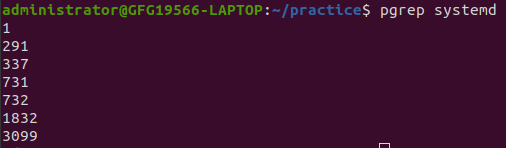
Finding process ID
**Example 2: View Process Information Using the PID
After finding the PID using pgrep, you can use ps to view detailed information about that process.
**Command:
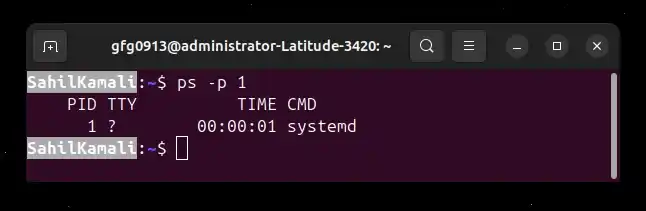
ps -p 1
**Output: