rm command in Linux (original) (raw)
Last Updated : 10 Jan, 2026
The rm command in Linux is used to delete files and directories permanently from the file system. It removes data immediately without sending it to any recycle bin, so deleted files cannot be recovered.
- rm deletes files permanently from the system.
- It does not move deleted data to the Trash/Recycle Bin.
- By default, rm does not delete directories.
- Options like -r, -f, and -i extend its functionality.
Example of Using the rm Command
Given below there are some examples to delete files by using rm command.
[Example 1]: Assume your directory contains:
Assume your directory contains the following files:
$ ls

To Delete one file:
**Command:
rm a.txt
**Output:
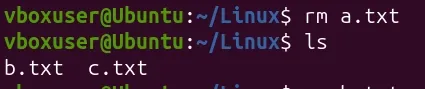
The rm command deletes the file a.txt permanently.
[Example 2]: Delete multiple files
You can delete more than one file at a time:
**Command:
rm b.txt c.txt
**Output:
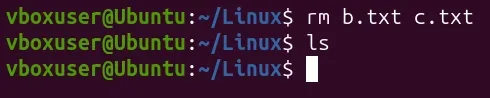
The files b.txt and c.txt are deleted successfully.
Syntax of rm Command
rm [OPTIONS] FILE...
Commonly Used Options in rm Command
Given below the options of rm command:
1. rm -i (Interactive Delete)
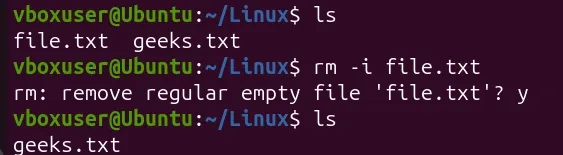
Prompts for confirmation before deleting each file.
rm -i file.txt
2. rm -f (Force Delete)
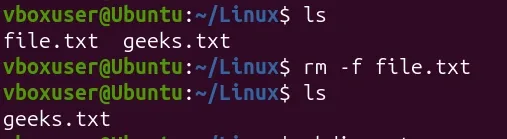
Deletes files without asking for confirmation, even if write-protected.
rm -f file.txt
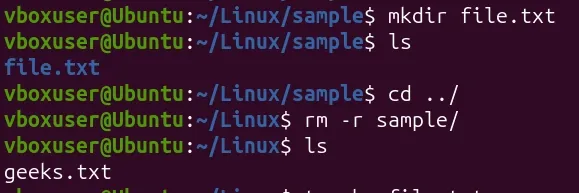
3. rm -r or rm -R (Recursive Delete)
Deletes directories and all contents inside them.
rm -r foldername/
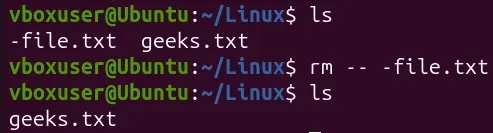
4. rm -- (Delete File Starting with Hyphen)
Used to delete files that begin with -.
rm -- -file.txt
Additional rm Command Options
- **-v (verbose): Displays details of each file as it is deleted.
- **-d (delete empty directory): Removes only empty directories.
- **-rf (recursive + force): Deletes directories and files recursively without any confirmation.
- **--preserve-root (default safety option): Prevents accidental deletion of the root (/) directory.
- **--no-preserve-root (unsafe option): Allows removal of the root directory (highly dangerous and not recommended).
- **-i (interactive mode): Prompts the user once before deleting multiple files.
- **--help: Displays the help manual with usage information and available options.
- **--one-file-system: Ensures deletion stays within the same filesystem and avoids mounted sub-directories.
Understanding rm Behavior
The rm command permanently deletes files and directories from the Linux filesystem without moving them to any Trash or recovery area. Once deleted, the data is typically unrecoverable unless advanced forensic recovery methods are attempted.
- Deleted files are not stored in any recycle bin or temporary location.
- rm performs immediate removal, not reversible deletion.
- Standard undelete tools cannot recover data removed by rm.
- Recovery is only theoretically possible using specialized forensic tools-and not guaranteed.
Difference Between rm vs rmdir
Given below are the common differences between the rm and rmdir commands.
| Feature | rm | rmdir |
|---|---|---|
| Purpose | Deletes files and directories | Deletes only empty directories |
| Recursive Support | Yes, using rm -r | Not supported |
| Force Delete | Yes, rm -f | Not applicable |
| Confirmation Prompt | Optional using -i | No confirmation, fails if directory not empty |
- rm: removes files instantly and can remove folders with -r
- rmdir: removes folders only if they contain no files
Example:
rm file.txt # deletes a file
rm -r folder/ # deletes folder + content
rmdir emptyfolder/ # deletes empty folder only
Safety Tips While Using rm
Follow these precautions to prevent accidental permanent deletion of important files and system directories.
- Double-check paths before executing to avoid deleting critical system files.
- Use interactive mode for safety:
rm -i file.txt - Avoid using rm -rf on system directories like:
/, /home, /etc, /var, /boot - Avoid running destructive commands as root unless required.
- Prefer rm -I over rm -i when deleting many files:
rm -I *.log - Keep regular system backups (especially servers).
?list=PLqM7alHXFySFc4KtwEZTANgmyJm3NqS_L