Shell Script Examples (original) (raw)
Last Updated : 6 Jun, 2026
Shell scripting in Linux allows users to automate tasks by writing a sequence of commands in a script file. It helps reduce manual effort, improve efficiency and ensure consistency in repetitive operations. Scripts can handle file management, system monitoring and process automation with minimal user interaction. This makes shell scripting an essential skill for system administrators, developers and anyone working with Linux environments.
- Executes commands in a defined sequence, ensuring consistent results
- Allows interaction with users through input and output
- Supports scripting for file handling, process control and text processing
- Enables use of command-line arguments for dynamic script behavior
- Provides built-in support for functions to organize and reuse code
Basic Concepts of Shell Scripting
Shell scripts are plain text files containing a series of commands executed by a shell interpreter such as Bash. Each script follows a structured format, starting with the interpreter declaration and followed by executable commands. Understanding these foundational elements is important before moving to practical examples.
- **Shebang (#!): Specifies which interpreter should execute the script
- **Commands: Standard Linux commands written in sequence
- **Variables: Used to store and reuse values
- **Input/Output: Handled using commands like read and echo
- **Execution Permission: Required to run scripts directly
1. Shebang (#!) in Shell Script
The shebang (#!) defines the interpreter that will execute the script. Without it, the system may not know which shell to use, leading to unexpected behavior.
**Example:
#!/bin/bash
echo "Hello World"
- ****#!/bin/bash**: Instructs the system to use the Bash shell. Ensures consistent execution regardless of user’s default shell
- **echo: Prints output to the terminal
**Output:
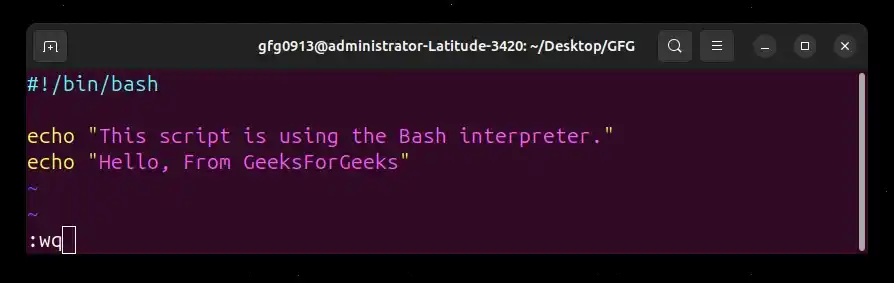
Script of shebang example
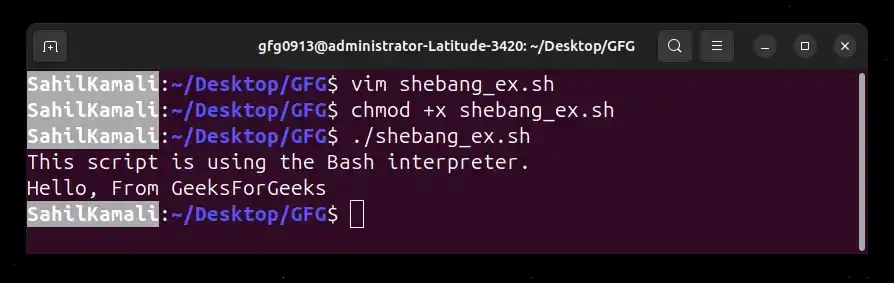
Output of script
2. Running a Shell Script
A script must have executable permissions before it can be run directly. Without execute permission, the script will fail with a permission error
**Example:
chmod +x myscript.sh
./myscript.sh
- **chmod +x: Grants execute permission
- ****./:** Runs the script from the current directory
**Note: Replace "myscript.sh" with your script name.
3. Printing Output Using echo
The echo command is used to display text or variable values on the terminal.
vim myscript.sh
**Script:
#!/bin/bash
This script prints "GeeksforGeeks" to the terminal
echo "GeeksforGeeks"
- ****#!/bin/bash:** Ensures the script runs using the Bash interpreter
- **echo: Prints the given string to standard output
**Output:
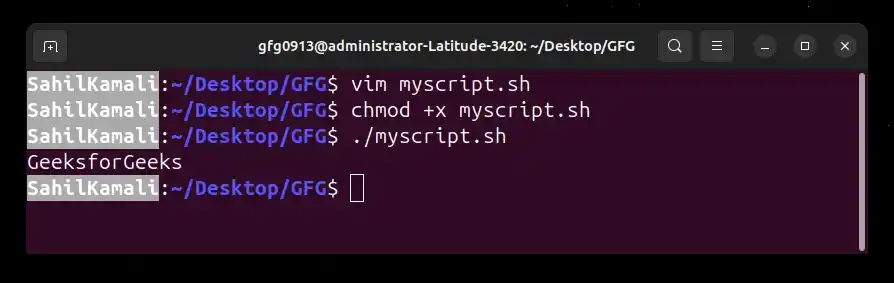
myscript.sh
4. Explain the purpose of the echo command in shell scripting.
The echo command is used to display text or variables on the terminal. It is commonly used for printing messages, variable values and generating program output.
**Output:
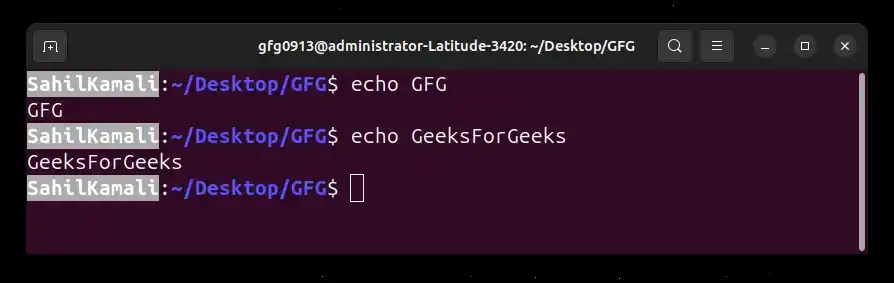
echo GFG
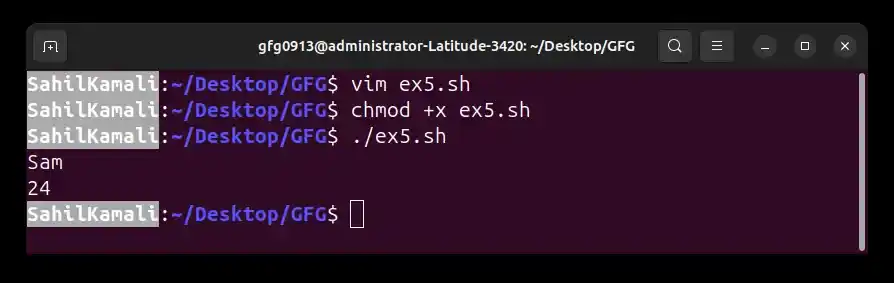
5. Variables in Shell Scripting
Variables are used to store data such as strings, numbers or command outputs. They allow reuse of values throughout the script without repeating them. In shell scripting, variables do not require explicit data type declaration.
**Example:
#!/bin/bash
Assigning a value to a variable
name="Sam"
age=24
echo $name
echo $age
- **name="Sam": Stores a string value in a variable
- **age=24: Stores a numeric value in a variable
- ****$name, $age:** Used to access stored values
- No spaces are allowed around = during assignment
**Output:
Variables in script
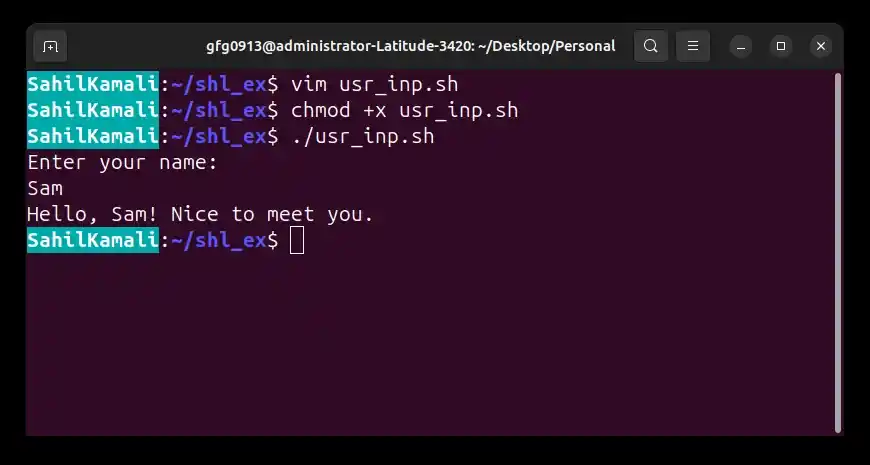
6. Taking User Input Using read
The read command is used to accept input from the user during script execution. The entered value is stored in a variable and can be used later in the script.
**Example: Shell script that takes a user name as input and greets the user.
#!/bin/bash
Prompt the user to enter their name
echo "Enter your name:"
Read user input and store it in the variable 'name'
read name
Display a greeting message using the stored input
echo "Hello, $name! Nice to meet you."
- **read name: Takes input from the user and stores it in the variable name.
- ****$name:** Retrieves the value stored in the variable and prints it on the screen.
- **echo: Used to display messages to the user.
**Output:
User Input Using read command
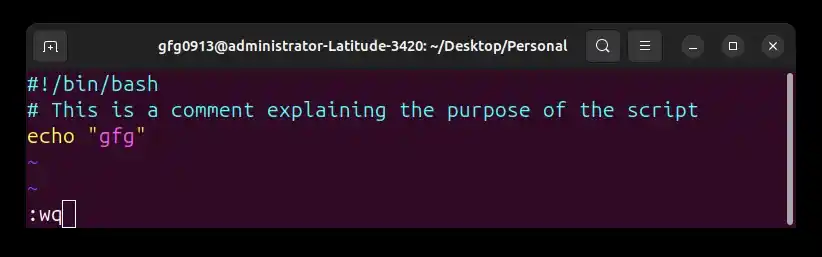
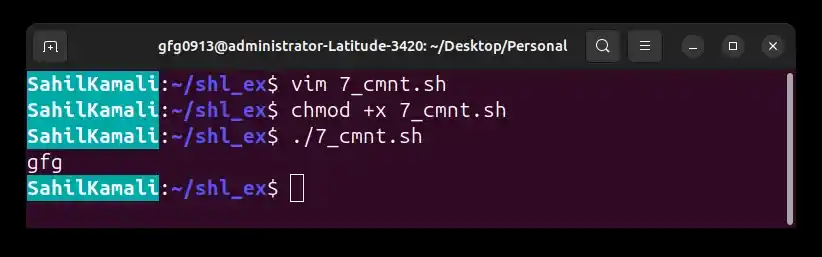
Comments are used to add explanations inside a script. They are ignored by the interpreter and do not affect execution. They improve readability and help in understanding the script logic.
**Example:
#!/bin/bash
This is a comment explaining the purpose of the script
echo "gfg"
- ****#:** Used to write comments in shell scripts
- Anything after # is ignored during execution. Helps document code and improve readability
**Output:
Script of comment
Ignoring comment in script
8. Conditional Statements (if-else)
Conditional statements in Bash are used to execute different blocks of code depending on whether a given condition evaluates to true or false. They are essential for controlling the flow of a script and making decisions based on input or variable values.
**Example 1. Shell script that checks whether a number is greater than 5
#!/bin/bash
Assign a value to the variable 'num'
num=10
Check if the value of num is greater than 5
if [ $num -gt 5 ]; then
echo "Number is greater than 5"
else
echo "Number is 5 or less"
fi
- **num=10: Assigns the value 10 to the variable num.
- **if [ $num -gt 5 ]: Checks whether the value stored in num is greater than 5. (-gt means greater than)
- **then: Starts the block of code that runs if the condition is true.
- **else: Runs the block of code if the condition is false.
- **fi: Marks the end of the if-else statement.
**Output:
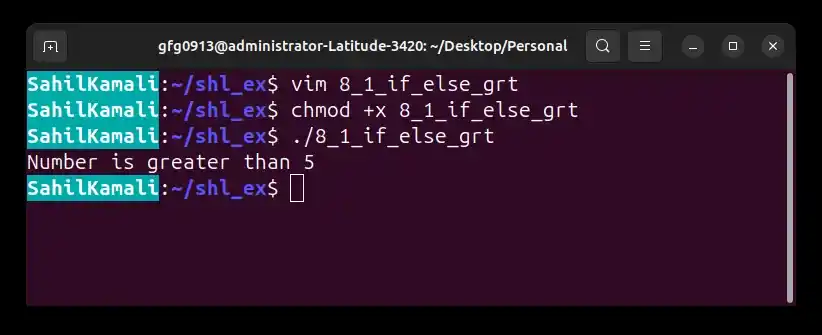
Checks whether a number is greater than 5
**Example 2. Shell script that checks if a file exists in the current directory.
This script checks whether a file named example.txt exists in the current directory and prints a message accordingly.
#!/bin/bash
Define the file name to check
file="example.txt"
Check if the file exists
if [ -e "$file" ]; then
echo "File exists: $file"
else
echo "File not found: $file"
fi
- **file="example.txt": Stores the file name in a variable
- **if [ -e "$file" ]; then: Checks whether the file exists. The -e flag returns true if the file (or directory) exists.
- **else: Runs if the condition is false
- **fi: Ends the if-else block
**Output:
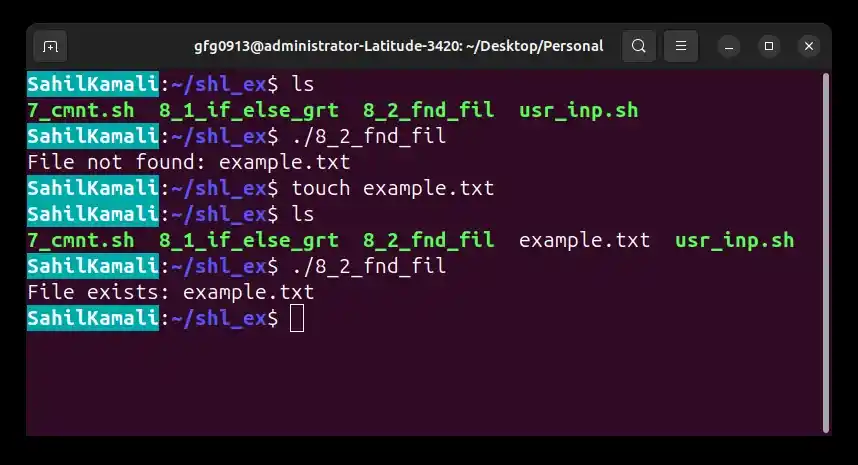
Checks if a file exists in the current directory
9. Single Quotes vs Double Quotes
Quotes are used to define string values in shell scripting, but they behave differently based on how Bash interprets them. Understanding this difference is important for correct output in scripts.
- **Single quotes (' '): Treat text as literal; no variable expansion or command substitution happens, so output is printed exactly as written.
- **Double quotes (" "): Allow variable expansion and command substitution; variables are evaluated and replaced with their values before printing.
**Script:
#!/bin/bash
var="Linux"
Single quotes: literal output
echo '$var'
Double quotes: variable gets expanded
echo "$var"
- **var="Linux": Stores the value Linux in a variable
- **echo '$var': Prints $var as plain text (no expansion)
- **echo "$var": Expands the variable and prints its value (Linux)
**Output:
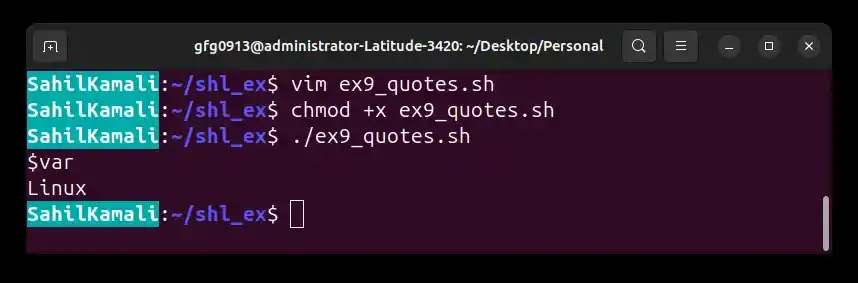
Single Quotes vs Double Quotes
10. Command-Line Arguments in Shell Script
Command-line arguments allow users to pass values to a shell script at runtime. These values are accessed using positional parameters such as 0,0, 0,1, $2, etc., which represent the script name and the arguments provided.
**Example:
#!/bin/bash
echo "Script name: $0"
echo "First argument: $1"
echo "Second argument: $2"
- ****$0:** Name of the script being executed
- ****$1:** First argument passed to the script
- ****$2:** Second argument passed to the script
**Run:
./script.sh Hello World
**Output:
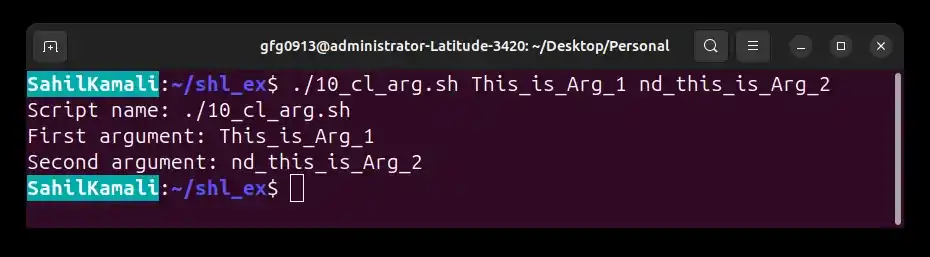
Command-Line Arguments
11. for Loop in Shell Scripting
The for loop is used to iterate over a list of values or array elements. It executes a block of commands repeatedly for each item in the list.
**Example: Loop through a list of fruits
#!/bin/bash
Define an array of fruits
fruits=("apple" "banana" "cherry")
Loop through each element in the array
for fruit in "${fruits[@]}"; do
echo "Fruit: $fruit"
done
- **fruits=("apple" "banana" "cherry"): Defines an array
- **for fruit in "${fruits[@]}": Iterates through each array element
- ****$fruit:** Holds current element in each iteration
- **do ... done: Defines the block of commands to repeat
**Output:
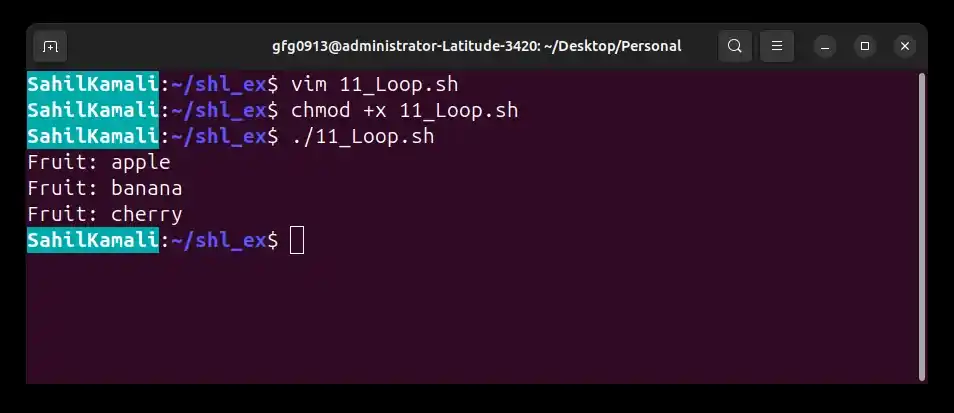
for Loop
12. Shell Script to Calculate Sum from 1 to N Using a Loop
This script calculates the sum of all integers from 1 to a user-provided number N using a for loop.
**Example: Sum of First N Numbers
#!/bin/bash
Ask user for input
echo "Enter a number (N):"
read N
Initialize sum variable
sum=0
Loop from 1 to N
for (( i=1; i<=N; i++ )); do
sum=$((sum + i))
done
Display final result
echo "Sum of integers from 1 to Nis:N is: Nis:sum"
- **echo "Enter a number (N):": Prompts the user to enter a value for N
- **read N: Stores the input value in variable N
- **sum=0: Initializes sum variable to 0 for accumulation
- **for (( i=1; i<=$N; i++ )): Loop runs from 1 to N
- **sum=$((sum + i)): Adds current value of i to sum in each iteration
- **done: Ends the loop
**Output:
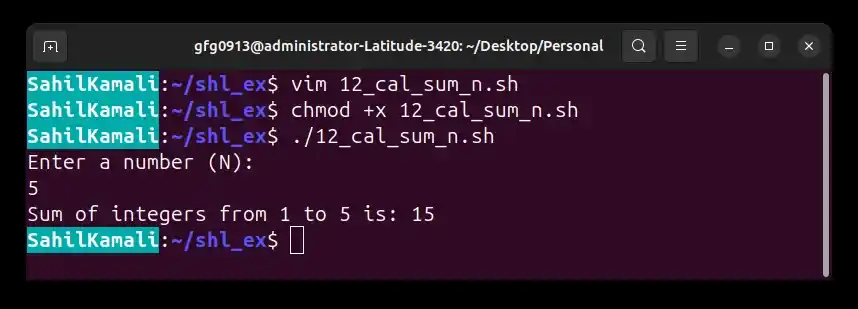
Calculating sum from 1 to N using a loop
13. while Loop in Shell Scripting
A while loop is used in shell scripting to repeatedly execute a set of commands as long as a specified condition is true. The loop continues executing the commands until the condition becomes false.
**Syntax of while loop:
while [ condition ]; do
# commands to execute
done
- The condition is checked before each iteration
- If the condition is true: loop runs
- If the condition becomes false: loop stops
- do ... done defines the block of repeated commands
**Example: Print Numbers from 1 to 5
#!/bin/bash
counter=1
while [ $counter -le 5 ]; do
echo "Number: $counter"
counter=$((counter + 1))
done
- **counter=1: Starts counting from 1
- **[ $counter -le 5 ]: Runs loop while counter is ≤ 5
- **echo "Number: $counter": Prints current value
- **counter=$((counter + 1)): Increases counter by 1 each time
- **done: Ends the loop
**Output:
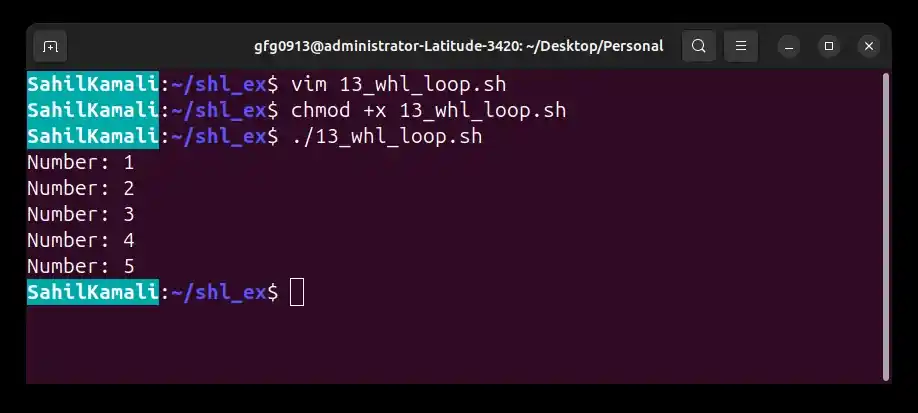
while loop
14. Standard Output vs Standard Error
Shell scripting uses different output streams to separate normal output and error messages. This helps in debugging and redirecting outputs efficiently.
- **Standard Output (stdout): This is the default stream for normal output of a command. It is shown on the terminal by default and can be redirected to a file using >.
- **Standard Error (stderr): This stream is used for error messages and warnings. It is also shown on the terminal by default but can be redirected separately using 2>.
**Example:
#!/bin/bash
echo "This is normal output"
ls invalid_file
**Output:
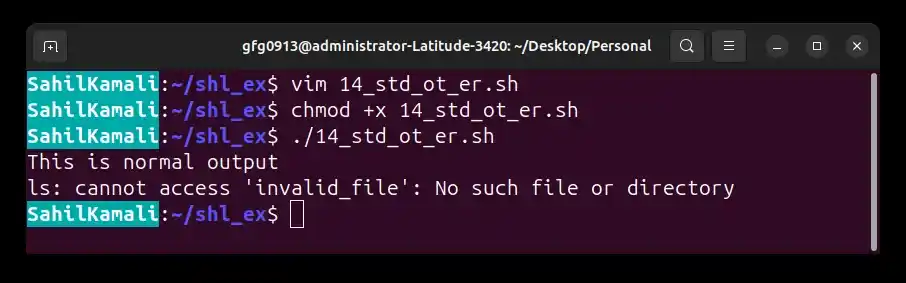
Standard Output vs Standard Error
15. Conditional Statements in Shell Scripting
Conditional statements allow a shell script to make decisions and control the flow of execution based on whether certain conditions are true or false. They help run different commands depending on the situation.
**Basic Structure:
if [ condition ]; then
# commands if condition is true
elif [ another_condition ]; then
# commands if another condition is true (optional)
else
# commands if all conditions are false (optional)
fi
- **[ condition ]: Tests a condition and returns a status (0 means true, non-zero means false).
- **then: Starts the block of commands to execute if the condition is true.
- **elif: Checks additional conditions if the previous condition is false (optional).
- **else: Runs when none of the conditions are true (optional).
- **fi: Ends the conditional statement block.
16. Reading Lines from a File in Shell Scripting
In shell scripting, we can read a file line by line using a while loop with the read command. This is a safe and efficient way to process file content without loading the entire file into memory.
**Example: Read a File Line by Line
#!/bin/bash
file="/home/gfg0913/shl_ex/example.txt"
Check if file exists
if [ -e "$file" ]; then
# Read file line by line
while IFS= read -r line; do
    echo "Line read: $line"
done < "$file"
else
echo "File not found: $file"
fi
- **file="/home/gfg0913/shl_ex/example.txt": Stores file path in a variable
- **[ -e "$file" ]: Checks if the file exists
- **while IFS= read -r line: Reads file line by line safely
- **IFS=: Preserves spaces (no trimming)
- **-r: Prevents backslash interpretation
- **line: Stores each line one by one
- **done < "$file": Feeds file content into the loop
- **echo "Line read: $line": Prints each line
- **else: Runs if file is not found
**Output:
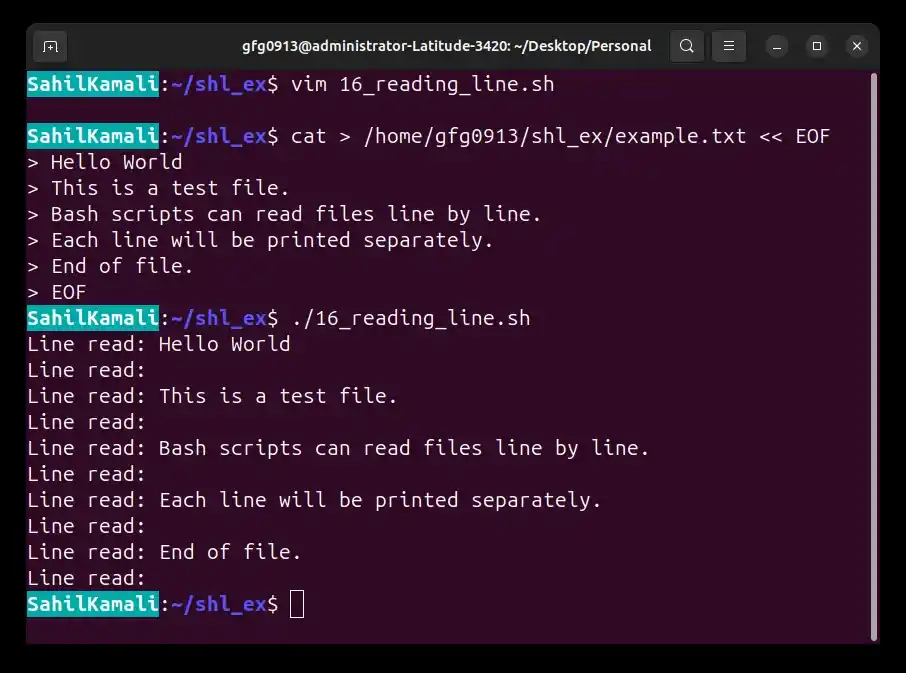
Reading Lines from a File
17. Shell Script to Count Occurrences of a Word in a File
This script asks the user for a word and a file name, then counts how many times the word appears in the file.
**Example: Search and Count a Word
#!/bin/bash
Take user input
echo "Enter the word to search for:"
read target_word
echo "Enter the filename:"
read filename
Count occurrences of the word
count=$(grep -o -w "$target_word" "$filename" | wc -l)
Display result
echo "The word '$target_word' appears counttimesin′count times in 'counttimesin′filename'."
- **read target_word: Takes the word to search
- **read filename: Takes the file name
- **grep -o -w "$target_word" "$filename": Searches for the word in the file and prints each match on a new line.
- **-w: Ensures only whole word matches are counted.
- **-o: Prints each occurrence separately (one per line).
- ****| (pipe):** Sends the output of grep to the next command.
- **wc -l: Counts the number of lines, which equals the number of occurrences.
- **count=$(...): Stores the final count in the variable count.
- **echo: Displays the final count
**Output:
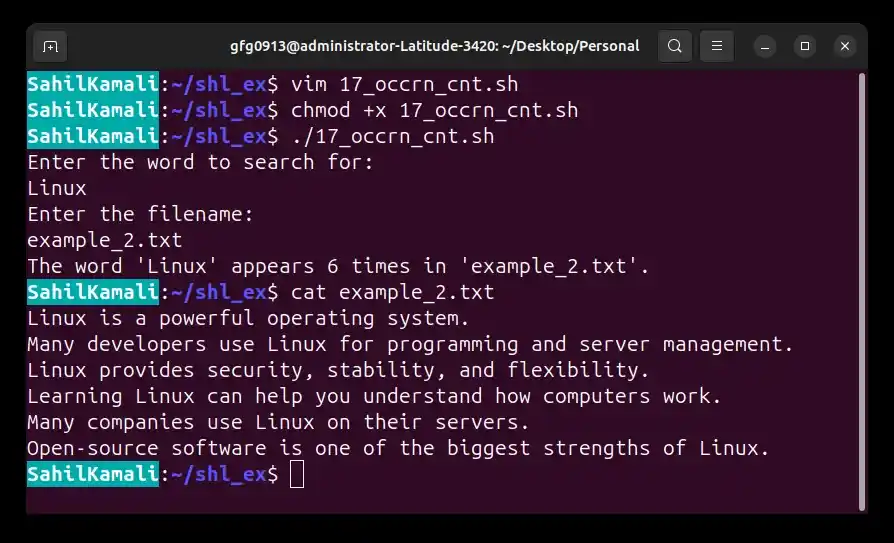
Count Occurrences of a Word in File
18. Shell Script Function to Calculate Factorial
A function in shell scripting helps organize reusable code. This script defines a function to calculate the factorial of a number.
#!/bin/bash
Function to calculate factorial
calculate_factorial() {
num=$1
fact=1
for ((i=1; i<=num; i++)); do
    fact=$((fact * i))
done

echo $fact
}
Take input from user
echo "Enter a number:"
read input_num
Call function and store result
factorial_result=$(calculate_factorial $input_num)
Display result
echo "Factorial of inputnumis:input_num is: inputnumis:factorial_result"
- **calculate_factorial(): Defines a function to compute factorial.
- **num=$1: Takes the input number as an argument to the function.
- **fact=1: Initializes the factorial result.
- **for ((i=1; i<=num; i++)): Loops from 1 to the given number.
- **fact=$((fact * i)): Multiplies fact by each number in the loop.
- **echo $fact: Returns the calculated factorial value.
- **read input_num: Takes input from the user.
- **factorial_result=$(...): Stores the function output.
- **echo "Factorial...": Displays the final result.
**Output:
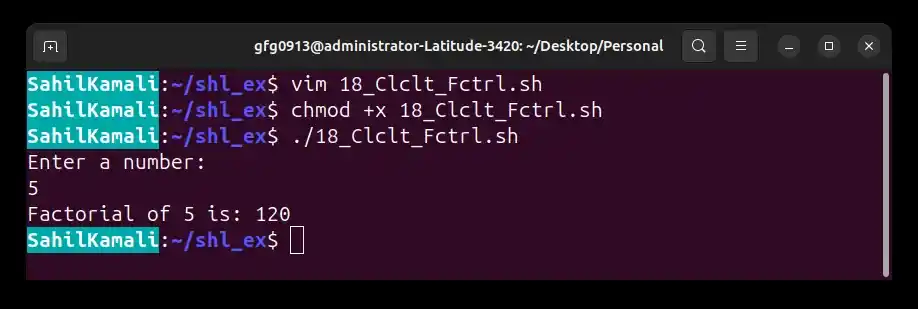
Calculation of Factorial
19. Handling Ctrl+C (SIGINT) in Shell Scripting
In shell scripting, Ctrl+C (SIGINT) is an interrupt signal sent by the user to stop a running program. We can handle this signal using the trap command to safely stop the script or perform cleanup tasks before exiting.
**Example: Handling Ctrl+C in a Script
This script catches the Ctrl+C interrupt and runs a cleanup function instead of stopping abruptly.
#!/bin/bash
Function to run when script is interrupted
cleanup() {
echo "Script interrupted (Ctrl+C pressed). Cleaning up before exit..."
exit 1
}
Trap Ctrl+C (SIGINT) signal
trap cleanup SIGINT
echo "Script is running..."
sleep 10
echo "Script completed successfully."
- **cleanup(): Defines a function that runs when the script is interrupted.
- **echo "Script interrupted...": Displays a message when Ctrl+C is pressed.
- **exit 1: Stops the script immediately with an error status.
- **trap cleanup SIGINT: Catches the Ctrl+C signal (SIGINT) and calls the cleanup function.
- **echo "Script is...": Shows that the script has started execution.
- **sleep 10: Pauses the script for 10 seconds (simulating work).
- **echo "Script completed...": Runs only if the script is not interrupted.
**Output:
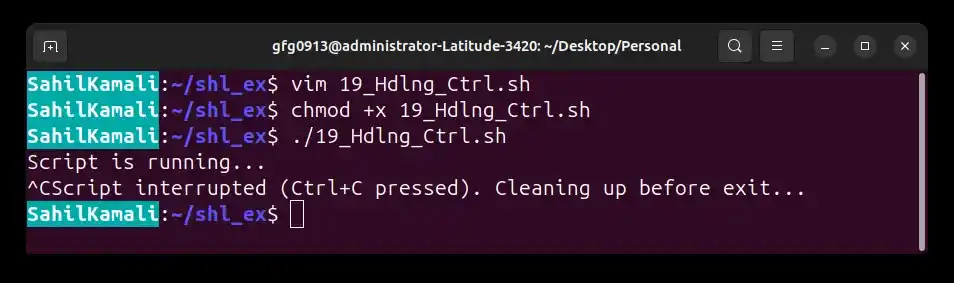
Handling Ctrl+C (SIGINT)
20. Removing Duplicate Lines from a File
Duplicate lines in a file can be removed to clean data and improve readability. This is commonly used in log processing and data preprocessing.
**Example: Here is our linux script in which we will remove duplicate lines from a text file.
#!/bin/bash
Input and output file names
input_file="input.txt"
output_file="output.txt"
Check if input file exists
if [ -e "$input_file" ]; then
# Sort and remove duplicate lines
sort "$input_file" | uniq > "$output_file"

echo "Duplicate lines removed successfully."
echo "Output saved in $output_file"
else
echo "File not found: $input_file"
fi
- **input_file="input.txt": Input file with duplicate lines
- **output_file="output.txt": File to store cleaned data
- **[ -e "$input_file" ]: Checks if input file exists
- **sort "$input_file": Sorts lines (groups duplicates together)
- **uniq: Removes duplicate lines
- **>: Redirects output to a new file
- **echo: Displays status messages
**Output:
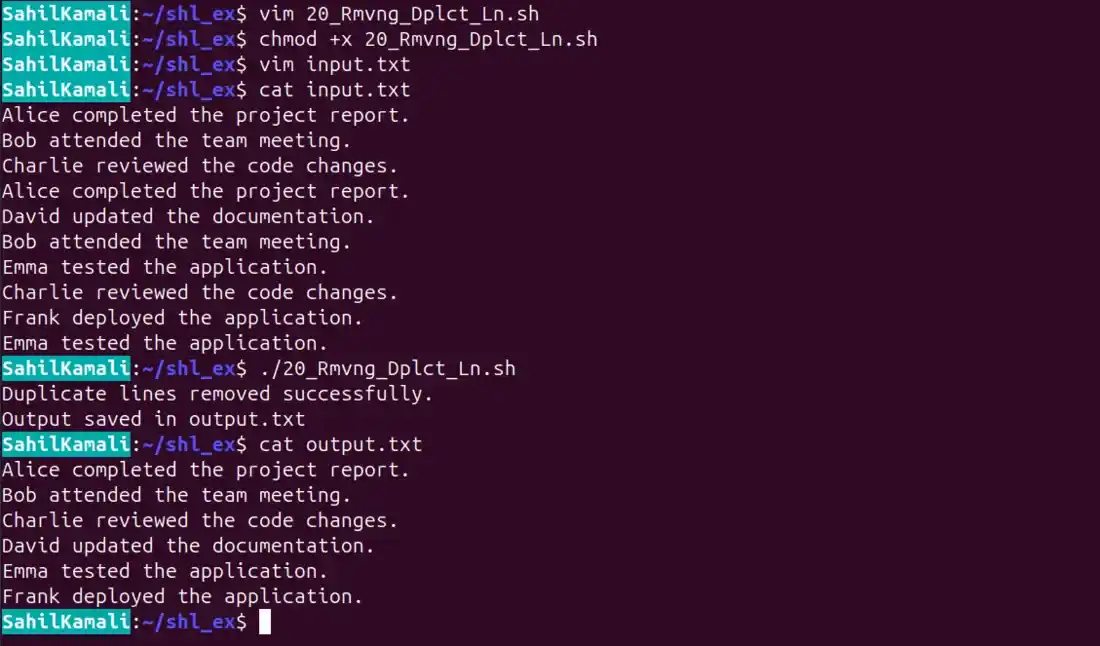
duplicate line removing
21. Generating a Secure Random Password
Random password generation is used in security-related scripts to create strong credentials automatically. It helps improve system security by avoiding predictable passwords.
**Example: Password Generator Script
#!/bin/bash
Function to generate a random password
generate_password() {
tr -dc 'A-Za-z0-9!@#$%^&*()_+{}[]' < /dev/urandom | fold -w 12 | head -n 1
}
Generate and store password
password=$(generate_password)
Display result
echo "Generated password: $password"
- **generate_password(): Function that creates a random password
- ****/dev/urandom:** Provides continuous random data from the system
- **tr -dc 'A-Za-z0-9!@#$%^&*()_+{}[]': Keeps only allowed characters (removes unwanted ones)
- **fold -w 12: Splits output into 12-character chunks (sets password length)
- **head -n 1: Takes only the first password generated
- **password=$(...): Stores generated password in a variable
- **echo: Displays the final password
**Output:
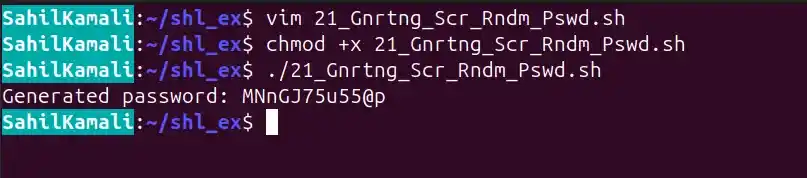
Generating a Secure Random Password
22. Calculating Total Size of a Directory
Directory size calculation is used to monitor disk usage and manage storage efficiently. It helps identify how much space files inside a directory are consuming.
**Example: Total Size of a Directory
#!/bin/bash
Directory path
directory="/path/to/your/directory"
Calculate total size
total_size=$(du -ch "$directory" | grep total | awk '{print $1}')
Display result
echo "Total size of files in directory:directory: directory:total_size"
- **directory="/path/to/your/directory": Stores the target directory path
- **du -ch "$directory": Calculates disk usage
- **-c: Shows total summary
- **-h: Human-readable format (KB, MB, GB)
- **grep total: Extracts only the total line
- **awk '{print $1}': Gets only the size value
- **total_size=$(...): Stores result in a variable
- **echo: Displays final output
**Output:
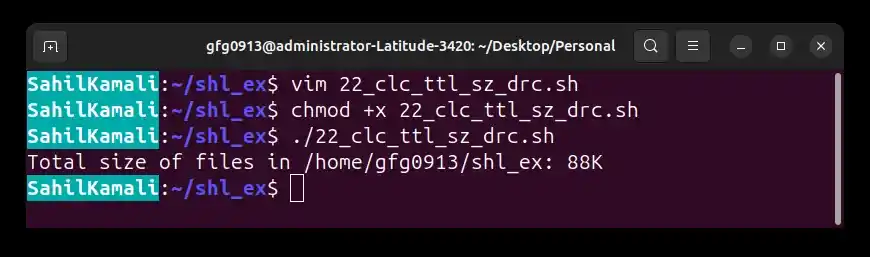
Calculating Total Size of a Directory
23. Difference Between if and elif
if and elif are used in conditional statements to control decision-making in scripts. They allow execution of different blocks based on multiple conditions.
| if Statement | elif Statement |
|---|---|
| Used to check the initial condition in a shell script decision structure | Provides alternative conditions when the initial if condition is false |
| Used to start a conditional block | Used after if to test additional conditions |
| Only one if block is allowed | Multiple elif blocks can be used; only one else block (optional) |
| Executes its block if the condition is true; otherwise control moves to elif/else if present | Evaluated only if previous conditions are false; if true, its block runs and the rest of the chain is skipped |
| Can be nested inside other if, elif or else blocks | Cannot start a nested chain on its own, but can be used inside if or else blocks |
Let’s understand it with an example.
#!/bin/bash
number=5
Simple if-else example
if [ $number -gt 10 ]; then
echo "$number is greater than 10"
else
echo "$number is not greater than 10"
fi
echo "--------"
if-elif-else example
if [ $number -gt 10 ]; then
echo "$number is greater than 10"
elif [ $number -eq 10 ]; then
echo "$number is equal to 10"
else
echo "$number is less than 10"
fi
- **number=5: Stores the value to be tested
- **First if block: Checks if number is greater than 10; if not, prints the else message
- **Second block: Uses if, elif and else to check multiple conditions in sequence
- **-gt: Greater than
- **-eq: Equal to
- **else: Runs when none of the conditions are true
**Output:
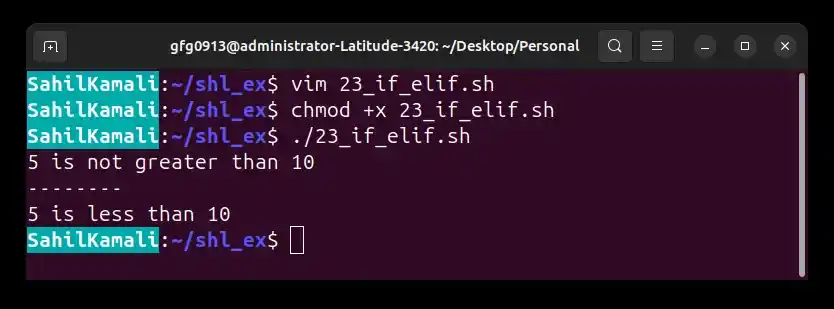
if_elif difference
24. Finding and Listing Empty Files in a Directory
Empty file detection is useful for cleaning up unused files and managing storage efficiently. The find command is commonly used for this purpose.
#!/bin/bash
Take directory path from command-line argument
directory="$1"
Check if directory is provided
if [ -z "$directory" ]; then
echo "Usage: $0 "
exit 1
fi
Check if valid directory
if [ ! -d "$directory" ]; then
echo "Error: '$directory' is not a valid directory."
exit 1
fi
Find and list empty files
echo "Empty files in $directory:"
find "$directory" -type f -empty
- **directory="$1": Stores the first command-line argument as the directory path.
- **if [ -z "$directory" ]: Checks if no directory is provided.
- **echo "Usage: 0<directory>":∗∗Showscorrectusageofthescript(0 <directory>": Shows correct usage of the script (0<directory>":∗∗Showscorrectusageofthescript(0 is the script name).
- **exit 1: Stops the script with an error if input is missing.
- **if [ ! -d "$directory" ]: Checks whether the given path is a valid directory.
- **echo "Error...": Displays an error message if the directory is invalid.
- **exit 1: Stops execution if the directory does not exist.
- **echo "Empty files...": Displays a message before listing results.
- **find "$directory" -type f -empty: Finds and lists all empty regular files in the directory.
**Output:
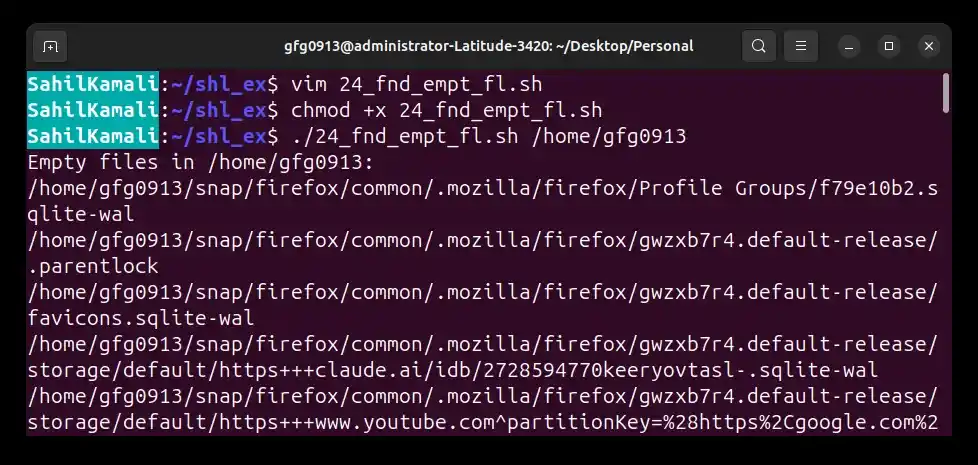
Finding and Listing Empty Files in a Directory
**Note: We need to provide a directory as an argument when running the script. Here we have used the path of current directory "/home/gfg0913"
25. Purpose of the read Command
The read command is used to take input from the user during script execution. It pauses the script, waits for the user to type a value and stores that value in a variable. This makes scripts interactive and dynamic.
**Syntax:
read variable_name
**Example: Asks the user for their name and displays a greeting message.
#!/bin/bash
echo "Please enter your name:"
read name
echo "Hello, $name!"
- **read name: Stores user input in variable name
- **echo: Displays messages on terminal
- ****$name:** Accesses stored input value
**Output:

read Command
26. Converting Filenames to Lowercase in a Directory
File renaming operations are useful for maintaining consistency in naming conventions. Converting filenames to lowercase helps standardize file systems and avoid case-related issues.
#!/bin/bash
Take directory path from command-line argument
dir="$1"
Check if directory is provided
if [ -z "$dir" ]; then
echo "Usage: $0 "
exit 1
fi
Check if valid directory
if [ ! -d "$dir" ]; then
echo "Error: '$dir' is not a valid directory."
exit 1
fi
Move into directory
cd "$dir" || exit
Loop through all files
for file in *; do
if [ -f "$file" ]; then
    # Convert filename to lowercase
    newname=$(echo "$file" | tr 'A-Z' 'a-z')

    # Rename file
    mv "$file" "$newname"
fi
done
echo "Filenames converted to lowercase successfully."
- **dir="$1": Takes the directory path as a command-line argument.
- **if [ -z "$dir" ]: Checks if the user provided a directory or not.
- **echo "Usage: $0 ": Shows correct usage if no argument is given.
- **if [ ! -d "$dir" ]: Checks whether the provided path is a valid directory.
- **cd "$dir" || exit: Moves into the directory; exits if it fails.
- **for file in *: Loops through all items in the directory.
- **if [ -f "$file" ]: Ensures only files are processed.
- **tr 'A-Z' 'a-z': Converts uppercase letters in filenames to lowercase.
- **mv "$file" "$newname": Renames the file.
- **echo "Filenames converted...": Confirms completion.
**Output:
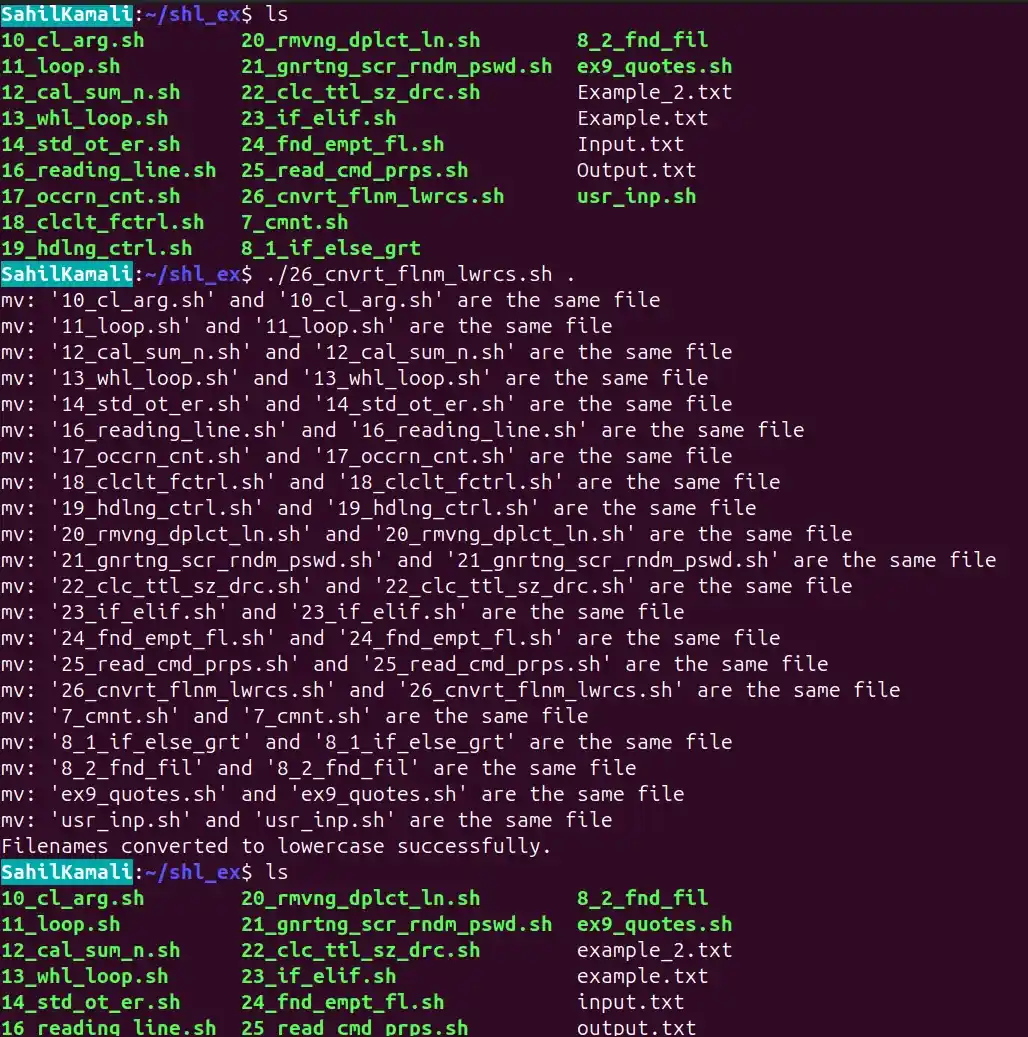
Converting Filenames to Lowercase
**Note: You must provide a directory as an argument when running the script. In this example, the current directory is used by passing . (a single dot), which represents the current working directory.
27. Arithmetic Operations in Shell Scripting
Arithmetic operations in shell scripting are used to perform mathematical calculations like addition, subtraction, multiplication and division. The most common methods are Arithmetic Expansion, expr and let.
**Example: Different Ways to Perform Addition
#!/bin/bash
num1=10
num2=5
Method 1: Arithmetic Expansion (Recommended)
result=$((num1 + num2))
echo "Sum (Arithmetic Expansion): $result"
Method 2: Using expr command
sum=$(expr num1+num1 + num1+num2)
echo "Sum (expr): $sum"
Method 3: Using let command
let "sum = num1 + num2"
echo "Sum (let): $sum"
- **num1=10, num2=5: Defines two numeric variables
- ****$((num1 + num2)):** Performs arithmetic directly inside the shell (most preferred method)
- **expr: External command used for evaluation (requires spaces between operators)
- **let: Performs arithmetic directly on variables without $((...))
- **echo: Displays the result of each method
**Output:
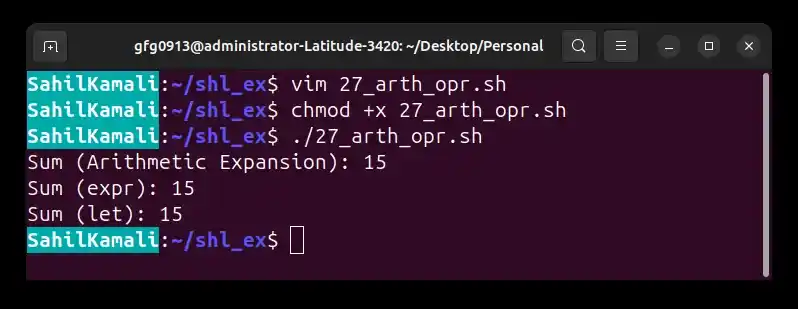
Arithmetic Operations
28. Checking Network Host Reachability
Host reachability checks are used to verify whether a system or server is accessible over a network. The ping command is commonly used for this purpose.
**Example: Check If a Host is Reachable
#!/bin/bash
Take host from command-line argument
host="$1"
Check if host is provided
if [ -z "$host" ]; then
echo "Usage: $0 "
exit 1
fi
Send 4 ICMP packets
ping -c 4 "$host"
Check result of ping command
if [ $? -eq 0 ]; then
echo "Host is reachable"
else
echo "Host is not reachable"
fi
- **host="$1": Takes the host name or IP address as a command-line argument.
- **if [ -z "$host" ]: Checks if the user has provided a host.
- **echo "Usage: $0 ": Shows correct usage if no argument is given.
- **ping -c 4 "$host": Sends 4 packets to test connectivity.
- ****$?:** Stores the exit status of the ping command.
- **0: Means the host is reachable successfully.
- **Non-zero: Means the host is not reachable.
- **if-else: Displays the result based on the ping status.
**Output:
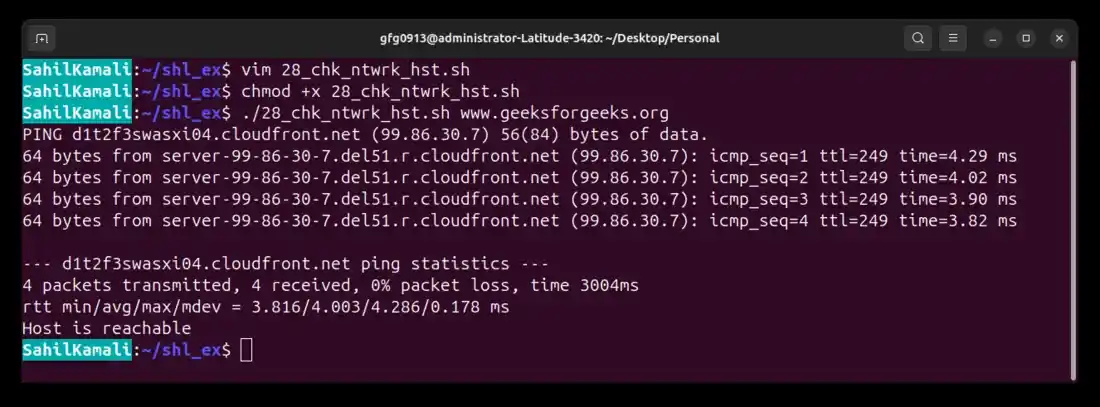
Checking Network Host Reachability
**Note: A hostname must be provided as an argument when running the script. In this example, the hostname used is: www.geeksforgeeks.org
29. Finding the Greatest Element in an Array
Arrays in shell scripting are used to store multiple values in a single variable. Finding the maximum value is useful in data processing and comparisons.
**Example: Find Maximum Value in an Array
#!/bin/bash
Define an array of numbers
array=(3 56 24 89 67)
Assume first element is the maximum
max=${array[0]}
Loop through all elements
for num in "${array[@]}"; do
if [ num−gtnum -gt num−gtmax ]; then
max=$num
fi
done
Display the result
echo "Greatest element: $max"
- **array=(3 56 24 89 67): Creates an array of numbers.
- **max=${array[0]}: Initializes max with the first element of the array.
- **for num in "${array[@]}": Loops through each element in the array.
- **if [ num−gtnum -gt num−gtmax ]: Checks if the current number is greater than max.
- **max=$num: Updates max when a larger value is found.
- **echo "Greatest element: $max": Displays the largest number.
**Output:
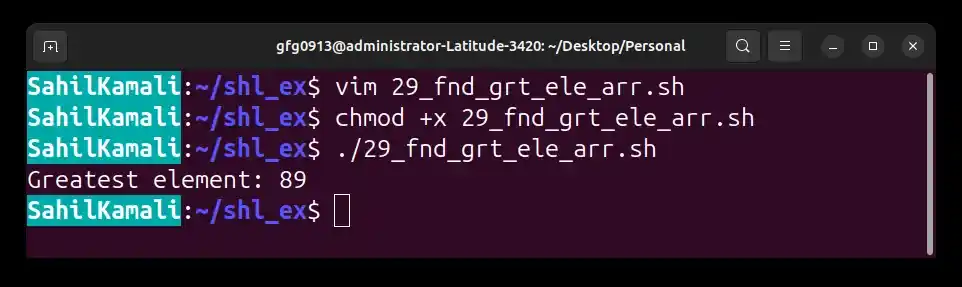
Finding the Greatest Element in an Array
30. Calculating Sum of Array Elements
Array processing is commonly used in shell scripting for performing aggregate operations. Summing all elements in an array helps in basic data calculations and analysis.
**Example: Find Sum of Array Elements
#!/bin/bash
Define an array of numbers
array=(1 65 22 19 94)
Initialize sum to 0
sum=0
Loop through each element of the array
for num in "${array[@]}"; do
sum=$((sum + num))
done
Display final result
echo "Sum of elements: $sum"
- **array=(1 65 22 19 94): Creates an array of numbers.
- **sum=0: Initializes a variable to store the total sum.
- **for num in "${array[@]}": Loops through each element of the array.
- **sum=$((sum + num)): Adds each element to the running total using arithmetic expansion.
- **echo "Sum of elements: $sum": Displays the final sum.
**Output:
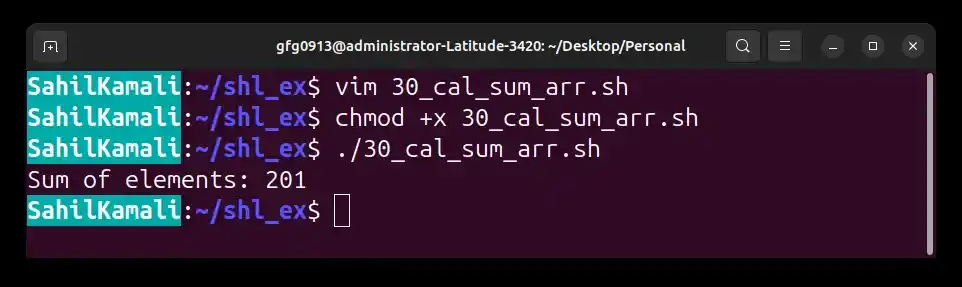
Calculating Sum of Array Elements