Displaying Directory Structure in a Tree Format in Linux (original) (raw)
Last Updated : 6 Dec, 2025
The tree command in Linux displays the directory structure in a hierarchical, tree-like format, providing a clear visual representation of files and subdirectories.
- tree command helps visualize the organization of the filesystem.
- It can include hidden files and limit the depth of display.
- Useful for quickly analyzing complex directory structures.
Below are examples of the tree command in Linux.
Display the tree hierarchy of a directory
- The tree command displays the complete hierarchical structure of a directory, showing all its subdirectories and files in a tree-like format
tree -a ./GFG
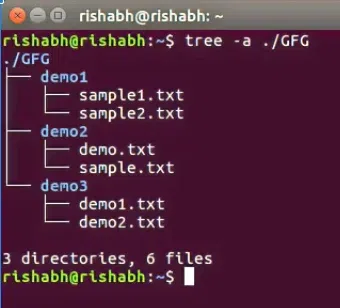
tree -a ./GFG
Syntax of tree Command in Linux
tree [options]
Installing `tree` Command in Linux
By default, the tree command is not installed. Type the following command to install the same
Installation in Ubuntu
sudo apt update
sudo apt install tree -y
The -y automatically confirms the installation.
Note that in version greater than RHEL 8, we need to need dnf command.
For example, in installation in RHEL 9.
sudo dnf install tree

sudo dnf install tree
Installation in Debian / Mint / Ubuntu Linux
sudo apt-get install tree
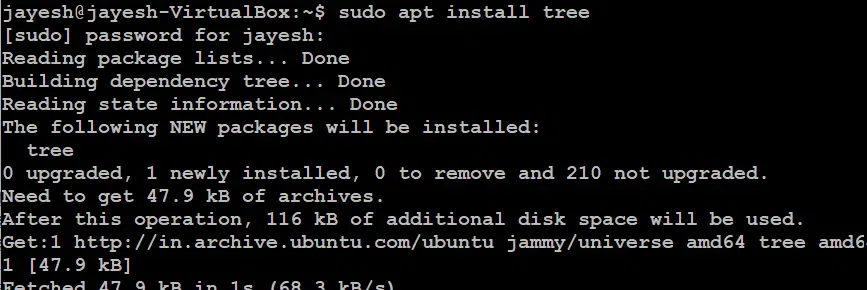
sudo apt-get install tree
Installation in Apple OS X
brew install tree
If we want to display the directory structure using the simple `tree` command without adding any option.

tree
Here `tree` command will output the directory structure, starting from the current directory.
Examples of tree command
Given below the list of examples of tree command in linux:
1. List files with entered pattern
- The tree command can list only those files and directories that match a specified pattern, helping to filter and display relevant results within the hierarchy.
tree -P sample* .
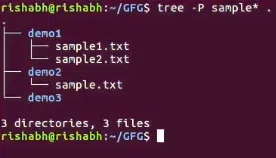
tree -P sample* .
2. Listing Only Files Recursively
- The tree command by default shows both files and directories. If you want to list only files, you can use:
tree -daifv --noreport . | xargs -I {} tree -aifv -L 1 --noreport {} | xargs -I {} find {} -prune -type f
3. List those directories which have greater 'N' number of files/directories
- The tree command can display only those directories that contain more than a specified number (N) of files or subdirectories, helping identify large or content-heavy folders.
tree --filelimit 3 ./GFG

tree --filelimit 3 ./GFG
4. List files with their permissions.
- The tree command can display files along with their permission details, allowing users to view access rights for each file and directory in the hierarchy.
tree -p ./GFG
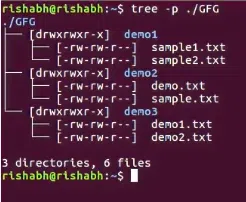
tree -p ./GFG
5. Prints the device number to which the file or directory belongs.
- The tree --device command displays the device number associated with each file or directory, indicating the specific storage device or filesystem they belong to.
tree --device ./GFG
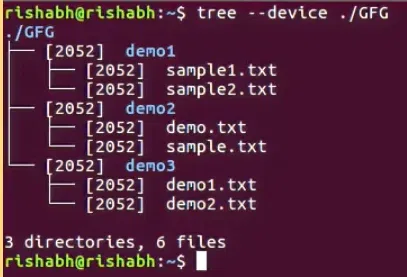
tree --device ./GFG
6. Prints the output by last modification time instead of alphabetically.
- The tree -t command displays the directory contents sorted by the last modification time rather than alphabetically, with the most recently modified files shown first.
tree -t ./GFG

tree -t ./GFG
7. Filtering for Specific File Type
- If you want to display only PDF files inside a directory structure, you can modify the command:
tree -aif --noreport | grep ".pdf$"
Options Available in `tree` Command in Linux
| Options | Description |
|---|---|
| --help | --help |
| --version | Outputs the version of the tree. |
| `-a` or `--all` | Includes hidden files and directories in the tree. |
| `-d` or `--dirs-only` | List directories only. |
| `-f` or `--full-path` | Prints the full path prefix for each file. |
| `-i` or `--ignore-case` | Ignores case when sorting filenames. |
| -x | Stay on the current file system only, as with find -xdev. |
| -I | Do not list those files that match the wild-card pattern. |
| `-p` or `--prune` | Omits the specified directory from the tree. |
| --filelimit # | Do not descend directories that contain more than # entries. |
| -t | Sort the output by last modification time instead of alphabetically. |
| --noreport | Omits printing of the file and directory report at the end of the tree listing. |
| -s | Print the size of each file along with the name. |
| -u | Print the username, or UID # if no username is available, of the file. |
| -g | Print the group name, or GID # if no group name is available, of the file |
| -D | Print the date of the last modification time for the file listed. |
| --inodes | Prints the inode number of the file or directory |
| --device | Prints the device number to which the file or directory belongs |
| -F | Append a `/' for directories, a `=' for socket files, a `*' for executable files and a `|' for FIFO's, as per ls -F |
| -q | Print non-printable characters in file names as question marks instead of the default carrot notation. |
| -N | Print non-printable characters as is instead of the default carrot notation. |
| -r | Sort the output in reverse alphabetic order. |
| --dirsfirst | List directories before files. |
| -n | Turn colorization off always, over-ridden by the -C option. |
| -C | Turn colorization on always, using built-in color defaults if the LS_COLORS environment variable is not set. Useful to colorize output to a pipe. |
| -A | Turn on ANSI line graphics hack when printing the indentation lines. |
| -S | Turn on ASCII line graphics (useful when using linux console mode fonts). This option is now equivalent to `--charset=IBM437' and will eventually be depreciated. |
| -L level | Max display depth of the directory tree. |
| -R | Recursively cross down the tree each level directories (see -L option), and at each of them execute tree again adding `-o 00Tree.html' as a new option. |
| -H baseHREF | Turn on HTML output, including HTTP references. Useful for ftp sites. baseHREF gives the base ftp location when using HTML output. That is, the local directory may be `/local/ftp/pub', but it must be referenced as `ftp://host-name.organization.domain/pub' (baseHREF should be `ftp://hostname.organization.domain'). Hint: don't use ANSI lines with this option, and don't give more than one directory in the directory list. If you want to use colors via CSS stylesheet, use the -C option in addition to this option to force color output. |
| -T title | Sets the title and H1 header string in HTML output mode. |
| --charset charset | Set the character set to use when outputting HTML and for line drawing. |
| --nolinks | Turns off hyperlinks in HTML output. |
| -o file name | Send output to file name. |
Why Use Tree Instead of Other Commands
Many users compare tree with other directory listing tools like ls, find, and du. Adding this section can boost engagement and keyword ranking:
- Better Visualization: Unlike ls and find, the tree command visually represents the directory structure.
- Customizable Output: tree supports sorting, filtering, and formatting, making it more flexible than ls -R.
- File and Directory Counts: Unlike find, tree provides a summary of files, directories, and their sizes.
- Readable Hierarchy: Unlike du, which shows sizes, tree makes folder relationships clear.