User Management Commands in Linux (original) (raw)
Last Updated : 22 Dec, 2025
User management commands in Linux are used to create, modify, and manage user accounts on the system. These commands help administrators control user access, manage passwords, view user information, and maintain a secure multi-user environment.
- Used to add, delete, and modify user accounts
- Helps manage user passwords and login settings
- Displays information about logged-in users
- Essential for system administration and security
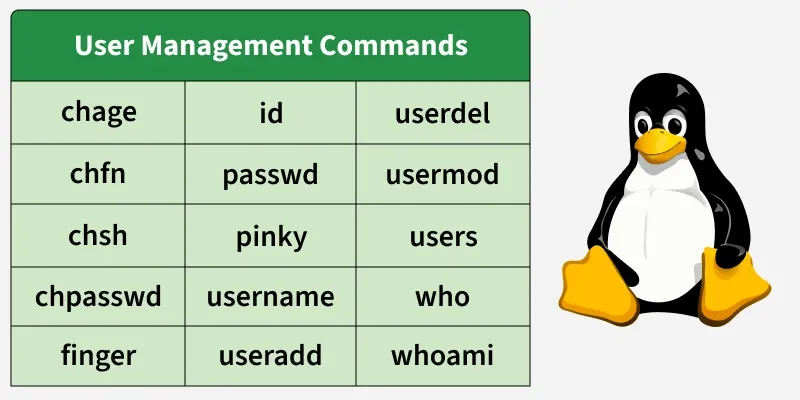
The following commands are used for user management in Linux.
1. chage
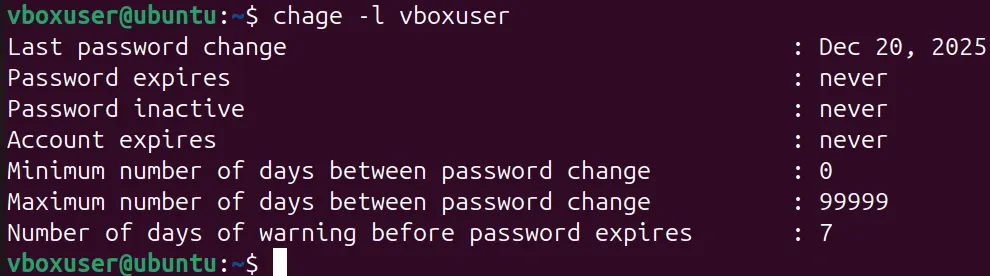
The chage command is used to view and modify password aging information for a user account. It helps enforce password expiry and security policies.
- Controls password expiration settings
- Improves account security
- Used mainly by administrators
**Syntax:
chage [options] username
**Example:
chage -l vboxuser
- This displays password expiry information for the user.
2. chfn
The chfn command is used to change user information such as full name and contact details. It updates the user’s finger information.
- Updates user profile details
- Improves account identification
- Simple user information management
**Syntax:
chfn username
**Example:
chfn

- This allows changing user information interactively.
3. chsh
The chsh command is used to change a user’s default login shell. It defines which shell starts when the user logs in.
- Changes default shell
- Customizes user environment
- Useful for shell switching
**Syntax:
chsh username
**Example:
chsh vboxuser
- This changes the login shell for the user.
4. chpasswd
The chpasswd command is used to change passwords for multiple users in batch mode. It reads user and password pairs from standard input.
- Bulk password management
- Used in automation
- Admin-level command
**Syntax:
chpasswd
**Example:
echo "vboxuser:newpass" | chpasswd
- This changes the password for user1.
5. finger
The finger command displays detailed information about user accounts. It shows login name, home directory, and last login.
- Displays user details
- Shows login activity
- Helpful for user monitoring
**Syntax:
finger username
**Example:
finger manav
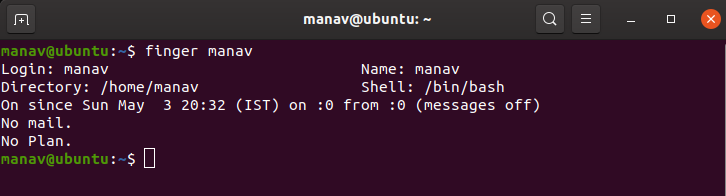
- This displays information about the user.
6. id
The id command displays user ID (UID), group ID (GID), and group memberships. It helps identify user privileges.
- Shows user and group IDs
- Displays group membership
- Useful for permission checks
**Syntax:
id username
**Example:
id master

- This shows UID and GID information.
7. passwd
The passwd command is used to change a user’s password. Users can change their own password, while administrators can change others’.
- Manages user passwords
- Improves account security
- Supports password policies
**Syntax:
passwd username
**Example:
passwd user1
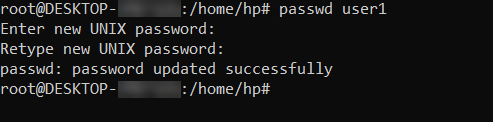
- This changes the password for user1.
8. pinky
The pinky command is a lightweight version of finger. It displays brief user information.
- Shows basic user details
- Simpler than finger
- Quick user lookup
**Syntax:
pinky username
**Example:
pinky manav

- This displays basic information about the user.
9. username
The username command is used to fetch username-related information from the system. It helps identify user-related configurations.
- Displays username details
- Used for account lookup
- System-level utility
**Syntax:
username
**Example:
id vboxuser
- This displays username-related information.
10. useradd
The useradd command is used to create a new user account on the system. It sets up the user’s home directory and default settings.
- Creates new user accounts
- Used by administrators
- Essential for user setup
**Syntax:
useradd username
**Example:
useradd test_user
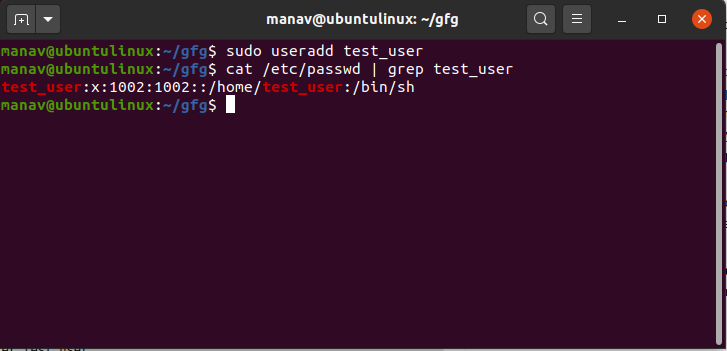
- This creates a new user named test_user.
11. userdel
The userdel command is used to delete an existing user account. It can also remove the user’s home directory.
- Removes user accounts
- Cleans unused users
- Admin-only command
**Syntax:
userdel username
**Example:
userdel user1
- This deletes the user account.
12. usermod
The usermod command is used to modify existing user account properties. It can change username, groups, and login options.
- Edits user account details
- Manages groups and settings
- Flexible user control
**Syntax:
usermod [options] username
**Example:
usermod -aG sudo user1
- This adds user1 to the sudo group.
13. users
The users command displays the usernames of currently logged-in users. It gives a quick overview of active users.
- Shows active users
- Simple and fast
- Useful for monitoring
**Syntax:
users
**Example:
users
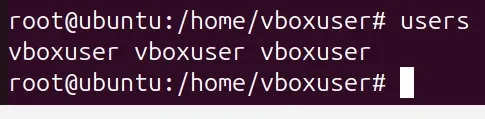
- This displays logged-in users.
14. who
The who command shows detailed information about logged-in users. It displays login time and terminal details.
- Displays login sessions
- Shows terminal usage
- Useful for audits
**Syntax:
who
Example:
who
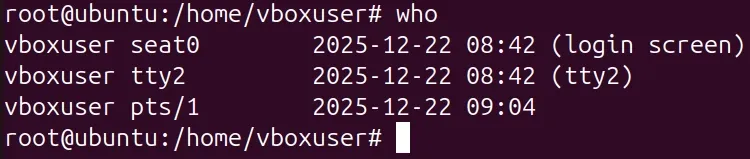
- This shows who is currently logged in.
15. whoami
The whoami command displays the username of the currently logged-in user. It is useful in scripts and multi-user systems.
- Shows current user
- Simple identity check
- Commonly used in scripts
**Syntax:
whoami
**Example:
whoami

- This displays the current username.