ZIP command in Linux (original) (raw)
Last Updated : 11 Jun, 2026
The zip command is a command-line utility used to compress one or more files or directories into a single .zip archive file. This utility helps optimize disk space, keeps data well organized, and makes it easy to transfer or back up files across multi-platform networks.
- Compresses large files and directories to reduce their storage footprint.
- Groups multiple files or directory structures into a single file for seamless sharing and backups.
- Supports native encryption options to protect sensitive archive content with passwords.
Syntax of zip Command
The standard syntax of the zip command in Linux is structured as follows:
zip [options] archive_name.zip file1 file2 folder/- **zip: The base command-line utility used to invoke the compression engine.
- **[options]: Optional command-line flags to modify compression behaviours (e.g., recursive, update, or delete).
- **archive_name.zip: The target output filename of the compressed archive file.
- **file1 file2 folder/: The target files or directory paths to compress and include within the archive.
Basic Compression Examples
To compress multiple individual files into a single ZIP archive, execute the following command:
zip myfiles.zip file1 file2 file3
File compression output using the default zip command
Commonly Used Options
The zip command offers several operational flags to manage files inside archives directly:
1. -d: Delete a File from Archive
The -d option is used to remove a specific file from an existing ZIP archive without extracting and repackaging the archive.
zip -d myfile.zip hello7.c
Executing a delete action inside an archive using the -d option
**Note: If you encounter permission errors when modifying protected archive files, prepend the command with sudo.
2. -u: Update Archive with New Files
The -u option updates an existing ZIP archive by adding new files or replacing files if they are modified. This is highly useful for progressive project archiving.
zip -u myfile.zip hello9.c
Adding or updating archive records using the -u option
3. -m: Move Files into Archive
The -m option compresses specified target files and then deletes them from their original location on disk. It acts as a "cut and zip" operation.
zip -m myfile.zip *.c
Using the -m option to automatically clear local storage after packaging
4. -r: Recursively Zip a Directory
The -r option traverses and compresses an entire directory, including all nested subdirectories and files.
zip -r myfile.zip jkj_gfg/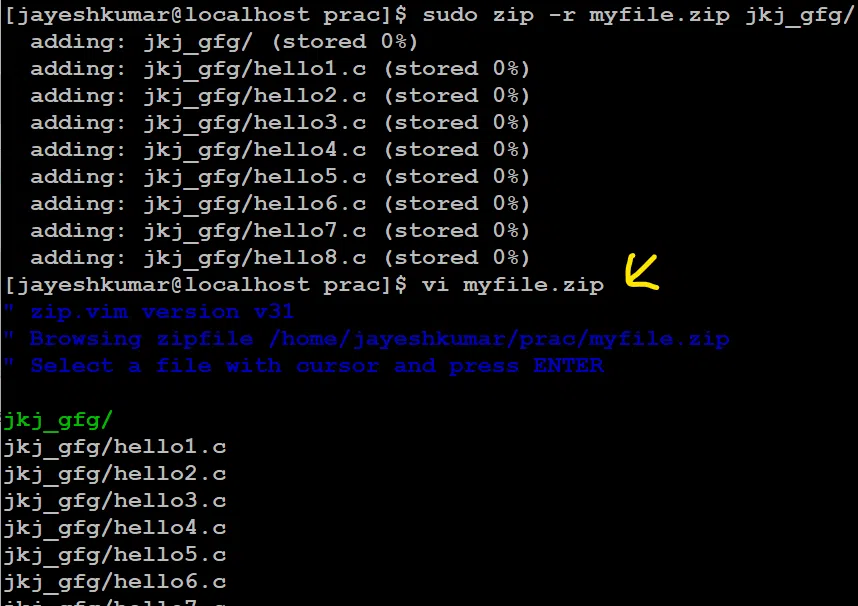
Recursively packaging directory structures using the -r option
5. -x: Exclude Files from Archive
The -x option allows you to exclude specific files or extension patterns from being compressed during archive creation.
zip -r myfile.zip . -x a.txt
Filtering specific records out of compression using the -x option
6. -v: Verbose Mode
The -v option runs the command in verbose mode, outputting progress bars, diagnostic information, and individual compression ratios.
zip -v myfile.zip b.txt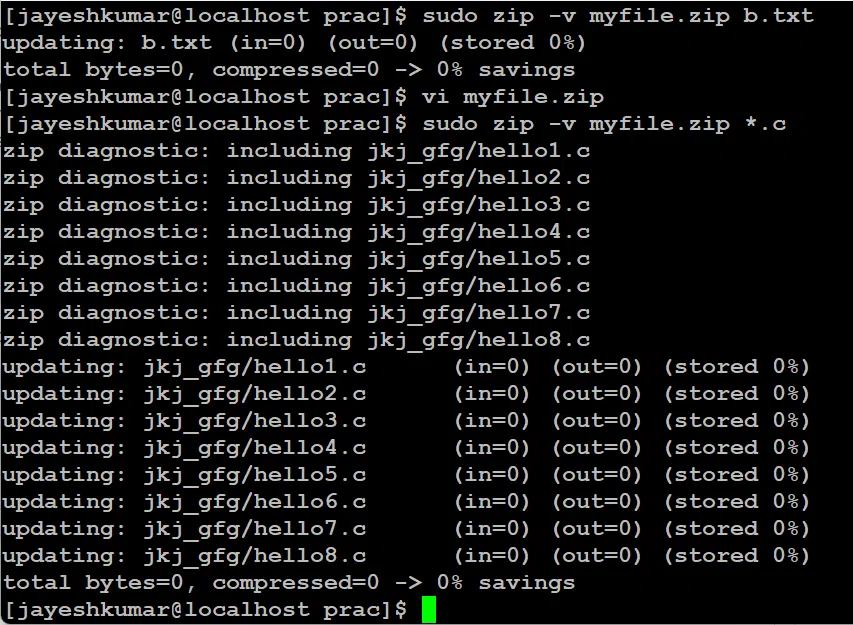
Executing verbose commands to check diagnostic details
Extraction with unzip Command
The unzip command is used to extract contents from an archive into the target environment.
unzip jayesh_gfg.zip
Extracting a zip archive back into raw files using the unzip command
You can run the ls command immediately afterward to verify that the extracted files now exist in the target working directory.