MongoDB Drop Database (original) (raw)
Last Updated : 5 May, 2026
Dropping a database in MongoDB permanently deletes the database along with all its collections and documents, helping maintain a clean database environment.
- Completely removes the database and all associated data.
- Action is permanent and cannot be undone.
- Useful for cleaning up unused or test databases.
- Should be performed with caution due to data loss.
Understanding MongoDB Databases
MongoDB is a document-oriented NoSQL database that stores data in flexible, JSON-like BSON documents, making it scalable and well-suited for modern applications.
- **Schema-flexible design: Collections do not require a fixed schema.
- **Scalability: Supports horizontal scaling for large datasets.
- **High performance: Optimized for fast queries and data retrieval.
Reasons for Dropping a Database in MongoDB
Dropping a database in MongoDB permanently deletes all its data and is commonly done for cleanup, testing, security, and storage management purposes.
1. Data cleanup & Performance Optimization
Over time, databases accumulate redundant or outdated data that can impact performance. Dropping a database helps:
- Eliminate clutter that slows down database operations.
- Optimize storage usage by removing unused or obsolete data.
- Removes unused or obsolete data, which may indirectly improve performance depending on the workload.
2. Development and testing
During software development lifecycle, databases often need to be reset for testing or debugging, and dropping the database provides a quick and efficient way to do so by:
- Resetting the environment for fresh testing scenarios.
- Removing unwanted temporary test data that accumulates over multiple test runs.
- Ensuring a clean database setup without previous configurations affecting new tests.
3. Security and Compliance
In data-sensitive industries, securely deleting databases is essential to meet legal and security compliance requirements.
- Ensures permanent removal of sensitive data.
- Helps comply with regulations such as GDPR, HIPAA, and CCPA.
- Prevents unauthorized access to obsolete or confidential information.
4. Storage Management
Large-scale applications often create multiple databases, some of which become obsolete or unused over time. Keeping them can:
- Consume valuable disk space, leading to increased storage costs.
- Create unnecessary maintenance overhead for database administrators.
- Slow down backup and recovery processes due to excessive data volume.
By dropping unused databases, organizations can optimize storage resources and maintain an efficient database environment.
Steps to Drop a Database in MongoDB
Dropping a database in MongoDB permanently removes all its collections and documents using the db.dropDatabase() method.
Step 1: List Available Databases
Before dropping a database, it's essential to check which databases exist in MongoDB. To list all available databases, run the following command in the MongoDB shell:
show dbs
**Output:
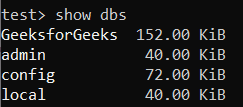
This output displays all the databases on the MongoDB server along with their sizes. Databases without data (empty databases) are not shown.
Step 2: Select the Database to Drop
Switch to the database that we want to drop.
use sampleDB
**Output:

After executing this command, MongoDB sets sampleDB as the active database.
Step 3: Drop the Selected Database
Once the database is selected, we can execute the db.dropDatabase() command to delete it.
db.dropDatabase()
**Output:

- This command will permanently delete the current database sampleDB and return a confirmation message.
- The "dropped" field confirms that sampleDB has been deleted.
- The "ok": 1 indicates that the operation was successful.
**Note: This action is permanent. All collections and documents inside the database will be removed.
Step 4: Verify that the Database has been dropped
To ensure the database has been dropped successfully, we can list the databases again:
show dbs
**Output:
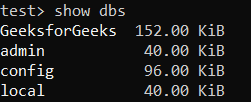
Notice that sampleDB is no longer listed, meaning it has been successfully deleted.
Precautions before Dropping a Database
- **Backup Your Data: If you might need the data in the future, create a backup using MongoDB’s mongodump command.
- **Verify the Database Name: Ensure you are working with the correct database before executing db.dropDatabase().
- **Check User Permissions: Make sure your MongoDB user has admin privileges to drop databases.