Mongoose findOneAndUpdate() Method (original) (raw)
Last Updated : 5 May, 2026
Mongoose findOneAndUpdate() is used to safely update a single document in MongoDB using an atomic operation. It helps maintain data consistency in multi-user environments by preventing race conditions and conflicting updates.
- **Atomic operation: Find and update happen as one indivisible step.
- **Concurrency-safe: Ensures atomic updates at the document level, but race conditions can still arise at the application level.
- **Single-document update: Modifies only one matching document.
- **Returns updated document: Use { new: true } to get the modified data.
- **Supports upsert: Creates a document if no match is found.
Atomic Operations in Mongoose
Mongoose supports atomic updates by executing MongoDB’s single-document atomic operations through its model methods (such as findOneAndUpdate()), ensuring safe updates in concurrent environments.
- **Single-document atomicity: Each update on one document is atomic.
- **No partial updates: Updates are atomic per document, but only specified fields are modified (not full document replacement unless explicitly done).
- **Concurrency-safe: Provides atomic updates at the document level; application-level race conditions may still occur.”
- **Filter-based updates: Updates only the document matching the criteria.
- **Document-level isolation: Other operations see either old or new data, never an inconsistent state.
Syntax
Model.findOneAndUpdate(filter, update, options)
- **filter: Condition to match the document to update.
- **update: Update operation to apply (e.g., set,set, set,inc).
- **options (optional): Extra settings like new: true (return updated doc) and upsert: true (insert if no match).
- **Return value: Returns updated document with new: true; otherwise returns original (default).
Examples of findOneAndUpdate() Method
The findOneAndUpdate() method is versatile and can be used in various scenarios.
Example 1: Basic Usage
Consider a scenario where we have a collection of users and we want to update the email address of a user named "Alen". Using findOneAndUpdate we can perform this operation atomically as defined below:
const mongoose = require('mongoose');
// Database connection
mongoose.connect('mongodb://127.0.0.1:27017/GeeksforGeeks');
// User model
const User = mongoose.model('User', {
name: String,
email: String,
});
// Update email address for user "Alen"
User.findOneAndUpdate(
{ name: 'Alen' },
{ $set: { email: 'alen@example.com' } },
{ new: true },
(err, user) => {
if (err) return console.error(err);
console.log(user);
}
);
- findOneAndUpdate() finds the user named "Alen" and updates her email.
- $set updates only the email field.
- { new: true } returns the updated document.
Example 2: Upsert with findOneAndUpdate()
In Mongoose, upsert updates a document if it exists or inserts a new one if no matching document is found. The findOneAndUpdate() method supports this using the upsert: true option.
Suppose we want to update the price of a book by title. If the book doesn’t exist, insert it.
const mongoose = require('mongoose');
// Database connection
mongoose.connect('mongodb://127.0.0.1:27017/GeeksforGeeks');
// Book model
const Book = mongoose.model('Book', {
title: String,
price: Number,
});
// Update or insert a book with title
//"The Great Gatsby"
Book.findOneAndUpdate(
{ title: 'The Great Gatsby' },
{ $set: { price: 19.99 } },
{ upsert: true, new: true },
(err, book) => {
if (err) return console.error(err);
console.log(book);
}
);
- If the book exists, its price is updated to 19.99.
- If it doesn’t exist, a new document is inserted.
- { upsert: true } inserts when no match is found.
- { new: true } returns the updated/inserted document.
Example 3: Updating Discriminator Keys
In Mongoose, discriminators let multiple document types exist in one collection. You can change a document’s type by updating its discriminator key using findOneAndUpdate().
const mongoose = require('mongoose');
// Database connection
mongoose.connect('mongodb://127.0.0.1:27017/GeeksforGeeks');
// Base schema with discriminator key
const animalSchema = new mongoose.Schema(
{ name: String },
{ discriminatorKey: '__t' }
);
const Animal = mongoose.model('Animal', animalSchema);
// Update discriminator key to change animal type
Animal.findOneAndUpdate(
{ name: 'Fido', __t: 'Dog' },
{ $set: { __t: 'Cat' } },
{ new: true },
(err, animal) => {
if (err) return console.error(err);
console.log(animal);
}
);
- __t is the discriminator key used to identify the document type.
- The query finds "Fido" with type "Dog".
- $set updates the type to "Cat".
- { new: true } returns the updated document.
Steps to Install Mongoose Module
Follow these steps to set up Mongoose in your project.
Step 1: Install Mongoose
You can visit the link to Install mongoose module. You can install this package by using this command.
npm install mongoose
This will add Mongoose to your project's dependencies.
Step 2: Verify Mongoose Installation
After installing mongoose module, you can check your mongoose version in command prompt using the command.
npm version mongoose
Step 3: Create and Set Up the Project
1. Create a new folder for your project (if you don’t already have one):
mkdir your-project-name
cd your-project-name
2. Create a new file, for example index.js, and add the following code to connect to MongoDB and use the findOneAndUpdate() method in Mongoose
**Filename: app.js
app.js `
const mongoose = require('mongoose');
async function run() { await mongoose.connect('mongodb://127.0.0.1:27017/GeeksforGeeks');
const userSchema = new mongoose.Schema({ name: String, age: Number }, { collection: 'student' });
const User = mongoose.model('User', userSchema);
const doc = await User.findOneAndUpdate( { age: { $gte: 5 } }, { $set: { name: "Denial" } }, { returnDocument: 'before' } );
console.log("Original Doc:", doc);
await mongoose.disconnect(); }
run().catch(console.error);
`
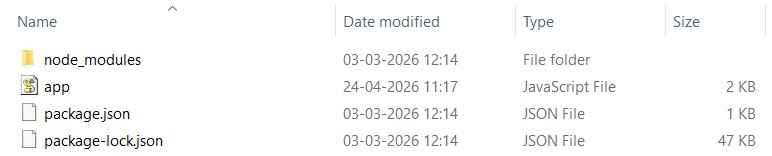
The project structure will look like this:
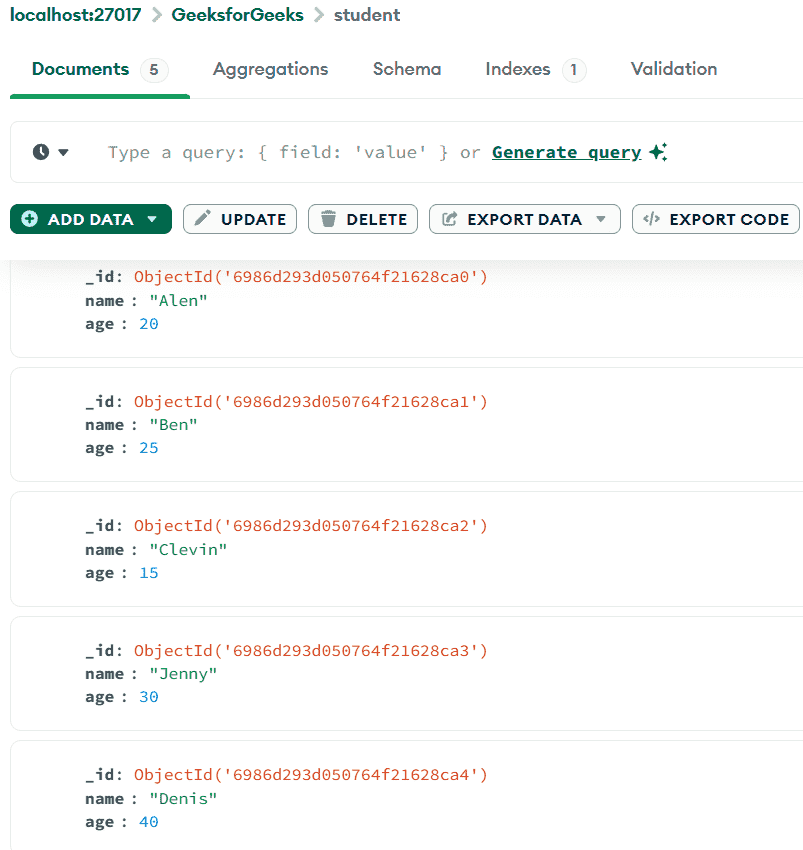
Below is the sample data in the database before the function is executed, you can use any GUI tool or terminal to see the database, like we have used MongoDB Compass tool as shown below:
Step 4: Running the Application
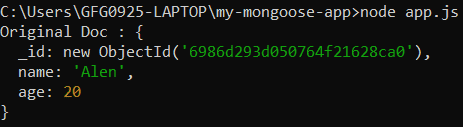
After creating the file and adding the code, run the application using the following command:
**Run:
node app.js
Step 5: Verify the Changes
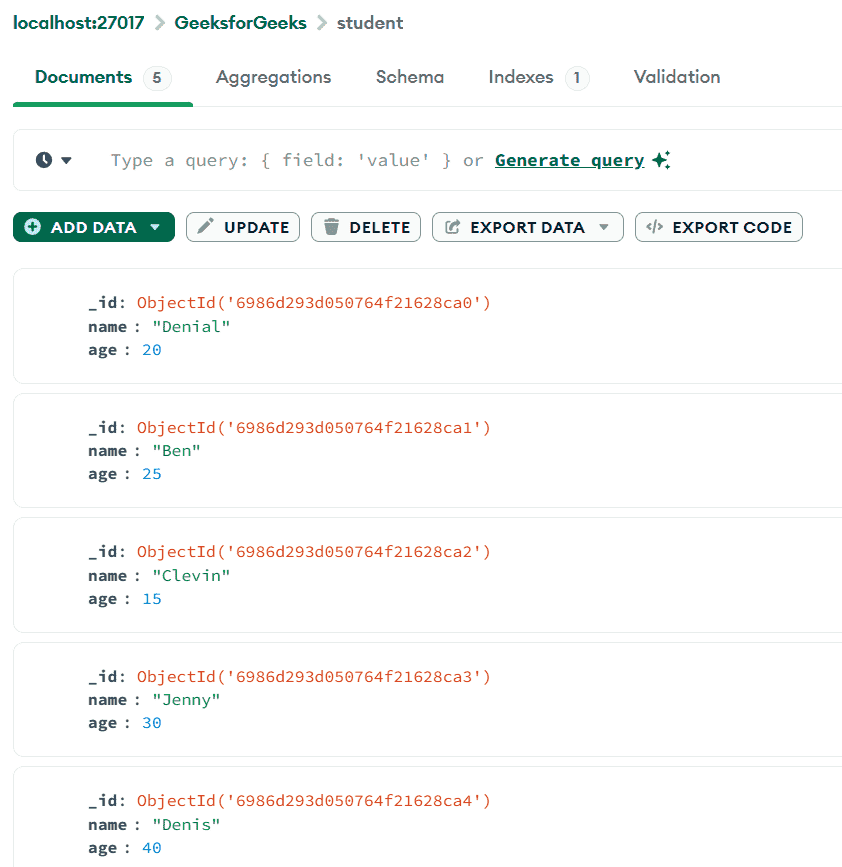
You can verify the changes in your MongoDB database by using a GUI tool like Robo3T or MongoDB Compass to check if the document has been updated.