How to create Buttons in a game using PyGame? (original) (raw)
Last Updated : 12 Jul, 2025
Pygame is a Python library that can be used specifically to design and build games. Pygame only supports 2D games that are build using different shapes/images called sprites. Pygame is not particularly best for designing games as it is very complex to use and lacks a proper GUI like unity gaming engine but it definitely builds logic for further larger projects.
Installation
Before initializing pygame library we need to install it. This library can be installed into the system by using pip tool that is provided by Python for its library installation. Pygame can be installed by writing these lines into the terminal.
pip install pygame
Creating interactable buttons using pygame
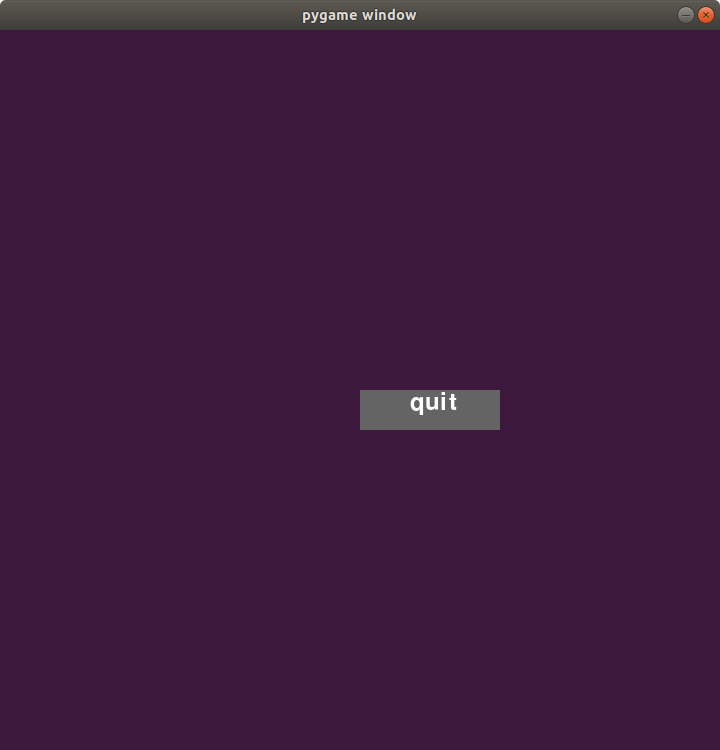
A game must have interactable buttons that can control different events in the game to make the game more controlled and to add a proper GUI in it. These can be created in pygame by creating a rectangle onto the screen and then superimposing the indicating text on it. For this, we will be using various functions like draw.rect(), screen.blit() etc. To add more liveliness to it we can change the color of the button as the mouse has hovered on it. This can be done by using a function that updates the x and y position of the mouse pointer and storing it as a tuple in a variable. Then we can set the boundaries of the rectangle into respective variables and check if the mouse is in those boundaries if so the color of the block will be changed to lighter shade to indicate that the button is interactable. Below is the implementation.
Python3 1== `
import pygame import sys
initializing the constructor
pygame.init()
screen resolution
res = (720,720)
opens up a window
screen = pygame.display.set_mode(res)
white color
color = (255,255,255)
light shade of the button
color_light = (170,170,170)
dark shade of the button
color_dark = (100,100,100)
stores the width of the
screen into a variable
width = screen.get_width()
stores the height of the
screen into a variable
height = screen.get_height()
defining a font
smallfont = pygame.font.SysFont('Corbel',35)
rendering a text written in
this font
text = smallfont.render('quit' , True , color)
while True:
for ev in pygame.event.get():

    if ev.type == pygame.QUIT:
        pygame.quit()

    #checks if a mouse is clicked
    if ev.type == pygame.MOUSEBUTTONDOWN:

        #if the mouse is clicked on the
        # button the game is terminated
        if width/2 <= mouse[0] <= width/2+140 and height/2 <= mouse[1] <= height/2+40:
            pygame.quit()

# fills the screen with a color
screen.fill((60,25,60))

# stores the (x,y) coordinates into
# the variable as a tuple
mouse = pygame.mouse.get_pos()

# if mouse is hovered on a button it
# changes to lighter shade
if width/2 <= mouse[0] <= width/2+140 and height/2 <= mouse[1] <= height/2+40:
    pygame.draw.rect(screen,color_light,[width/2,height/2,140,40])

else:
    pygame.draw.rect(screen,color_dark,[width/2,height/2,140,40])

# superimposing the text onto our button
screen.blit(text , (width/2+50,height/2))

# updates the frames of the game
pygame.display.update()
`
Output: