Pygame Creating Sprites (original) (raw)
Last Updated : 15 Jan, 2026
Sprites are game objects representing characters, obstacles, or visual elements, with properties like height, width, color, position and methods to move, jump, or interact. This article shows how to create, position and display sprites in Pygame.
Prerequisites
Before running this project, make sure the required tools are available on your system.
- Python
- Pygame
If Pygame is not installed, install it using the following command:
pip install pygame
Step by Step Implementation
Step 1: Import Libraries and Define Global Variables
We start by importing pygame and defining global variables for screen size and colors.
Python `
import pygame import random
COLOR = (255, 100, 98)
SURFACE_COLOR = (167, 255, 100)
WIDTH = 500
HEIGHT = 500
`
Step 2: Create a Sprite Class
A sprite class defines properties like color, dimensions and position. The __init__() method initializes the sprite.
Python `
class Sprite(pygame.sprite.Sprite): def init(self, color, height, width): super().init()
    self.image = pygame.Surface([width, height])
    self.image.fill(SURFACE_COLOR)
    self.image.set_colorkey(COLOR)

    pygame.draw.rect(self.image, color, pygame.Rect(0, 0, width, height))

    self.rect = self.image.get_rect()
`
**Explanation
- **pygame.sprite.Sprite is the base class for all sprites in Pygame.
- **self.image: defines the visual representation.
- **self.rect: stores position and dimensions.
- **set_colorkey: makes the background transparent.
Step 3: Initialize Pygame and Create the Screen
Python `
pygame.init()
RED = (255, 0, 0)
size = (WIDTH, HEIGHT)
screen = pygame.display.set_mode(size)
pygame.display.set_caption("Creating Sprite")
`
Step 4: Create a Sprite Object
We can now create objects from the Sprite class. Multiple objects can be created using the same class.
Python `
all_sprites_list = pygame.sprite.Group()
object_ = Sprite(RED, 20, 30)
object_.rect.x = 200
object_.rect.y = 300
all_sprites_list.add(object_)
`
**Explanation:
- **pygame.sprite.Group(): manages multiple sprites.
- **rect.x and **rect.y set the position of the sprite.
- Sprites added to all_sprites_list can be drawn and updated easily.
Step 5: Display the Sprite on the Screen
We use a game loop to display the sprite and update the screen.
Python `
exit_game = True clock = pygame.time.Clock()
while exit_game: for event in pygame.event.get(): if event.type == pygame.QUIT: exit_game = False
all_sprites_list.update()
screen.fill(SURFACE_COLOR)
all_sprites_list.draw(screen)
pygame.display.flip()
clock.tick(60)
pygame.quit()
`
**Explanation:
- **pygame.event.get(): handles user input.
- **screen.fill(): fills the background color.
- **all_sprites_list.draw(screen): draws the sprites on the screen.
- **clock.tick(60): limits the frame rate to 60 FPS.
Output
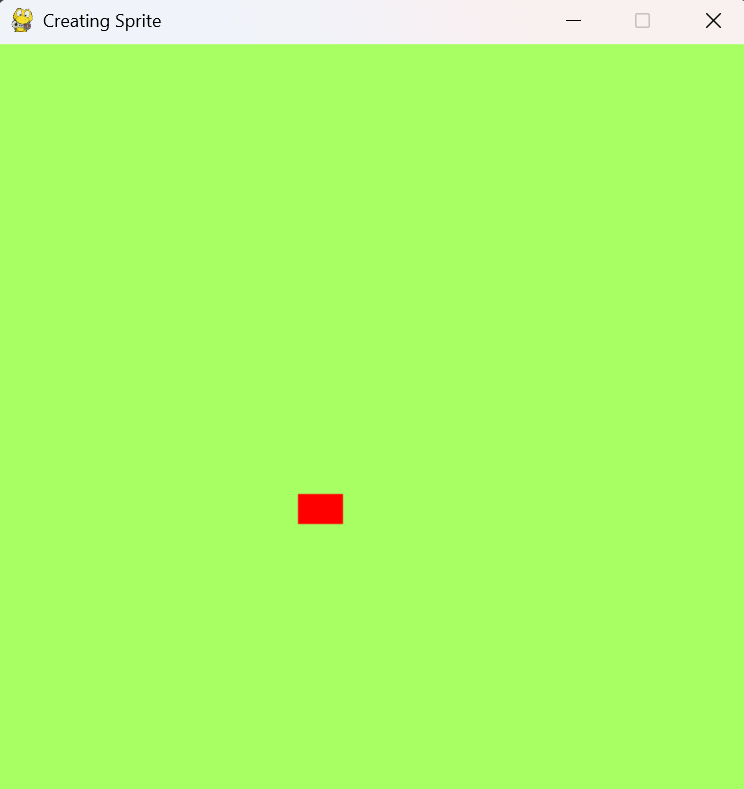
The output shows a red sprite displayed on the Pygame window, confirming that the sprite was created and rendered successfully.
Output