PageLayout in Kivy Python (original) (raw)
Last Updated : 12 Jan, 2026
PageLayout in Kivy is used to create a screen made of multiple pages where only one page is visible at a time. Users can move between pages by swiping left or right, which makes it useful for multi-screen interfaces such as app tutorials, forms or galleries.
**For Example: In this example, a text input field is placed inside a PageLayout so the user can type text on a single page.
Python `
from kivy.app import App from kivy.uix.pagelayout import PageLayout from kivy.uix.textinput import TextInput
class MyPage(PageLayout): def init(self, **kwargs): super().init(**kwargs) t = TextInput(text="Enter name:") self.add_widget(t)
class Demo(App): def build(self): return MyPage()
Demo().run()
`
**Output
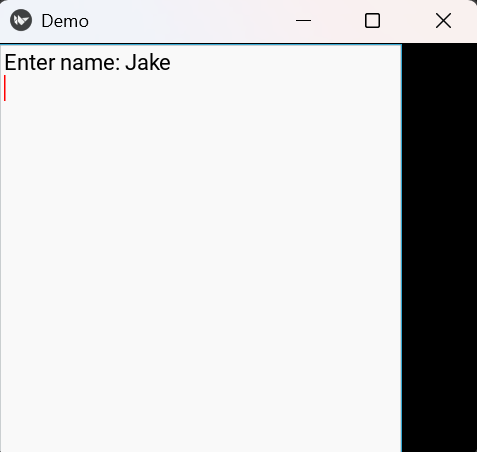
A screen with one page showing a text input box.
**Explanation:
- PageLayout creates a swipe-based page container.
- TextInput(text="Enter name:") creates a text box for user input.
- add_widget(t) adds the text box as a page inside PageLayout.
- build() returns MyPage() so it becomes the main screen of the app.
Syntax
PageLayout()
**Parameters: PageLayout does not use layout sizing properties.
It only accepts widgets added using:
add_widget(widget)
Each widget becomes a separate page.
Examples
**Example 1: In this example, three buttons are placed on three different pages.
Python `
from kivy.app import App from kivy.uix.pagelayout import PageLayout from kivy.uix.button import Button
class MyPage(PageLayout): def init(self, **kwargs): super().init(**kwargs) self.add_widget(Button(text="Page 1")) self.add_widget(Button(text="Page 2")) self.add_widget(Button(text="Page 3"))
class Demo(App): def build(self): return MyPage()
Demo().run()
`
**Output
Three pages that can be swiped:
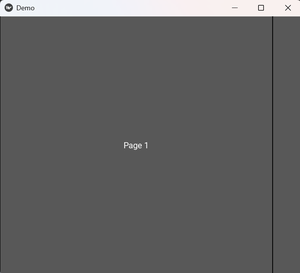
Page 1
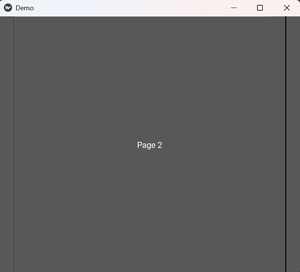
Page 2
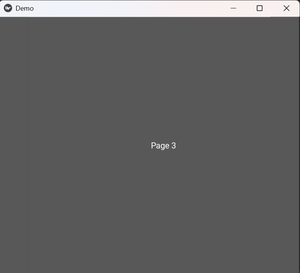
Page 3
**Explanation:
- PageLayout() creates the container for multiple pages.
- Button(text="Page 1"), Button(text="Page 2"), and Button(text="Page 3") create three page widgets.
- add_widget() adds each button as a separate page.
- Swiping changes the visible page.
**Example 2: In this example, one page contains a text box and another page contains a submit button.
Python `
from kivy.app import App from kivy.uix.pagelayout import PageLayout from kivy.uix.textinput import TextInput from kivy.uix.button import Button
class MyPage(PageLayout): def init(self, **kwargs): super().init(**kwargs) self.add_widget(TextInput(text="Type here")) self.add_widget(Button(text="Submit"))
class Demo(App): def build(self): return MyPage()
Demo().run()
`
**Output
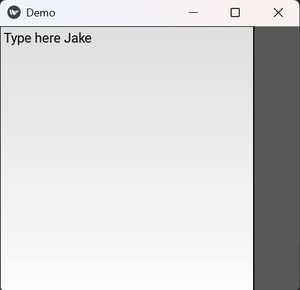
First page shows a text box
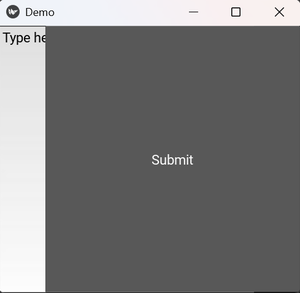
Second page shows a submit button
**Explanation:
- TextInput(text="Type here") creates the first page for typing text.
- Button(text="Submit") creates the second page.
- add_widget() places both widgets inside PageLayout.
- Swiping moves between the input page and the button page.