Python PIP (original) (raw)
Last Updated : 5 Jun, 2026
Python PIP is the package manager used to install, update and manage Python packages and libraries. It allows users to easily download packages from the Python Package Index (PyPI) directly through the command line. PIP is commonly used to add external libraries that are not included with Python by default.
The basic syntax of a PIP command is:
pip
Check PIP Version
Use the following command in the terminal or command prompt to check whether PIP is installed:
pip --version

Checking PIP Version
This command displays the installed version of PIP.
If PIP is not installed on your system, refer to this article Python pip Installation.
Installing Packages
PIP provides the install command to download and install Python packages from PyPI. For example, the following command installs the NumPy package. Below is the syntax:
pip install package_name
For Example:
pip install numpy
Output When Package is Not Installed

Using Python PIP to install a new package
Output When Package is Already Installed

Using Python PIP to install an existing package
Install Specific Package Version
You can install a specific version of a package using the == operator with the package name. Below is the syntax:
pip install package_name==version
**Example:
pip install numpy==1.26.4

Install Specific Package Version
This command installs version 1.26.4 of the NumPy package.
Viewing Package Information
The pip show command is used to display details about an installed package such as version, location and dependencies. Below is the syntax:
pip show package_name
**Example:
pip show numpy
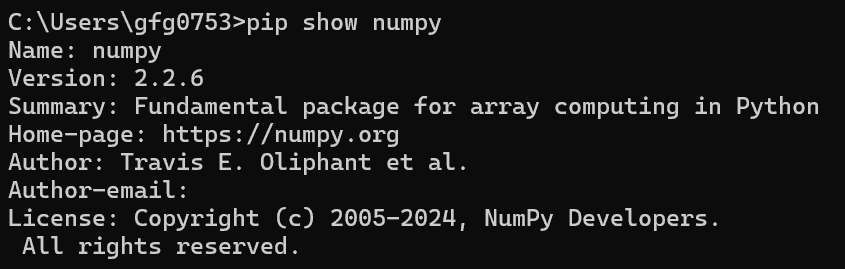
Viewing Package Information
Listing Installed Packages
The pip list command is used to display all packages installed in the current Python environment. Below is the syntax:
pip list
**Example:
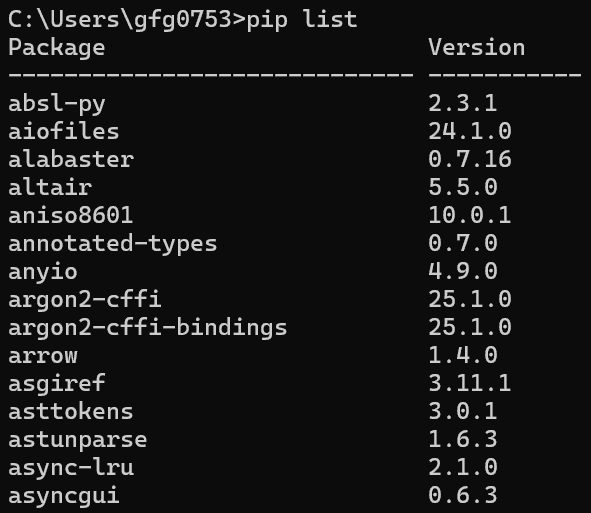
Listing Installed Packages
Uninstalling Packages
The pip uninstall command is used to remove an installed package from the system. Below is the syntax:
pip uninstall package_name
**Example:
pip uninstall numpy
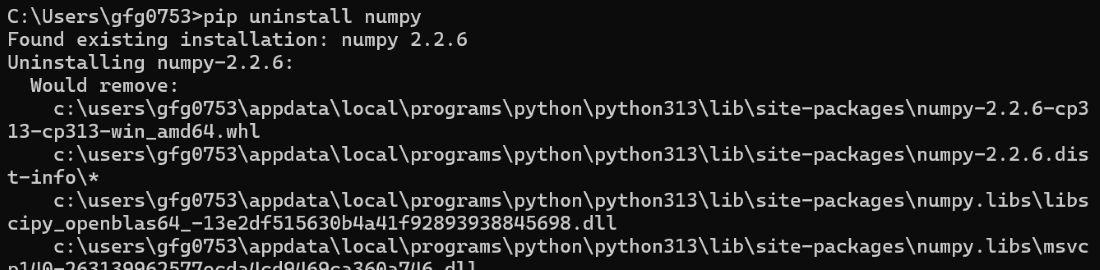
Uninstalling Packages
**Note: This command removes only the selected package. Dependencies installed separately are not removed automatically.
Using Requirements File
A requirements.txt file is used to install multiple packages at once. Below is the requirements.txt:
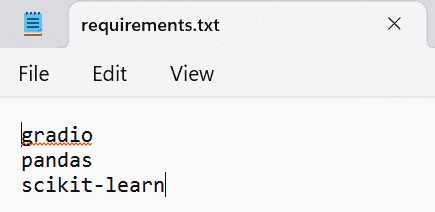
requirements.txt
**Syntax:
pip install -r requirements.txt
**Example:

Using Requirements File
Listing Installed Packages
The pip freeze command displays installed packages along with their versions. Below is the syntax:
pip freeze
**Example:
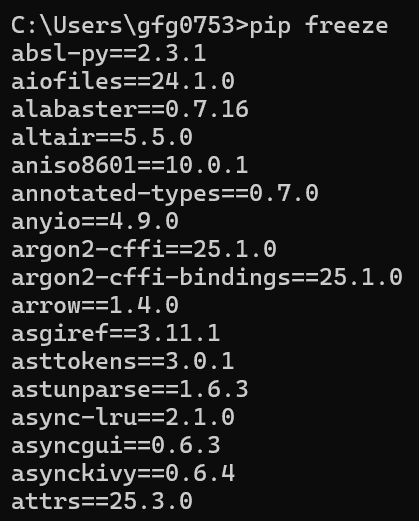
Listing Installed Packages
Listing Outdated Packages
The pip list --outdated command shows packages that have newer versions available. Below is the syntax:
pip list --outdated
**Example:
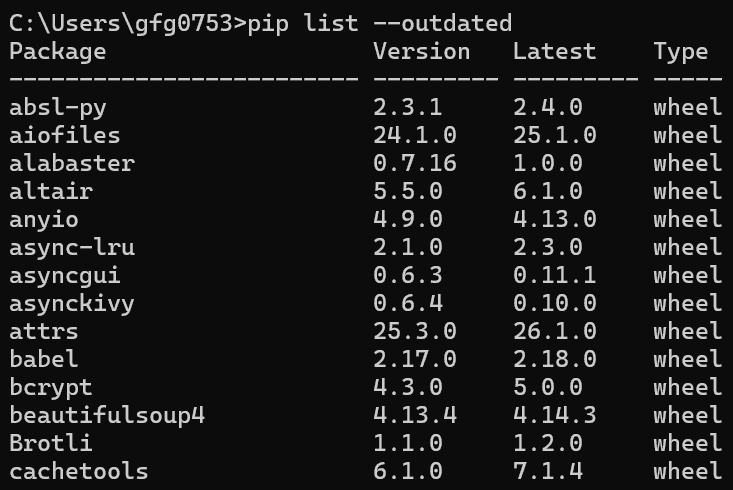
Listing Outdated Packages
Upgrading Packages
The pip install --upgrade command updates a package to the latest version. Below is the syntax:
pip install --upgrade package_name
**Example:
pip install --upgrade numpy

Upgrading Packages
We can also upgrade any package to a specific version using the below command.
pip install --upgrade numpy==2.0.0

Upgrading to a Specific Version
Downgrading Packages
You can install an older version of a package by specifying the required version. Below is the syntax:
pip install package_name==version
**Example:
pip install numpy==1.26.4
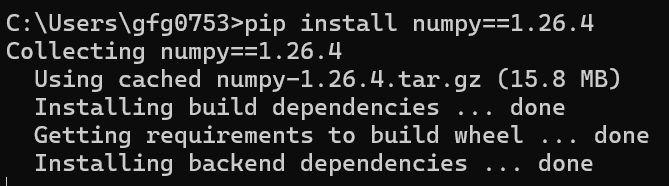
Downgrading Packages