Setting the position of TKinter labels (original) (raw)
Last Updated : 12 Jul, 2025
Tkinter is the standard GUI library for Python. Tkinter in Python comes with a lot of good widgets. Widgets are standard GUI elements, and the Label will also come under these Widgets
Note: For more information, refer to Python GUI – tkinter
Label:
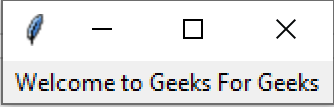
Tkinter Label is a widget that is used to implement display boxes where you can place text or images. The text displayed by this widget can be changed by the developer at any time you want. It is also used to perform tasks such as to underline the part of the text and span the text across multiple lines.
Example:
Setting the position of Tkinter labels
We can use place() method to set the position of the Tkinter labels.
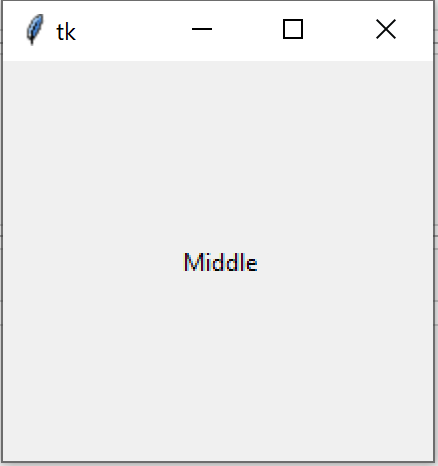
Example 1: Placing label at the middle of the window
Python3 `
import tkinter as tk
Creating the root window
root = tk.Tk()
creating the Label with
the text Middle
Label_middle = tk.Label(root, text ='Middle')
Placing the Label at
the middle of the root window
relx and rely should be properly
set to position the label on
root window
Label_middle.place(relx = 0.5, rely = 0.5, anchor = 'center')
Execute Tkinter
root.mainloop()
`
Output:
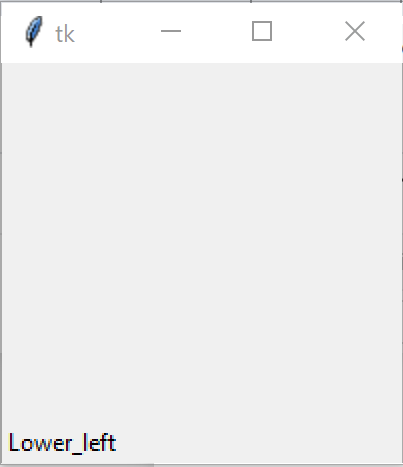
Example 2: Placing label at the lower left side of window
Python3 `
Import Module
import tkinter as tk
Create Object
root = tk.Tk()
Create Label and add some text
Lower_left = tk.Label(root,text ='Lower_left')
using place method we can set the position of label
Lower_left.place(relx = 0.0, rely = 1.0, anchor ='sw')
Execute Tkinter
root.mainloop()
`
Output
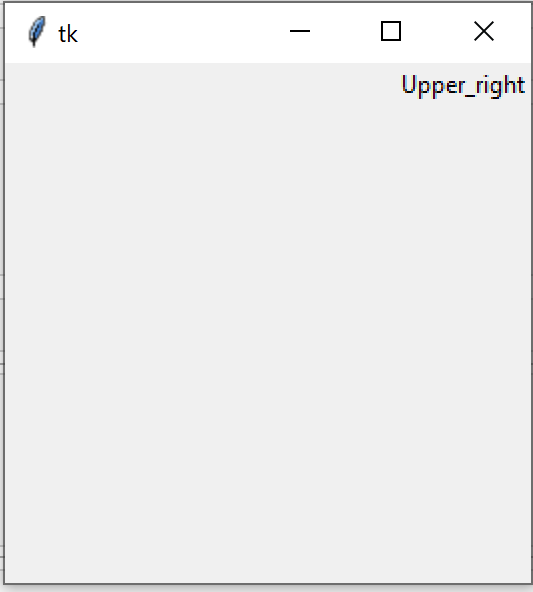
Example 3: Placing label at the upper right side of window
Python3 `
Import Module
import tkinter as tk
Create Object
root = tk.Tk()
Create Label and add some text
Upper_right = tk.Label(root,text ='Upper_right')
using place method we can set the position of label
Upper_right.place(relx = 1.0, rely = 0.0, anchor ='ne')
Execute Tkinter
root.mainloop()
`
Output