How to Install R and R Studio (original) (raw)
Last Updated : 9 Apr, 2026
Installing R and RStudio is the first step to working with R for data analysis, statistical modeling, and visualizations. This article will guide you through the installation process on both Windows and Ubuntu operating systems.
Why use R Studio
RStudio is an open-source integrated development environment (IDE) for R. It provides several features that enhance productivity and ease of use:
- **IDE for R: Syntax highlighting, code completion, and debugging tools.
- **Project Management: Organizes scripts, data, and visualizations for better workflow.
- **Data Visualization: Integrates with powerful plotting libraries like ggplot2.
- **Package Management: Easily install and manage R packages via CRAN.
- **R Markdown: Seamlessly create reports combining code, text, and graphics.
- **Collaboration: Supports Git and RStudio Server for project sharing and team work
Installing R and RStudio on Windows
To Install R and R Studio on Windows we will have to download R and RStudio with the following steps.
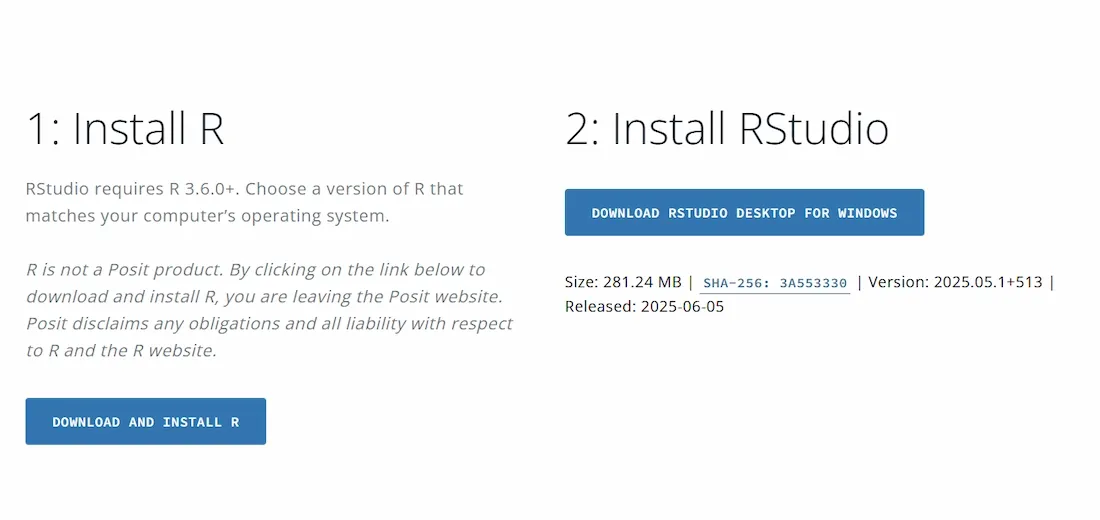
Downloading RStudio
- First, you need to set up an R environment in your local machine. Visit the official CRAN website:
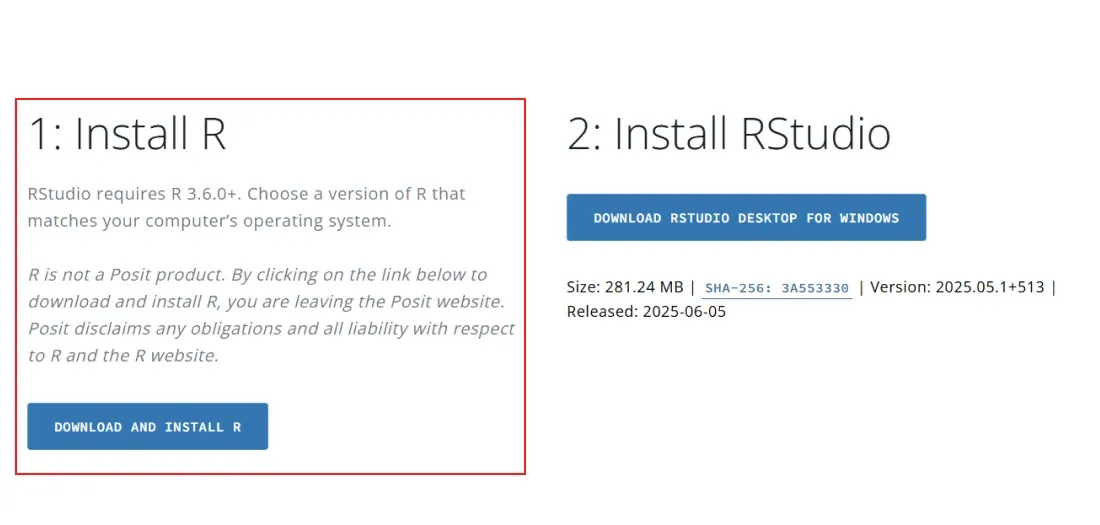
Install R Studio
- You have to download both the applications first go with R Base and then install RStudio. after click on install R you will get a new page like this.
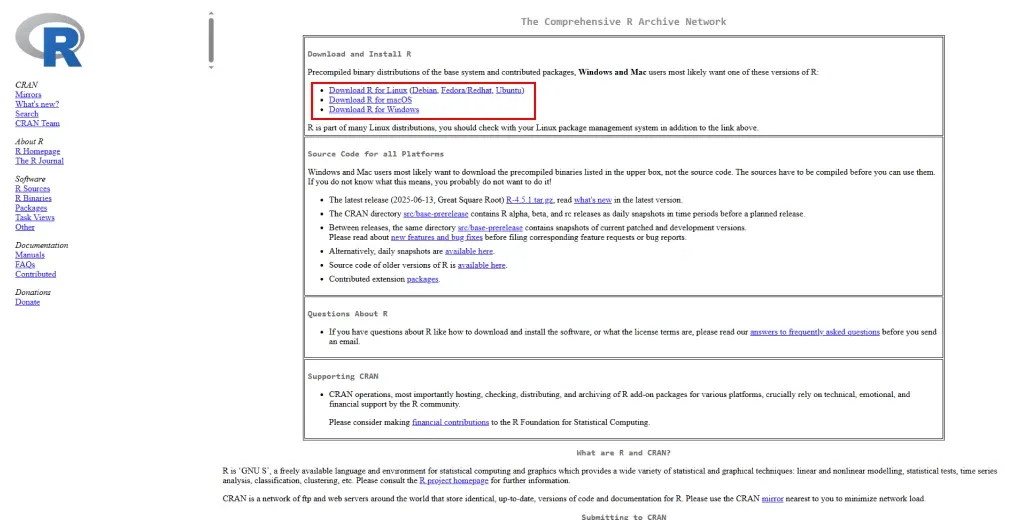
Download R
- Here we can select the linux, mac or windows any one according to users system. you have to click on for which you want to install.
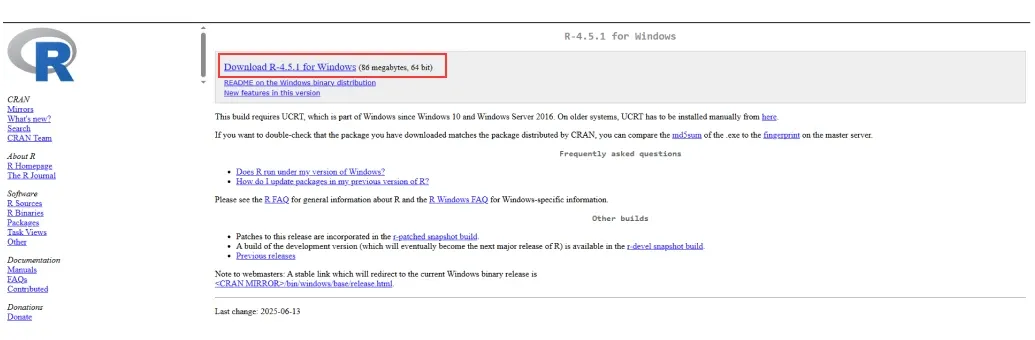
Install R
- Now click on the link shown in the image above.So R base start downloading and after again go to main page and download and click on Install RStudio.
Install R and R Studio Using the Installation Wizard
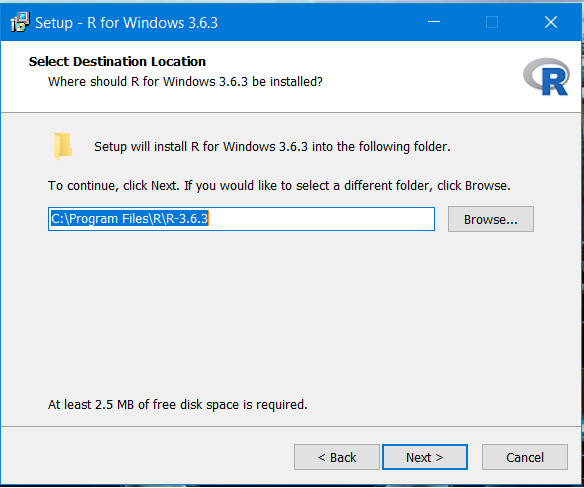
**Step 1: After downloading R for the Windows platform, install it by double-clicking it.
**Step 2: Download R Studio from their official page. Note: It is free of cost (under AGPL licensing).
**Step 3: After downloading, you will get a file named "RStudio-1.x.xxxx.exe" in your Downloads folder.
**Step 4: Double-click the installer, and install the software.
**Step 5: Search for RStudio in the Window search bar on Taskbar.
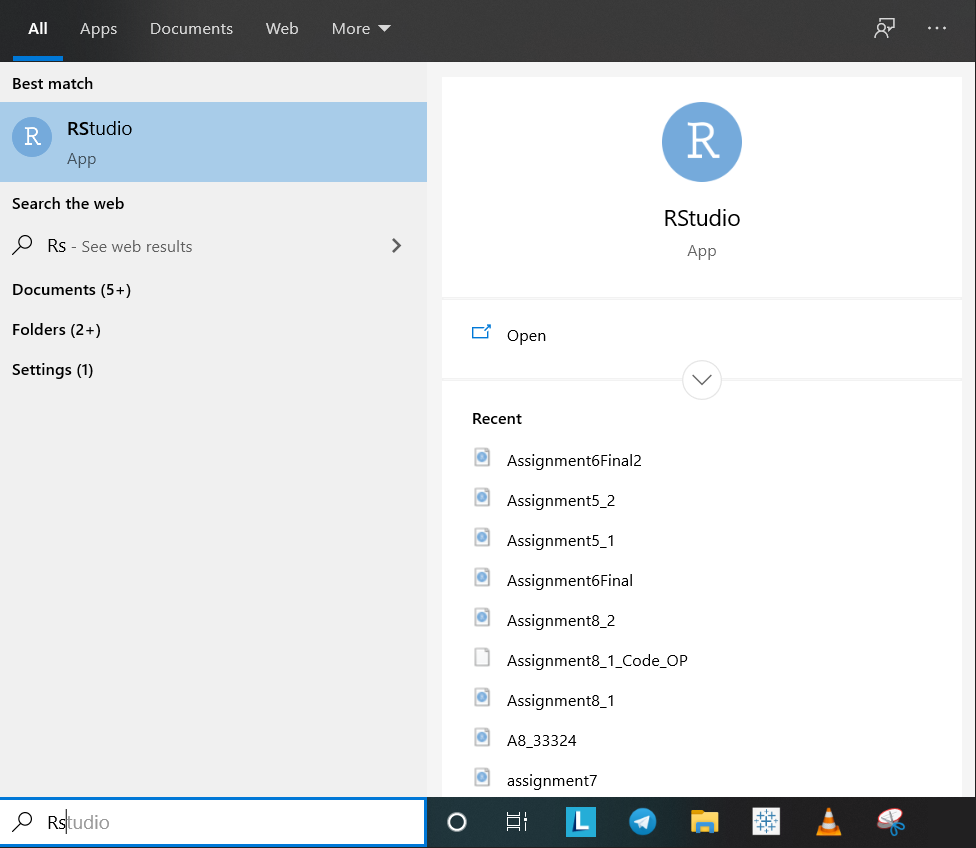
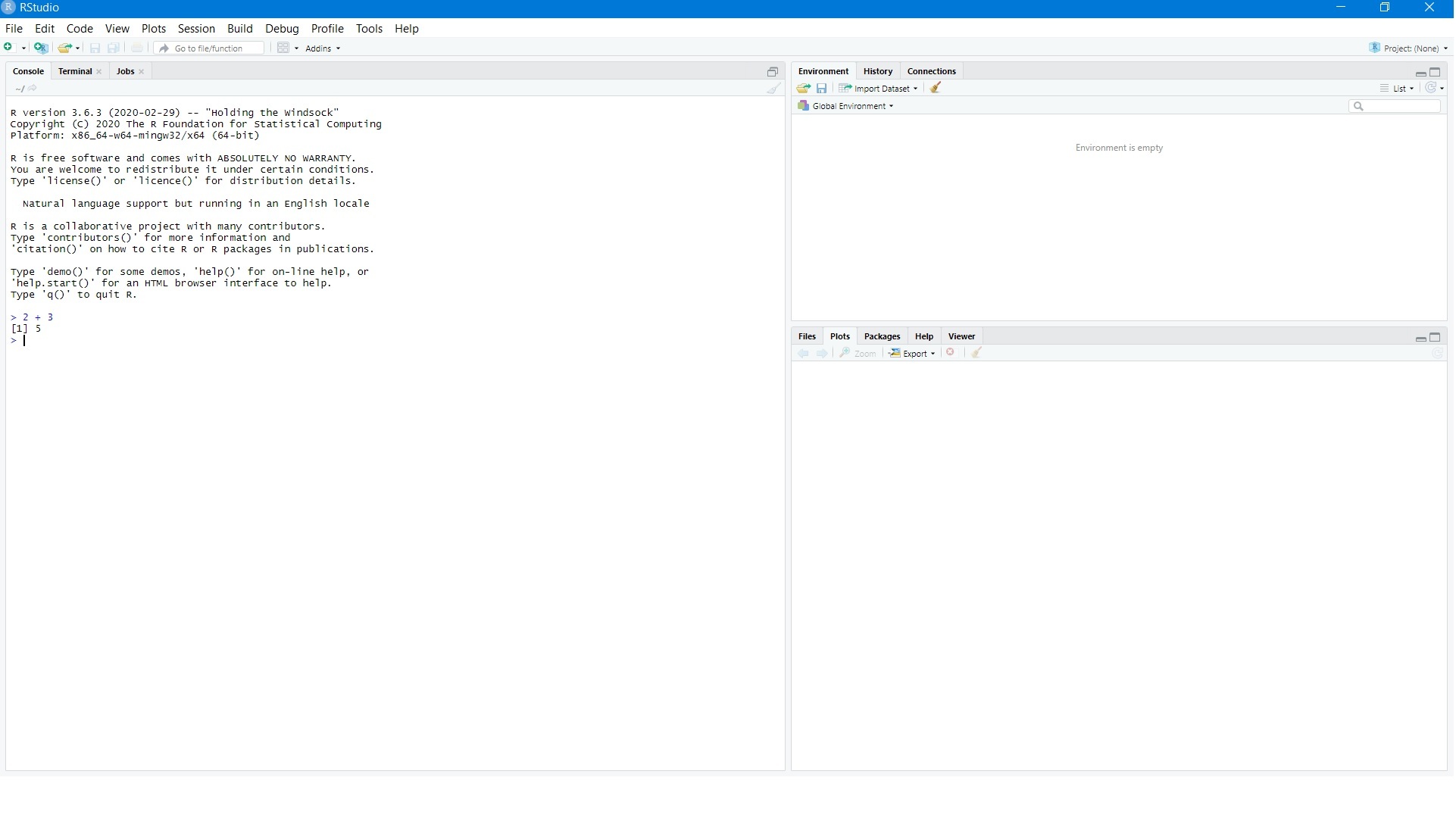
**Step 6: Your installation is successful.
Installing R and R Studio on Ubuntu
Installing R Studio on Ubuntu has steps similar to Windows:
**1. Using Terminal
**Step 1: Open terminal (Ctrl+Alt+T) in Ubuntu.
**Step 2: Update the package's cache.
sudo apt-get update
**Step 3: Install R environment.
sudo apt -y install r-base
Check for the version of R package using
R --version
**Step 4: Check R installation by using the following command.
user@Ubuntu:~$ R
_(Note that R version should be 3.6+ to be able to install all packages like tm, e1071, etc.). If there is issue with R version, see the end of the post.
**Step 5: Exit the terminal.
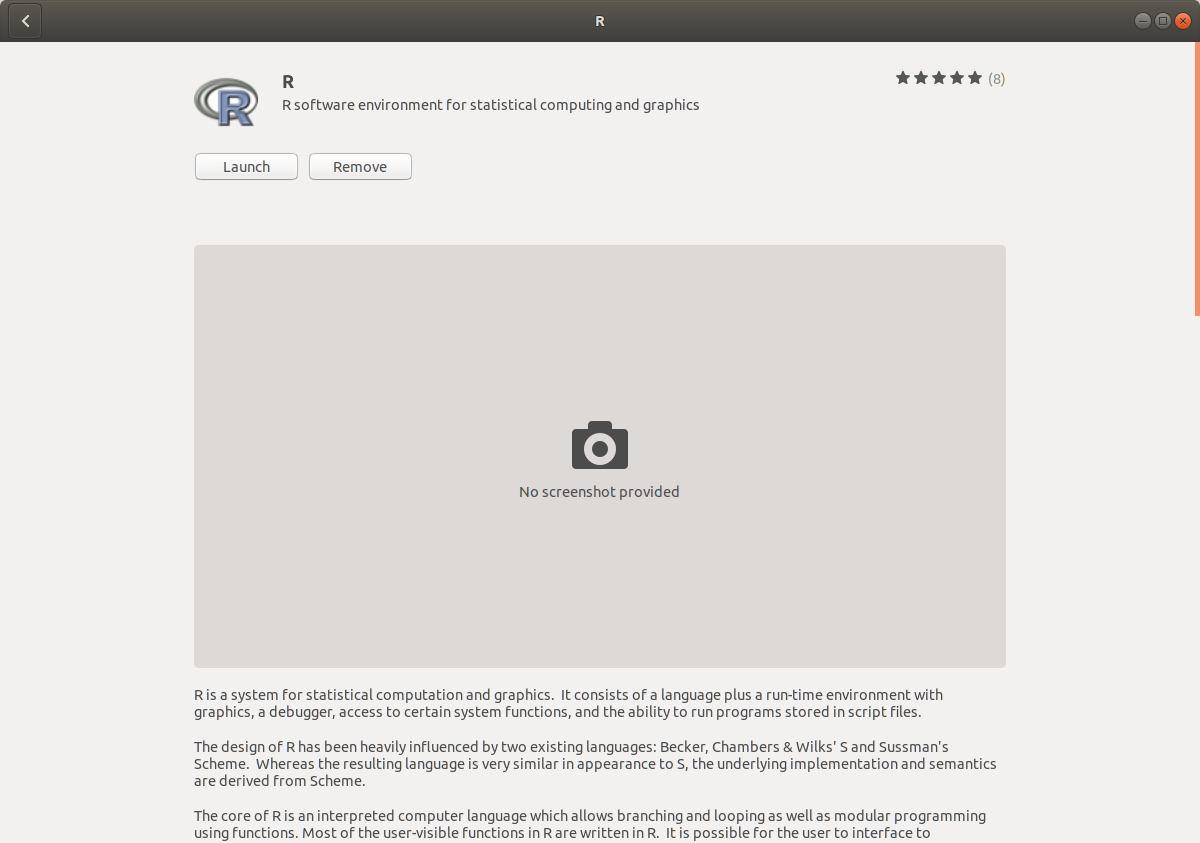
**2. Using Ubuntu software Center
**Step 1: Open Ubuntu Software Center.
**Step 2: Search for r-base.
**Step 3: Click install.
Steps to Install Rstudio on Ubuntu
**Step 1: Install gdebi package to install .deb packages easily.
sudo add-apt-repository universe
sudo apt-get install gdebi-core
**Step 2: Go to R Studio downloads and select the latest *.deb package available under Ubuntu 18/Debian 10.
**Step 3: Navigate to the Downloads folder in the local machine.
$ cd Downloads/
$ ls
rstudio-1.2.5042-amd64.deb
**Step 4: Install using gdebi package.
sudo gdebi rstudio-1.2.5042-amd64.deb
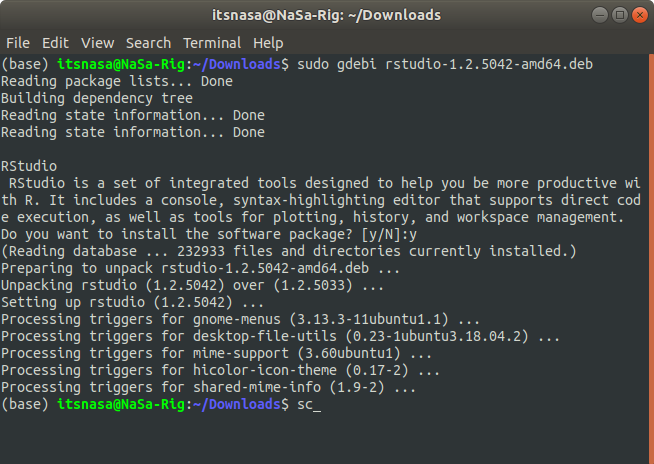
**Step 5: Run the RStudio using Terminal
user@Ubuntu:~/Downloads/ $ rstudio
Alternatively, use the menu to search for Rstudio.
**Step 6: Test the R Studio using the basic "Hello world!" command and exit.
**Input : print('Hello world!')
**Output : [1] "Hello world!"
Alternatively, RStudio can be installed through Ubuntu Software as well, but using the above approach generally guarantees the latest version is installed.
If there are issues with the R version getting downloaded or the previously installed version is older, check R version with
R --version
Now, Run the following commands in Terminal (Ctrl + Alt + T)
**Add the key to secure APT from the **CRAN **package list:
sudo mkdir -p /etc/apt/keyrings
curl -fsSL https://cloud.r-project.org/bin/linux/ubuntu/marutter\_pubkey.asc | sudo tee /etc/apt/keyrings/cran.asc
**Add the latest CRAN repository to the repository list. (This is for Ubuntu 18.04 specifically):
echo "deb [signed-by=/etc/apt/keyrings/cran.asc] https://cloud.r-project.org/bin/linux/ubuntu $(lsb_release -cs)-cran40/" | sudo tee /etc/apt/sources.list.d/cran.list
**Update the package cache:
sudo apt update
**Install the r-base package:
sudo apt install r-base