Introduction to RStudio (original) (raw)
Last Updated : 29 Apr, 2026
R is a open-source programming language widely used for statistical analysis, data visualization and data science. RStudio is a dedicated Integrated Development Environment (IDE) designed specifically for R programming. It provides a user-friendly graphical interface that allows users to write, execute and manage R code efficiently in an organized workspace.
- Provides a script editor, console, environment panel and plotting window in a single interface.
- Helps users manage files, packages and projects easily.
- Improves productivity by making coding, visualization and analysis more organized.
- Works on Windows, Linux and macOS platforms.
- Offers integrated tools for project management, code editing, console execution, plotting and package handling.
Getting Started with RStudio
RStudio combines coding, visualization and project management tools in one organized workspace, making it ideal for both beginners and professionals. RStudio also offers enterprise tools (such as RStudio Server) that support collaboration, centralized access and scalable project management.
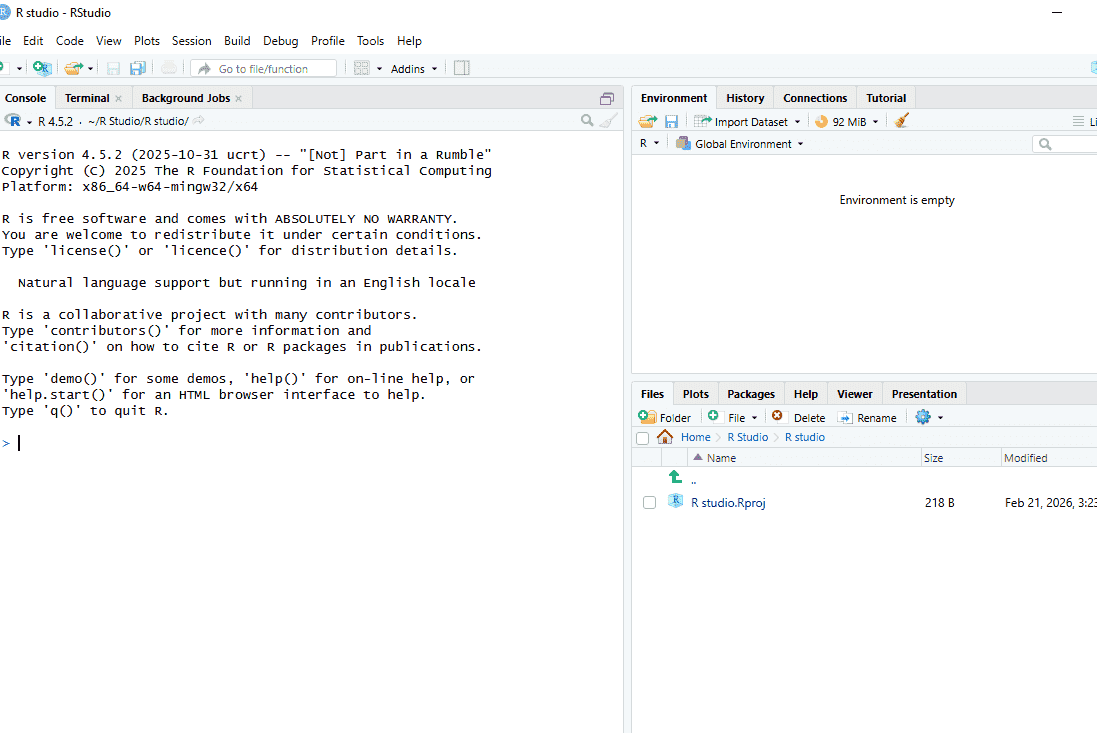
After the installation process is over, the RStudio interface looks like:
R Studio
After opening RStudio, the interface is divided into multiple panels, each serving a specific purpose:
**1. Console Panel (Left): This is where R waits for user commands. You can write code here and see the output immediately.
**2. Environment/History Panel (Top Right):
- **Environment Tab: Shows all the variables and data objects created during the session.
- **History Tab: Keeps a log of all commands executed in the current session.
**3. Bottom Right Panel: Contains several useful tabs:
- **Files Tab: Displays files and folders in the current working directory.
- **Plots Tab: Shows graphs and plots generated from R scripts.
- **Packages Tab: Lists installed packages and allows installation of new ones.
- **Help Tab: Provides documentation and guidance for R functions.
- **Viewer Tab: Displays local web content or interactive outputs generated from R.
How to Set the Working Directory in RStudio
In R, a working directory is the folder on your computer where R reads and saves files by default. Knowing and setting the working directory correctly is essential to manage data, scripts and outputs efficiently. You can check your current working directory by using the getwd() function, which does not require any arguments:
R `
getwd()
`
RStudio allows you to set the working directory in two main ways:
1. Using the Console Command
Use the setwd() function to specify the desired directory path.
R `
setwd("path/to/your/project")
`
Enclose the folder path in double quotes (""). After setting it, check the current folder with getwd().
2. Using the RStudio GUI
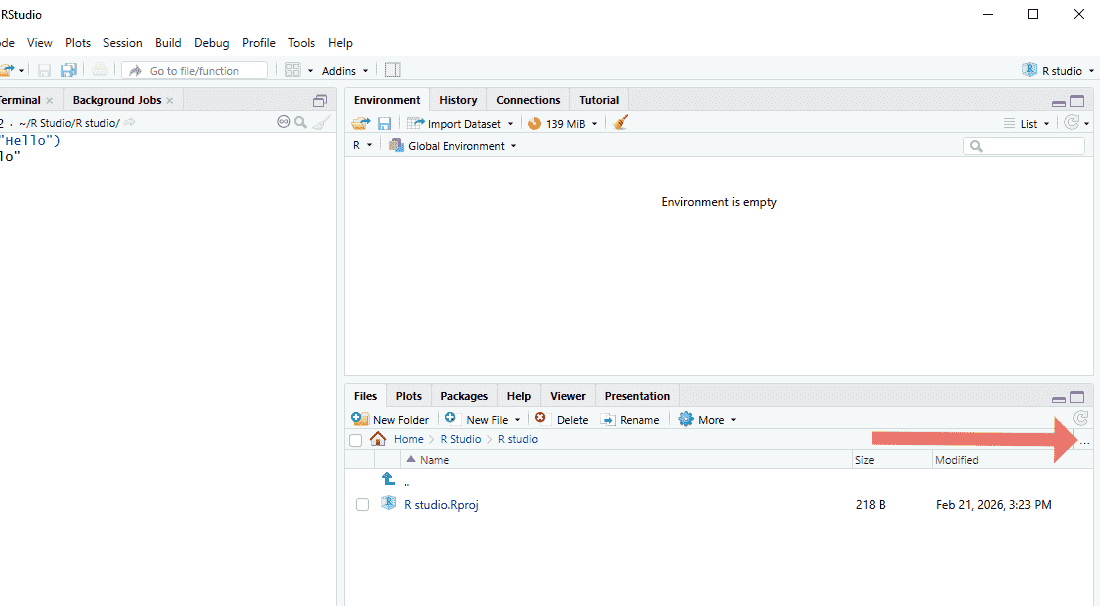
**Step1: Click on the three dots icon in the RStudio toolbar to open the file browser.
icon
**Step 2: Navigate to the folder you want to set as your working directory.
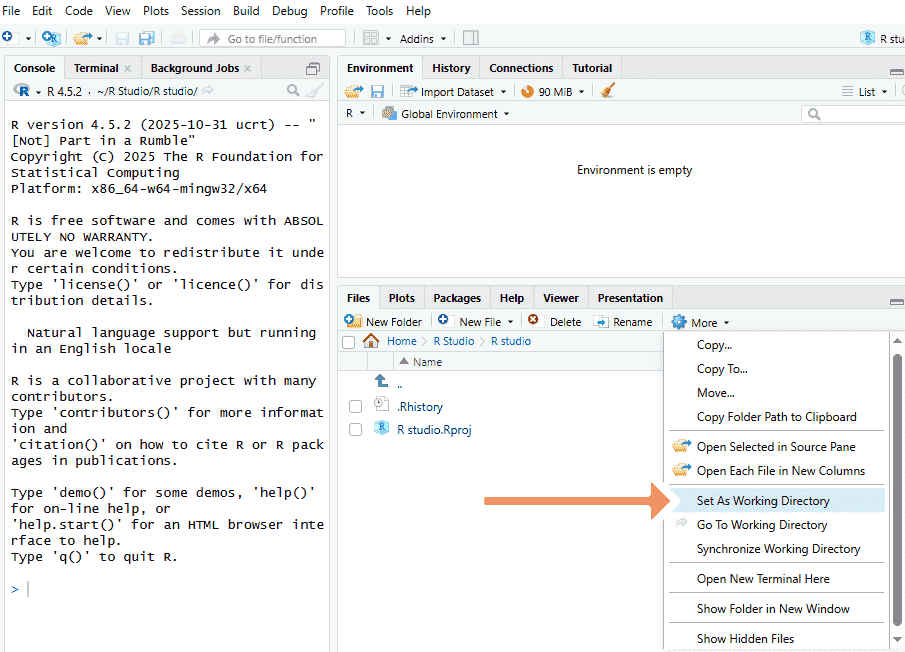
**Step 3: Click on the More button in the file pane and select “Set as Working Directory” from the popup menu.
Set As Working Directory
The chosen folder will now be the default location for reading and saving files.
RStudio Project Setup
RStudio projects provide a structured way to organize your scripts, data and outputs in a single workspace. Using projects helps maintain reproducibility, manage files easily and avoid working directory issues.
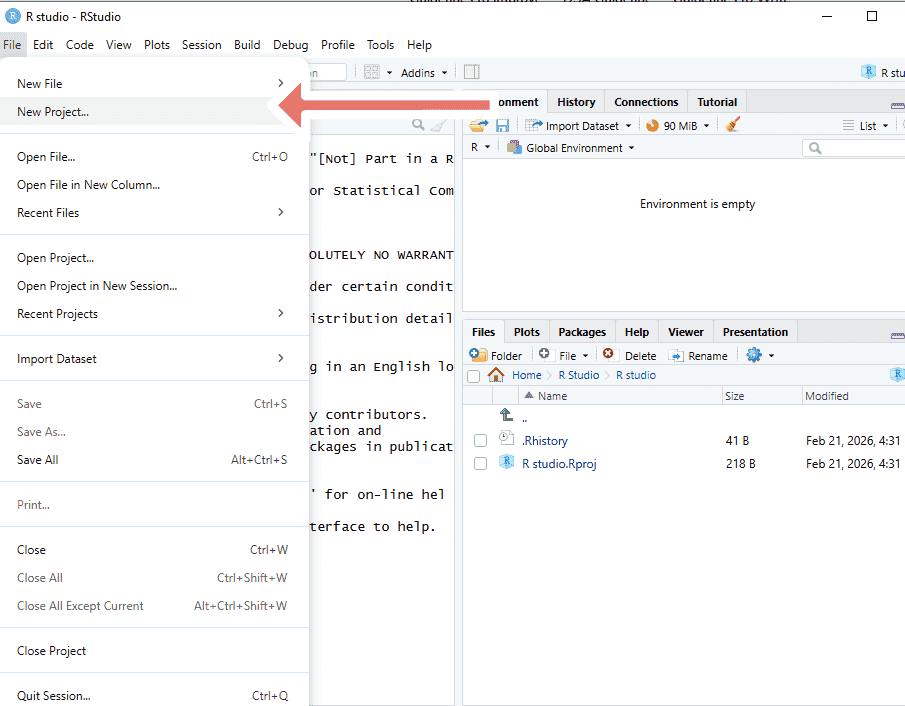
In RStudio, go to the File menu and select Create Project. This is the starting point for creating a new project or opening an existing one.
New Project
Step 2: Choose Project Type
Select New Directory if you want to create a new project folder or Existing Directory to use an already existing folder.
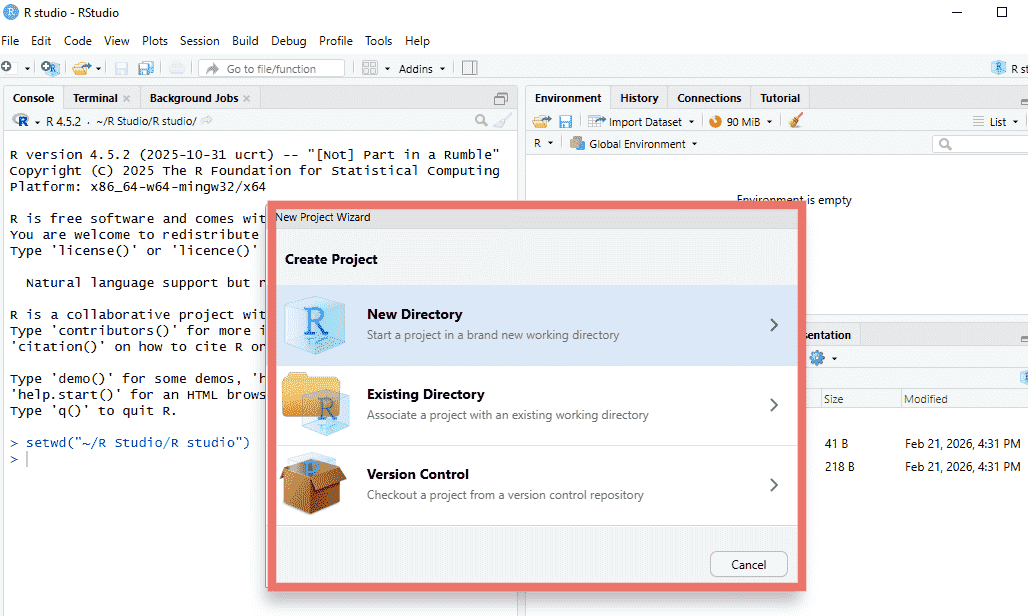
Project Type
Step 3: Set Path and Project Name
Specify the location where you want the project to be saved and give it a meaningful name. This folder will contain all your scripts, data and outputs for the project.
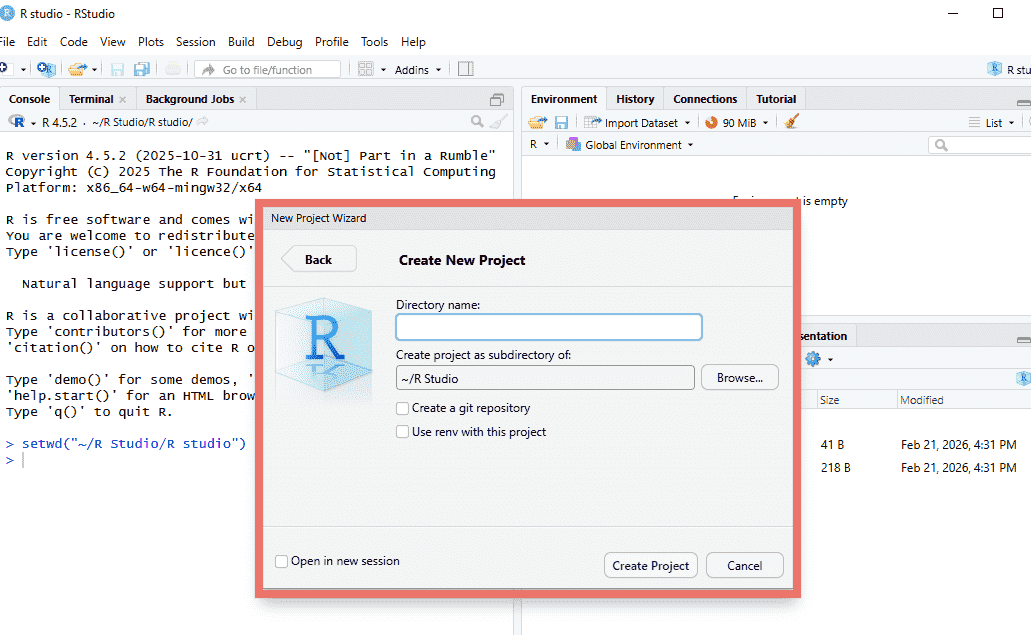
Set path
Step 4: Create the Project
Click Create Project. RStudio will open the project in a new session and the project directory will automatically become the working directory, ensuring that all file operations are saved in the correct location.
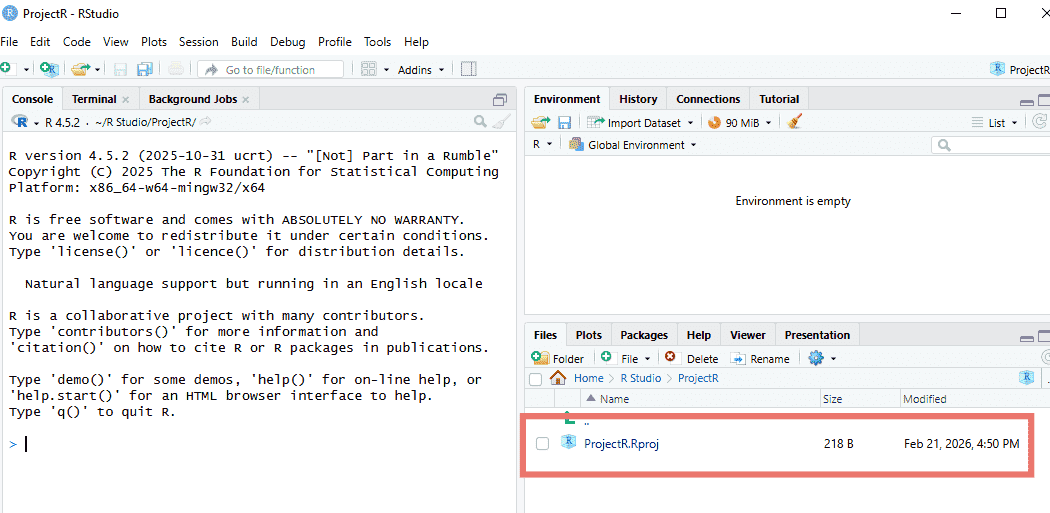
New Project
Navigating Directories in RStudio
R provides several functions to help manage and navigate directories efficiently
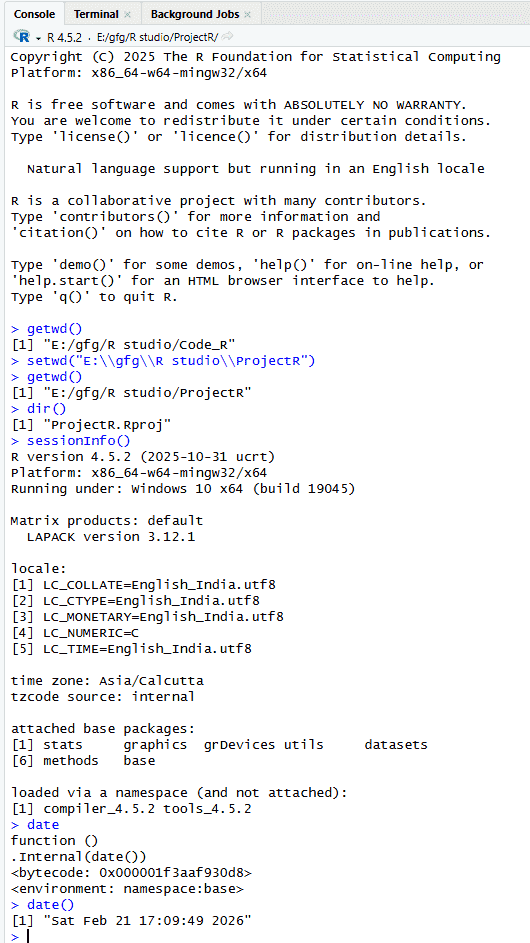
Navigating Directories in Rstudio
- **getwd(): Returns the current working directory where R is reading and saving files.
- **setwd("directory_path"): Sets a new working directory to the specified folder path.
- **dir(): Lists all files and folders present in the current working directory.
- **sessionInfo(): Displays details about the current R session, including R version, operating system and loaded packages.
- **date(): Returns the current system date and time.
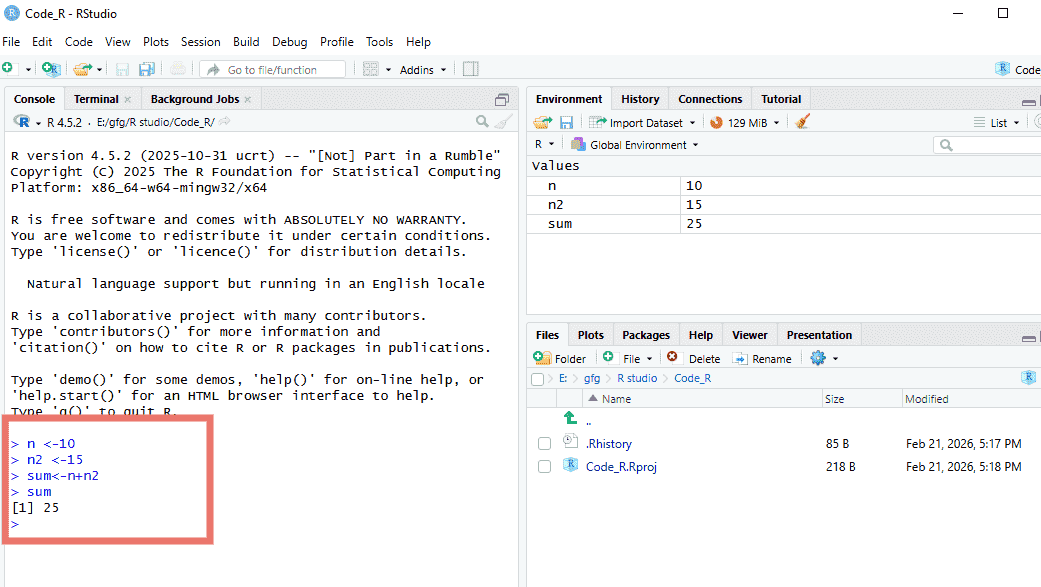
Creating your first R script
Creating an R script allows you to write, save and run R code efficiently. Scripts are reusable and help organize your work instead of typing commands directly into the console. Here we are adding two numbers in RStudio.
R Script
How to Perform Various Operations in RStudio
RStudio simplifies many routine tasks in R, including package management, accessing help and running scripts.
1. Installing R Packages
R packages extend the functionality of R by providing additional functions and datasets. You can install packages using the install.packages() function:
**Syntax:
install.packages("package_name")
- Replace "package_name" with the actual package you want to install.
- Packages only need to be installed once per system.
2. Loading R Packages
After installation, you must load the package into your session to use its functions:
**Syntax:
library(package_name)
This command makes all functions and datasets in the package available for use.
3. Getting Help on R Packages or Functions
R provides comprehensive help for packages and functions using the help() function:
**Syntax:
help(package_name)
You can also use ?function_name for quick access to a specific function’s documentation.
Advantages of Using RStudio
- **User-Friendly Interface: Provides a clean and intuitive workspace that makes coding, debugging and visualization easier for both beginners and advanced users.
- **Integrated Tools for Data Science: Combines script editor, console, plotting, package management and help documentation in one environment, streamlining the workflow.
- **Project and File Management: Enables organization of work into projects, making it easier to manage files, datasets and code for collaborative or large-scale projects.
- **Support for Reproducible Research: Facilitates writing reusable scripts, generating reports and sharing work with colleagues, ensuring consistency and reproducibility.
- **Extensive Community and Documentation: Backed by a strong online community, comprehensive tutorials and RStudio support articles, making troubleshooting and learning faster and easier.