How to Change or Reset Your Gmail Password (Desktop & Mobile Guide 2025) (original) (raw)
Last Updated : 27 Sep, 2025
Ever worried about your Gmail account’s security? With so much of our personal and professional lives tied to email, keeping your account safe is more important than ever. Whether you’ve forgotten your password, suspect a security breach, or simply want to update your credentials, knowing how to change your Gmail password is a must.
Why Should You Change Your Gmail Password
Changing your Gmail password often helps keep your account safe, protects it from hackers, and secures your personal information.
- **Protect Your Account: Keeps hackers from accessing your Gmail.
- **Prevent Unauthorized Access: Stops others from using your account without permission.
- **Stay Safe from Data Breaches: If a website where you used the same password gets hacked, your Gmail stays safe.
- **Remove Access from Shared Passwords: If you shared your password before, changing it prevents others from using it.
- **Keep Personal Information Secure: Protects your emails, contacts, and sensitive data from being stolen.
How to Reset a Gmail Password on a Computer
If you need to **reset Gmail password on desktop, follow these simple steps to regain access to your account:
Step 1: Open Gmail and Click on "Manage Your Google Account"
Log in to your **Gmail account, click on your **profile picture in the **top-right corner, and select the option **“Manage Your Google Account” to access your account settings.
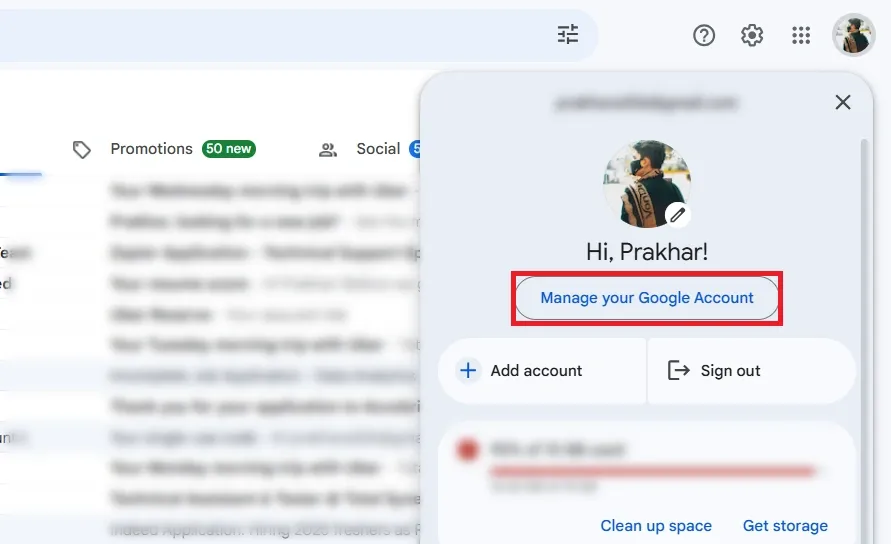
Open Gmail >> Click on "Manage Your Google Account"
Step 2: Navigate to the Security Tab
Once inside your **account settings, locate and click on the “Security” tab in the left-hand menu to manage your account security preferences.
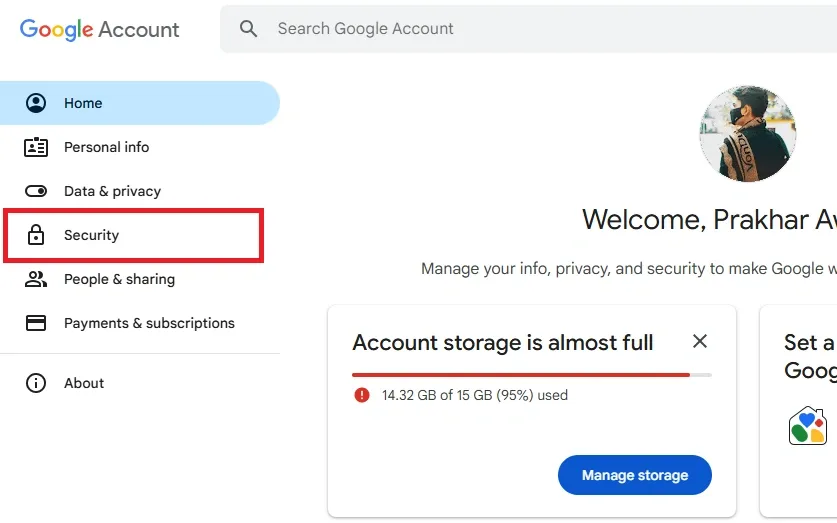
Navigate to the Security Tab
Step 3: Select the Password Option
Scroll down to the “Signing in to Google” section and click on “Password” to start the process of changing your Gmail password.
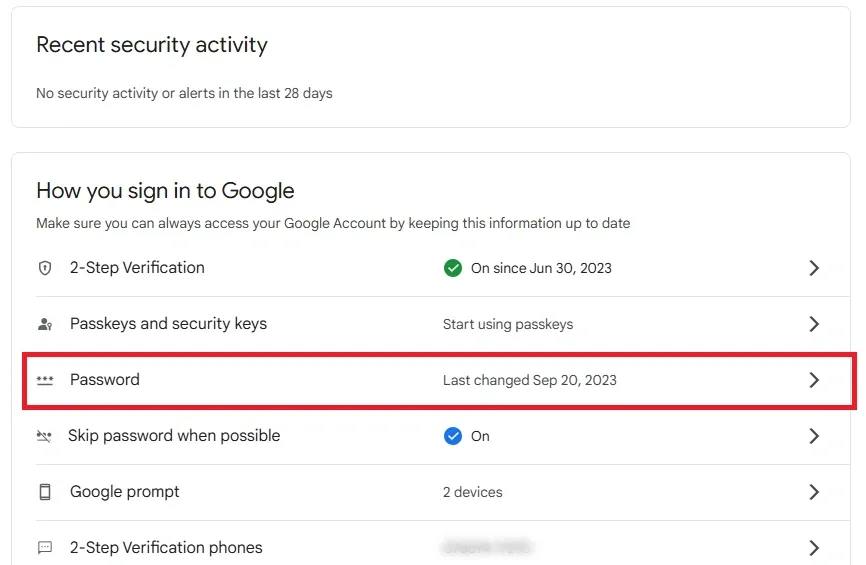
Select the Password Option
Step 4: Enter Your New Password
Type in a new, strong password that includes a **mix of letters, numbers, and symbols for enhanced security. Make sure it’s easy for you to remember but hard for others to guess.
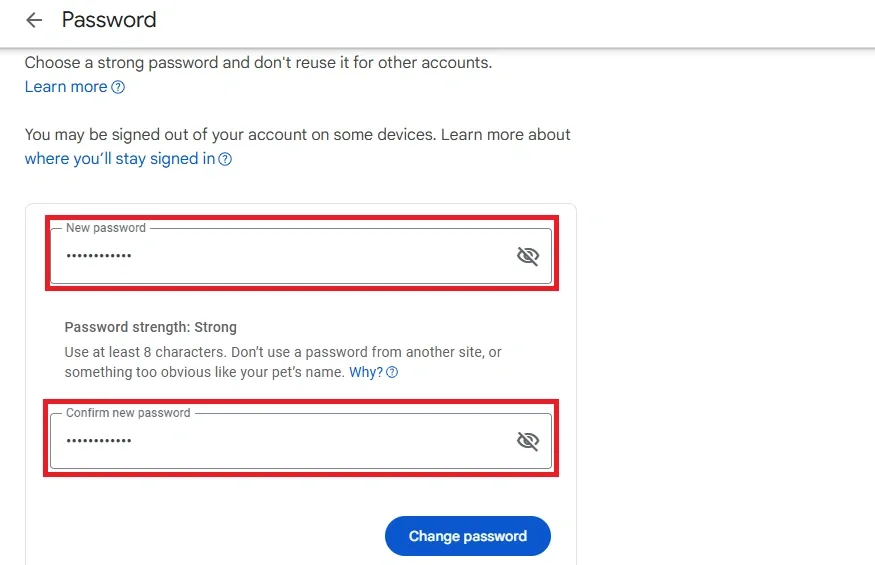
Enter Your New Password
Step 5: Review Devices Logged In and Confirm
Google will show a list of devices currently logged in with your account. Review this list for any unauthorized access, then click “**Change Password” to finalize the process.
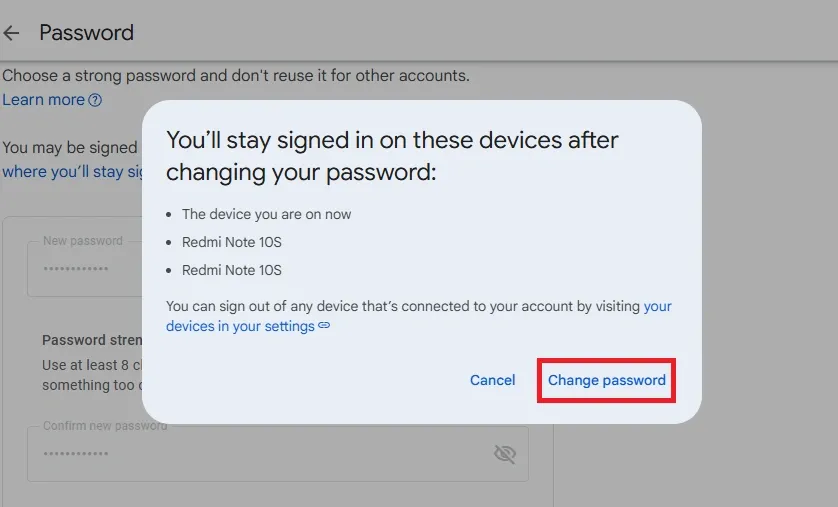
Review Devices Logged In >> Click on Change Password
Step 6: Password Successfully Changed
You’ll **receive a confirmation message that your **Gmail password has been updated. Ensure you use your **new password the next time you log in.
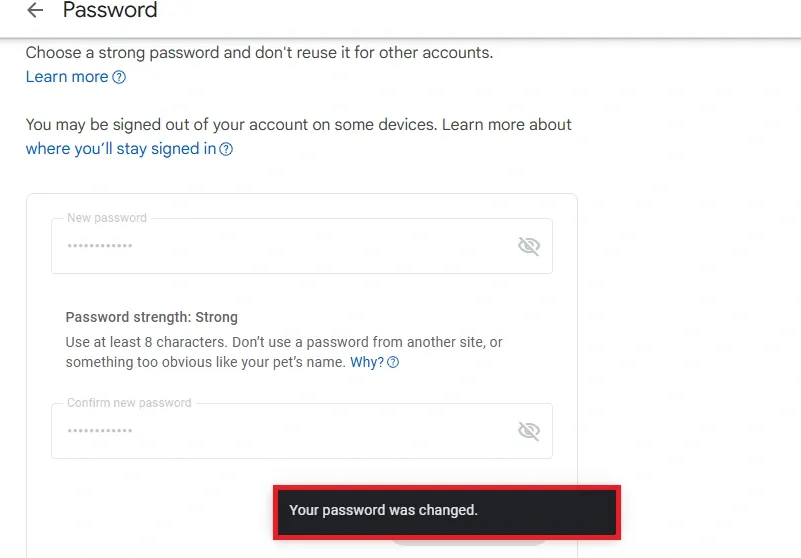
Password Successfully Changed
How to Change Your Gmail Password on Android & iPhone
If you need to **change Gmail password on mobile, follow these simple steps:
Step 1: Open Gmail and Click on Your Profile
Launch the **Gmail app on your **Android or iOS device. Tap on your profile picture in the top-right corner of the screen to access account options.
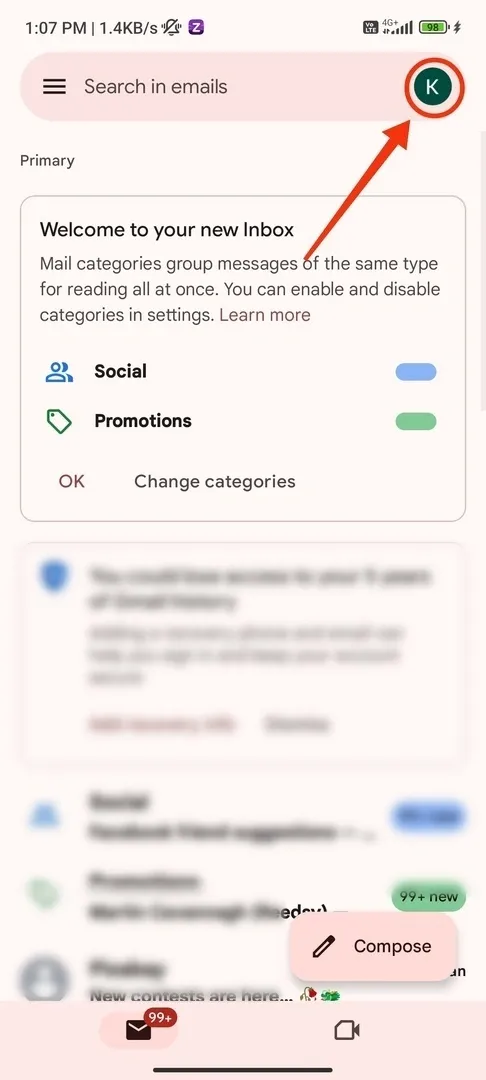
Open Gmail >> Click on Your Profile
Step 2: Click on "Manage My Account"
From the dropdown menu, select “**Manage My Account” to open your Google Account settings, where you can manage security, privacy, and other account details.
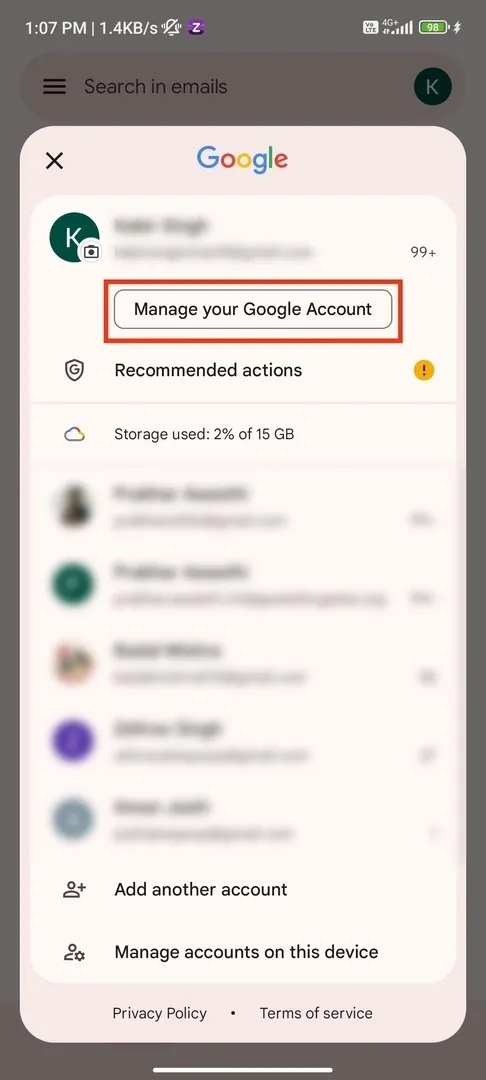
Click on "Manage My Account"
Step 3: Go to the Security Tab and Click on "Password"
Navigate to the “Security” tab by swiping through the menu options. Under the “**Signing in to Google” section, tap on “****Password” to begin the password change process.
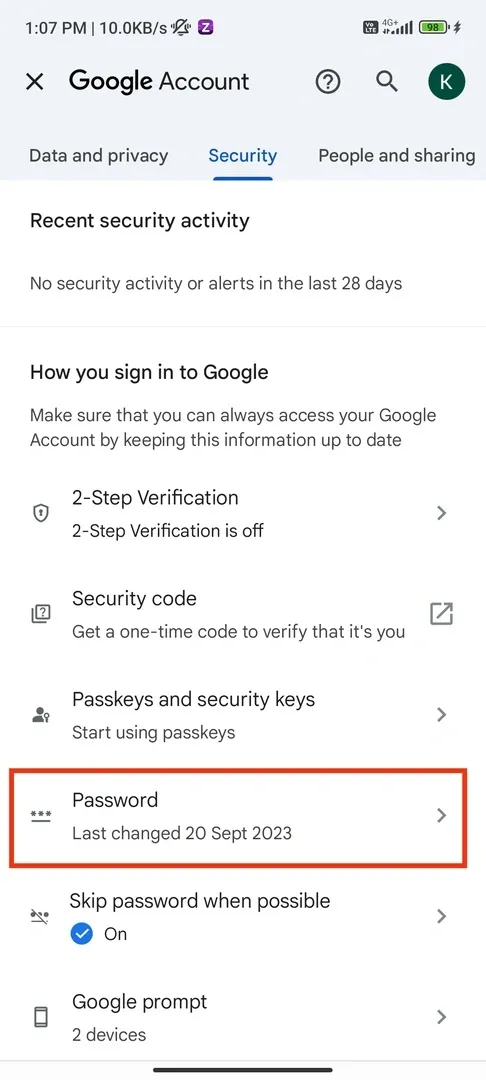
Go to the Security Tab >> Click on "Password"
Step 4: Verify Yourself
Google will prompt you to verify your identity for security reasons. Enter your **current password or complete a verification process such as a **fingerprint, face recognition, or a **code sent to your recovery email or phone.
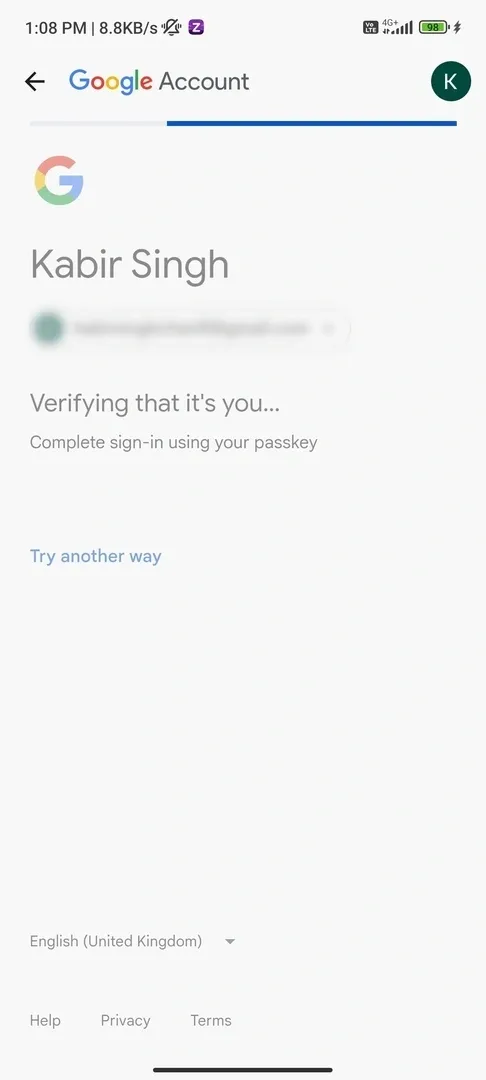
Verify Yourself
Step 5: Enter Your New Password
Type in a new password that is secure and unique. Use a combination of uppercase letters, lowercase letters, **numbers, and **special characters. Confirm the password by re-entering it in the provided field.
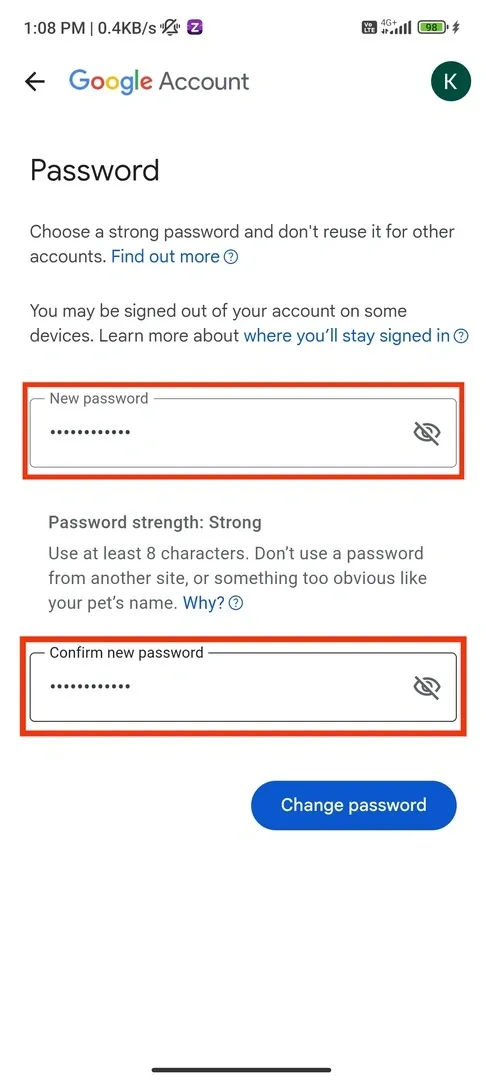
Enter Your New Password
Step 6: Review Devices and Click on "Change Password"
Google will display a list of devices currently logged into your account. Review the list for any suspicious activity, then tap “**Change Password” to complete the update.
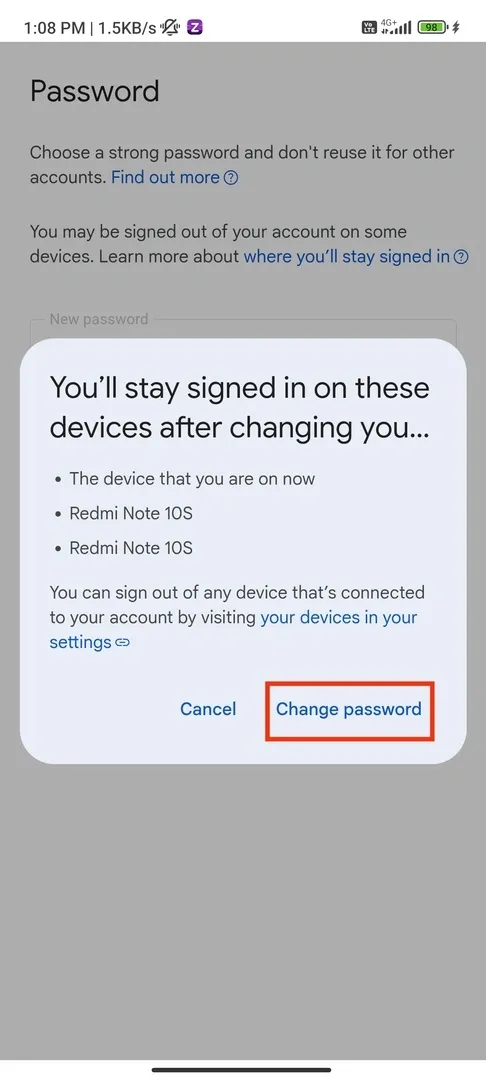
Review Devices >> Click on "Change Password"
Step 7: Password Successfully Changed
You’ll see a confirmation message that your password has been successfully updated. Make sure to use your new password for all future logins.
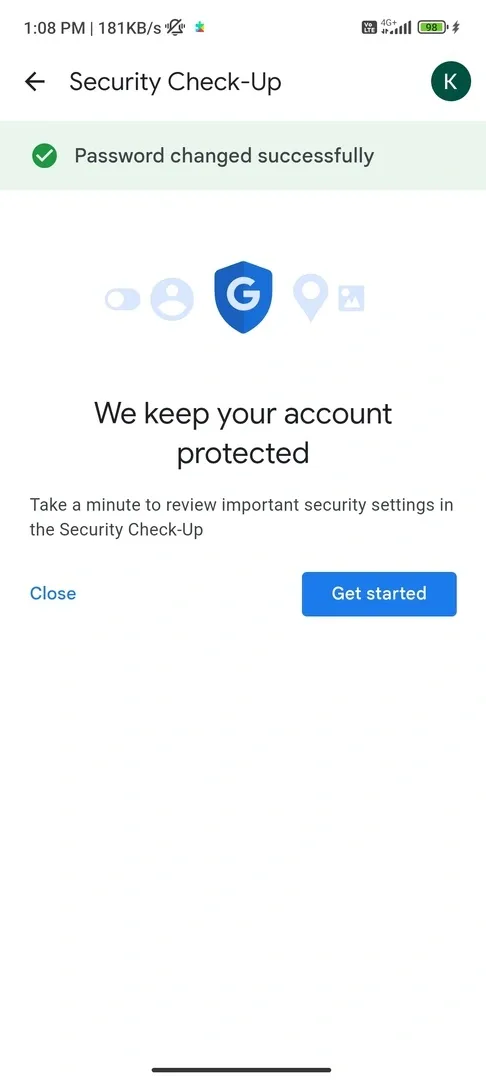
Password Successfully Changed
How To Change Gmail Password If Forgotten
If you **forgot your Gmail password, you can reset it and create a new one by following these steps:
**Step 1: Go to Google Account Recovery
- Open a **browser and go to **Google Account Recovery.
- Enter your **Gmail address and click **Next.
**Step 2: Verify Your Identity
Google will ask you to confirm your identity using different methods:
- **Enter Your Last Password: If you remember an old password, enter it.
- **Use a Recovery Phone Number: If you linked a phone number, Google will send a verification code.
- **Use a Recovery Email: If you set up a backup email, check your inbox for a reset link.
- **Try Another Way: If you don’t have access to these, Google may ask security questions or suggest other options.
**Step 3: Reset Your Password
- After verifying your identity, Google will let you set a **new password.
- Enter a **strong password (at least 8 characters with letters, numbers, and symbols).
- Click **Save to confirm.
**Step 4: Secure Your Gmail Account
Once you regain access, take these steps to keep your account safe:
- **Update your recovery phone number and email in Google Account settings.
- **Turn on 2-step verification for extra security.
- **Check your account activity for any suspicious logins.
**Best Practices for Creating a Strong Gmail Password
Keeping your **Gmail account secure starts with a **strong password. Follow these best practices to protect your account from hackers.
**1. Use a Mix of Upper & Lowercase Letters, Numbers, and Symbols
A **strong password should be difficult to guess. Make sure to:
- Use **uppercase and lowercase letters (e.g., A, a).
- Add **numbers (e.g., 1, 5, 9).
- Include **symbols (e.g., !, @, #, %).
- Make it at least **12-16 characters long.
**Example: Tg$7pX!m29#q (Strong) ✅
**Bad Example: password123 (Weak) ❌
**2. Avoid Using Personal Information (e.g., Birthdays, Names)
Hackers can easily guess passwords that include:
❌ Your **name (e.g., JohnSmith123).
❌ Your **birthday (e.g., 19901231).
❌ Common words like **“password” or “123456”.
Instead, create a **random and unique password that doesn’t relate to your personal details.
**3. Use a Password Manager for Secure Storage
Remembering strong passwords can be hard, so use a **password manager to:
- Store and autofill your passwords securely.
- Generate **strong, random passwords for different accounts.
- Prevent you from reusing passwords, which can be risky.
Some trusted password managers include **Google Password Manager, LastPass, 1Password, and Bitwarden.
**2-Step Verification (2FA) adds an extra layer of security to your Gmail account by requiring a second step (like a phone code) when signing in. This helps **protect your account from hackers, even if they have your password.
Follow these steps to enable **2-Step Verification (2FA) in Gmail:
**Step 1: Open Google Security Settings
- Go to **Google Account Security.
- Scroll down to the **“Signing in to Google” section.
**Step 2: Start 2-Step Verification Setup
- Click on **“2-Step Verification” and then **“Get Started”.
- If prompted, enter your **Gmail password to verify your identity.
**Step 3: Choose a Verification Method
Google offers different ways to receive your login code:
**Text Message or Phone Call – Google sends a **6-digit code to your phone.
**Google Authenticator App – A secure app generates time-based codes.
**Backup Codes – Download and save these for emergency access.
- **Select your preferred method and follow the instructions.
- **Enter the verification code sent to your phone or generated by the app.
- Click **“Next” to confirm.
**Step 4: Turn On 2-Step Verification
- After verification, click **“Turn On” to activate **2FA.
- You’ll now need a **password + verification code to log in.
**Step 5: Set Up Backup Options (Optional, But Recommended)
To avoid being locked out, set up:
- **Backup phone number: Another number for receiving codes.
- **Backup codes: Printable one-time codes for emergencies.
- **Authenticator app: A safer alternative to SMS codes.
**Step 6: Test Your 2FA Setup
- Log out of your Gmail account.
- **Try signing in again: Google will ask for a verification code.
- Enter the code and confirm that **2-Step Verification is working.
Conclusion
Changing or resetting your Gmail password doesn’t have to be stressful. Whether you’re updating your credentials for security reasons or recovering access after **forgetting your Gmail password, this guide has you covered. From **changing your Gmail password on a phone to setting up **2-step verification, these steps ensure your account stays secure and under your control.
Ready to take charge of your Gmail security? Follow these tips to **reset your Gmail password, create a strong one, and add extra protection.
Also Read: