How To Change Screen Resolution in Windows 10? (original) (raw)
Last Updated : 21 Aug, 2025
Windows 10 offers the flexibility to adjust screen resolution. While the **standard recommendation is 1920 x 1080 pixels, On the other hand, you can experiment with different resolutions to find the one that suits you best, and you can always switch back with the same steps. Changing your screen resolution in Windows 10 is easy – just **Go to Display Settings.

In this article, we will explain to you **How to change screen resolution **in Windows 10. Let's join us and try it out.
What is a computer's screen resolution?
Computer screen resolution refers to the number of pixels displayed on the screen. It's generally represented as width x height (for example, 1920x1080). Higher resolution means sharper and more detailed images, while lower resolution means less clarity. It specifies the clarity and quality of visuals on your computer's screen.
Why should you adjust the screen resolution?
Changing screen resolution is essential for adjusting the clarity and size of content displayed on your monitor. Higher resolution offers sharper images and more screen space.
- **Compatibility: Ensures software and games work correctly by matching their required resolutions.
- **Optimal Display: Allows adjustment for sharpness and screen space, enhancing visual clarity.
- **Accessibility: Enables larger text and icons for easier reading, catering to different user preferences.
- **Performance: Lower resolutions can improve performance in resource-intensive applications or games.
- **Multiple Displays: Helps configure multiple monitors with different resolutions for a seamless viewing experience.
How To Change Resolution in Windows 10
**Step 1: Go to **Start.
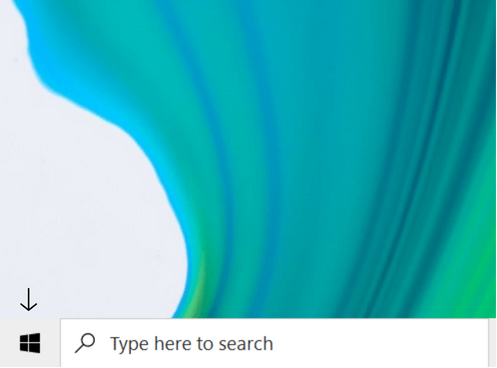
**Step 2: Navigate to Windows 10 settings by clicking on the **Settings icon.

**Step 3: Click on **System.

**Step 4: The **Display tab will automatically pop up on your screen.
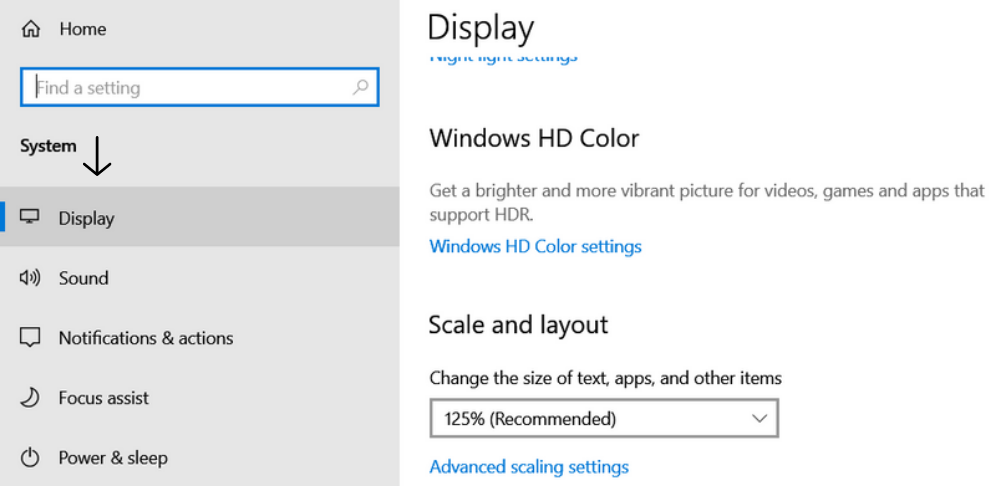
**Step 5: On that page, you will see a **Display resolution option under the **Scale and Layout Configure section. Click on the dropdown button underneath the option to see several different resolutions.

**Step 6: Pick a resolution and click on it to set it as default. In our case, we will go for the **recommended resolution.

How To Change Screen Resolution for Multiple Displays
**Step 1: You can change the resolution for multiple displays as well. Just like in the previous approach, go to **Settings > System > Display.
**Step 2: Adjusting Screen Resolution for Multiple Displays:
- Open **Display Settings in Windows 10.
- Under "**Select and rearrange displays," you'll see your connected screens. For instance, if you have a laptop and two monitors, your laptop screen might be labelled as "1."
- The default resolution on your primary display (laptop, in this case) will be applied to all displays. It's typically 1920x1080.
- If you want a different resolution for one of the additional displays, click on its rectangle.
- A dropdown menu will appear. Choose your preferred resolution for that specific display.
- This will set the chosen resolution for the selected display.

How To Change Refresh Rates?
Refresh rate, measured in Hertz (Hz), refers to the number of times a computer screen refreshes its image per second. A higher refresh rate, like 60Hz or 120Hz, means smoother motion and reduced blinking. It enhances the overall user experience, especially while gaming or playing video.
To change Refresh Rates of your Computer refer to the following steps.
**Step 1: Go to **Settings > System > Display. On that page, you will see an option called **Advanced Display Setting. Click on it to proceed.
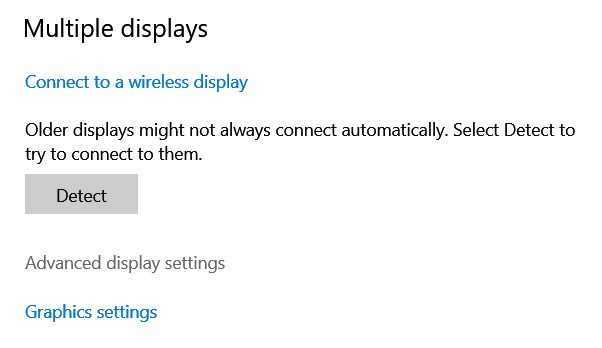
**Step 2: Click on **Display adapter properties for Display 1.

**Step 3: Click on **List All Modes.

**Step 4: You will see several refresh rates on your screen, paired with several different resolutions. Select your preferred refresh rate and resolution pair and hit **OK to set the chosen refresh rate as default.

How To Create a Custom Resolution (Nvidia)?
This section is only for users who have Nvidia as their device's GPU. If you want to create a custom resolution for your device, follow these steps.
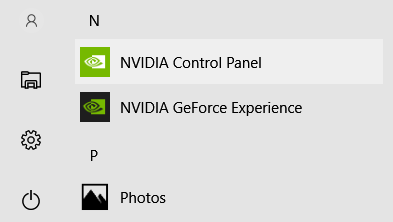
**Step 1: Type **NVIDIA Control Panel on the search bar and click on the application that pops up.
**Step 2: On the left-side pane, find the **change resolution under **Display. Click on it to get the below page. Then click on the **Customize button at the bottom of the screen.

**Step 3: Click on **Create Custom Resolution.

**Step 4: You will see inputs named **Horizontal pixels and **Vertical lines. Fill them up with your preferred values. We will go with the **3840 × 2160 resolution. After filling them up, hit **Test. You will be shown a preview of the resolution you have chosen. After seeing the preview, move on to the next step.
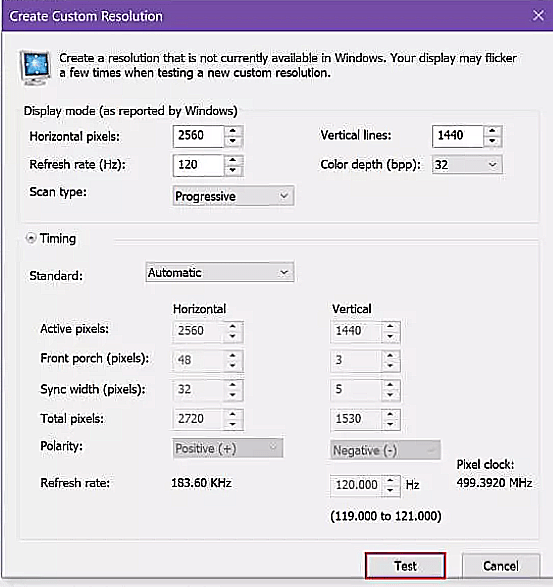
**Step 5: Now, you will be asked to set your chosen resolution as default. If the preview felt okay to you, put a tick mark in the checkbox labelled with your custom resolution. Then, hit **OK to proceed.

**Step 6: Finally, click on the **Apply button, located in the bottom-right corner of your screen, to set your custom resolution as default.

You can easily change your screen resolution in Windows 10 to suit your needs, whether for gaming, browsing, or personal preference. Adjusting your resolution is important for a better video experience. We have provided simple steps to change the screen resolution for your computer.
Also Read
- How to Change Your Windows Computer Screen Saver?
- How To Change Screen Brightness in Windows 10?
- How to Record the Screen on Your Windows PC or Mac?
- Windows 10 Settings You Should Change Right Now!
- How to Split Screen in Windows 10?