How to Create Any File Using CMD: Learn 5 Methods (original) (raw)
Last Updated : 23 Jul, 2025
Creating a file using Windows GUI is quite simple but did you know you can do the same using the **Command Prompt (CMD)? This guide will walk you through multiple methods to create files directly from CMD, giving you more control and efficiency in managing your system.

How to Create a File in CMD
Methods to Create A File on Windows using CMD
To **start a **new file on Windows using CMD, the following guidelines should be used. Let us start with the basic **Echo Command.
**Note: All of these methods should be executed in any certain directory. Otherwise, the operations will not completed. Use the **CD **Windows Command to enter into any certain Windows directory.
Method 1: Create Text File Using ECHO in Command Prompt
Step 1: Open CMD
- To create a file using CMD open CMD press Win + R key on your keyboard and type CMD to open CMD.
Step 2: Type ECHO Command
- Once the CMD opens execute the following command.
This method will directly save the file to the directory mentioned earlier. You have to put some text for it.
**Command: echo. > Rapture.txt
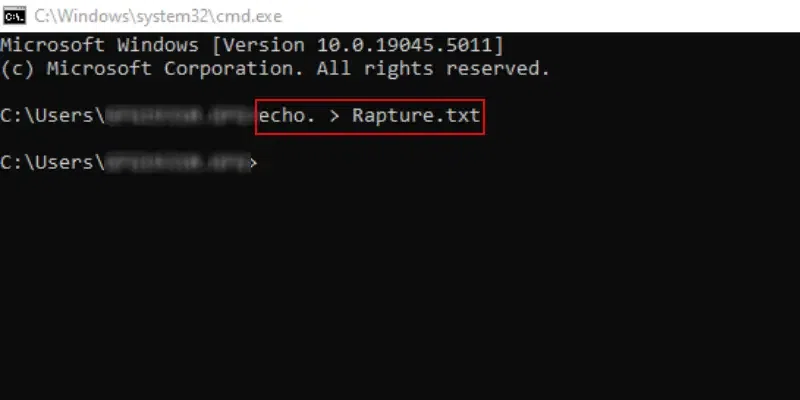
Echo command
Congratulation! The **New Text File on Windows is created using the Command Prompt with one simple command.
Method 2: Create New File Using COPY CON Command
Step 1: Use copy con in CMD
- You need to type "copy con" followed by the name of the file you wish to overwrite and once you're done press the **CTRL + Z to end the operation & the file will be directly saved to the directory.
Let's understand this with the below-mentioned example where the file name = 'Rapture'
**Command: copy con Rapture.txt
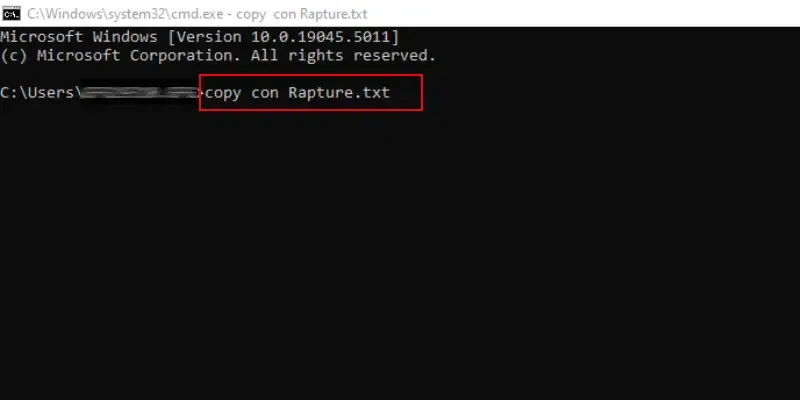
copy con command
Hooray! We have successfully created a **Text File on Command Prompt on Windows in a certain directory without opening it.
Method 3: Create a File in CMD Using NOTEPAD Command
The following command can be used to open any Text File. Either, you can open the New File with any predefined name or any existing one in the certain directory. It will open the **Notepad Windows Application, make changes there & press **CTRL + S to save it.
**Command: notepad Rapture.txt
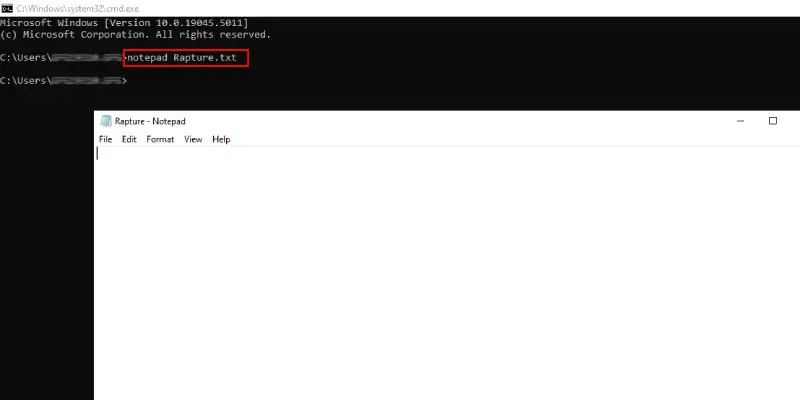
notepad command
Method 4: 'fsutil' Command to create a "specific" size file
The following command can be used to create a file in CMD for any specific size. Once you create the file, you do perform tasks accordingly.
**For example: Let's create a file of size 10 bytes with the filename as 'Rapture'
**Command: fsutil file createnew Rapture.txt 10
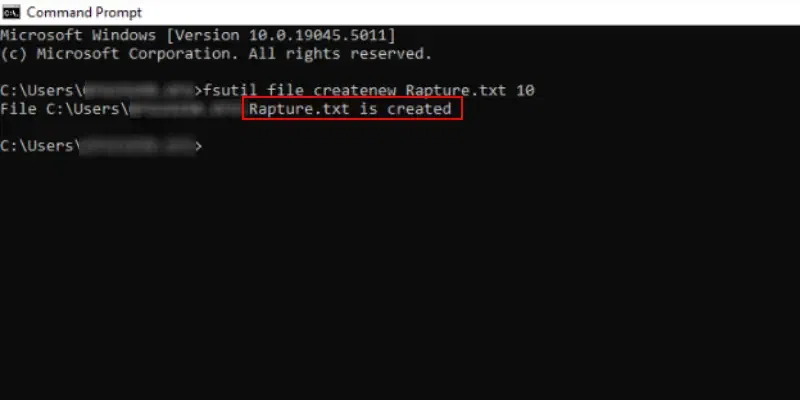
'fsutil' Command
Method 5: "type nul" Command to create a new File
The type nul command in cmd can be used to create a new file wherein the "type nul" denotes to do nothing and starts with an empty file. Let's understand this with an example below where the filename is 'Rapture'.
**Command: type nul >Rapture.txt
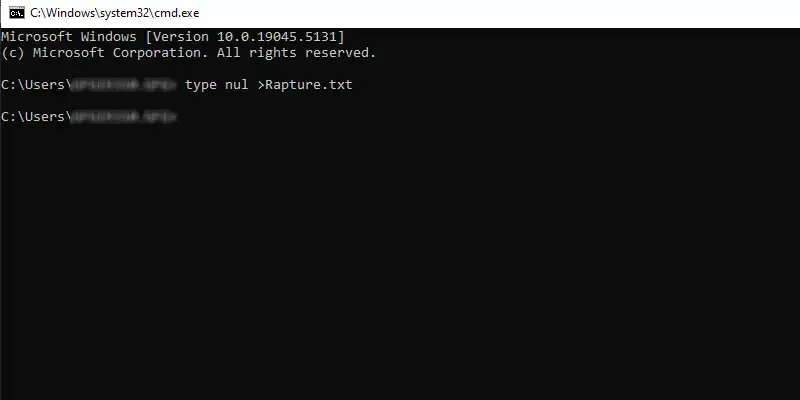
type null command
Conclusion
Mastering the ability to **create a file in CMD is an essential part of becoming proficient with the command line in Windows. By using the right **CMD command to create a file, you can streamline your workflow and perform tasks more efficiently. Whether you’re creating simple text files or working on more complex scripts, understanding **how to make a file in CMD gives you greater control over your system.
Also Read