How to Defrag Windows 10 Computer (original) (raw)
Last Updated : 23 Jul, 2025
Disk Defragmentation is a process of organizing your hard drive's fragmented data so that it can perform smoothly. If your system is running slow and facing challenges with the storage drives, then this article has covered it for you. In this guide, we're going to discuss all the possible methods of performing disk defragmentation on Windows 10 system.
1. Using Windows System
Windows OS provides an in-built disk defragment option that can be performed by any user irrespective of their expertise. Here's a breakdown to perform this action.
Step 1: Access the Defragmentation Tool
Press **Win + S, type "**Defragmentation and Optimize Drive" and hit the enter button.
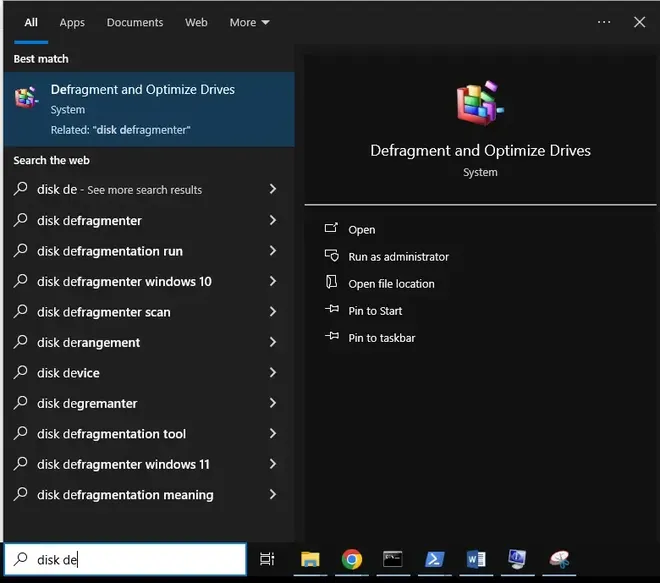
Disk Defrag
Step 2: Select and Analyze the Drive
Once you open "Defragment and Optimize Drives", click on the "Analyze" option and check for the fragmentation level.
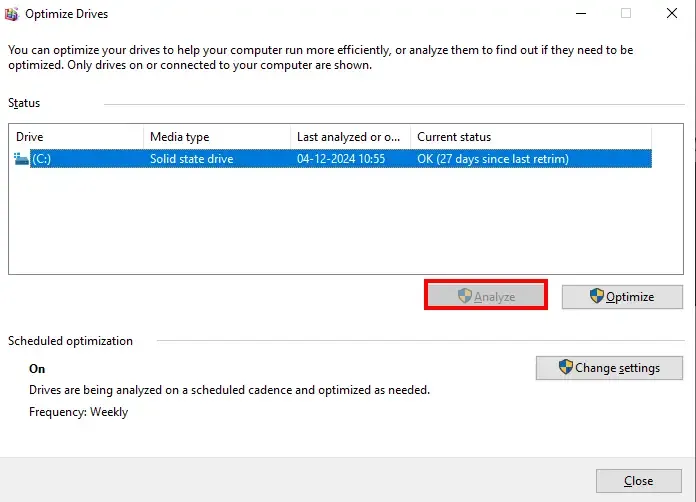
Analyze Disk
Step 3: Complete the Defragmentation Process
Now, click on "optimize" to start defragmentation and let it complete. Wait for sometime, you'll get a pop-up once the degraf gets completed for the selected drive.
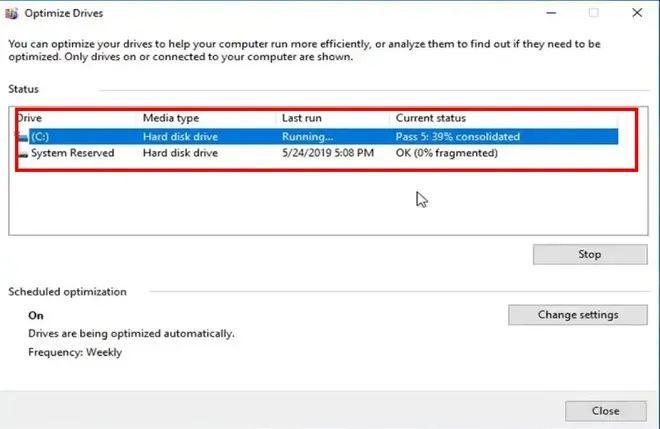
Complete the optimization process
**Note: You will receive the completion notification which means now your drive/disk has been successfully defragmented.
2. Using Third-Party Applications
If you're looking for additional methods or have any certain requirements, you might consider chooisng any trusted third-party tool. Some of them are:
- Defraggler
- Smart Defrag, etc.
**Note: Ensure to download these tools in your system "ONLY" from it's official website or any trusted source.
Alternate Solutions
Whereas, using in-built option and third-party tools are some of the common methods to optimize your hard disk. You can also manage it by applying some of the best manual ways without having any additional requirement. Let's see what and how you can do:
- **File Organization: By using this apporach, you can easily manage all your files and remove unnecessary data from time to time. This will also ensure that your drive is not at its full capacity.
- **Drive Partitioning: One of the most healthy approach is to create different partitions of your hard drive and you can easily segregate all your files in different drives for different purposes
- **Replace or Upgrade Hard Drive: If you're using an old hard drive (HDD) or low space SSD, then you might consider replacing it with the upgraded one so that your Windows device will run seamlessly for a longer time.
- **Use Cloud Storage for Universal Access: This can be used in both cases i.e. to save additional space and to access the stored data from anywhere.
Conclusion
Defragmentation is an excellent choice for mainintaing the hard drive health (HDD), and this can be maintained by using other approaches aswell such as Cloud Storage, HDD Upgrade, and smart file management technique. Give it a try and make your Windows 10 computer smoother and effective.