How To Free up Drive Space in Windows (original) (raw)
Last Updated : 23 Jul, 2025
Running out of storage on your Windows PC can be really frustrating, can’t it? It turns out that nearly half of all users—regardless of whether you're a student, a gamer, a designer, or just someone who uses their computer casually—experience this same challenge. Having low storage space can really be a hassle! In addition, we will discuss some of the best-proven methods to **free up space in Windows 10 and 11. Let's dive in!

Is Freeing Up Drive Storage is Important?
Yes, It is one of the best practice to keep your Windows PC smooth and healthy including:
- It helps in elevating Windows Performance
- Unavoidable "Warning" storage will be a long gone story
- Freeing up space will help you with i**nstallation of new software and updates
- Your system will be **better organzised
Table of Content
- 1. Storage Sense
- 2. Run Disk Cleanup
- 3. Uninstall Unused Applications
- 4. Remove Temporary Files
- 5. Clear System Reserved Storage
- 6. Remove the Previous Windows Installation Files (Windows.old)
- 7. Disable Windows Hibernation
- 8. Move Large Files to Cloud Storage or External Drive
- 9. Third-party Tools
- 10. Empty the Recycle Bin
PC Disk Cleanup - 10 Effective Methods
In this article, We discuss effective 10 Ways To Free up Drive Space in Windows. So Let's see step by step process.
1. Storage Sense
You can use the Windows built-in tool that will help you in removing temp file, empty recycle bin and remove the unused files automatically. Here's how to put it into the action:
**Step 1: Open Windows Settings
Navigate to **Settings > System > Storage
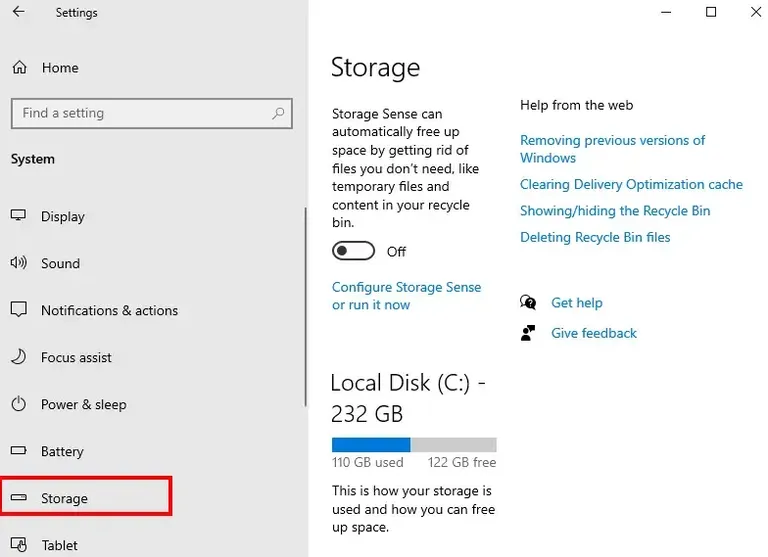
Storage Space
**Step 2: Toggle ON the Storage Sense
On the top mid section, you'll find an option of **Storage Sense (along with a TOGGLE button). Click to Toggle ON.
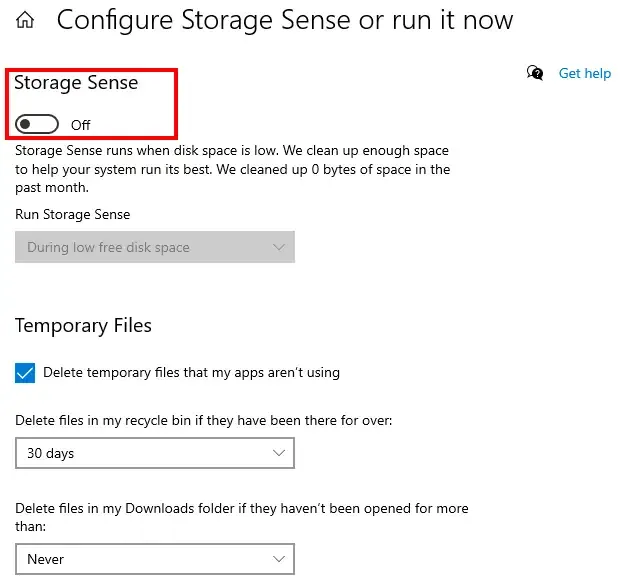
Toggle ON the Storage Sense
**Step 3: Configure Storage Sense
Click Configure Storage Sense or run it now to customize:
- Delete Temp Files (check box)
- Empty Recycle Bin (1, 14, 30, or 60 days) - set a time line
- Remove files from the ****"Downloads"** folder (that haven't been opened for more than.. (1,14,30 or 60) days
2. Run Disk Cleanup
Windows offers a utility called **Disk Cleanup, which helps you free up some drive space by removing various different files. They include temporary files, delivery optimization files, downloaded program files, and many more.
Step 1: Navigate to the Disk Cleanup
Search for the **Disk Cleanup in the Start Menu and click to open it.
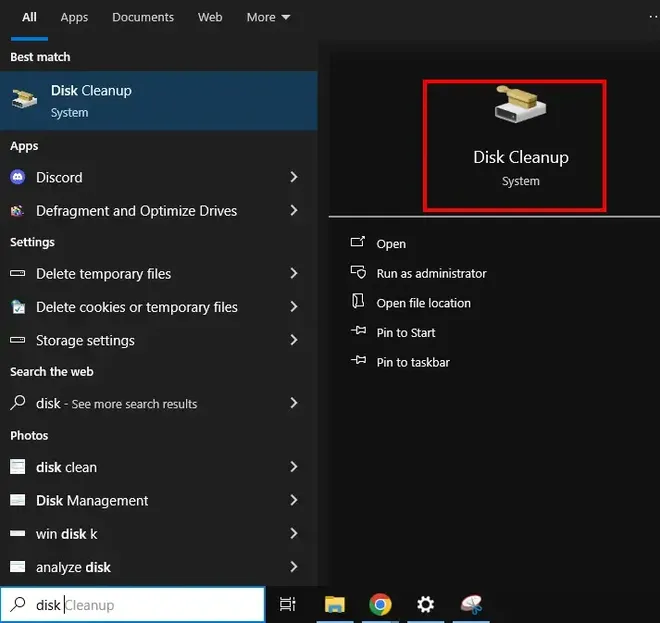
Disk Cleanup
Step 2: Select the dedicated Drive for cleanup
Select any drive that you wish to perform disk cleaup (e.g. C:)
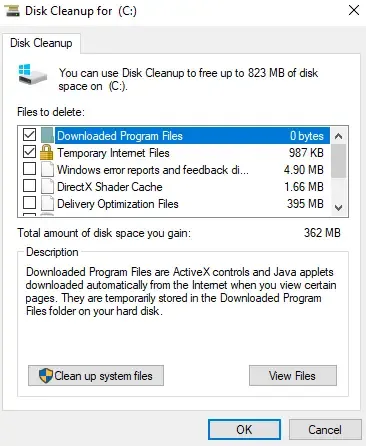
Disc Cleanup for C Drive
Step 3: Check Mark Your desired Preferences and Proceed
Ensure to check boxes to perform the disk cleanup:
- Temp files
- System files
- Windows Update Cleanup
Once, you've made the selection, click **OK to confirm.
3. Uninstall Unused Applications
Another way to get more drive space is to uninstall apps. Most of us have applications on our Windows 10 or Windows 11 PC that are unnecessary and unused. Here's how you can clean up unused apps and bloatware.
Step 1: Navigate to Windows Installated Applications
Click on the Start Menu and type "Settings" and navigate to Apps > Installed Apps
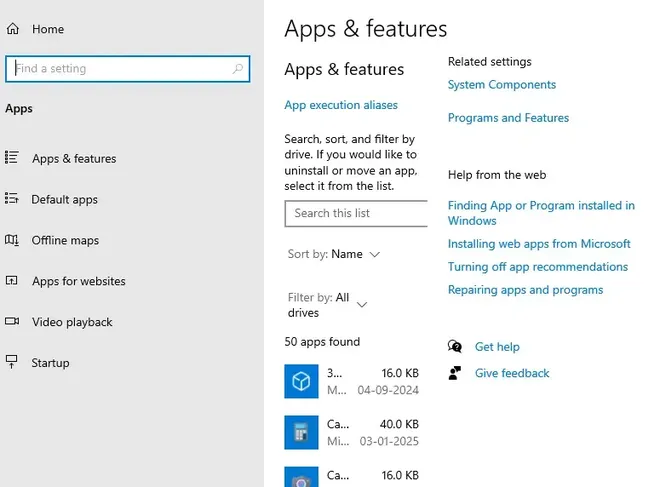
Windows Installed Apps
Step 2: Click to Sort Files as per Size
Now, sort by size to identify large programs.
Step 3: Click to Uninstall
Click on the three dots (available next to apps)
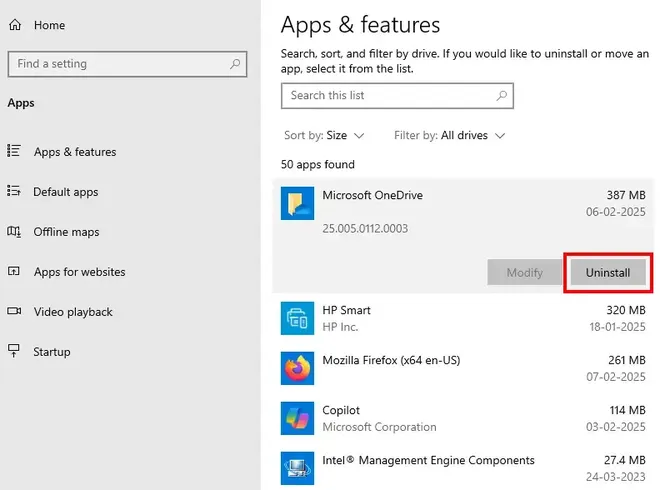
Click apps to Uninstall
**4. Remove Temporary Files
Clearing the temp cache files can enhance your system and save a lot of space. This method does not require any additional expertise - except just a few commands. Here's how you can do it quickly.
Step 1: Open Run Dialogue Box
Press Win + R and type ****"%temp%** and hit the enter button
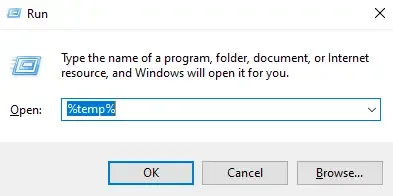
Run dialogue
Step 2: Select all Files to Remove
You will receive a pop-up before it gets open so ensure that you're having an admin rights. Now, press Ctrl + A and press the delete button to remove all files at once.
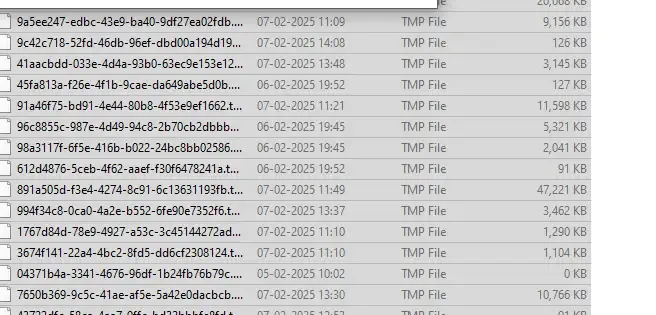
Select all TEMP files
Step 3: Repeat the Method for temp Files
Reopen the Run box and type **temp and hit the enter button and select all files to remove them instantly. (if any issue encounters, click **Continue)
**5. Clear System Reserved Storage
There is an additional space allotted/reserved for Windows updates (including system files). However, you can clear out some space so that you can get into usage. Here's how to perform this action:
Step 1: Access to Command Prompt as an Administrator
Click on the Start menu and type **CMD and select **Run as admin
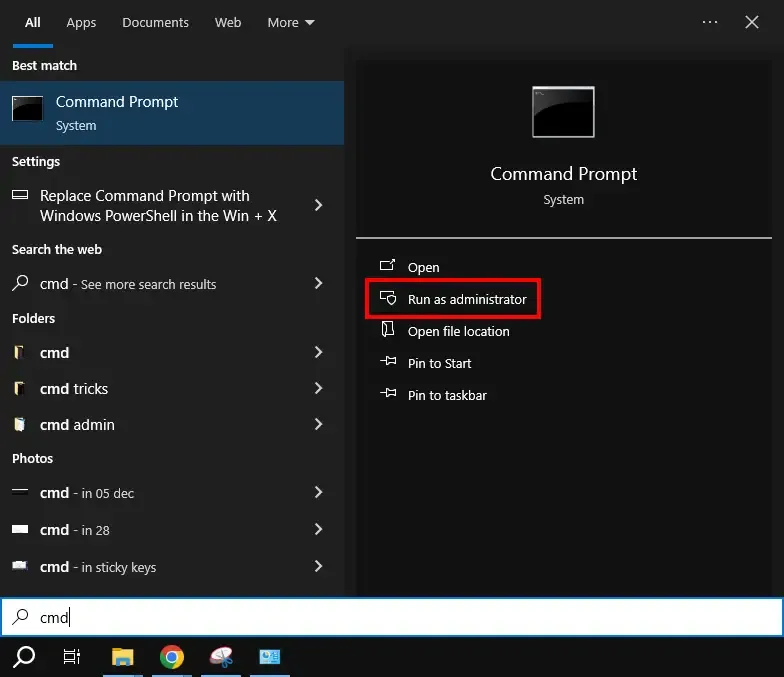
Run CMD as admin
Step 2: Run the Component Cleanup Command
Now type the following command and hit **ENTER
DISM.exe /Online /Cleanup-Image /StartComponentCleanup
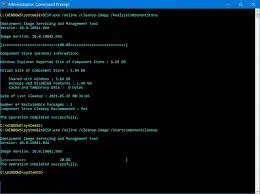
Run CMD command
Step 3: Wait Till the Confirmation
Wait for sometime until you get the confirmation and exit the Command prompt.
**6. Remove the Previous Windows Installation Files (Windows.old)
Once you update your system with a major update, your system will have a preexisting file including **Windows.old folder. Here's a detailed breakdown to perform this action:
**Note: Once you perform this method, rolling back to previous version cannot be performed.
Step 1: Access to the Disk Cleanup
Click on the **Start Menu and search **Disk Cleanup.
Disk Cleanup
Step 2: Cleanup System Files
Select the Drive (e.g C:) and Make a check mark - System Files (for cleaning system files)
Step 3: Select and Remove the Previous Windows Installations
Check **Previous Windows Installations and confirm deletion.
**7. Disable Windows Hibernation
In case if you're not aware of the fact, Windows Hibernation create a large **hiberfil.sys which can go up to storage space in Gigabytes. Check out the steps below to spot and disable it from your Windows system.
Step 1: Access CMD as Admin
Click on the **Start menu and type **CMD and click to **Run as admin
Step 2: Run the Command to Turn off Hibernation
Now, type the following command to turn off the hibernate mode:
powercfg.exe /hibernate off
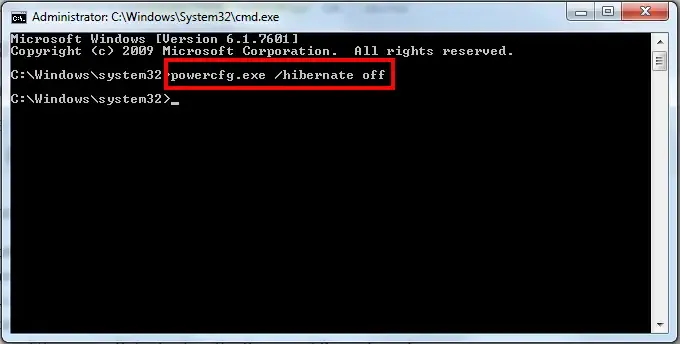
Turn off Hibernation
Step 3: Confirm and Exit
Press Enter to execute the command and then Exit the Command Prompt. Now, your system's Hibernation Mode is removed successfully.
**8. Move Large Files to Cloud Storage or External Drive
Using a cloud storage platform (such as OneDrive, iCloud, etc.) or any External Storage Drive can be a smart choice to unload your Windows 10 or 11 computer. Below is the short breakdown of moving files to the Cloud or any External drive.
**Note: Make sure to have an Active Internet Connection and once you upload or transfer files, you can remove the old files to create the space in the Hard Drive.
**For Cloud Storage
Step 1: Sign-up to any Cloud Platform
Visit the official website of any cloud platform and create a free account.
Here, we've taken **Microsoft OneDrive as an example)
- For existing account users, click to sign-in
Step 2: Select your Files & Start Uploading
Click on the left-hand navigation panel ****"+Add new"**, it will ask for:
- File Upload
- Folder Upload
- Word Documents, etc.
Select the file type, navigate through your PC and start uploading.
For External Drive
Step 1: Connect the External Drive in your Computer
Plug in the External Storage Device in your computer and open **Windows File Explorer.
Step 2: Move Files and Eject the Drive
Now, navigate to the dedicated folder that you wish to move from your PC to the Externally connected drive. Once the files gets transferred, click on the taskbar tray, look for the USB devices, and click to eject the drive successfully.
The best method to perform a smooth PC disk cleanup is by using any trusted third-party software. Just ensure to get it from any trusted source only. However, performing a disk cleanup using any third-party tool can have different procedures for different software. We're providing you a list of a few trusted software that you can try along with the basic steps:
Trusted Cleanup Software
- CCleaner
- TreeSize Free
- BleachBit
Step 1: Download & Install the Computer Disk Cleanup Software
Open your browser and search for CCleaner, open the official website and get the CCleaner for Windows 10 or Windows 11.
Step 2: Open the Software & Perform the Scan
Open CCleaner, navigate through the Deep Scan or Quick Scan.
Step 3: Click Continue to Perform the Cleanup & Exit
Once the scan gets completed, you'll get the final report of junks, cache, etc. So, make adjustments of removing files as per your preference and click Continue to start. Once you're done with the cleanup, you can exit the software.
**10. Empty the Recycle Bin
Clearing the recycle bin of Windows 10 or 11 can offload tons of files and save a noticeable amount of disk storage. Here's how to perform this action:
Step 1: Open the Recycle Bin
Navigate to the desktop (where usually recycle bin is placed) and click to open it.

Windows Recycle Bin
Step 2: Select all & Remove
Use the Windows Shortcut Key **Ctrl + A and press the delete button from your keyboard. A prompt will appear that will ask for your permission to delete the items from your recycling bin. Click **Yes to perform the operation.

Click YES to Empty the Recycle Bin
Conclusion
By following the above outlined steps, you can easily implement **disc cleanup in Windows 10 that helps in improving your PC health and reduce the risk of running out of storage. You can pick using built-in tools like Storage Sense and **PC Disk Cleanup and carry a healthy habit of removing unused or unnecessary programs and keep your system running smoothly.