How to Install Windows on Chromebook (original) (raw)
Last Updated : 12 Jan, 2026
Chromebooks are built for Chrome OS, but you can install Windows 10 or 11 for more app options like Microsoft Office or games. It's tricky, risks your warranty, and may slow down low-spec devices. We recommend virtualization first for easier testing, it's safer, and keeps Chrome OS intact. For a full native install, follow below (only for Intel/AMD models; ARM won't work).
**Big Warning: Backup everything! This wipes your Chromebook. Check compatibility at MrChromebox.tech or CoolStar.org. Not all models support it. e.g., newer Intel like Core i3/i5 work best; avoid if under 8GB RAM/64GB storage.
Quick Alternatives to Full Install (Try These First!)
Before risking a full swap, run Windows virtually:
- **V2 Cloud or Cameyo: Cloud-based Windows apps, no install needed. Great for business.
- **Wine/CrossOver: Free/paid layer for Windows apps on Chrome OS (Intel 2019+ models only).
- **VM Method: Use Linux (Crostini) + QEMU/Virt Manager for a Windows VM (slower on non-KVM hardware).
If those don't cut it, go native.
How to Install Windows 10 on a Chromebook with USB
Below, we have segregated a simple way to get Windows 10 or 11 using a USB drive. Following are the 6 basic steps:
Step 1: Backup Your Data
Before you proceed with the Windows Installation, ensure to back up your data first. As you move into the Developer Mode, all your data will be wiped out.
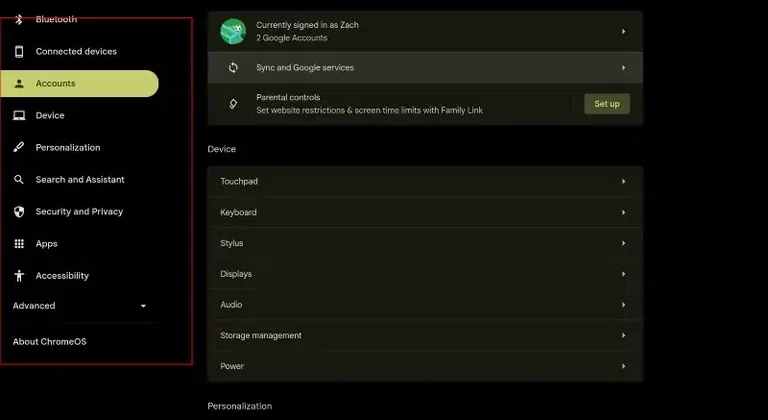
Backup your data
Step 2: Enable Developer Mode
- Enter the Recovery Mode.
- Press Esc + Refresh + Power
- Now, your laptop will enter the recovery mode
- Enable Developer Mode.
- Press Ctrl+D and proceed ahead
- You may be asked with a few action, follow them
- Now, your Chromebook will erase all its local data
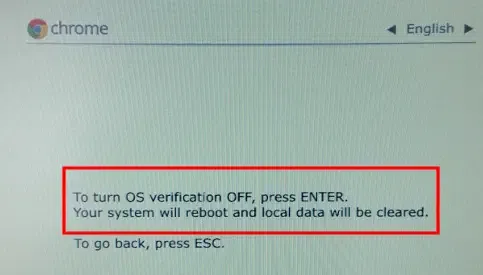
- Disable OS Verification
- Your Chromebook will reboot now
- Press Ctrl+D when prompted to disable OS verification
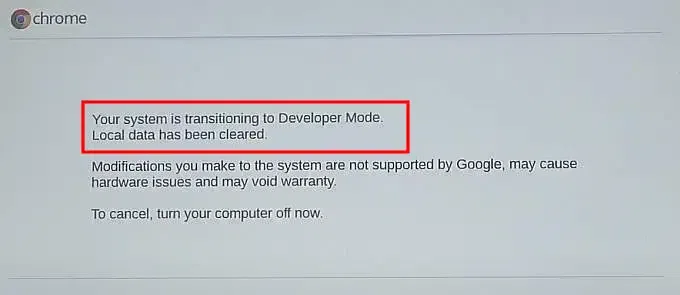
Enable Developer Mode
Step 3: Install a UEFI Firmware
Since Chromebook does not officially supports Windows so we need to replace the system's firmware with the supporting one.
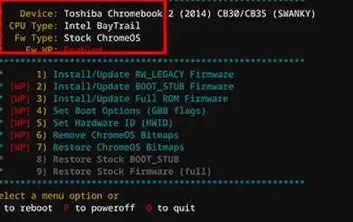
- Download and Install Chromebox's UEFI Firmware:
- Open Terminal in Developer Mode
- Type the following command and choose the **FULL ROM Firmware option:
curl -LO https://raw.githubusercontent.com/MrChromebox/scripts/main/firmware-util.sh && sudo bash firmware-util.sh
- Do note that you need to keep a copy of your original Firmware which you may require in future.
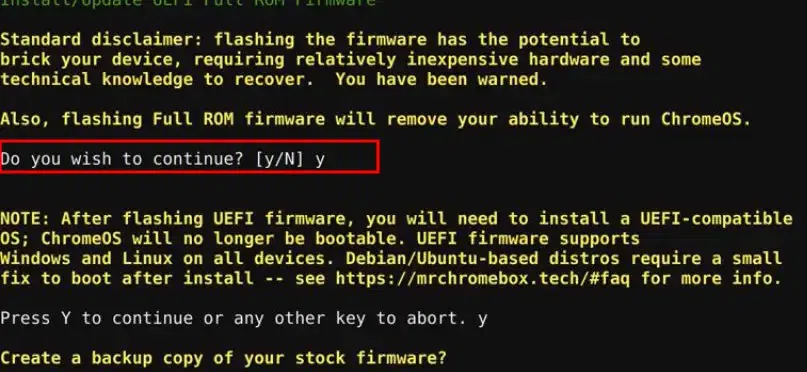
UEFI
Step 4: Create a Bootable Windows 10 USB
- Insert USB drive in your system
- Use Rufus
- Open Rufus and choose Windows 10 ISO
- Create the bootable USB after choosing the partition scheme
- Now, plug the USB in your Chromebook
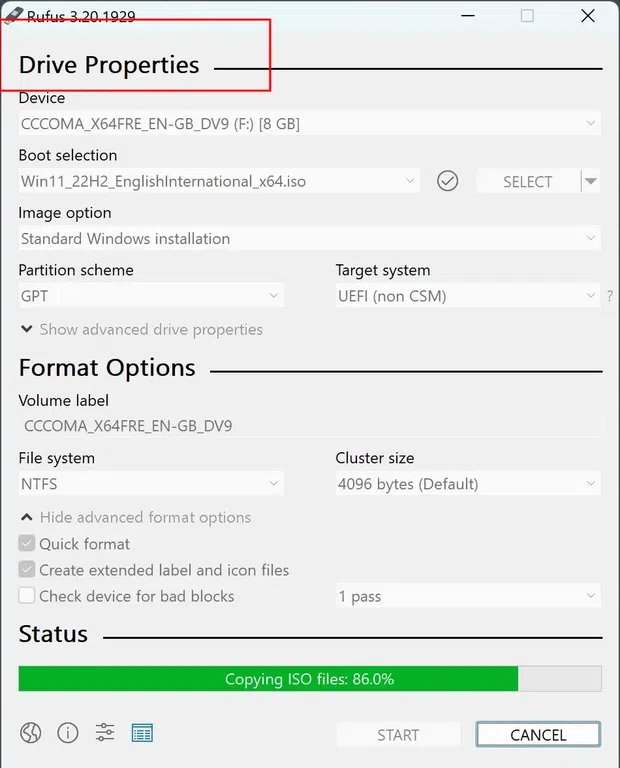
Rufus
Step 5: Boot Chromebook from USB
- Turn off Chromebook
- Insert the bootable Windows USB
- Access the boot menu
- Hit the Esc button multiple times while start up
- This will allow your Chromebook to enter the boot mode
- Choose the USB drive as the **BOOT DEVICE
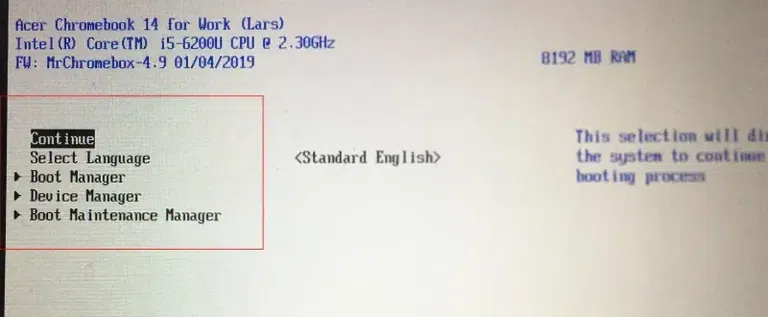
Boot Menu
Step 6: Install Windows 10
- Follow the Windows installation Wizard
- Format your SSD to install Windows 10
- Finish the installation process
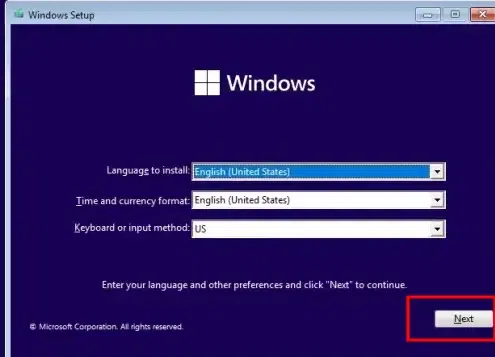
Setup Wizard
**Note: Once the installation gets completed, Windows driver such as touchpad, sound drivers, Wi-Fi, etc. may not work without installing additional drivers. You can download it from the online resource and reboot your system.
How to Install Windows 10 on Chromebook without USB
Now let's dive in to learn about installing Windows 10 and Windows 11 without using any USB drive.
**Step 1: Linux Beta Option
Open **Chromebook Settings & go for the **Linux Beta option. Under that, click on the **Turn On option.

**Step 2: Go to Recommended Space
Now, go for the **Recommended Space which is **5 GB & click on **Next.
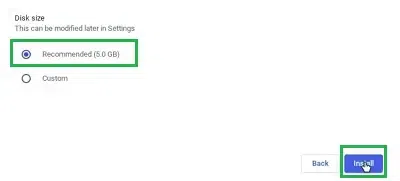
Click to install
**Step 3: Execute the command to Finish the Installation
Now, the **Linux Terminal will be opened on the Chromebook as the process is completed. You have to execute the following command to make the Chromebook ready for installation.
sudo apt update
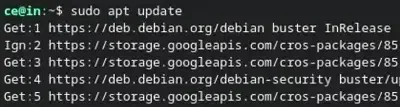
Execute Command
**Step 4: Visit the Official site for Windows Installation
Now, Browse to the **Official Page of Windows & select the **Edition of Windows 10. Click on **Confirm to continue in the process.
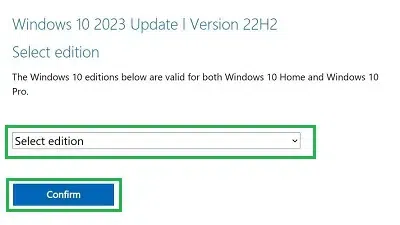
Select Edition
Now, select the **Product Language & click on **Confirm to continue.
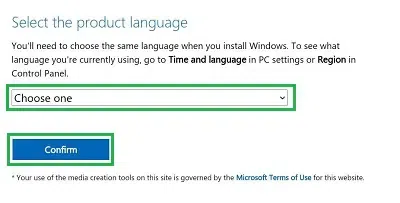
Select Language
**Step 5: Choose the compatible version
You may be asked to choose the compatible version for your system. Now, click over **64-bit **Edition to download the **Windows ISO File.
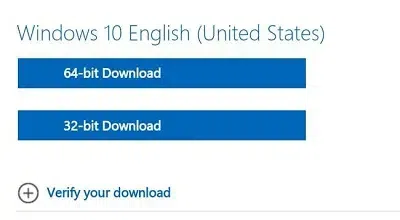
Select Version
Once the file is downloaded, open the **Chromebook File Application. The **ISO File will be downloaded in the **Download Folder. Move the File to the **Linux Beta Folder.
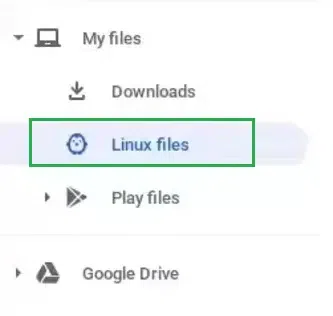
Move File
**Step 6: Open App Drawer
Now open the **App Drawer on your Chromebook. Now, under the **Linux Apps, click on the **Chromebook Virtual Machine which is only dedicated & available on Chromebooks.
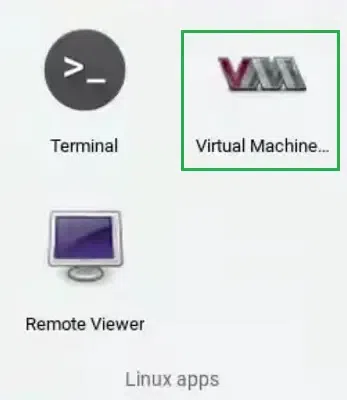
Open Virtual Machine
Click on the **Browse option & select the **ISO File. Now, click on the **Forward.
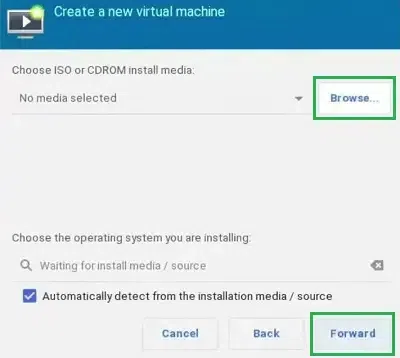
ISO file
**Step 7: Select the ISO file
Now, click on the **ISO Image option & click **Forward.
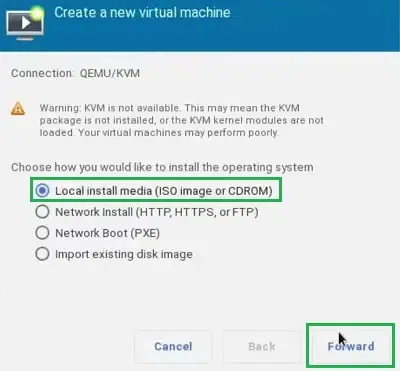
Click Forward
**Step 8: Adjust Disk Size
After that, increase the **Disk Size to a minimum of **40 GB to hold the **Windows 10 OS. Now, click on the **Forward option.
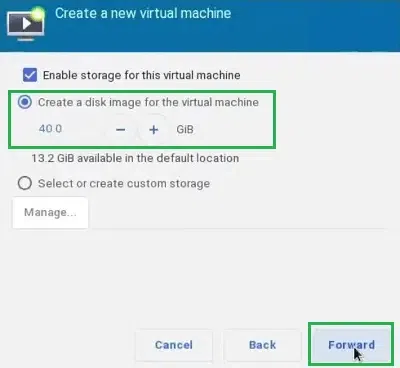
Select Size
**Step 9: Finish the download
At last, click on the **Finish & the Windows OS will start execution.
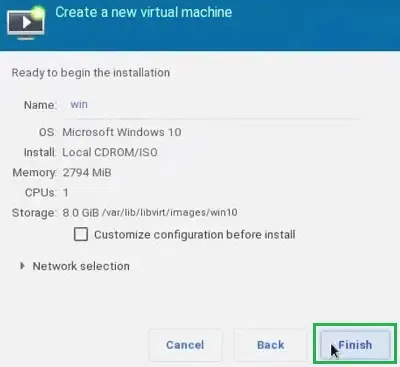
Click Finish
Alternate Methods - Install Windows 10 on Chromebook
You may also try for alternate methods to get Windows 10 or 11 if you find it difficulty or looking out for additional methods to download and install Windows in your Chromebook.
1. Using Network Boot (PXE)
Not all Chromebook supports Network Boot so make sure tat you can proceed with this method. Below are the quick steps to perform Windows Boot Installation:
Step 1: Enter Developer Mode
- Press Esc + Refresh + Power keys simultaneously
- This will allow your system to enter the Developer mode
Dev Mode
Step 2: Setup PXE Boot
- Connect your Chromebook to a network server configured for Windows Installation
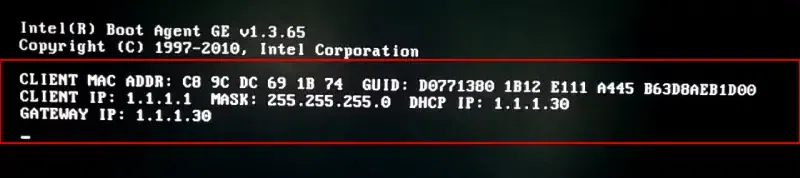
PXE
Step 3: Install Windows
- Now, simply follow the provided instructions on your screen
- Reboot your system to install and setup Windows in your Chromebook
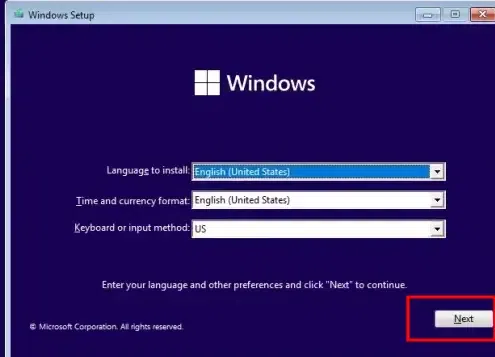
Setup Wizard
2. Using Third Party Tools
You can also choose any third party tool to get Windows on your Chromebook.
Step 1: Windows ISO File
- Go to Windows official website to download the ISO file
- Now, upload the ISO file to any cloud storage (such as Drive, icloud, etc.)
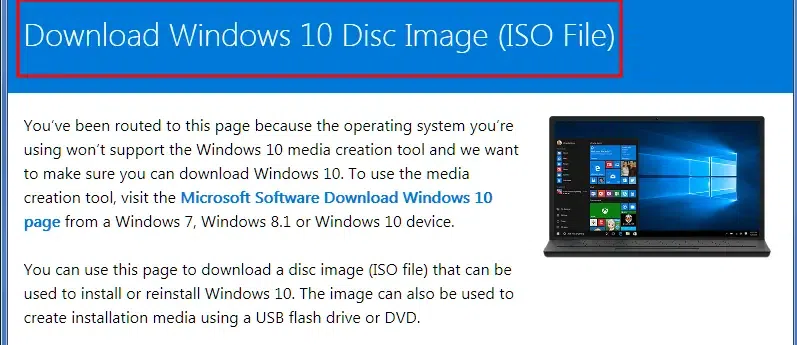
Download the ISO file from the official website
Step 2: Install Tools
- Now, install any tool in your system to to perform a safe Windows 10 installation
- Tools like VirtualBox or GalliumOS can be used in the Linux Beta Environment
Install tools
Step 3: Patch Files
- Now, access the uploaded ISO file from the cloud
- Patch it through the VirtualBox to setup Windows 10 installation.
- This will allow your system to Install Windows on Chromebook with cloud.
Reboot and Install
3. Using Remote Desktop Client on Chromebook
You can also go with the remote desktop mode for installing Windows 10 or 11 or your Chromebook. Here's how to perform:
Step 1: Setup Compatible Software
- Install and setup the RDP software
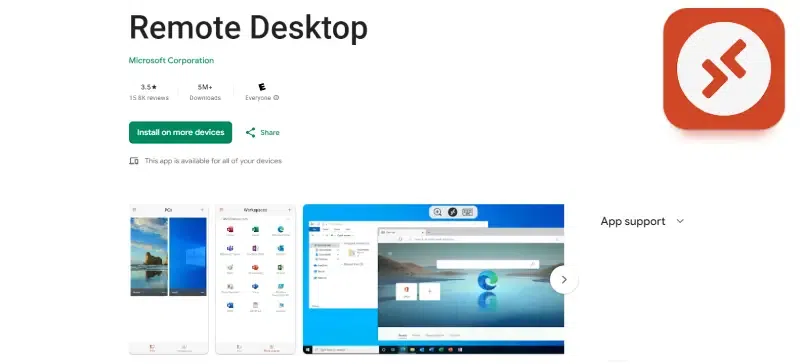
RDP Software
Step 2: Connect it with your PC
- Simply connect your PC or Virtual Windows Server
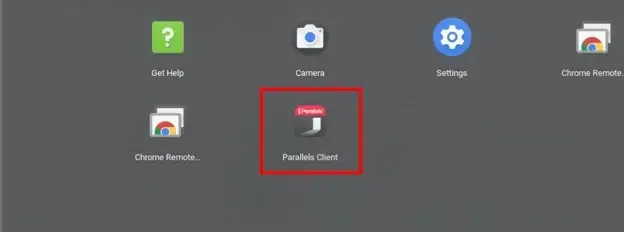
Connection RDP
In the end, we can conclude that the **Installation of Windows on a Chromebook is not a big deal. If you have followed all the above steps, the **Windows Installation Process will become a breeze for you. So, without waiting any longer, use the above steps & **Get New Windows 10 along with ChromeOS on your Chromebook.
Points to Consider Before You Switch
- Installing Windows 10 on your Chromebook might void your current Warranty so make sure to take that decision carefully.
- As you're aware of the fact that ChromeOS is a light-weight whereas Windows OS is a bit heavy so installing Windows 10 on your Chromebook might affect your system's health and performance.
- Google Chromebooks are loaded wit ARM processor mostly so there are chances that your installation might failed and you might get compatibility issue.
- Even if you supass all the hurdles, the chances are likely that you mgit face issue with your hardware/drivers which has been encountered in such cases.