How To Send Email With Attachments in Gmail (original) (raw)
Last Updated : 27 Sep, 2025
An email attachment is a file attached to an email message. **Attachments can be any kind of file, including documents, photos, or videos, and are used for sharing data among individuals or groups. The size of attachments that can be sent via email services is limited but here in this article, we'll look for how to send email with attachments in Gmail.
There are unique codecs to save your attachments as, which include .doc, .pdf, .jpeg, .xls, etc. For instance, if you want to send your work to potential customers, you could upload your portfolio to your cold email. The portfolio file will be attached to the email. Read this comprehensive guide to learn **how to send email with attachments in Gmail.
What kinds of email attachments can you send?
The different types of attachments you could send inside the email are:
- **Document, or DOCX: For sending text documents with snapshots. For instance, use Microsoft Word and Google Docs.
- **PDF: Sending a formatted text with photos that the recipient can easily get access to, irrespective of the operating system, application software, and hardware.
- **PPT or PPTX: Send slideshows and presentations in this format.
- **XLS: For sending a database in a row and column format. For instance, Excel sheets or Google Sheets files
- **PNG, JPEG, or GIF: Use this format to send static and animated pictures.
How to Attach Files to Your Gmail Emails?
The **steps to writing an email and attaching files are similar among email clients, with few differences. Below, we will go over how to write and send email with attachments in Gmail.
Send a File Attachment With Gmail
To attach a file to an email sent from Gmail, follow these steps:
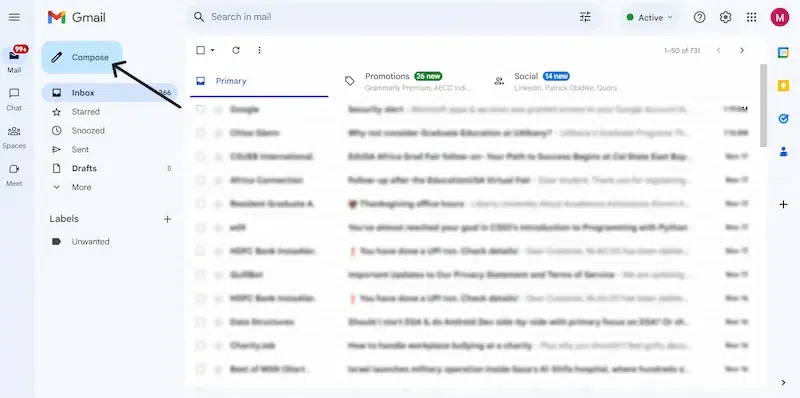
**Step 1: Select "Compose" to write a new email message or reply to a message you received.
**Step 2: On the message window, click the Attach Files paperclip icon. An open dialog box opens.
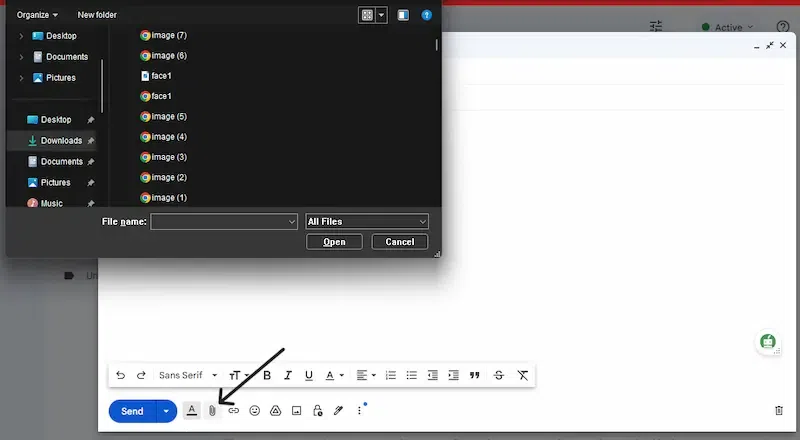
**Step 3: Select the document(s) you need to send and choose Open. The file(s) will be attached to the email message.
**Step 4: Select the Attach Files paperclip once more if you need to add more files from another place. Send the email when you're ready.
Adding Attachments Quickly by Dragging and Dropping
To add a file to a Gmail message as an attachment, use dragging and dropping. Here check for **drag and drop files to send email with attachments in Gmail through steps:
**Step 1: Start with a new message.
**Step 2: Locate the file you want to attach in your file browser (for example, File Explorer).
**Step 3: Click the file with the left mouse button, and, keeping the button pressed, drag over the browser window with the email you are composing.
**Step 4: Drag the file to the section that lights up with the message.
-(5).webp)
**Step 5: If you don't see such an area, your browser does not support drag-and-drop attachments. For more information on attaching files in Gmail, see the instructions above.
**Step 6: Release the mouse button to drop them here. The file is connected to the message. Click on the send button to send the email when you're ready.
Send Google Drive Attachments in Gmail
If the file(s) you want to send in a Gmail message are saved on Google Drive, you have the choice of sending them as an attachment or sending a link.
**Step 1: Select Compose to write a new email message or reply to a message you received.
**Step 2: Choose the Google Drive icon in the message window to insert documents using Google Drive. A new window opens.
.webp)
**Step 3: Select the file(s) you need to send and choose the way you want to attach them by deciding on Drive Link or Attachment at the bottom of the window.
.webp)
**Step 4: Any documents stored in Google Drive can be sent as links. Only documents that were not created using Google Docs, Sheets, Slides, or Forms can be dispatched as attachments.
**Step 5: Select Insert and send your message.
Remove a File From a Message You're Sending
To cancel an attachment you added to a message, pick out the Remove Attachment button next to the file you want to remove.
Tips for Efficiently Sending Email Attachments
Before sending attachments in emails, these are some of the best tips to follow:
1. To Send Large Document Sizes
If you send attachments that exceed the limit supported by Gmail, then use the following ways to send them:
**Zip it
One of the perfect approaches to sending large documents or a collection of small documents is to compress them. Doing so might not have an effect on the file, but it is the simplest way to reduce the general size and send it without problems.
On your PC, right-click on it, and you will see an option to 'compress.' It will create a compressed file with the same name and a zip extension. You can even zip subfolders created within the same folder.
.webp)
**Share through the Google Power link
While composing an email, you get the choice to connect Google Drive links to your emails. In this way, you can send emails that exceed Gmail's 25 MB limit. You can attach a link so that it will lead to the file within the Google Drive folder.
**OneDrive for Outlook users
If you use Outlook to send attachments larger than 20 MB, upload them to **OneDrive.
**Dropbox
Dropbox is another available tool you may use to send huge attachments. Upload your documents to your Dropbox account, and with the Dropbox extension, you have the choice to **attach links within the email. With a free **Dropbox account. You can send files up to 2 GB in size.
**iCloud Mail Drop for Apple customers
If you are an Apple Mail user, the iCloud Mail Drop permits you to send document sizes as large as 5GB. Maildrop is activated automatically when you send a file larger than 20 MB. It **sends the file to an iCloud email server, creates a link, and attaches that link. The link will automatically expire after 30 days.
2. Use Links Instead of Attachments
If you can, add links to the source rather than a file. It will direct customers to a website where they can get access to the whole content easily. Adding links also reduces the risk of landing in the spam folder if in case you end up **deleting the spam emails.
3. Use an Accessible Document Format
If you are sending a Word document, the recipient wishes to have Microsoft Word view or edit that file. If they do not have it, having access to your files might be tough. So, use a format that fits the situation, like PDFs.
Also, having an interactive PDF that enables you to offer analytics gives you a better view of what parts of the PDF are bringing in more conversions. However, if your file isn’t in that format, you can use a tool to convert it. For example, you could convert **Google Docs to PDF.
4. Name Email Attachments Properly
You must name email attachments so that recipients understand what is in the report and keep them away from spam filters. Here are some tips to help with that:
- Avoid the use of lengthy names.
- Don't use unique characters or emojis like *, ", #, @, +, and many others.
- Give a descriptive file name.
- **Avoid: 4565_Finalcontent_21.
- **Use: Contentbrief_(date).