How to Convert a Google Doc to PDF 4 Methods (original) (raw)
Last Updated : 23 Jul, 2025
Google Doc to PDF - Quick Steps
- Visit Google Docs > Open your document
- Click **File in the top-left menu
- Select **Download > PDF Document (.pdf).
- PDF downloaded > Locate the downloaded file
Converting a Google Doc to a PDF is a quick and efficient way to share or preserve your document with consistent formatting across devices. The **Google Docs to PDF feature ensures your content looks professional and remains uneditable, making it perfect for resumes, reports, and official documents. This guide will walk you through a detailed tutorial on How to Save a Google Doc as a PDF and 4 Methods to convert Google **Doc a PDF directly from the web app or mobile app, whether you’re using a desktop or mobile device. With this feature, you can easily **download Google Docs as PDF or share it in PDF format with just a few clicks.
How to Convert a Google Doc to PDF
Method 1: How to convert a Google Doc to a PDF using Download
Converting a Google Doc to a PDF using the download option is a straightforward and efficient method to preserve your document's formatting when sharing or archiving. Here's how to do it step-by-step:
Step 1: Open Your Google Doc
- **Access Google Docs: Launch your preferred web browser, navigate to the Google Docs website, and sign in if required.
- **Select Your Document: Locate and open the document you want to convert to a PDF.
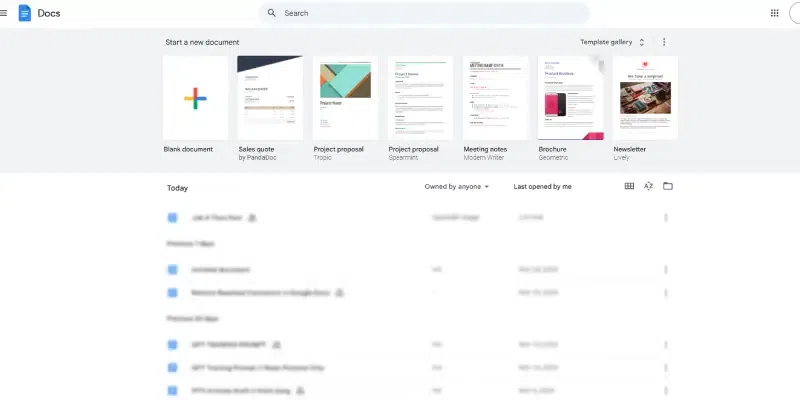
Open Your Google Doc
Step 2: Download the Document
- **Go to File Menu: Click on the "File" menu in the upper left corner of the Google Docs interface.
- **Select ‘Download’: From the dropdown menu, hover over "Download," which will expand to show various file format options.
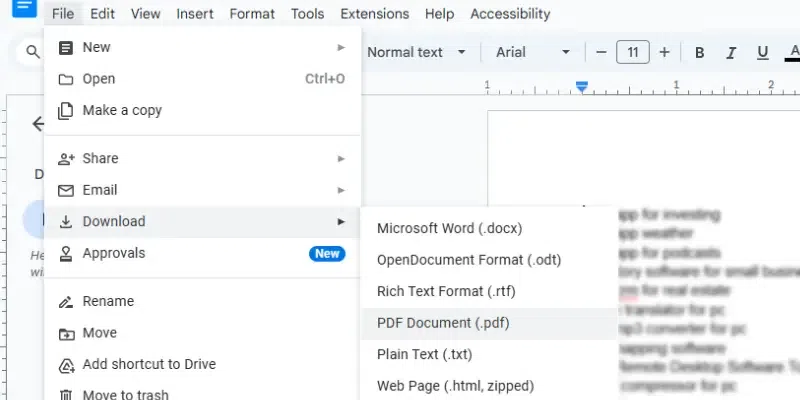
Download the Document
Step 3: Choose PDF Format
- **Choose ‘PDF Document (.pdf)’: Click on “PDF Document (.pdf)” from the list of options. This action tells Google Docs to convert your document into a PDF file.
Step 4: Direct Download Started
- **Check the File: Navigate to the location where you saved the file. Open the PDF to ensure that it has saved correctly and that all content appears as expected. Check formatting, images, and layout to ensure everything is correct.
Note: This method is ideal for preserving the integrity of your documents' layout and formatting across different platforms and devices.
Additional Tips
- **Review Before Downloading: Before converting your Google Doc to a PDF, it's a good idea to review the document for any formatting issues. Adjust margins, spacing, font sizes, and other formatting settings in Google Docs to ensure the PDF looks professional.
- **Use Print Preview: For an additional check, you can use the "Print" option (
Ctrl + PorCmd + P) to preview how the document will look in PDF format. This can help spot any potential formatting issues that might not be apparent in the Google Docs editor view. - **Secure Sharing: If you plan to share the PDF online or via email, consider whether the document needs to be encrypted or password protected, especially if it contains sensitive or private information.
- **PDF Readers: Ensure you have a reliable PDF reader installed on your device to open and review your downloaded PDF files. Adobe Acrobat Reader and Foxit Reader are popular options that offer extensive features for viewing and annotating PDF documents.
Method 2: How to convert a Google Doc via Print to PDF Option
Converting a Google Doc to a PDF via the Print to PDF option is a useful method, especially when you need precise control over the layout and formatting of your final document. Here’s how to do it step-by-step:
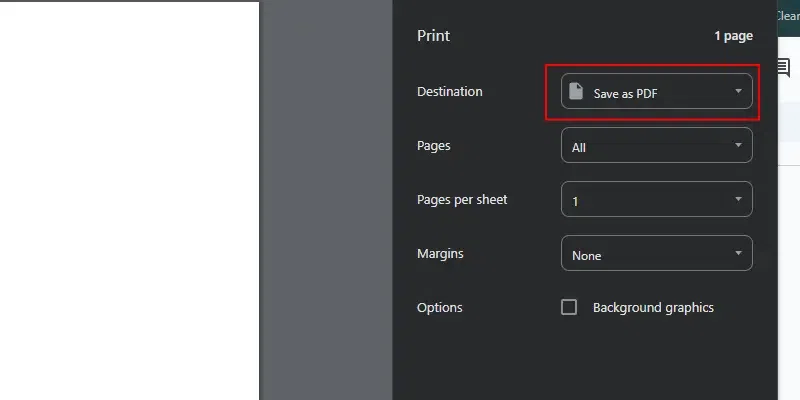
convert a Google Doc via Print to PDF Option
Step 1: Open Your Google Doc
- **Access Google Docs: Open your preferred web browser, navigate to the Google Docs website, and sign in to your account if necessary.
- **Select Your Document: Choose and open the document you wish to convert to PDF.
Step 2: Initiate the Print Command
- **Open the Print Dialog: You can open the print dialog by pressing shortcut key
Ctrl + Pon Windows orCmd + Pon a Mac. Alternatively, you can click on “File” in the top menu, then select “Print” from the dropdown menu.
Step 3: Adjust Print Settings
- **Select Printer: In the print dialog box, look for a destination printer or a similar option. Select “Save as PDF” from the list of available printers. This option might vary slightly based on the browser you are using but generally will be labeled clearly.
- **Configure Settings: Adjust other print settings such as layout (portrait or landscape), paper size, margins, and whether to include headers and footers or not. These settings can affect how your content appears in the PDF, so adjust according to your needs.
Step 4: Preview and Print
- **Preview the Document: Most systems allow you to preview the PDF before saving it. Use this feature to check the layout and formatting. Make sure everything appears as expected, adjusting settings if necessary.
- **Print to PDF: Once you are satisfied with the preview, click the “Print” or “Save” button (the exact wording can vary by browser). You will be prompted to choose a location on your computer to save the PDF file.
Step 5: Save and Check the PDF
- **Choose Save Location: Select a suitable location on your computer where you want to save the PDF file. Enter a name for the file if you want to change it from the default.
- **Save the File: Click “Save” to convert and save your Google Doc as a PDF.
- **Open and Review the PDF: Navigate to where you saved the PDF and open it to ensure it has been saved correctly and that all elements are formatted as expected.
**Note: Using the Print to PDF function offers a high degree of control over the output, making it an excellent choice for creating professional-quality PDF documents from Google Docs. This method ensures that the formatting and layout you see in Google Docs will closely match what appears in the final PDF.
Additional Tips
- **Document Review: Before converting, make sure to review your document in Google Docs for any typos or formatting issues that might be magnified in the PDF version.
- **Legal and Accessibility Considerations: If the document is intended for broad distribution or official purposes, consider checking accessibility features to ensure the PDF is accessible to viewers with disabilities.
- **Use High-Quality Images: If your document includes images, ensure they are of high resolution to prevent them from appearing pixelated in the PDF.
Method 3: How to convert a Google Doc using Email
Converting a Google Doc to a PDF and emailing it directly from within Google Docs is a convenient way to share documents in a widely accessible format. Here's a step-by-step guide on how to use the "Email as PDF" option in Google Docs:
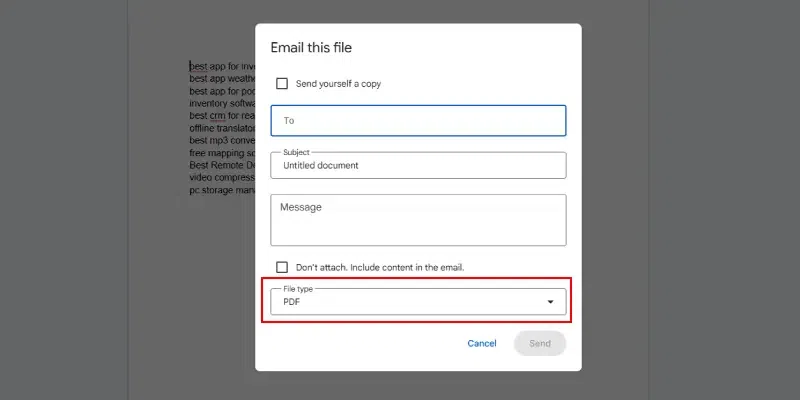
convert a Google Doc using Email
Step 1: Open Your Google Doc
- **Access Google Docs: Open your web browser, go to the Google Docs website, and sign in if necessary.
- **Select Your Document: Navigate to and open the document you want to convert and send.
Step 2: Prepare to Send as PDF
- **Go to File Menu: Click on the "File" menu in the upper left corner of your Google Doc.
- **Select ‘Email as attachment’: This option is part of the dropdown menu under "File."
Step 3: Configure the Email Attachment
- **Attachment Settings: A dialog box will appear where you can configure how you want to send your document.
- **Format Selection: By default, the format might be set to 'Microsoft Word (.docx)'. You need to change this to 'PDF'.
- **Choose ‘PDF’: In the format dropdown, select “PDF document (.pdf)” to ensure your document is converted to PDF when sent.
Step 4: Set Up Your Email
- **Email Details: Fill in the necessary fields in the dialog box:
- **Recipient: Enter the email addresses of the individuals you wish to send the document to. You can add multiple recipients.
- **Subject: The subject field will automatically fill with the title of your document, but you can edit it as needed.
- **Message: Type a message or additional information you want to include in the body of your email.
Step 5: Send the Document
- **Send the Email: Once you've configured all settings and composed your email, click the “Send” button. Google Docs will convert your document into a PDF format and email it as an attachment to the specified recipients.
Note: Using the "Email as PDF" option in Google Docs is an efficient way to distribute your documents, ensuring they are delivered in a professional format while maintaining the layout and design of your content. This feature is particularly useful for sending official documents, reports, or any material where preserving the document's original appearance is important.
Additional Tips
- **Review and Proofread: Before sending your document, review it for any errors or formatting issues that could affect the appearance of the PDF.
- **Privacy Considerations: Ensure that you have permission to share any sensitive information contained within the document, and verify the email addresses to avoid sending the document to unintended recipients.
- **Confirmation: Depending on your settings, you may or may not receive a confirmation from Google Docs that your email has been sent. Check your sent items or wait for a recipient's acknowledgment to ensure it was received.
Method 4: How to Convert a Google Doc to a PDF Using Smallpdf
Follow the steps given below to know how to convert convert google doc to pdf online:
Step 1: Go to the Smallpdf Word PDF tool
Open the Smallpdf Tool to convert the Google Docs to PDF. To open the official website of smallpdf click here.
.webp)
Smallpdf Word PDF tool
Step 2: Drag and Drop the .docx into the field
You can Insert the file from the computer.
.webp)
Drag and Drop the .docx into the field
Step 3: Click on "Download" to save your PDF file.
Google Docs can be converted to PDF by using various apps from the play store and it can be saved in different sizes and forms such as **JPG, **PNG, **JPEG, etc.
.webp)
Click on "Download" to save your PDF file.
Tips to Convert a Google Doc to PDF
Here are some tip that you should know before exporting a Google Doc to PDF:
- **Check Formatting: Ensure margins, fonts, and alignment are correct before exporting.
- **Use Built-In Tools: Opt for Google Docs' "Download as PDF" option under the "File" menu.
- **Preview Document: Use "Print" > "Save as PDF" to review formatting.
- **Optimize for Mobile: Use simple layouts and readable fonts for better accessibility.
Also Read:
Conclusion
Converting a Google Doc to a PDF is a easy process that ensures your document is saved in a professional and consistent format. Whether you're wondering, ****"How do I save a Google Doc as a PDF?"** or ****"How do I convert a Google Doc to a PDF?"**, the built-in tools in Google Docs make it simple. You can use the **Google to PDF converter feature to export your file without skipping any content or formatting issues. By following the steps outlined, you now know **how to make Google Doc PDF or use a reliable **docs to PDF converter to share or store your files with ease. This ensures that your document looks perfect, regardless of the device or platform.