Useful CMD Commands for Daily Use in Windows OS (original) (raw)
Last Updated : 18 Jul, 2025
The Windows Command Prompt (CMD) is a powerful tool that many users overlook, but knowing a few **useful CMD commands for Windows can make your daily tasks much more efficient. From navigating the file system to managing network settings, these **daily use CMD commands can help streamline your workflow and solve common problems quickly. In this article, we'll explore some of the **best CMD commands for Windows that every user should know.
Table of Content
- Useful CMD commands for daily use in Windows OS
- Useful CMD commands for daily use in Windows OS - FAQ's
Useful CMD commands for daily use in Windows OS
1. How to Open Command Prompt?
To get started with CMD commands, you first need to open the Command Prompt.
**Step 1: Press **`Win + R` to open the Run dialogue box.
**Step 2: Type **`cmd` and press **`Enter`.
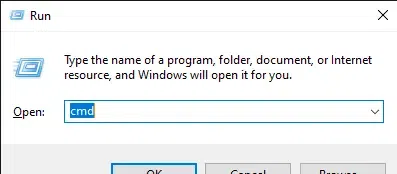
Open Command Prompt
2. Essential CMD Commands for Daily Use
****(I)** `ipconfig`
Use **`****ipconfig****` to display your network configuration and refresh DHCP and DNS settings.
ipconfig
****(I**I)`ping`
Check your connection to a remote server using the **`ping` command.
ping [website or IP address]
**Example:
ping google.com
****(III)** `dir`
List the contents of a directory with the `dir` command.
dir
****(IV)** `cd`
Change the current directory using the `cd` command.
cd [path]
**Example:
cd C:\Users\YourUsername\Documents
****(V)** `cls`
Clear the CMD screen with the `cls` command.
cls
****(VI)** `shutdown`
Shut down your computer with the `shutdown` command.
shutdown /s
****(VII)** `tasklist`
Display a list of currently running processes with the `tasklist` command.
tasklist
****(VIII)** `sfc`
Scan and repair system files using the `sfc` command.
sfc /scannow
****(IX)** `chkdsk`
Check your disk for errors with the `chkdsk` command.
chkdsk [drive letter]:
**Example: chkdsk C:
****(X)** `systeminfo`
Get detailed system configuration information with the `systeminfo` command.
systeminfo

Useful CMD commands
Conclusion
Mastering these **useful **CMD commands **for Windows can significantly enhance your productivity and give you greater control over your system. Whether you're troubleshooting a network issue, managing files, or simply navigating your directories, these **daily use CMD commands are essential tools for any Windows user. By incorporating these commands into your routine, you'll be able to perform tasks more efficiently and with greater confidence.