Run Notebooks — OpenVINO™ documentation (original) (raw)
This guide will show you how to launch and manage OpenVINO™ Notebooks on your machine. Before you proceed, make sure you have followed theinstallation steps.
Launch a Single Notebook#
If you want to launch only one notebook, such as the Monodepth notebook, run the command below.
jupyter lab notebooks/vision-monodepth/vision-monodepth.ipynb
Launch All Notebooks#
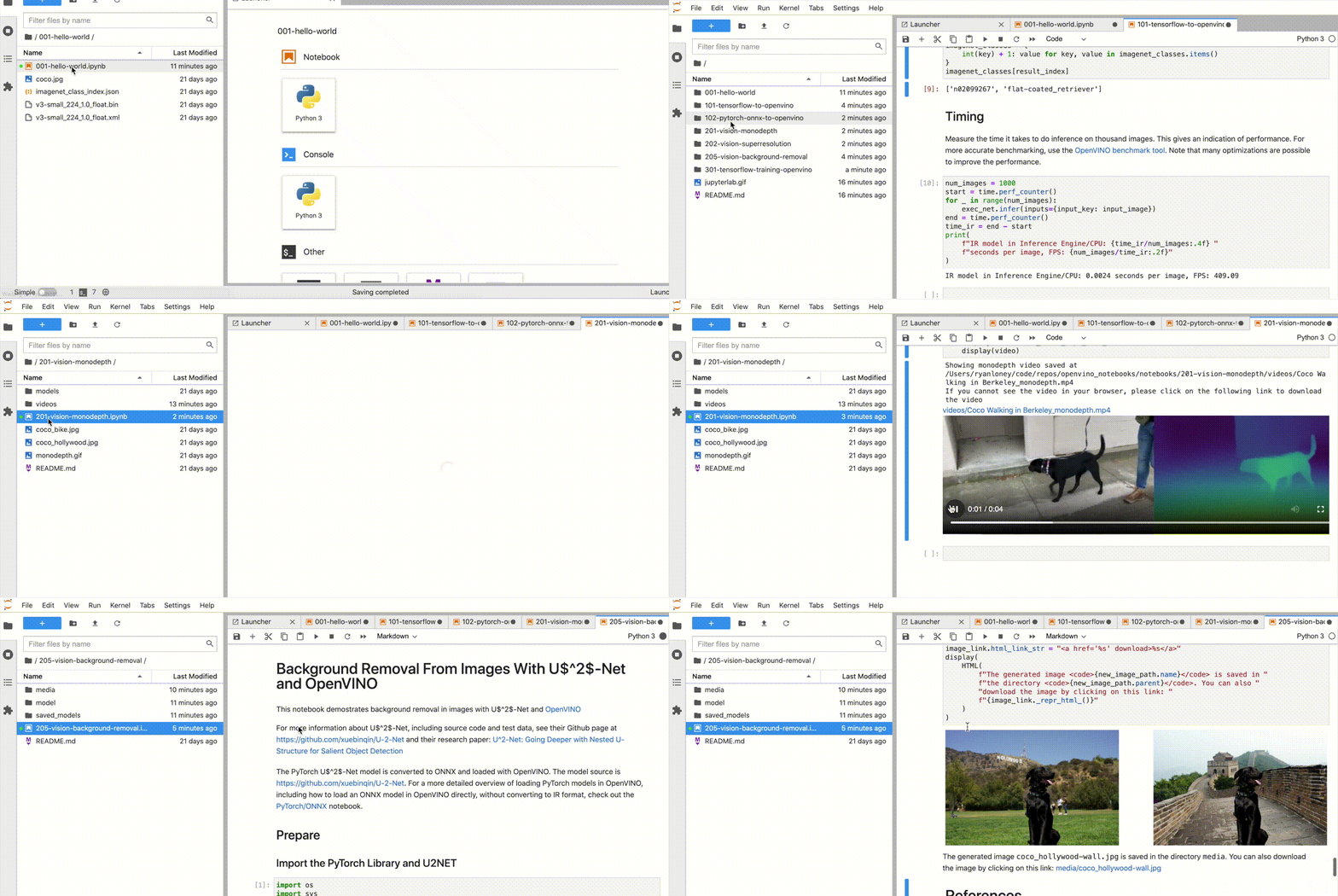
In your browser, select a notebook from the file browser in Jupyter Lab, using the left sidebar. Each tutorial is located in a subdirectory within the notebooks directory.
Manage the Notebooks#
Shut Down Jupyter Kernel#
To end your Jupyter session, press Ctrl-c. This will prompt you toShutdown this Jupyter server (y/[n])? enter y and hit Enter.
Deactivate Virtual Environment#
First, make sure you use the terminal window where you activated openvino_env. To deactivate your virtualenv, simply run:
This will deactivate your virtual environment.
Reactivate Virtual Environment#
To reactivate your environment, run:
Windows
source openvino_env\Scripts\activate
Linux
source openvino_env/bin/activate
macOS
source openvino_env/bin/activate
Then type jupyter lab or jupyter notebook to launch the notebooks again.
Delete Virtual Environment#
This operation is optional. However, if you want to remove your virtual environment, simply delete the openvino_env directory:
Remove openvino_env Kernel from Jupyter#
jupyter kernelspec remove openvino_env
If you run into issues, check the Troubleshooting, andFAQs sections or start a GitHubdiscussion.