Text — SVG 2 (original) (raw)
Chapter 11: Text
Contents
- 11.1. Introduction
- 11.2. The ‘text’ and‘tspan’ elements
- 11.3. Text layout – Introduction
- 11.4. Text layout – Content Area
- 11.5. Text layout – Algorithm
- 11.6. Pre-formatted text
- 11.7. Auto-wrapped text
- 11.8. Text on a path
- 11.9. Text rendering order
- 11.10. Properties and pseudo-elements
- 11.10.1. SVG properties
1. 11.10.1.1. Text alignment, the ‘text-anchor’ property
2. 11.10.1.2. The ‘glyph-orientation-horizontal’ property
3. 11.10.1.3. The ‘glyph-orientation-vertical’ property
4. 11.10.1.4. The ‘kerning’ property - 11.10.2. SVG adaptions
1. 11.10.2.1. The ‘font-variant’ property
2. 11.10.2.2. The ‘line-height’ property
3. 11.10.2.3. The ‘writing-mode’ property
4. 11.10.2.4. The ‘direction’ property
5. 11.10.2.5. The ‘dominant-baseline’ property
6. 11.10.2.6. The ‘alignment-baseline’ property
7. 11.10.2.7. The ‘baseline-shift’ property
8. 11.10.2.8. The ‘letter-spacing’ property
9. 11.10.2.9. The ‘word-spacing’ property
10. 11.10.2.10. The ‘text-overflow’ property - 11.10.3. White space
1. 11.10.3.1. SVG 2 Preferred white space handling, the ‘white-space’ property
2. 11.10.3.2. Legacy white-space handling, the ‘xml:space’ property
3. 11.10.3.3. Duplicate white-space directives
- 11.10.1. SVG properties
- 11.11. Text decoration
- 11.12. Text selection and clipboard operations
- 11.13. DOM interfaces
11.1. Introduction
Text that is to be rendered as part of an SVG document fragment is specified using the ‘text’ element. The text within a‘text’ element can be rendered:
- pre-formatted (with limited line wrapping),
- auto-wrapped (if a content area is provided),
- on a path (if a ‘textPath’ element is provided).
The section Text layout gives an introduction to text layout. It is followed by sections coveringcontent areas and the algorithm for laying out text within a content area. The specialized layout rules corresponding to text that ispre-formatted,auto-wrapped, andon a path are then addressed in individual sections.
Rules for text layout in SVG 1.1 are mostly defined within the SVG 1.1 specification. The rules mirror to a large extent those found in CSS. In SVG 2, the dependence on CSS is more explicit. In practice the resulting layout is the same. The change to directly relying on CSS specifications simplifies the SVG specification while making it more obvious that rendering agents can use the same code to render both text in HTML and in SVG. In particular, SVG 2 auto-wrapped text is based on CSS text layout.
SVG's ‘text’ elements are rendered like other graphics elements. Thus, coordinate system transformations, painting,clipping andmasking features apply to‘text’ elements in the same way as they apply toshapes such aspaths and rectangles.
SVG text supports advanced typographic features including:
- choice of typeface,
- use of discretionary, historical, or stylistic ligatures,
- text decorations (underlining, over-lining, etc.).
SVG text supports international text processing needs such as:
- horizontal and vertical orientation of text,
- left-to-right or bidirectional text (i.e., languages which intermix right-to-left and left-to-right text, such as Arabic and Hebrew),
- complex text layout where: there is not always a one-to-one correspondence between characters and glyphs, characters may change shape depending on location (e.g. Arabic), and characters may be reordered or combined depending on context (e.g. Devanagari),
- glyph alignment to different baselines (alphabetic for western scripts, hanging for northern Indic scripts, and ideographic for far-eastern scripts).
Multi-language SVG content is possible bysubstituting different text strings based on the user's preferred language.
The characters to be drawn are expressed ascharacter data ([xml], section 2.4) inside the ‘text’ element. As a result:
- Text data in SVG content is readily accessible to the visually impaired (see Accessibility Support).
- In many viewing scenarios, the user will be able to search for and select text strings and copy selected text strings to the system clipboard (see Text selection and clipboard operations).
- XML-compatible Web search engines will find text strings in SVG content with no additional effort over what they need to do to find text strings in other XML documents.
For accessibility reasons, it is recommended that text that is included in a document have appropriate semantic markup to indicate its function. For example, a text element that provides a visible label for part of a diagram should have an ‘id’ that is referenced by an ‘aria-labelledby’ attribute on the relevant group or path element. See SVG accessibility guidelines for more information.
11.1.1. Definitions
character
A character is an atomic unit of text as defined in XML [XML].
Essentially, a Unicode code point. A character may be a control instruction (such as a tab, carriage return, or line feed), a renderable mark (letter, digit, punctuation or other symbol), or a modifier (such as a combining accent).
addressable character
A character that is addressable by text positioning attributes and SVG DOM text methods. Characters discarded during layout such ascollapsed white space characters are not addressable, neither are characters within an element with a value of none for the display property. Addressable characters are addressed by their index. Indexes are determined prior to applying any text-transform conversions, as described for the methods in theSVGTextContentElement interface. There are two methods to map an index to a character; the choice of which to use depends on purpose:
- For the purposes of mapping text positioning attributes, the index is measured in Unicode code points (thus a 'u' followed by the combining diaeresis ' ̈' is counted as two characters while the precomposed character 'ü' is counted as one character).
- For the purposes of SVG DOM text methods, the index is measured in UTF-16 code units (thus, a single Unicode code point above U+FFFF will map to two addressable characters as a UTF-16 code unit consists of 16 bits).
The different methods are backwards compatible with SVG 1.1. The use of UTF-16 code units for SVG DOM text methods is required from the definition of DOMString in the DOM 2 specification.
The SVG working group is interested in implementer feedback on the possibility of using grapheme clusters as defined by the Unicode Standard Annex #29 to replace Unicode code points in mapping text positioning attributes. Note, the use of the CSS typographic character is not appropriate as what constitutes a character can depend on context (line-breaking, word-breaking, etc.).
If support for CSS generated-content text is introduced in the future, it would be included in the array of addressable characters.
typographic character
A unit of a writing system— such as a Latin alphabetic letter (including its diacritics), Hangul syllable, Chinese ideographic character, Myanmar syllable cluster— that is indivisible with respect to a particular typographic operation (line-breaking, first-letter effects, tracking, justification, vertical arrangement, etc.). For the normative definition and the relationship between this and a Unicode grapheme cluster, seeCSS Text Module Level 3, ([css-text-3]).
font
A font represents an organized collection of glyphs in which the various glyph representations will share a particular appearance or styling.
glyph
A glyph represents a unit of rendered content within afont. Often, there is a one-to-one correspondence between characters to be drawn and corresponding glyphs (e.g., usually the character "A" is rendered using a single glyph), but other times multiple glyphs are used to render a single character (e.g., characters with accents) or a single glyph can be used to render multiple characters (e.g., ligatures). Typically, a glyph is defined by one or more shapes such as a path, possibly with additional information such as rendering hints that help a font engine to produce legible text in small sizes.
text content element
A text content element is an SVG element that causes a text string to be rendered onto the canvas. The SVG text content elements are:‘text’, ‘textPath’ and ‘tspan’.
text content child element
A text content child element is a text content element that is allowed as a descendant of another text content element. In SVG the text content child elements are:‘textPath’ and ‘tspan’.
text content block element
A text content block element is a text content element that serves as a standalone element for a unit of text, and which may optionally contain certain child text content elements (e.g.‘tspan’). SVG 2 defines a single text content block element: ‘text’.
content area
The area in which the text is normally laid out. This is equivalent to theCSS content area. The actual region where text layout occurs may be smaller due to padding and/or exclusions.
wrapping context
One or more regions (shapes) to be excluded from the content area during text layout. This is the same as the CSS wrapping context.
wrapping area
The area in which the text is laid out after subtracting any padding or exclude areas (wrapping context). This is the same as the CSS wrapping area.
line box
The rectangular area containing all the content used to layout a single line of text. This is the same as theCSS line box.
Although various CSS 3 text layout specs use the term, none current establish a formal definition. The link is therefore to CSS 2.1, and an issue has been filed with CSS WG.
inline-base direction
The primary direction in which content is ordered within a line or part of a line of text. It defines the start andend sides of a line or part of a line of text (relevant, for example to how the text-anchor property is applied). It is determined by the direction property. (Note: the ordering of characters in a line of text is primary controlled by the Unicode bidi algorithm and not the inline-base direction.)
block-flow direction
The direction in which line boxes are stacked. It is determined by the writing-mode property.
alignment point
The point on a typographic character that should be aligned with the current text position. It is determined by the glyph cell metrics and may depend on the script andinline-base direction.
current text position
The point in the current user space where the alignment point of the next typographic character to be rendered should be placed.
text chunk
An independent block of text in which all characters are positioned together. Each new absolute positioning adjustment (due to an ‘x’ or ‘y’ attribute, or forced line break) creates a new text chunk. Ligature substitution and bidi-reordering only occur within a text chunk. Text chunks are only relevant to pre-formatted text.
white space characters
The following characters are considered white space characters: U+0009 CHARACTER TABULATION, U+000C FORM FEED (FF), U+000D CARRIAGE RETURN (CR), U+000A LINE FEED (LF) and U+0020 SPACE.
11.1.2. Fonts and glyphs
A font consists of a collection of glyphs together with other information (collectively, the font tables) necessary to use those glyphs to present characters on some visual medium. The combination of the collection of glyphs and the font tables is called the font data.
A font may supply substitution and positioning tables that can be used by a formatter (text shaper) to re-order, combine and position a sequence of glyphs to form one or more composite glyphs. The combining may be as simple as a ligature, or as complex as an indic syllable which combines, usually with some re-ordering, multiple consonants and vowel glyphs. The tables may be language dependent, allowing the use of language appropriate letter forms.
When a glyph, simple or composite, represents an indivisible unit for typesetting purposes, it is know as a typographic character.
Ligatures are an important feature of advance text layout. Some ligatures are discretionary while others (e.g. in Arabic) are required. The following explicit rules apply to ligature formation:
- Ligature formation should not be enabled when characters are in different DOM text nodes; thus, characters separated by markup should not use ligatures.
- Ligature formation should not be enabled when characters are in different text chunks.
- Discretionary ligatures should not be used when the spacing between two characters is not the same as the default space (e.g. when letter-spacing has a non-default value, or text-align has a value ofjustify and text-justify has a value of distribute). (SeeCSS Text Module Level 3, ([css-text-3]).
SVG attributes such as ‘dx’, ‘textLength’, and ‘spacing’ (in ‘textPath’) that may reposition typographic characters do not break discretionary ligatures. If discretionary ligatures are not desired they can be turned off by using the font-variant-ligatures property.
For OpenType fonts, discretionary ligatures include those enabled by the liga, clig, dlig, hlig, and cala features; required ligatures are found in the rlig feature.
| SVG 2 Requirement: | Include explicit support for Web Open Font Format (WOFF). |
|---|---|
| Resolution: | We will mandate WOFF support in SVG 2. |
| Purpose: | To allow access to full OpenType features for internationalization and advanced typography. |
| Owner: | Chris (no action) |
| Status: | Done |
Proper text rendering may depend on using the same font as used during authoring. For this reason SVG requires support for downloadable fonts as defined in theFont Resources section of theCSS Fonts Module. In particular, support for the Web Open Font Format [WOFF] is required.
New in SVG 2, WOFF allows authors to provide the fonts needed to properly render their content. This includes ensuring that the fonts have the proper OpenType tables to support complex scripts, discretionary ligatures, swashes, old-style numbers, and so on. WOFF also allows the fonts to be compressed, subsetted, and include licensing information.
11.1.3. Glyph metrics and layout
Glyph selection and positioning is normally handled according to the rules of CSS. In some cases, however, the final layout of text in SVG requires knowledge of the geometry properties of individual glyphs.
The geometric font characteristics are expressed in a coordinate system based on the EM box. (The EM is a relative measure of the height of the glyphs in the font.) The box 1 EM high and 1 EM wide is called the design space. This space is given a geometric coordinates by sub-dividing the EM into a number of units per em.
Units per em is a font characteristic. A typical value for units per em is 1000 or 2048.
The coordinate space of the EM box is called the design space coordinate system. For scalable fonts, the curves and lines that are used to draw a glyph are represented using this coordinate system.
Most often, the (0,0) point in this coordinate system is positioned on the left edge of the EM box, but not at the bottom left corner. The Y coordinate of the bottom of a roman capital letter is usually zero. The descenders on lowercase roman letters have negative coordinate values.
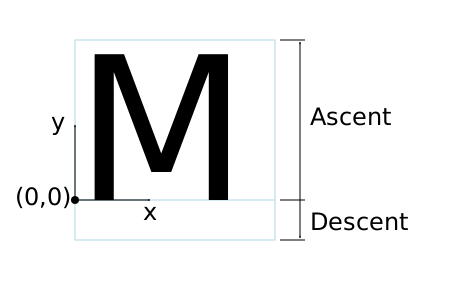
An 'M' inside an Em box (blue square). The 'M' sits on the baseline (blue line). The origin of the coordinate system is shown by the small black circle.
SVG assumes that the font tables will provide at least three font characteristics: an ascent, a descent and a set of baseline-tables. The ascent is the distance to the top of the EM box from the (0,0) point of the font; the descent is the distance to the bottom of the EM box from the (0.0) point of the font. The baseline-table is explained below.
Within an OpenType font ([OPENTYPE]), for horizontal writing-modes, the ascent and descent are given by the sTypoAscender and sTypoDescender entries in the OS/2 table. For vertical writing-modes, the descent (the distance, in this case from the (0,0) point to the left edge of the glyph) is normally zero because the (0,0) point is on the left edge. The ascent for vertical writing-modes is either 1 em or is specified by the ideographic top baseline value in the OpenType Base table for vertical writing-modes.
Glyphs are positioned relative to a particular point on each glyph known as the alignment point. For horizontal writing-modes, the glyphs' alignment points are vertically aligned while for vertical writing-modes, they are horizontally aligned. The position of the alignment point depends on the script. For example, Western glyphs are aligned at the bottom of capital letters, northern Indic glyphs are aligned at the top of a horizontal stroke near the top of the glyphs, and far-eastern glyphs are aligned either at the bottom or center of the glyph.
Within a script and within a line of text having a single font-size, the sequence of alignment points defines, in theinline-base direction, a geometric line called abaseline. Western and most other alphabetic and syllabic glyphs are aligned to an "alphabetic" baseline, the northern Indic glyphs are aligned to a "hanging" baseline and the far-eastern glyphs are aligned to an "ideographic" baseline.
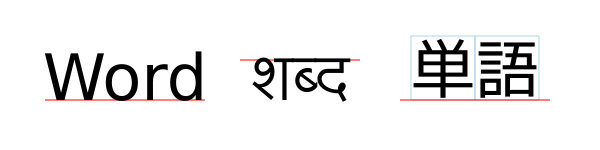
Example baselines (red lines) in three different scripts. From left to right: alphabetic, hanging, ideographic. The EM box is shown in blue for the ideographic script.
As glyphs are sequentially placed along a baseline, thealignment point of a glyph is typically positioned at thecurrent text position (some properties such asvertical-align may alter the positioning). After each glyph is placed, the current text position is advanced by the glyph's advance value (typically the width for horizontal text or height for vertical text) with any correction for kerning or other spacing adjustment as well as for new lines in pre-formatted or auto-wrapped text. The initial and final current text positions are used for alignment (e.g. when the text-anchor value is either 'middle' or 'end'). The glyph's advance is needed when placing text along a path.
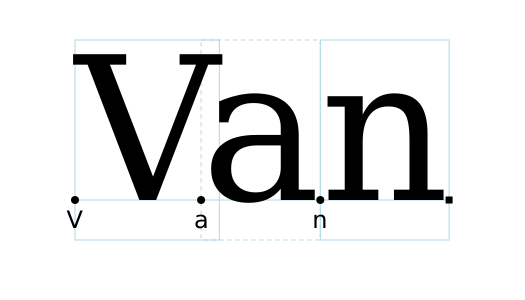
Example of font metrics. The blue boxes show the geometric boxes for the three glyphs. The labeled small circles show thecurrent text position before glyph placement. The small square shows the final current text position after placing the last glyph. Note that the left side of the 'a' glyph's box is not aligned with the right side of the 'V' glyph's box due to kerning.
If a glyph does not provide explicit advance values corresponding to the current glyph orientation, then an appropriate approximation should be used. For vertical text, a suggested approximation is the em size.
The initial current text position is established by the‘x’ and ‘y’ attributes on the‘text’ element or first rendered ‘tspan’ element for pre-formatted text, or auto-wrapped text when the content area is determined by the inline-size property. For other auto-wrapped text, the initial current text position is determined by the position of the first rendered glyph after applying the CSS line wrapping algorithm.
A baseline-table specifies the position of one or more baselines in the design space coordinate system. The function of the baseline table is to facilitate the alignment of different scripts with respect to each other when they are mixed on the same text line. Because the desired relative alignments may depend on which script is dominant in a line (or block), there may be a different baseline table for each script. In addition, different alignment positions are needed for horizontal and vertical writing modes. Therefore, the font may have a set of baseline tables: typically, one or more for horizontal writing-modes and zero or more for vertical writing-modes.
Some fonts may not have values for the baseline tables. Heuristics are suggested for approximating the baseline tables inCSS Inline Layout Module Level 3 [css-inline-3] when a given font does not supply baseline tables.
When a different font (or change in font size) is specified in the middle of a run of text, the dominant baseline determines the baseline used to align glyphs in the new font (new size) to those in the previous font. Thedominant-baseline property is used to set the dominant baseline.
Alignment between an object relative to its parent is determined by the alignment baseline. It is normally the same baseline as the dominant baseline but by using the shorthandvertical-align property (preferred) or the longhandalignment-baseline another baseline can be chosen.
The dominant baseline can be temporarily shifted (as needed for superscripts or subscripts) by using either the shorthandvertical-align property (preferred) or the longhandbaseline-shift property. Note that shifts can be nested, each shift added to the previous shift.
![Examples of using the 'vertical-align' property. Left shows '[[z]]' where the inner brackets are smaller. Right shows 'x2' where the '2' is a superscript.](https://svgwg.org/svg2-draft/images/text/vertical_align.svg)
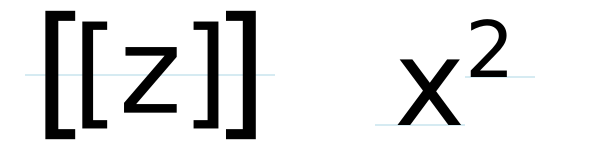
Examples of using the 'vertical-align' property. Left: 'vertical-align:mathematical' ('alignment-baseline:mathematical') is applied to the ‘tspan’ containing '[z]'. The light-blue line shows the position of the mathematical baseline. Right: 'vertical-align:super' ('baseline-shift:super') applied to the ‘tspan’ containing '2'. The light-blue lines indicate the shift in baseline.
SVG further assumes that for each glyph in the font data for a font, there are two width values, two alignment-baselines and two alignment points, one each for horizontal writing-modes and the other for vertical writing-modes. (Even though it is specified as a width, for vertical writing-modes the width is used in the vertical direction.) The inline-base direction position of the alignment point is on the start-edge of the glyph.
Additional information on baselines can be found in theCSS Inline Layout Module Level 3 specification. [css-inline-3] (Also see: CSS Writing Modes Level 3 specification. [css-writing-modes-3])
A single line of text is laid out inside a line box. Multi-line text is produced by stacking these boxes. The height of a line box is determined by finding the maximum ascent and the maximum descent of all the glyphs in a line of text after applying the effect of the line-height property. The width of a line box is normally the width of the containing text block. In SVG, when the containing text block does not have a fixed geometry (as with pre-formatted text), the line box tightly wraps the glyph boxes within the box.
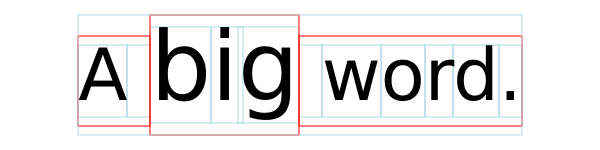
Example of determining the height of a line box. First each glyph box (small light-blue boxes) is extended vertically above and below according to the line-height property. In this case the line-height property is 125%. The larger glyphs have a font-size of 96px so their extra height is 24px (25% of 96px). The extra height is evenly divided above and below resulting in the red boxes. (For clarity, all glyphs in the same inline element have been grouped together). The final line box (large light-blue box) is then found using the maximum extents of the red boxes above and below the baseline.
In order to support various international writing systems, line boxes may be orientated in a horizontal or vertical direction. Text within a vertical line box flows from top to bottom. Text within a horizontal line box may flow left-to-right (e.g., modern Latin scripts), right-to-left (e.g., Hebrew or Arabic), or a mixture of left-to-right and right-to-left (bidirectional text).
The processing model for bidirectional text is as follows:
- The user agent processes the characters which are provided in_logical order_ (i.e., the order the characters appear in the original document).
- The user agent excludes non-rendered elements and collapses white space.
- The user agent determines the set of independent blocks within each of which it should apply the Unicode bidirectional algorithm.
- Each text chunk represents an independent block of text.
- Any change in glyph orientation due to processing of thetext-orientation or obsoletedglyph-orientation-vertical properties will start a new independent blocks of text for bi-directional purposes.
- After processing the Unicode bidirectional algorithm and properties direction andunicode-bidi on each of the independent text blocks, the user agent will have a potentially re-ordered list of characters which are now in left-to-right rendering order. Simultaneous with re-ordering of the characters, the ‘dx’,‘dy’, and ‘rotate’ attributes on the‘text’ and ‘tspan’ elements are also re-ordered to maintain the original correspondence between characters and attribute values.
While kerning or ligature processing might be font-specific, the preferred model is that kerning and ligature processing occurs between combinations of characters or glyphs after the characters have been re-ordered.
The orientation of line boxes as well as the direction in which they are stacked (block-flow direction) is determined by the writing-mode property. For horizontal text (writing-mode valuehorizontal-tb) line boxes are stacked from top to bottom. For vertical text, line boxes are stacked from right-to-left (writing-mode valuevertical-rl) or left-to-right (writing-mode valuevertical-lr).
11.2. The ‘text’ and‘tspan’ elements
The ‘text’ element defines a graphics element consisting of text. The ‘tspan’ element within a ‘text’ or another‘tspan’ element, allows one to switch the style and/or adjust the position of the rendered text inside the ‘tspan’ element relative to the parent element.
The character data within the ‘text’ and ‘tspan’ elements, along with relevant attributes and properties, and character-to-glyph mapping tables within the font itself, define the glyphs to be rendered. The attributes and properties on the ‘text’ and ‘tspan’ elements indicate such things as the writing direction, font specification, and painting attributes which describe how exactly to render the characters. Subsequent sections of this chapter describe the relevant text-specific attributes and properties.
Since ‘text’ and ‘tspan’ elements are rendered using the same rendering methods as other graphics elements, all of the samepainting features that apply toshapes such as paths andrectangles also apply to‘text’ and ‘tspan’ elements, except for markers. In addition,coordinate system transformations,clipping, andmasking can be applied to the ‘text’ element as a whole.
In CSS terms, the ‘text’ element acts as a block element. The ‘tspan’, ‘textPath’, and ‘a’ elements that are descended from text content elements act as inline elements.
It is possible to apply a gradient, pattern, clipping path, mask or filter to text. When one of these facilities is applied to text and keyword 'objectBoundingBox' is used (seeObject bounding box units) to specify a graphical effect relative to the "object bounding box", then the object bounding box units are computed relative to the entire ‘text’ element in all cases, even when different effects are applied to different ‘tspan’ or ‘textPath’ elements within the same ‘text’ element.
The ‘text’ element renders its first glyph (after bidirectionality reordering) at the initial current text position (with possible adjustments due to the value of thetext-anchor property or the text-align property). For pre-formatted text and for auto-wrapped text where thecontent area is determined by the inline-size property, the initial current text position is determined by the ‘x’ and‘y’ values of the ‘text’ or ‘tspan’ element which contains the first rendered character. For auto-wrapped text in a shape or text on a path see the Auto-wrapped text orText on a path sections, respectively, to determine the initial current text position. After the glyph(s) corresponding to the given character is (are) rendered, the current text position is updated for the next character. In the simplest case, the new current text position is the previous current text position plus the glyphs' advance value (horizontal or vertical). Seetext layout for a description of glyph placement and glyph advance.
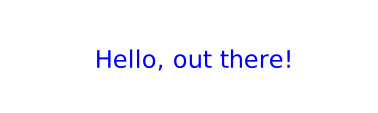
The text string Hello, out there! is rendered onto the canvas using the Verdana font family with the glyphs filled with the color blue.
Hello, out there!
A ‘tspan’ is used to change the styling of the word not.
You are not a banana.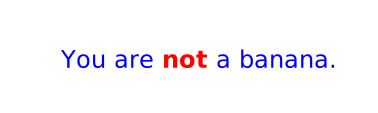
Two ‘tspan’ elements are repositioned horizontally and vertically using the ‘x’ and ‘y’ attributes. Because all the text is within a single‘text’ element, a user will be able to select through all the text and copy it to the system clipboard in user agents that support text selection and clipboard operations.
But you are a peach!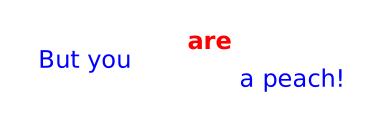
‘text’
Categories:
Graphics element, renderable element, text content element
Content model:
Any number of the following elements or character data, in any order:
- animation elements — ‘animate’, ‘animateMotion’, ‘animateTransform’, ‘set’
- descriptive elements — ‘desc’, ‘title’, ‘metadata’
- paint server elements — ‘linearGradient’, ‘radialGradient’, ‘pattern’
- text content child elements — ‘tspan’, ‘textPath’ a, clipPath, marker, mask, script, style
Attributes:
- aria attributes — ‘aria-activedescendant’, ‘aria-atomic’, ‘aria-autocomplete’, ‘aria-busy’, ‘aria-checked’, ‘aria-colcount’, ‘aria-colindex’, ‘aria-colspan’, ‘aria-controls’, ‘aria-current’, ‘aria-describedby’, ‘aria-details’, ‘aria-disabled’, ‘aria-dropeffect’, ‘aria-errormessage’, ‘aria-expanded’, ‘aria-flowto’, ‘aria-grabbed’, ‘aria-haspopup’, ‘aria-hidden’, ‘aria-invalid’, ‘aria-keyshortcuts’, ‘aria-label’, ‘aria-labelledby’, ‘aria-level’, ‘aria-live’, ‘aria-modal’, ‘aria-multiline’, ‘aria-multiselectable’, ‘aria-orientation’, ‘aria-owns’, ‘aria-placeholder’, ‘aria-posinset’, ‘aria-pressed’, ‘aria-readonly’, ‘aria-relevant’, ‘aria-required’, ‘aria-roledescription’, ‘aria-rowcount’, ‘aria-rowindex’, ‘aria-rowspan’, ‘aria-selected’, ‘aria-setsize’, ‘aria-sort’, ‘aria-valuemax’, ‘aria-valuemin’, ‘aria-valuenow’, ‘aria-valuetext’, ‘role’
- conditional processing attributes — ‘requiredExtensions’, ‘systemLanguage’
- core attributes — ‘id’, ‘tabindex’, ‘autofocus’, ‘lang’, ‘xml:space’, ‘class’, ‘style’
- global event attributes — ‘oncancel’, ‘oncanplay’, ‘oncanplaythrough’, ‘onchange’, ‘onclick’, ‘onclose’, ‘oncopy’, ‘oncuechange’, ‘oncut’, ‘ondblclick’, ‘ondrag’, ‘ondragend’, ‘ondragenter’, ‘ondragexit’, ‘ondragleave’, ‘ondragover’, ‘ondragstart’, ‘ondrop’, ‘ondurationchange’, ‘onemptied’, ‘onended’, ‘onerror’, ‘onfocus’, ‘oninput’, ‘oninvalid’, ‘onkeydown’, ‘onkeypress’, ‘onkeyup’, ‘onload’, ‘onloadeddata’, ‘onloadedmetadata’, ‘onloadstart’, ‘onmousedown’, ‘onmouseenter’, ‘onmouseleave’, ‘onmousemove’, ‘onmouseout’, ‘onmouseover’, ‘onmouseup’, ‘onpaste’, ‘onpause’, ‘onplay’, ‘onplaying’, ‘onprogress’, ‘onratechange’, ‘onreset’, ‘onresize’, ‘onscroll’, ‘onseeked’, ‘onseeking’, ‘onselect’, ‘onshow’, ‘onstalled’, ‘onsubmit’, ‘onsuspend’, ‘ontimeupdate’, ‘ontoggle’, ‘onvolumechange’, ‘onwaiting’, ‘onwheel’
- presentation attributes —
- ‘lengthAdjust’
- ‘x’
- ‘y’
- ‘dx’
- ‘dy’
- ‘rotate’
- ‘textLength’
DOM Interfaces:
| SVG 2 Requirement: | Allow transforms on ‘tspan’. |
|---|---|
| Resolution: | SVG 2 will allow transforms on ‘tspan’. |
| Purpose: | Align with other elements such as ‘a’ which already allow transforms. |
| Owner: | Cameron (no action) |
| Status: | Done |
This decision was reversed. SeeGitHub Issue 210. CSS/HTML does not allow transforms on inline elements and no renderer supports transforms on the ‘a’ element when inline (in both SVG and HTML).
‘tspan’
Categories:
Graphics element, renderable element, text content element, text content child element
Content model:
Any number of the following elements or character data, in any order:
- descriptive elements — ‘desc’, ‘title’, ‘metadata’
- paint server elements — ‘linearGradient’, ‘radialGradient’, ‘pattern’ a, animate, script, set, style, tspan
Attributes:
- aria attributes — ‘aria-activedescendant’, ‘aria-atomic’, ‘aria-autocomplete’, ‘aria-busy’, ‘aria-checked’, ‘aria-colcount’, ‘aria-colindex’, ‘aria-colspan’, ‘aria-controls’, ‘aria-current’, ‘aria-describedby’, ‘aria-details’, ‘aria-disabled’, ‘aria-dropeffect’, ‘aria-errormessage’, ‘aria-expanded’, ‘aria-flowto’, ‘aria-grabbed’, ‘aria-haspopup’, ‘aria-hidden’, ‘aria-invalid’, ‘aria-keyshortcuts’, ‘aria-label’, ‘aria-labelledby’, ‘aria-level’, ‘aria-live’, ‘aria-modal’, ‘aria-multiline’, ‘aria-multiselectable’, ‘aria-orientation’, ‘aria-owns’, ‘aria-placeholder’, ‘aria-posinset’, ‘aria-pressed’, ‘aria-readonly’, ‘aria-relevant’, ‘aria-required’, ‘aria-roledescription’, ‘aria-rowcount’, ‘aria-rowindex’, ‘aria-rowspan’, ‘aria-selected’, ‘aria-setsize’, ‘aria-sort’, ‘aria-valuemax’, ‘aria-valuemin’, ‘aria-valuenow’, ‘aria-valuetext’, ‘role’
- conditional processing attributes — ‘requiredExtensions’, ‘systemLanguage’
- core attributes — ‘id’, ‘tabindex’, ‘autofocus’, ‘lang’, ‘xml:space’, ‘class’, ‘style’
- global event attributes — ‘oncancel’, ‘oncanplay’, ‘oncanplaythrough’, ‘onchange’, ‘onclick’, ‘onclose’, ‘oncopy’, ‘oncuechange’, ‘oncut’, ‘ondblclick’, ‘ondrag’, ‘ondragend’, ‘ondragenter’, ‘ondragexit’, ‘ondragleave’, ‘ondragover’, ‘ondragstart’, ‘ondrop’, ‘ondurationchange’, ‘onemptied’, ‘onended’, ‘onerror’, ‘onfocus’, ‘oninput’, ‘oninvalid’, ‘onkeydown’, ‘onkeypress’, ‘onkeyup’, ‘onload’, ‘onloadeddata’, ‘onloadedmetadata’, ‘onloadstart’, ‘onmousedown’, ‘onmouseenter’, ‘onmouseleave’, ‘onmousemove’, ‘onmouseout’, ‘onmouseover’, ‘onmouseup’, ‘onpaste’, ‘onpause’, ‘onplay’, ‘onplaying’, ‘onprogress’, ‘onratechange’, ‘onreset’, ‘onresize’, ‘onscroll’, ‘onseeked’, ‘onseeking’, ‘onselect’, ‘onshow’, ‘onstalled’, ‘onsubmit’, ‘onsuspend’, ‘ontimeupdate’, ‘ontoggle’, ‘onvolumechange’, ‘onwaiting’, ‘onwheel’
- presentation attributes —
- ‘x’
- ‘y’
- ‘dx’
- ‘dy’
- ‘rotate’
- ‘textLength’
- ‘lengthAdjust’
DOM Interfaces:
11.2.1. Attributes
| Name | Value | Initial value | Animatable |
|---|---|---|---|
| x, y | [ [ | ]+ ]# | 0 for ‘text’; (none) for ‘tspan’ | yes |
If a single is provided, then the value represents the new absolute X (Y) coordinate for the current text position for rendering the glyphs that correspond to the first character within this element or any of its descendants.
If a comma- or space-separated list of n s is provided, then the values represent new absolute X (Y) coordinates for the current text position for rendering the glyphs corresponding to each of the first n addressable characters within this element or any of its descendants.
If more s are provided than characters, then the extra s will have no effect on glyph positioning.
If more characters exist than s, or if the attribute is not specified on a ‘tspan’, then for each additional character:
- if an ancestor ‘text’ or ‘tspan’ element specifies an absolute X (Y) coordinate for the given character via an ‘x’ (‘y’) attribute (nearest ancestor has precedence), then that absolute X (Y) coordinate is used as the starting X (Y) coordinate for that character, else
- the starting X (Y) coordinate for rendering the glyphs corresponding to the given character is the X (Y) coordinate of the resulting current text position from the most recently rendered glyph for the current ‘text’ element.
In SVG 2, the ‘text’ and ‘tspan’ ‘x’ and ‘y’ attributes are not presentation attributes and cannot be set via CSS. This may change in a future version of SVG.
| Name | Value | Initial value | Animatable |
|---|---|---|---|
| dx, dy | [ [ | ]+ ]# | (none) | yes |
If a single is provided, this value represents the new relative X (Y) coordinate for the current text position for rendering the glyphs corresponding to the first character within this element or any of its descendants. The current text position is shifted along the x-axis (y-axis) of the current user coordinate system by before the first character's glyphs are rendered.
If a comma- or space-separated list of n s is provided, then the values represent incremental shifts along the x-axis (y-axis) for the current text position before rendering the glyphs corresponding to the first n addressable characters within this element or any of its descendants. Thus, before the glyphs are rendered corresponding to each character, the current text position resulting from drawing the glyphs for the previous character within the current ‘text’ element is shifted along the x-axis (y-axis) of the current user coordinate system by .
If more s are provided than characters, then any extra s will have no effect on glyph positioning.
If more characters exist than s, or if the attribute is not specified, then for each additional character:
- if an ancestor ‘text’ or ‘tspan’ element specifies a relative X (Y) coordinate for the given character via a ‘dx’ (‘dy’) attribute (nearest ancestor has precedence), then the current text position is shifted along the x-axis (y-axis) of the current user coordinate system by that amount, else
- no extra shift along the x-axis (y-axis) occurs.
| Name | Value | Initial value | Animatable |
|---|---|---|---|
| rotate | [ + ]# | (none) | yes (non-additive). |
The supplemental rotation, in degrees, about the current text position that will be applied to all of the glyphs corresponding to each character within this element.
If a comma- or space-separated list of s is provided, then the first represents the supplemental rotation for the glyphs corresponding to the first character within this element or any of its descendants, the second represents the supplemental rotation for the glyphs that correspond to the second character, and so on.
If more s are provided than there are characters, then the extra s will be ignored.
If more characters are provided than s, then for each of these extra characters the rotation value specified by the last number must be used.
If the attribute is not specified and if an ancestor of a‘tspan’ element specifies a supplemental rotation for a given character via a ‘rotate’ attribute (nearest ancestor has precedence), then the given supplemental rotation is applied to the given character. If there are more characters than s specified in the ancestor's ‘rotate’ attribute, then for each of these extra characters the rotation value specified by the last number must be used.
This supplemental rotation has no impact on the rules by which current text position is modified as glyphs get rendered and is supplemental to any rotation due totext on a path and to text-orientation,glyph-orientation-horizontal, or glyph-orientation-vertical.
| Name | Value | Initial value | Animatable |
|---|---|---|---|
| textLength | | | See below | yes |
The author's computation of the total sum of all of the advance values that correspond to character data within this element, including the advance value on the glyph (horizontal or vertical), the effect of properties letter-spacing and word-spacing and adjustments due to attributes‘dx’ and ‘dy’ on this ‘text’ or ‘tspan’ element or any descendants. This value is used to calibrate the user agent's own calculations with that of the author.
The purpose of this attribute is to allow the author to achieve exact alignment, in visual rendering order after any bidirectional reordering, for the first and last rendered glyphs that correspond to this element; thus, for the last rendered character (in visual rendering order after any bidirectional reordering), any supplemental inter-character spacing beyond normal glyph advances are ignored (in most cases) when the user agent determines the appropriate amount to expand/compress the text string to fit within a length of‘textLength’.
If attribute ‘textLength’ is specified on a given element and also specified on an ancestor, the adjustments on all character data within this element are controlled by the value of ‘textLength’ on this element exclusively, with the possible side-effect that the adjustment ratio for the contents of this element might be different than the adjustment ratio used for other content that shares the same ancestor. The user agent must assume that the total advance values for the other content within that ancestor is the difference between the advance value on that ancestor and the advance value for this element.
This attribute is not intended for use to obtain effects such as shrinking or expanding text.
A negative value is an error (see Error processing).
The ‘textLength’ attribute is only applied when the wrapping area is not defined by the shape-inside or the inline-size properties. It is also not applied for any ‘text’ or ‘tspan’ element that has forced line breaks (due to a white-space value ofpre orpre-line).
If the attribute is not specified anywhere within a‘text’ element, the effect is as if the author's computation exactly matched the value calculated by the user agent; thus, no advance adjustments are made. For the purpose of reflecting the attribute in the DOM, the initial value is the current user-agent calculated length, expressed in implicit user units.
| Name | Value | Initial value | Animatable |
|---|---|---|---|
| lengthAdjust | spacing | spacingAndGlyphs | spacing | yes |
spacing
Indicates that only the advance values are adjusted. The glyphs themselves are not stretched or compressed.
spacingAndGlyphs
Indicates that the advance values are adjusted and the glyphs themselves stretched or compressed in one axis (i.e., a direction parallel to the inline-base direction).
The user agent is required to achieve correct start and end positions for the text strings, but the locations of intermediate glyphs are not predictable because user agents might employ advanced algorithms to stretch or compress text strings in order to balance correct start and end positioning with optimal typography.
Note that, for a text string that contains n characters, the adjustments to the advance values often occur only for n−1 characters (see description of attribute ‘textLength’), whereas stretching or compressing of the glyphs will be applied to all n characters.
11.2.2. Notes on 'x', 'y', 'dx', 'dy' and 'rotate'
The ‘x’, ‘y’, ‘dx’, ‘dy’, and‘rotate’ on the ‘text’ and ‘tspan’ elements are useful in high-end typography scenarios where individual glyphs require exact placement. These attributes are useful for minor positioning adjustments between characters or for major positioning adjustments, such as moving a section of text to a new location to achieve the visual effect of a new line of text (compatible with SVG 1.1). Note that the ‘x’, ‘y’, ‘dx’,‘dy’, and ‘rotate’ attributes are ignored for auto-wrapped text (except for the initial current text position when the content area is specified by the inline-size property).
It was decided at the 2015 Sydney F2F that 'dx', 'dy', and 'rotate' would be ignored for auto-wrapped text. (Technically, it is not difficult to apply them but it was not seen as being really useful.)
In situations where micro-level positioning adjustment are necessary for advanced typographic control, the SVG content designer needs to ensure that the necessary font will be available for all viewers of the document (e.g., package up the necessary font data in the form of an SVG font or an alternative WebFont format which is stored at the same Web site as the SVG content) and that the viewing software will process the font in the expected way (the capabilities, characteristics and font layout mechanisms vary greatly from system to system). If the SVG content contains ‘x’, ‘y’, ‘dx’, or‘dy’ attribute values which are meant to correspond to a particular font processed by a particular set of viewing software and either of these requirements is not met, then the text might display with poor quality.
The following additional rules apply to attributes ‘x’,‘y’, ‘dx’, ‘dy’, and ‘rotate’ when they contain a list of numbers:
- When a single character maps to a single glyph – In this case, the n-th value for the‘x’, ‘y’, ‘dx’, ‘dy’, and ‘rotate’ attributes is applied to the glyph that corresponds to the n-th character.
- When a single character maps to multiple glyphs (e.g., when an accent glyph is placed on top of a base glyph) – In this case, the n-th value for the ‘x’, ‘y’, ‘dx’, and ‘dy’ values are applied (i.e., the current text position is adjusted) before rendering the first glyph. The rotation transformation corresponding to then-th ‘rotate’ value is applied to the glyphs and to the inter-glyph advance values corresponding to this character on a group basis (i.e., the rotation value creates a temporary new rotated coordinate system, and the glyphs corresponding to the character are rendered into this rotated coordinate system).
- When multiple characters map to a single glyph (e.g., when a ligature is used) – Suppose that then-th and (n+1)-th characters map to a single glyph. In this case, then-th value for the‘x’, ‘y’, ‘dx’, ‘dy’, and ‘rotate’ attributes all apply when rendering the glyph. The (n+1)-th values, however, for ‘x’, ‘y’, and ‘rotate’ are ignored (exception: the final ‘rotate’ value in the list would still apply to subsequent characters), whereas the ‘dx’ and ‘dy’ are applied to the subsequent character (i.e., the (n+2)-th character), if one exists, by translating the current text position by the given amounts before rendering the first glyph associated with that character.
- When there is a many-to-many mapping of characters to glyphs (e.g., when three characters map to two glyphs, such as when the first glyph expresses the first character and half of the second character, and the second glyph expresses the other half of the second character plus the third character) – Suppose that the n-th, (n+1)-th and (n+2)-th characters map to two glyphs. In this case, then-th value for the‘x’, ‘y’, ‘dx’, and ‘dy’ values are applied (i.e., the current text position is adjusted) before rendering the first glyph. The rotation transformation corresponding to then-th ‘rotate’ value is applied to both the two glyphs and the glyph advance values for the first glyph on a group basis (i.e., the rotation value creates a temporary new rotated coordinate system, and the two glyphs are rendered into the temporary rotated coordinate system). The (n+1)-th and (n+2)-th values, however, for the ‘x’, ‘y’, and ‘rotate’ attributes are not applied (exception: the final ‘rotate’ value in the list would still apply to subsequent characters), whereas the (n+1)-th and (n+2)-th values for the ‘dx’ and ‘dy’ attributes are applied to the subsequent character (i.e., the (n+3)-th character), if one exists, by translating the current text position by the given amounts before rendering the first glyph associated with that character.
- Relationship to bidirectionality – Text is laid out in a two-step process, where any bidirectional text is first re-ordered into a left-to-right string, and then text layout occurs with the re-ordered text string. Whenever the character data within a ‘tspan’ element is re-ordered, the corresponding elements within the ‘x’, ‘y’,‘dx’, ‘dy’, and ‘rotate’ are also re-ordered to maintain the correspondence. For example, suppose that there is the following ‘tspan’ element:
<tspan dx="11 12 13 14 15 0 21 22 23 0 31 32 33 34 35 36">Latin and Hebrew</tspan>
and that the word "Hebrew" will be drawn right-to-left. First, the character data and the corresponding values in the ‘dx’ list will be reordered, such that the text string will be "Latin and werbeH" and the list of values for the ‘dx’ attribute will be "11 12 13 14 15 0 21 22 23 0 36 35 34 33 32 31". After this re-ordering, the glyphs corresponding to the characters will be positioned using standard left-to-right layout rules.
Example tspan04 uses the‘rotate’ attribute on the ‘tspan’ element to rotate the glyphs to be rendered. This example shows a single text string in a‘tspan’ element that contains more characters than the number of values specified in the ‘rotate’ attribute. In this case the last value specified in the ‘rotate’ attribute of the ‘tspan’ must be applied to the remaining characters in the string.
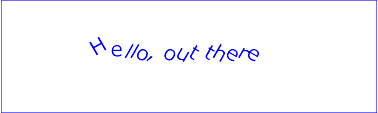
Example tspan04
View this example as SVG (SVG-enabled browsers only)

Example tspan05 specifies the‘rotate’ attribute on the ‘text’ element and on all but one of the child ‘tspan’ elements to rotate the glyphs to be rendered. The example demonstrates the propagation of the‘rotate’ attribute.
<tspan id="child1" rotate="-10,-20,-30,-40" fill="orange">
  all characters

  <tspan id="child2" rotate="70,60,50,40,30,20,10" fill="yellow">
    in

    <tspan id="child3">
      the
    </tspan>
  </tspan>

  <tspan id="child4" fill="orange" x="40" y="90">
    text
  </tspan>

  have a
</tspan>

<tspan id="child5" rotate="-10" fill="blue">
  specified
</tspan>

rotation
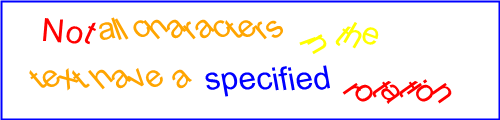
Example tspan05
View this example as SVG (SVG-enabled browsers only)

Rotation of red text inside the ‘text’ element:
- The ‘rotate’ value will rotate the characters in the text_"Not "_ by 5, 15, 25 and 35 degrees respectively.
- A ‘rotate’ value is applied to the space that follows the text "Not", to the space in between the text in the "child1" and "child5" ‘tspan’ elements, and to the space before the text "rotation".
- The next current ‘rotate’ value specified is 45 followed by 55. The current ‘rotate’ value in the ‘text’ element is incremented as subsequent characters in the text of the child ‘tspan’ elements are processed.
- The next immediate ‘tspan’ element specifies rotate values for the text, hence the current ‘rotate’ value will change to the next value in the list (but is not used) as each character is processed until the last value of 55 degrees is reached.
- The last ‘rotate’ value of 55 degrees will be applied to all the characters in the text "rotation".
Rotation of the orange text inside the "child1" ‘tspan’ element:
- The ‘rotate’ value will rotate the first 4 characters in the text "all characters " by -10, -20, -30 and -40 respectively.
- The last ‘rotate’ value of -40 becomes the current‘rotate’ value and will be applied to all subsequent characters in the ‘tspan’ element and to any child‘tspan’ elements that do not specify ‘rotate’ values.
- The "child4" ‘tspan’ element does not specify any‘rotate’ values and thus uses the current ‘rotate’ of its ancestor ("child1" ‘tspan’ element). All the characters in the text "text" specified within the "child4"‘tspan’ element will be rotated by -40 degrees.
- The last ‘rotate’ value of -40 degrees will be applied to all the characters in the text "have a".
- A ‘rotate’ value is applied to the space in between the text in the "child2" and "child4" ‘tspan’ elements, and to the space before the text "have a".
Rotation of the yellow text inside the "child2" ‘tspan’ element:
- The ‘rotate’ value will rotate the characters in the (yellow) text "in " by 70, 60, and 50 degrees respectively.
- A ‘rotate’ value is applied to the space that follows the text "in".
- There are more ‘rotate’ values specified than characters, thus the additional ‘rotate’ values will be applied to the "child3" ‘tspan’ element which does not specified any‘rotate’ values.
- The characters in the text "the" specified within the "child3" ‘tspan’ element will be rotated 40, 30 and 20 degrees respectively.
Rotation of the blue text inside the "child5" ‘tspan’ element:
- The ‘rotate’ value will rotate all the characters in text_"specified"_ by -10 degrees.
- Only one ‘rotate’ value is specified and is thus applied to all characters in the ‘tspan’ element.
The following diagram illustrates how the rotation values propagate to‘tspan’ elements nested withing a ‘text’ element:
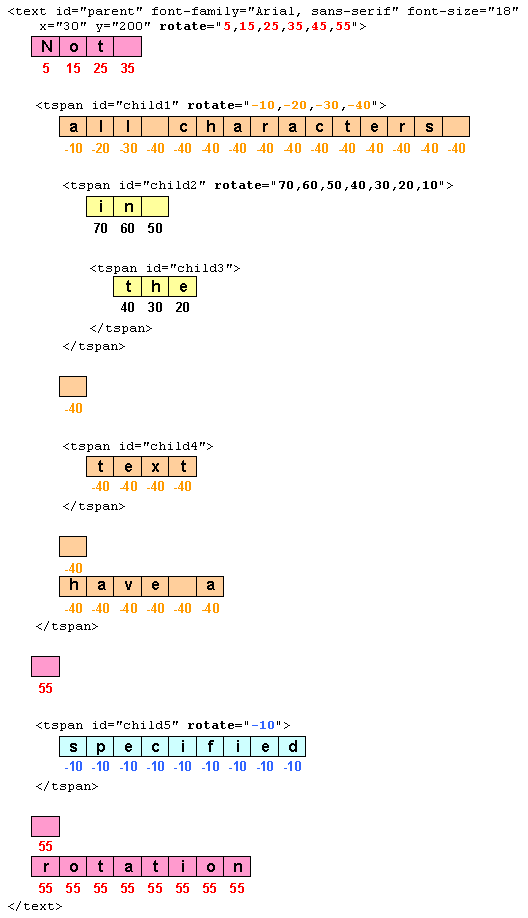
11.3. Text layout – Introduction
This section gives a short overview of SVG text layout. It is followed by sections that cover different aspects of text layout in more detail.
Text layout in SVG is a multi-stage process that takes as input a ‘text’ element subtree and its property values and produces a sequence of glyphs to render and their positions in each text content element's coordinate system.
First, a ‘text’ element and its descendants are laid out inside a content area or wrapping area according to CSS, as if the ‘text’ were a block element and any‘tspan’, ‘textPath’, and ‘a’ descendants were inline elements. This layout takes into account all paragraph level and font related CSS properties described in this chapter.
The content area may be explicitly declared by setting theinline-size property, or by setting the shape-inside property that defines or references an SVG shape. If a content area is not declared, it defaults to a rectangle of infinite width and height.
Second, any positioning given by ‘x’, ‘y’,‘dx’ and ‘dy’ attributes are applied to the resulting glyph positions from the CSS layout process. The rules for which transforms are allowed depend on if the content area was explicitly declared or not. If not explicitly declared, the rules define the layout of_pre-formatted_ text. If declared, the rules define the layout of auto-wrapped text.
Third, the effect of the text-anchor property is applied if necessary.
Finally, layout of glyphs for any ‘textPath’ elements is performed, converting pre-formatted text to text-on-a-path.
Examples of the different types of text layout:
Pre-formatted:
For short strings of text (e.g. labels) or where exact placement of glyphs is required (e.g. hand-kerned titles).
An example of multi-line pre-formatted text.
 <text x="20" y="45" style="font: 24px sans-serif;">
   Example of multi-line,
   <tspan x="20" y="75">pre-formatted text.</tspan>
 </text>
Pre-formatted text where a ‘tspan’ element has been used to create multi-line text.
Wrapped text:
For long strings of text where automatic text wrapping is required.
An example of auto-wrapped text.
Example of text auto-wrapped.
Auto-wrapped text. The inline-size property defines a rectangular content area of infinite height (shown in light blue).
Text on path:
For text that follows a specified path.
An example of text on a path.
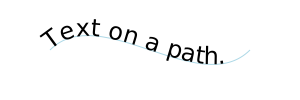
Text on a path. The ‘textPath’ element references a ‘path’ element (shown in light blue).
SVG 2 introduces the ability to automatically wrap text inside a rectangle or other shape by specifying a content area. The design of SVG wrapped text is motivated by the desire that SVG text wrapping be as compatible as possible with text wrapping in CSS in order that renderers that support CSS text wrapping can implement SVG text wrapping easily (but without requiring non-HTML compatible SVG renderers to implement HTML). There are several differences between SVG and CSS text wrapping. The most important is that in SVG, a content area must be explicitly provided as SVG does not have an automatic finite (or semi-finite)content area (provided in CSS by the box model). Another difference is that SVG does not have the
andelements which create line breaks. Instead, SVG relies on the pre andpre-line values ofwhite-space to provide line breaks. SVG wrapped text also allows a content-creation tool to provide a natural fallback for SVG 1.1 renderers that do not support wrapped text (by use of‘x’ and ‘y’ attributes in the ‘text’ and‘tspan’ elements, which are ignored by SVG 2 renderers for auto-wrapped text).
SVG's text layout options are designed to cover most general use cases. If more complex layout is required (bulleted lists, tables, etc.), text can be rendered in another XML namespace such as XHTML [HTML] embedded inline within a‘foreignObject’ element.
11.4. Text layout – Content Area
A content area is defined by specifying in a ‘text’ element an inline-size property, or a shape-inside property that defines or references an SVG shape. If no content area is provided, the content area defaults to a rectangle of infinite width and height (see thepre-formatted text section). If both an inline-size property and ashape-inside property with value other than 'none' are given, the shape-inside property is used.
Wrapped text is laid out in a wrapping area. Thewrapping area is normally the same as the content area. When the content area is defined using the shape-inside property, the wrapping area may be smaller due to the presence of a shape-subtract property and/or a shape-padding property. Theshape-subtract property (along with theshape-margin property) defines a wrapping context. The wrapping area is found by insetting the content area by the shape-padding distance, and then subtracting the wrapping context.
Once a wrapping area is defined, the text is laid out inside the wrapping area according to the rules of CSS (respecting any special rules given in this section).
Constructing equivalent wrapping areas in SVG and HTML. The text inside the wrapping areas is rendered the same in both cases.
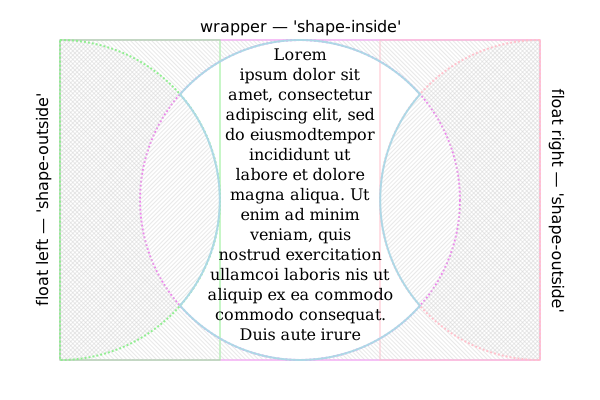
Defining a wrapping area in HTML. A wrapper
11.4.1. The ‘inline-size’ property
'extent' added by resolution fromFebruary 12th, 2015. 'extent' replaces the 'width' and 'height' attributes, added by resolution from June 27th, 2013. Replaced by 'inline-size' presentation attribute per resolution fromLinkoping F2F, June 11, 2015.
The inline-size property allows one to set thewrapping area to a rectangular shape. The computed value of the property sets the width of the rectangle for horizontal text and the height of the rectangle for vertical text. The other dimension (height for horizontal text, width for vertical text) is of infinite length. A value of zero disables the creation of awrapping area.
The initial current text position is taken from the‘x’ and ‘y’ attributes of the‘text’ element (or first child ‘tspan’ element if the attributes are not given on the ‘text’ element). For left-to-right text, the initial current text position is at the left of the rectangle. For right-to-left text it is at the right of the rectangle. For vertical text, the initial current text position is at the top of the rectangle.
The rectangle (wrapping area) is then anchored according to the text-anchor property using the edges of thewrapping area to determine the start, middle, and end positions.
The inline-size property method to wrap text is an extension to pre-formatted SVG text where the author simply gives a limit to the width or height of the block of text; thus the use of the ‘x’ and ‘y’ attributes along with the direction and text-anchor properties to position the first line of text. If full justification is needed, the shape-inside property should be used to create the wrapping area.
| Name: | inline-size |
|---|---|
| Value: | auto | |
| Initial: | auto |
| Applies to: | ‘text’ elements |
| Inherited: | no |
| Percentages: | Refer to the width (for horizontal text) or height (for vertical text) of the current SVG viewport (see Units) |
| Media: | visual |
| Computed value: | an absolute length or percentage |
| Animation type: | by computed value |
An example of using inline-size for wrapping horizontal text.
This text wraps at 200 pixels.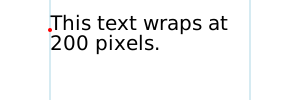
Horizontal text wrapping. The light-blue lines indicate the limits of the content area. Note that the content area is of infinite height. The red dot shows the initialcurrent text position.
An example of using inline-size for wrapping right to left horizontal text.
هذا النص يلتف في 200 بكسل.
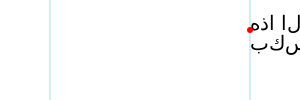
Horizontal text wrapping for right to left text. The light-blue lines indicate the limits of the content area. Note that the content area is of infinite height. The red dot shows the initialcurrent text position.
Some browser may not render this SVG 1.1 figure correctly. Batik and Firefox seems to get it right. Bug filed against Chrome.
An example of using inline-size for wrapping vertical text.
テキストは10文字後に折り返されます。
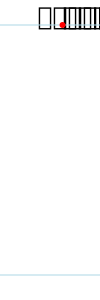
Vertical text wrapping. The light-blue lines indicate the limits of the content area. Note that the content area is of infinite width. The red dot shows the initialcurrent text position.
This SVG 1.1 image doesn't work in Firefox, even nightly. Firefox does not support the presentation attribute 'writing-mode'. Bug filed against Firefox.
An example of using inline-size for wrapping horizontal text, anchored in the middle.
This text wraps at 200 pixels.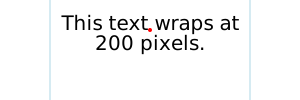
Horizontal text wrapping. The light-blue lines indicate the limits of the content area. The text is anchored in the middle. The red dot shows the initialcurrent text position.
11.4.2. The ‘shape-inside’ property
The shape-inside property allows one to set thecontent area to a CSS basic shape or to an SVG shape.
In CSS/HTML shape-inside applies to block-level elements and absolute and percentage values are defined relative to the block-level element. In SVG absolute and percentage values are defined relative to the current user coordinate system and the ‘viewBox’.
Do nor re-specify shape-inside but reference CSS Shapes.
| Name: | shape-inside | |
|---|---|---|
| Value: | auto | [ | ]+ |
| Initial: | auto | |
| Applies to: | ‘text’ elements | |
| Inherited: | no | |
| Percentages: | Relative to the ‘viewBox’ | |
| Media: | visual | |
| Computed value: | computed lengths for , the absolute URI for , otherwise as specified | |
| Animation type: | See Interpolation of Basic Shapes |
auto
For the purposes of SVG, the 'auto' value indicates that the content area should be defined using the inline-size property or as for pre-formatted text.
The shape is computed based on the values of one of 'circle()', 'ellipse()' or 'polygon()'. The CSS value of 'inset()' is invalid for SVG.
An example of using a CSS basic-shape for wrapping horizontal text.
Lorem ipsum dolor sit amet, consec-tetuer adipiscing elit...
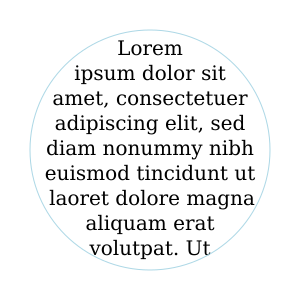
Horizontal text wrapping inside a CSS circle shape. The light-blue circle indicates the limit of thecontent area.
If the references an SVG shape element, that element defines the shape. Otherwise, if the references an image, the shape is extracted and computed based on the alpha channel of the specified image using theshape-image-threshold. If the does not reference an SVG shape element or an image, the effect is as if the value ‘auto’ had been specified.
An example of using a reference to an SVG shape for wrapping horizontal text.
This text wraps in a rectangle.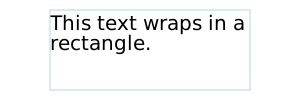
Horizontal text wrapping inside an SVG rectangle shape. The light-blue lines indicate the limits of thecontent area.
The CSS values of 'outside-shape', 'shape-box', and 'display' are invalid for SVG.
SVG allows the shape-inside property to have a list of shapes. Each shape defines an independent content area. Text is first laid out in the content area of the first shape. If the text overflows the first shape, the overflow text is laid out in the next shape until all text is laid out or no more shapes are available.
The effect is similar to CSS columns, except that the columns can have arbitrary shapes.
It is recommended that an overflow shape be provided to ensure the accessibility of all text in cases; for example, if a user increases the font size.
Except as noted, see the CSS Shapes Module Level 2 for the definition of'shape-inside'. [css-shapes-2]
'shape-inside' was removed when the CSS Exclusions and Shapes Module was split into separate Exclusions and Shapes modules. At the Tokyo joint SVG/CSS F2F meeting, it was agreed that it would reappear in CSS Shapes Module Level 2.
11.4.3. The ‘shape-subtract’ property
The shape-subtract property allows one to exclude part of the content area from the wrapping area. The excluded area is the addition of all the areas defined in a list of CSS basic shapes and/or SVG shapes.
It was resolved at the 2016 Sydney F2F that 'shape-subtract' should be uses instead of 'shape-outside' due to the different behavior required. ('shape-outside' reduces the area of an exclusion.)
Absolute and percentage values are defined relative to the current user coordinate system and the ‘viewBox’.
| Name: | shape-subtract | |
|---|---|---|
| Value: | none | [ | ]+ |
| Initial: | none | |
| Applies to: | ‘text’ elements | |
| Inherited: | no | |
| Percentages: | Relative to the ‘viewBox’ | |
| Media: | visual | |
| Computed value: | computed lengths for any , the absolute URI for , otherwise as specified | |
| Animation type: | See Interpolation of Basic Shapes |
The shape is computed based on the values of one of 'circle()', 'ellipse()' or 'polygon()'.
For any that references an SVG shape element, that element defines the contributing shape, expanded by the value of its shape-margin distance. For any that references an image, the contributing shape is extracted and computed based on the alpha channel of the specified image using the shape-image-threshold. If an does not reference an SVG shape element or an image, that is ignored.
An example of using shape-subtract.
.
Lorem ipsum ... Lorem ipsum ...
11.4.4. The ‘shape-image-threshold’ property
The shape-image-threshold defines the alpha channel threshold used to extract the shape using an image. A value of 0.5 means that the shape will enclose all the pixels that are more than 50% opaque.
For the purposes of SVG, this property applies to ‘text’ elements.
Except as noted, see the CSS Shapes Module Level 1 for the definition of'shape-image-threshold'. [css-shapes-1]
11.4.5. The ‘shape-margin’ property
The shape-margin property adds a margin to a shape referenced withshape-subtract. It defines a new shape where every point is the specified distance from the original shape. This property takes on positive values only.
Do nor re-specify shape-margin but reference CSS Shapes.
| Name: | shape-margin |
|---|---|
| Value: | |
| Initial: | 0 |
| Applies to: | ‘text’ elements |
| Inherited: | no |
| Percentages: | N/A |
| Media: | visual |
| Computed value: | an absolute length |
| Animation type: | by computed value |
Except as noted, see the CSS Shapes Module Level 1 for the definition of See 'shape-margin'. [css-shapes-1]
11.4.6. The ‘shape-padding’ property
The shape-padding property can be used to offset the inline flow content wrapping on the inside of elements. Offsets created by the ‘wrap-padding’ property are offset from the content area of the element. This property takes on positive values only.
An example of using shape-padding
.
This image is a PNG. Figure out how to make a good SVG. Note: Chrome supports 'textLength' on 'tspan' but Firefox does not.
Except as noted, see the CSS Shapes Module Level 2 for the definition of'shape-padding'.
11.5. Text layout – Algorithm
Text layout begins by passing to a CSS-based text renderer the content of the ‘text’ element which includes text data along with styling information and a description of one or more shapes to be filled. The ‘text’ element is treated as a block element and its descendant ‘tspan’, ‘textPath’ and ‘a’ elements are treated as inline elements. The CSS renderer returns a set of typographic characters with their positions resulting from laying out the text as if the text were absolutely positioned.
A typographic character may contain more than one glyph. It is assumed here the relative positioning of the glyphs inside a typographic character is encapsulated by the typographic character and it is not user controllable.
Once a content area has been defined, the following algorithm is used to determine the typographic characters and their positions for a given ‘text’ element:
- For text where the content area is defined by theshape-inside property, layout the text in one or more areas per CSS rules for laying out text in a CSS wrapping area.
SVG allows the shape-inside property to reference more than one shape. Each shape should be filled in turn until there is no more text or no more shapes. - For text where the content area is defined by theinline-size property, layout the text in a CSS content box where the inline size is set to the value of the inline-size property and the block size is unconstrained.
This means that text is laid out with the box width set to the inline-size value if writing-mode is horizontal-tb, or with the box height set to the inline-size value otherwise. - For all other text (SVG 1.1 compatible text and SVG 1.1 like multi-line text), layout the text in a CSS content box that is unconstrained in width and height.
A number of CSS properties have no or limited effect on SVG text layout:
- The used value of each of the following properties on a text content element (and its pseudo-elements, if any) and on an ‘a’ element within a text content block element must be the property's initial values: ‘border-style’, ‘float’, ‘margin’, ‘padding’, ‘position’ and ‘text-align’.
- If the computed value of the display property on a correctly parented text content block element is anything other thannone, then its used value must beblock.
This ensures that the ‘text’ element is treated as if it were a block element. - If the computed value of the display property on a correctly parented text content child element or ‘a’ element, is anything other thannone, then its used value must beinline.
This ensures that ‘tspan’, ‘textPath’ and‘a’ elements are treated as if they were inline elements. Note: the transform property has no effect on inline elements. - The used value of the display property on an element that is a descendant of a text content block element and is not a correctly parented text content child element or ‘a’ element must benone.
This ensures that graphics and metadata elements inside a ‘text’ element do not render.
Various SVG attributes and properties may reposition thetypographic characters depending on how the content area is defined:
- For text where the content area is defined by theshape-inside property, the typographic characters are rendered with positions as returned from the CSS-based text renderer.
- For text where the content area is defined by theinline-size property, each line box is shifted according to the text-anchor property. No further post-processing is performed.
- For all other text (SVG 1.1 compatible text and SVG 1.1 like multi-line text), the positions of the typographic characters are adjusted according to the algorithm that follows.
The following SVG text layout algorithm returns output information about each character in the DOM in the ‘text’ element's subtree. That information includes:
- a global index number, which indicates the index of the character relative to the start of the ‘text’ element;
- an (x, y) coordinate pair, which gives its position in the coordinate space of the ‘text’ element;
- an angle value, which gives its rotation;
- a "hidden" flag, which represents whether it is hidden due to falling off the end of a ‘textPath’;
- an "addressable" flag, which represents whether it is an addressable character, that is, addressable by text positioning attributes and SVG DOM text methods;
- a "middle" flag, which represents whether it is the second or later character of a typographic character
- an "anchored chunk" flag, which represents whether it starts a contiguous sequence of glyphs that can be affected by text anchoring
The arrays given in the SVG attributes ‘x’,‘y’, ‘dx’, ‘dy’, and ‘rotate’ are indexed by addressable characters. However, repositioning is applied totypographic characters. If a typographic character corresponds to more than one character (e.g. a ligature), only the array values corresponding to the first character are used in positioning the typographic character. Array values corresponding to other characters in the typographic character are skipped (for ‘x’ and ‘y’), are accumulated and applied to the next typographic character (for ‘dx’ and ‘dy’), or if it is the last value in the array, applied to the following typographic characters (for ‘rotate’). This ensures, for example, that attribute values are applied to the same characters regardless of whether or not a font has a particular ligature.
The SVG specific text layout algorithm is as follows:
- Setup
- Let root be the result of generatingtypographic character positions for the‘text’ element and its subtree, laid out as if it were an absolutely positioned element.
This will be a single line of text unless thewhite-space property causes line breaks. - Let count be the number of DOM characters within the ‘text’ element's subtree.
- Let result be an array of length count whose entries contain the per-character information described above. Each entry is initialized as follows:
- its global index number equal to its position in the array,
- its "x" coordinate set to "unspecified",
- its "y" coordinate set to "unspecified",
- its "rotate" coordinate set to "unspecified",
- its "hidden" flag is false,
- its "addressable" flag is true,
- its "middle" flag is false,
- its "anchored chunk" flag is false.
If result is empty, then return result.
- Let CSS_positions be an array of lengthcount whose entries will be filled with thex and y positions of the correspondingtypographic character in root. The array entries are initialized to (0, 0).
- Let "horizontal" be a flag, true if the writing mode of ‘text’ is horizontal, false otherwise.
- Let root be the result of generatingtypographic character positions for the‘text’ element and its subtree, laid out as if it were an absolutely positioned element.
- Set flags and assign initial positions
For each array element with index i inresult:- Set addressable to false if the character at index i was:
- part of the text content of a non-rendered element
- discarded during layout due to being acollapsed white space character, a soft hyphen character, or a bidi control character; or
- discarded during layout due to being acollapsed segment break; or
- trimmed from the start or end of a line.
Since there is collapsible white space not addressable by glyph positioning attributes in the following ‘text’ element (with a standard font), the "B" glyph will be placed at x=300. A B
This is because the white space before the "A", and all but one white space character between the "A" and "B", is collapsed away or trimmed.
2. Set middle to true if the character at index i is the second or later character that corresponds to a typographic character.
3. If the character at index i corresponds to a typographic character at the beginning of a line, then set the "anchored chunk" flag of result[i] to true.
This ensures chunks shifted by text-anchor do not span multiple lines.
4. If addressable is true and middle is false then set CSS_positions[i] to the position of the corresponding typographic character as determined by the CSS renderer. Otherwise, if i > 0, then setCSS_positions[i] =CSS_positions[i − 1] - Set addressable to false if the character at index i was:
- Resolve character positioning
Position adjustments (e.g. values in a ‘x’ attribute) specified by a node apply to all characters in that node including characters in the node's descendants. Adjustments specified in descendant nodes, however, override adjustments from ancestor nodes. This section resolves which adjustments are to be applied to which characters. It also directly sets the rotate coordinate of result.- Set up:
- Let resolve_x, resolve_y,resolve_dx, and resolve_dy be arrays of length count whose entries are all initialized to "unspecified".
- Set "in_text_path" flag false.
This flag will allow ‘y’ (‘x’) attribute values to be ignored for horizontal (vertical) text inside ‘textPath’ elements. - Call the following procedure with the ‘text’ element node.
- Procedure: resolve character positioning:
A recursive procedure that takes as input a node and whose steps are as follows:- If node is a ‘text’ or ‘tspan’ node:
1. Let index equal the "global index number" of the first character in the node.
2. Let x, y, dx, dy and rotate be the lists of values from the corresponding attributes on node, or empty lists if the corresponding attribute was not specified or was invalid.
3. If "in_text_path" flag is false:
* Let new_chunk_count = max(length of x, length of y).
Else:
* If the "horizontal" flag is true:
* Let new_chunk_count = length of x.
* Else:
* Let new_chunk_count = length of y.
4. Let length be the number of DOM characters in the subtree rooted at node.
5. Let i = 0 and j = 0.
i is an index of addressable characters in the node;j is an index of all characters in the node.
6. While j < length, do:
This loop applies the ‘x’, ‘y’,‘dx’, ‘dy’ and ‘rotate’ attributes to the content inside node.
1. If the "addressable" flag of result[index +j] is true, then:
1. If i < new_check_count, then set the "anchored chunk" flag ofresult[index + j] to true. Else set the flag to false.
Setting the flag to false ensures that ‘x’ and ‘y’ attributes set in a ‘text’ element don't create anchored chunk in a ‘textPath’ element when they should not.
2. If i < length of x, then set resolve_x[index + j] to x[i].
3. If "in_text_path" flag is true and the "horizontal" flag is false, unsetresolve_x[index].
The ‘x’ attribute is ignored for vertical text on a path.
4. If i < length of y, then set resolve_y[index + j] to y[i].
5. If "in_text_path" flag is true and the "horizontal" flag is true, unsetresolve_y[index].
The ‘y’ attribute is ignored for horizontal text on a path.
6. If i < length of dx, then set resolve_dx[index + j] to dy[i].
7. If i < length of dy, then set resolve_dy[index + j] to dy[i].
8. If i < length of rotate, then set the angle value of result[index + j] to rotate[i]. Otherwise, if rotate is not empty, then set result[index + j] to result[index + j − 1].
9. Set i = i + 1.
2. Set j = j + 1. - If node is a ‘textPath’ node:
1. Let index equal the global index number of the first character in the node (including descendant nodes).
2. Set the "anchored chunk" flag of result[index] to true.
A ‘textPath’ element always creates an anchored chunk.
3. Set in_text_path flag true. - For each child node child of node:
1. Resolve glyph positioning of child. - If node is a ‘textPath’ node:
1. Set "in_text_path" flag false.
- If node is a ‘text’ or ‘tspan’ node:
- Set up:
- Adjust positions: dx, dy
The ‘dx’ and ‘dy’ adjustments are applied before adjustments due to the ‘textLength’ attribute while the ‘x’, ‘y’ and ‘rotate’ adjustments are applied after.- Let shift be the cumulative x andy shifts due to ‘dx’ and ‘dy’ attributes, initialized to (0,0).
- For each array element with index i in result:
- If resolve_dx[i] is unspecified, set it to 0. If resolve_dy[i] is unspecified, set it to 0.
- Let shift.x = shift.x + resolve_dx[i] and shift.y = shift.y + resolve_dy[i].
- Let result[i].x = CSS_positions[i].x + shift.x and result[i].y = CSS_positions[i].y + shift.y.
- Apply ‘textLength’ attribute
- Set up:
- Define resolved descendant node as a descendant of node with a valid ‘textLength’ attribute that is not itself a descendant node of a descendant node that has a valid ‘textLength’ attribute.
- Call the following procedure with the ‘text’ element node.
- Procedure: resolve text length:
A recursive procedure that takes as input a node and whose steps are as follows:- For each child node child of node:
1. Resolve text length of child.
Child nodes are adjusted before parent nodes. - If node is a ‘text’ or ‘tspan’ node and if the node has a valid ‘textLength’ attribute value:
1. Let a = +∞ and b = −∞.
2. Let i and j be the global index of the first character and last characters in node, respectively.
3. For each index k in the range [i, j] where the "addressable" flag of result[k] is true:
This loop finds the left-(top-) most and right-(bottom-) most extents of the typographic characters within the node and checks for forced line breaks.
1. If the character at k is a linefeed or carriage return, return. No adjustments due to‘textLength’ are made to a node with a forced line break.
2. Let pos = the x coordinate of the position in result[k], if the "horizontal" flag is true, and the y coordinate otherwise.
3. Let advance = the advance of the typographic character corresponding to character k. [NOTE: This advance will be negative for RTL horizontal text.]
4. Set a = min(a, pos, pos + advance).
5. Set b = max(b, pos, pos + advance).
4. If a ≠ +∞ then:
1. Find the distance delta = ‘textLength’ computed value − (b − a).
User agents are required to shift the lasttypographic character in the node bydelta, in the positive x direction if the "horizontal" flag is true and ifdirection islrt, in the negative x direction if the "horizontal" flag is true and direction isrtl, or in the positive y direction otherwise. User agents are free to adjust intermediatetypographic characters for optimal typography. The next steps indicate one way to adjust typographic characters when the value of ‘lengthAdjust’ isspacing.
2. Find n, the total number oftypographic characters in this node including any descendant nodes that are not resolved descendant nodes or within a resolved descendant node.
3. Let n = n + number of resolved descendant nodes − 1.
Each resolved descendant node is treated as if it were a singletypographic character in this context.
4. Find the per-character adjustment δ = delta/n.
5. Let shift = 0.
6. For each index k in the range [i,j]:
1. Add shift to the x coordinate of the position in result[k], if the "horizontal" flag is true, and to the y coordinate otherwise.
2. If the "middle" flag for result[k] is not true and k is not a character in a resolved descendant node other than the first character then shift = shift + δ.
- For each child node child of node:
- Set up:
- Adjust positions: x, y
This loop applies ‘x’ and ‘y’ values, and ensures that text-anchor chunks do not start in the middle of a typographic character.- Let shift be the current adjustment due to the ‘x’ and ‘y’ attributes, initialized to (0,0).
- Set index = 1.
- While index < count:
- If resolved_x[index] is set, then letshift.x =resolved_x[index] −result.x[index].
- If resolved_y[index] is set, then letshift.y =resolved_y[index] −result.y[index].
- Let result.x[index] =result.x[index] + shift.x and result.y[index] =result.y[index] + shift.y.
- If the "middle" and "anchored chunk" flags of result[index] are both true, then:
1. Set the "anchored chunk" flag of result[index] to false.
2. If index + 1 < count, then set the "anchored chunk" flag of result[index + 1] to true. - Set index to index + 1.
- Apply anchoring
- For each slice result[i..j] (inclusive of both i and j), where:
- the "anchored chunk" flag of result[i] is true,
- the "anchored chunk" flags of result[k] where i < k ≤ j are false, and
- j = count − 1 or the "anchored chunk" flag of result[j + 1] is true;
do:
This loops over each anchored chunk.
- Let a = +∞ and b = −∞.
- For each index k in the range [i, j] where the "addressable" flag of result[k] is true:
This loop finds the left-(top-) most and right-(bottom-) most extents of the typographic character within the anchored chunk.
1. Let pos = the x coordinate of the position in result[k], if the "horizontal" flag is true, and the y coordinate otherwise.
2. Let advance = the advance of the typographic character corresponding to character k. [NOTE: This advance will be negative for RTL horizontal text.]
3. Set a = min(a, pos, pos + advance).
4. Set b = max(b, pos, pos + advance). - If a ≠ +∞, then:
Here we perform the text anchoring.
1. Let shift be the x coordinate ofresult[i], if the "horizontal" flag is true, and the y coordinate otherwise.
2. Adjust shift based on the value of text-anchor and direction of the element the character at index i is in:
(start, ltr) or (end, rtl)
Set shift = shift − a.
(start, rtl) or (end, ltr)
Set shift = shift − b.
(middle, ltr) or (middle, rtl)
Set shift = shift − (a + b) / 2.
3. For each index k in the range [i, j]:
1. Add shift to the x coordinate of the position in result[k], if the "horizontal" flag is true, and to the y coordinate otherwise.
- For each slice result[i..j] (inclusive of both i and j), where:
- Position on path
- Set index = 0.
- Set the "in path" flag to false.
- Set the "after path" flag to false.
- Let path_end be an offset for characters that follow a ‘textPath’ element. Set path_end to (0,0).
- While index < count:
- If the character at index i is within a‘textPath’ element and corresponds to a typographic character, then:
1. Set "in path" flag to true.
2. If the "middle" flag ofresult[index] is false, then:
Here we apply ‘textPath’ positioning.
1. Let path be the equivalent path of the basic shape element referenced by the ‘textPath’ element, or an empty path if the reference is invalid.
2. If the ‘side’ attribute of the ‘textPath’ element is'right', then reverse path.
3. Let length be the length of path.
4. Let offset be the value of the‘textPath’ element's‘startOffset’ attribute, adjusted due to any ‘pathLength’ attribute on the referenced element.
5. Let advance = the advance of the typographic character corresponding to character k. [NOTE: This advance will be negative for RTL horizontal text.]
6. Let (x, y) and angle be the position and angle in result[index].
7. Let mid be a coordinate value depending on the value of the "horizontal" flag:
true
mid is x + advance / 2 + offset
false
mid is y + advance / 2 + offset
The user agent is free to make any additional adjustments tomid necessary to ensure high quality typesetting due to a ‘spacing’ value of'auto' or a‘method’ value of'stretch'.
8. If path is not a closed subpath andmid < 0 or mid > length, set the "hidden" flag of result[index] to true.
9. If path is a closed subpath depending on the values of text-anchor and direction of the element the character at index is in:
This implements the special wrapping criteria for singleclosed subpaths.
(start, ltr) or (end, rtl)
If mid−offset < 0 or mid−offset > length, set the "hidden" flag of result[index] to true.
(middle, ltr) or (middle, rtl)
If mid−offset < −length/2 or mid−offset > length/2, set the "hidden" flag of result[index] to true.
(start, rtl) or (end, ltr)
If mid−offset < −length or mid−offset > 0, set the "hidden" flag of result[index] to true.
Set mid = mid mod length.
10. If the hidden flag is false:
1. Let point be the position andt be the unit vector tangent to the point mid distance along path.
2. If the "horizontal" flag is
true
1. Let n be the normal unit vector pointing in the direction t + 90°.
2. Let o be the horizontal distance from the vertical center line of the glyph to the alignment point.
3. Then set the position inresult[index] topoint -o×t +y×n.
4. Let r be the angle from the positive x-axis to the tangent.
5. Set the angle value in result[index] to angle + r.
false
1. Let n be the normal unit vector pointing in the direction t - 90°.
2. Let o be the vertical distance from the horizontal center line of the glyph to the alignment point.
3. Then set the position inresult[index] topoint -o×t +x×n.
4. Let r be the angle from the positive y-axis to the tangent.
5. Set the angle value in result[index] to angle + r.
3. Otherwise, the "middle" flag of result[index] is true:
1. Set the position and angle values of result[index] to those in result[index − 1]. - If the character at index i is not within a‘textPath’ element and corresponds to a typographic character, then:
This sets the starting point for rendering any characters that occur after a ‘textPath’ element to the end of the path.
1. If the "in path" flag is true:
1. Set the "in path" flag to false.
2. Set the "after path" flag to true.
3. Set path_end equal to the end point of the path referenced by ‘textPath’ − the position ofresult[index].
2. If the "after path" is true.
1. If anchored chunk ofresult[index] is true, set the "after path" flag to false.
2. Else, let result.x[index] =result.x[index] + path_end.x and result.y[index] =result.y[index] + path_end.y. - Set index = index + 1.
- If the character at index i is within a‘textPath’ element and corresponds to a typographic character, then:
- Return result
11.6. Pre-formatted text
This option corresponds to basic SVG 1.1 text layout.
This is the default text layout method and is used in the absence of an explicitly defined content area. It is also used as a first step in laying out text on a path (with slightly modified rules). In this layout method, no automatic line breaking or word wrapping is done. Nominally, the text is rendered as a single line inside a rectangular content area of infinite width and height. Multiple lines of text can be obtained by precomputing line breaks and using one of the following methods:
- Use a single ‘text’ element with white-space set to pre or pre-line. Line spacing is set by line-height.
New in SVG 2. - Use a single ‘text’ element with one or more ‘tspan’ child elements with appropriate values for attributes‘x’, ‘y’,‘dx’ and ‘dy’ to set new start positions for those characters which start new lines.
- Use multiple ‘text’ elements, one for each line of text. (Not recommended as this may prevent selection across multiple lines of text -- seeText selection and clipboard operations.)
The following properties do not apply to pre-formatted text:text-align, text-align-last, line-break,word-break, hyphens, word-wrap, and overflow-wrap.
11.6.1. Multi-line text via 'white-space'
Multi-line pre-formatted text may be created by using thewhite-space values pre or pre-line. In these cases, a line-feed or carriage return is preserved as a forced line break which creates a new line box. The line boxes are stacked following the rules of CSS.
11.6.2. Repositioning Glyphs
After text is laid out according to the basic CSS text layout rules, typographic characters can be repositioned using SVG specific rules. Absolute repositioning can be prescribed by giving absolute coordinates in the ‘x’ and ‘y’ attributes or by forced line breaks. Absolute repositioning may be influenced by the text-anchor property. Relative repositioning can be prescribed by giving relative coordinates in the ‘dx’ and ‘dy’ attributes. Thetypographic characters may be arbitrarily rotated by giving a list of values in the ‘rotate’ attribute. Absolute repositioning (including any adjustment due to the text-anchor property) is done before relative repositioning and rotation.
11.7. Auto-wrapped text
Text is automatically wrapped when a content area is specified in the ‘text’ element. The content area defines the outermost container for wrapping text. A wrapping context (set of exclusion areas) may also be given. The actual wrapping area is defined by subtracting thewrapping context from the content area. Thewrapping context may also be reduced by the value of theshape-padding property. The effective area of an exclusion may be enlarged by the value of theshape-margin property.
In the case where the content area is defined by the inline-size property, the ‘x’ and ‘y’ attributes corresponding to the first renderedtypographic character define the initial current text position. When the content area is inside a shape, the initial current text position is determined from the position of the first rendered typographic character after laying out the first line box inside the shape.
Except when used to determine the initial current text position, all values ‘x’ and ‘y’ are ignored on ‘text’, and ‘tspan’ elements in auto-wrapped text.
The attributes ‘x’ and ‘y’ can provide a natural fallback mechanism for SVG1.1 renderers for wrapped text. Content producers may wish to pre-layout text by breaking up lines into ‘tspan’ elements with ‘x’ and‘y’ attributes. Then, for example, if a fallback font is used to render the text, an SVG2 renderer will ignore the ‘x’ and ‘y’ attributes and reflow the text using the font metrics of the fallback font. An SVG1.1 renderer will use the ‘x’ and ‘y’ attributes in rendering the text which will usually result in readable text even if the rendering doesn't match the shape. Many of the text wrapping examples in this section rely on this mechanism to render text in browsers that have not implemented text wrapping.
11.7.1. Notes on Text Wrapping
The following examples illustrate a few issues with laying out text in a shape.
11.7.1.1. First Line Positioning
Given an arbitrary shaped wrapping area, the firstline box may not fit flush against the top (or side for vertical text). In this case, the first line box is shifted until it fits.
In CSS, the edge of a shape is treated as a series of 1 pixel × 1 pixel floats.
A future CSS specification may define a line grid that could be used to control the position of the first line of text to allow alignment of text between different wrapping areas.
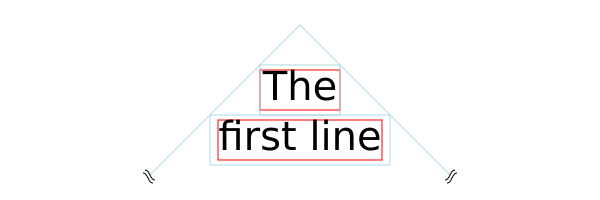
The top line box (small light-blue rectangle), consisting of the smallest possible block of text, is moved down until theline box fits inside the wrapping area (light-blue path). Note, the line box includes the effect of the line-height property, here set to 1.25. The red rectangles tightly wrap the glyphs in each line box.
This appears to be different from the SVG 1.2 draft in which the top of the wrapping area served as the origin of a line grid. The first line was moved down by the line height until it fit inside the shape.
11.7.1.2. Broken Lines
Given an arbitrary shaped wrapping area, a single line of text might be broken into more than one part. In this case, a line box for each part is created. The height of all line boxes in a single line of text must be the same (ensuring all parts have the same baseline). This height is calculated by looking at all glyphs in the line of text.
This default behavior was agreed to at the CSS/SVG joint working group meeting in Sydney 2016.
A future CSS specification may allow one to control which parts of a shape broken into different parts is filled (e.g, fill only the right most parts, fill only the left most parts, etc.).
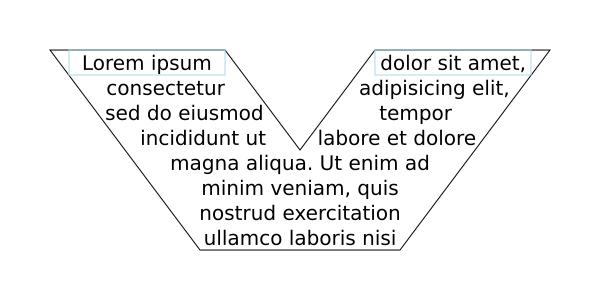
The top line is split into two line boxes (light-blue rectangles), text in each line box is centered inside the box (due to 'text-align:center').
11.8. Text on a path
SVG can place text along a path defined either by a ‘path’ element or the path equivalent of a basic shape. This is specified by including text within a ‘textPath’ element that has either an ‘href’ attribute with an URL reference pointing to a ‘path’ element or basic shape, or by specifying a value for the ‘path’ attribute that specifies the path data directly.
The ability to place text along a basic shape is new in SVG 2.
Placing text along a basic shape was resolved at theSydney (2015) meeting.
Directly using a 'd' attribute to specify the path was added to SVG 2. The 'd' attribute was renamed to 'path' by decision at theLondon (2016) editor's meeting at the same time 'd' was promoted to being a presentation attribute.
Text on a path is conceptionally like a single line ofpre-formatted text that is then transformed to follow the path. Except as indicated, all the properties that apply to pre-formatted text apply to text on a path.
11.8.1. The ‘textPath’ element
‘textPath’
Categories:
Graphics element, renderable element, text content element, text content child element
Content model:
Any number of the following elements or character data, in any order:
- descriptive elements — ‘desc’, ‘title’, ‘metadata’
- paint server elements — ‘linearGradient’, ‘radialGradient’, ‘pattern’ a, animate, clipPath, marker, mask, script, set, style, tspan
Attributes:
- aria attributes — ‘aria-activedescendant’, ‘aria-atomic’, ‘aria-autocomplete’, ‘aria-busy’, ‘aria-checked’, ‘aria-colcount’, ‘aria-colindex’, ‘aria-colspan’, ‘aria-controls’, ‘aria-current’, ‘aria-describedby’, ‘aria-details’, ‘aria-disabled’, ‘aria-dropeffect’, ‘aria-errormessage’, ‘aria-expanded’, ‘aria-flowto’, ‘aria-grabbed’, ‘aria-haspopup’, ‘aria-hidden’, ‘aria-invalid’, ‘aria-keyshortcuts’, ‘aria-label’, ‘aria-labelledby’, ‘aria-level’, ‘aria-live’, ‘aria-modal’, ‘aria-multiline’, ‘aria-multiselectable’, ‘aria-orientation’, ‘aria-owns’, ‘aria-placeholder’, ‘aria-posinset’, ‘aria-pressed’, ‘aria-readonly’, ‘aria-relevant’, ‘aria-required’, ‘aria-roledescription’, ‘aria-rowcount’, ‘aria-rowindex’, ‘aria-rowspan’, ‘aria-selected’, ‘aria-setsize’, ‘aria-sort’, ‘aria-valuemax’, ‘aria-valuemin’, ‘aria-valuenow’, ‘aria-valuetext’, ‘role’
- conditional processing attributes — ‘requiredExtensions’, ‘systemLanguage’
- core attributes — ‘id’, ‘tabindex’, ‘autofocus’, ‘lang’, ‘xml:space’, ‘class’, ‘style’
- global event attributes — ‘oncancel’, ‘oncanplay’, ‘oncanplaythrough’, ‘onchange’, ‘onclick’, ‘onclose’, ‘oncopy’, ‘oncuechange’, ‘oncut’, ‘ondblclick’, ‘ondrag’, ‘ondragend’, ‘ondragenter’, ‘ondragexit’, ‘ondragleave’, ‘ondragover’, ‘ondragstart’, ‘ondrop’, ‘ondurationchange’, ‘onemptied’, ‘onended’, ‘onerror’, ‘onfocus’, ‘oninput’, ‘oninvalid’, ‘onkeydown’, ‘onkeypress’, ‘onkeyup’, ‘onload’, ‘onloadeddata’, ‘onloadedmetadata’, ‘onloadstart’, ‘onmousedown’, ‘onmouseenter’, ‘onmouseleave’, ‘onmousemove’, ‘onmouseout’, ‘onmouseover’, ‘onmouseup’, ‘onpaste’, ‘onpause’, ‘onplay’, ‘onplaying’, ‘onprogress’, ‘onratechange’, ‘onreset’, ‘onresize’, ‘onscroll’, ‘onseeked’, ‘onseeking’, ‘onselect’, ‘onshow’, ‘onstalled’, ‘onsubmit’, ‘onsuspend’, ‘ontimeupdate’, ‘ontoggle’, ‘onvolumechange’, ‘onwaiting’, ‘onwheel’
- presentation attributes —
- deprecated xlink attributes — ‘xlink:href’, ‘xlink:title’
- ‘lengthAdjust’
- ‘textLength’
- ‘path’
- ‘href’
- ‘startOffset’
- ‘method’
- ‘spacing’
- ‘side’
DOM Interfaces:
Both the ‘path’ attribute and the ‘href’ attribute specify a path along which the typographic characters will be rendered.
If both attributes are specified on a ‘textPath’ element, the path that is used must follow the following order of precedence:
- ‘path’ attribute
- ‘href’ attribute
- ‘xlink:href’ attribute
If the ‘path’ attribute contains an error, the‘href’ attribute must be used.
11.8.2. Attributes
startOffset
An offset from the start of the path for the initial current text position, calculated using the user agent'sdistance along the path algorithm, after converting the path to the ‘textPath’ element's coordinate system.
If a other than a percentage is given, then the‘startOffset’ represents a distance along the path measured in the current user coordinate system for the ‘textPath’ element.
If a percentage is given, then the ‘startOffset’ represents a percentage distance along the entire path. Thus,startOffset="0%" indicates the start point of the path andstartOffset="100%" indicates the end point of the path.
Negative values and values larger than the path length (e.g. 150%) are allowed.
Limiting values to the range 0%-100% prevents easily creating effects like text moving along the path.
Any typographic characters with mid-points that are not on the path are not rendered.
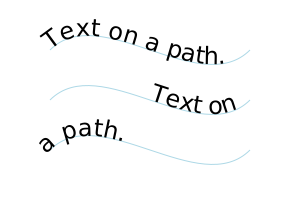
Rendering for different values of the ‘startOffset’ attribute. From top to bottom: default value, 50%, -50%.
The bottom path should show only "path." on the left side of the path. Chrome and Safari both do not handle offsets outside the range 0% to 100%. Chrome bug https://bugs.chromium.org/p/chromium/issues/detail?id=476554
For paths consisting of a single closed subpath (including an equivalent path for a basic shape), typographic characters are rendered along one complete circuit of the path. The text is aligned as determined by the text-anchor property to a position along the path set by the ‘startOffset’ attribute. For the start (end) value, the text is rendered from the start (end) of the line until the initial position along the path is reached again. For themiddle, the text is rendered from the middle point in both directions until a point on the path equal distance in both directions from the initial position on the path is reached.
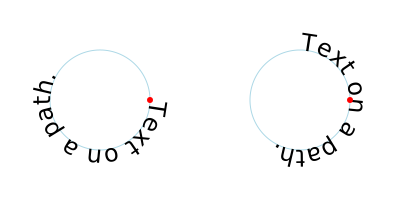
Rendering for text on a path referencing a ‘circle’ with different values of the ‘startOffset’ attribute. Left: 0. Right: 75% or -25%. The red circle marks the beginning of the path (after the canonical decomposition of the circle into a path).
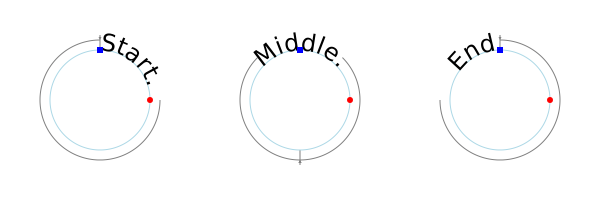
Rendering for text on a path referencing a ‘circle’ with different values of the text-anchor attribute. Left: 'start'. Middle: 'middle'. Right: 'end'. The red circles marks the beginning of the path (after the canonical decomposition of the circle into a path). The blue square marks the reference point for the start of rendering (shifted from the path start by a ‘startOffset’ value of 75%). The gray arrow(s) shows the direction of typographic character placement and the point at which typographic character placement stops. The arrow(s) would be reversed if the direction property has a value ofrtl.
Rendering all glyphs was agreed to for basic shapes at theSydney (2015) meeting (but missing in minutes). Limiting the wrapping to a path with a single closed sub-path and to one loop, effected by the 'startOffset' attribute agreed to at theLondon (2016) Editor's Meeting.
Value
0
yes
method
Indicates the method by which text should be rendered along the path.
A value of align indicates that the typographic character should be rendered using simple 2×3 matrix transformations such that there is no stretching/warping of the typographic characters. Typically, supplemental rotation, scaling and translation transformations are done for each typographic characters to be rendered. As a result, withalign, in fonts where the typographic characters are designed to be connected (e.g., cursive fonts), the connections may not align properly when text is rendered along a path.
A value of stretch indicates that the typographic character outlines will be converted into paths, and then all end points and control points will be adjusted to be along the perpendicular vectors from the path, thereby stretching and possibly warping the glyphs. With this approach, connected typographic characters, such as in cursive scripts, will maintain their connections. (Non-vertical straight path segments should be converted to Bézier curves in such a way that horizontal straight paths have an (approximately) constant offset from the path along which the typographic characters are rendered.)
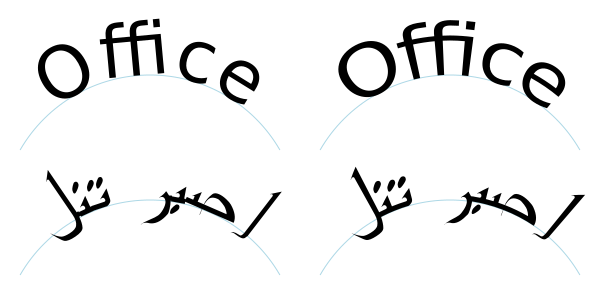
Rendering of text on a path for different ‘method’ values: Left: 'align'. Right: 'stretch'.
Value
align | stretch
align
yes
spacing
Indicates how the user agent should determine the spacing between typographic characters that are to be rendered along a path.
A value of exact indicates that the typographic characters should be rendered exactly according to the spacing rules as specified inText on a path layout rules.
A value of auto indicates that the user agent should use text-on-a-path layout algorithms to adjust the spacing between typographic characters in order to achieve visually appealing results.
Value
auto | exact
exact
yes
side
Determines the side of the path the text is placed on (relative to the path direction). Specifying a value of right effectively reverses the path.
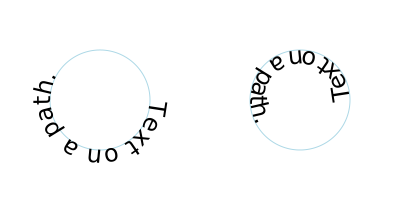
Rendering for text on a path referencing a ‘circle’ with different values of the ‘side’ attribute. Left: left. Right: right.
Added in SVG 2 to allow text either inside or outsideclosed subpaths and basic shapes (e.g. rectangles, circles, and ellipses).
Adding 'side' was resolved at theSydney (2015) meeting.
Value
left | right
left
yes
path
A path data string describing the path onto which the typographic characters will be rendered. An empty string indicates that there is no path data for the element. This means that the text within the ‘textPath’ does not render or contribute to the bounding box of the ‘text’ element. If the attribute is not specified, the path specified with ‘href’ is used instead.
Value
(none)
yes
href
An URL reference to the ‘path’ element or basic shape element onto which the glyphs will be rendered, if no ‘path’ attribute is provided. If the attribute is used, and the is an invalid reference (e.g., no such element exists, or the referenced element is not a ‘path’ element) or basic shape, then the ‘textPath’ element is in error and its entire contents shall not be rendered by the user agent.
Refer to the common handling defined for URL reference attributes anddeprecated XLink attributes.
Value
URL [URL]
See above.
yes
The path data coordinates within the referenced ‘path’ element or basic shape element are assumed to be in the same coordinate system as the current ‘text’ element, not in the coordinate system where the ‘path’ element is defined. The transform attribute on the referenced ‘path’ element or basic shape element represents a supplemental transformation relative to the current user coordinate system for the current ‘text’ element, including any adjustments to the current user coordinate system due to a possible transform property on the current ‘text’ element. For example, the following fragment of SVG content:
should have the same effect as the following:
and be equivalent to:
Note that the transform="translate(25,25)" has no effect on the ‘textPath’ element, whereas thetransform="rotate(45)" applies to both the ‘text’ and the use of the ‘path’ element as the referenced shape for text on a path. Further note that the transform="scale(2)" scales the path (equivalent to multiplying every coordinate by 2 for simple linear paths), but does not scale the text placed along the path.
Example toap01 provides a simple example of text on a path:
We go up, then we go down, then up again
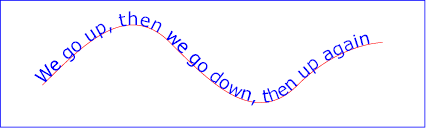
Example toap01
View this example as SVG (SVG-enabled browsers only)

Example toap02 shows how ‘tspan’ elements can be included within ‘textPath’ elements to adjust styling attributes and adjust the current text position before rendering a particular glyph. The first occurrence of the word "up" is filled with the color red. Attribute ‘dy’ is used to lift the word "up" from the baseline.
The ‘x’, ‘y’, ‘dx’,‘dy’, and ‘rotate’ attributes can only be specified on ‘text’ and ‘tspan’ elements (but may effect the rendering of glyphs in text on a path — see text on a path layout rules).
We go up , then we go down, then up again
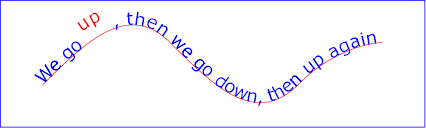
Example toap02
View this example as SVG (SVG-enabled browsers only)

Example toap03 demonstrates the use of the ‘startOffset’ attribute on the ‘textPath’ element to specify the start position of the text string as a particular position along the path. Notice that glyphs that fall off the end of the path are not rendered (see text on a path layout rules).
We go up, then we go down, then up again
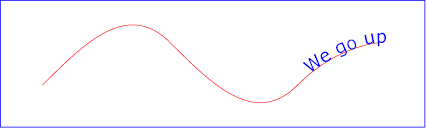
Example toap03
View this example as SVG (SVG-enabled browsers only)

11.8.3. Text on a path layout rules
Conceptually, for text on a path the target path is stretched out into either a horizontal or vertical straight line segment. For horizontal text layout flows, the path is stretched out into a hypothetical horizontal line segment such that the start of the path is mapped to the left of the line segment. For vertical text layout flows, the path is stretched out into a hypothetical vertical line segment such that the start of the path is mapped to the top of the line segment. The standardtext layout rules are applied to the hypothetical straight line segment and the result is mapped back onto the target path. Vertical and bidirectional text layout rules also apply to text on a path.
The orientation of each glyph along a path is determined individually. For horizontal text layout flows, the default orientation (the up direction) for a given glyph is along the vector that starts at the intersection point on the path to which the glyph is attached and which points in the direction 90 degrees counter-clockwise from the angle of the curve at the intersection point. For vertical text layout flows, the default orientation for a given glyph is along the vector that starts at the intersection point on the path to which the glyph is attached and which points in the direction 180 degrees from the angle of the curve at the intersection point.
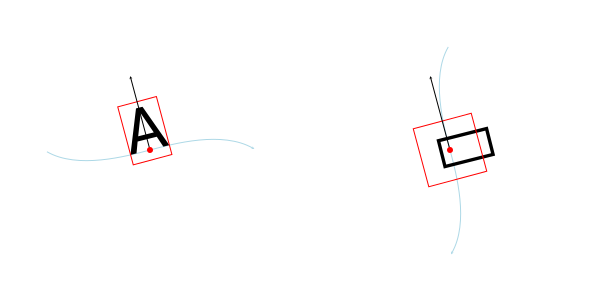
Default glyph orientation along a path. Left, horizontal text. Right: vertical text.
Example toap04 will be used to illustrate the particular layout rules for text on a path that supplement the basic text layout rules for straight line horizontal or vertical text.
Choose shame or get war
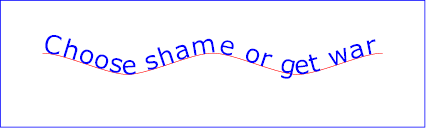
Example toap04
View this example as SVG (SVG-enabled browsers only)

The following picture does an initial zoom in on the first glyph in the ‘text’ element.
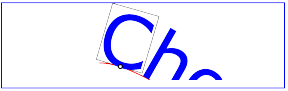
The small dot above shows the point at which the glyph is attached to the path. The box around the glyph shows the glyph is rotated such that its horizontal axis is parallel to the tangent of the curve at the point at which the glyph is attached to the path. The box also shows the glyph's charwidth (i.e., the amount which the current text position advances horizontally when the glyph is drawn using horizontal text layout).
The next picture zooms in further to demonstrate the detailed layout rules.
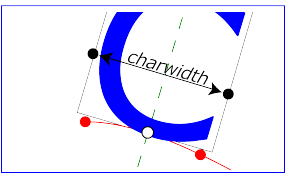
For left-to-right horizontal text layout along a path (i.e., when the glyph orientation is perpendicular to theinline-base direction the layout rules are as follows:
- Determine thestartpoint-on-the-path for the first glyph using attribute ‘startOffset’ and propertytext-anchor. For text-anchor:start, startpoint-on-the-path is the point on the path which represents the point on the path which is ‘startOffset’ distance along the path from the start of the path, calculated using the user agent's distance along the path algorithm. For text-anchor:middle, startpoint-on-the-path is the point on the path which represents the point on the path which is [ ‘startOffset’ minus half of the total advance values for all of the glyphs in the ‘textPath’ element ] distance along the path from the start of the path, calculated using the user agent's distance along the path algorithm. For text-anchor:end, startpoint-on-the-path is the point on the path which represents the point on the path which is [ ‘startOffset’ minus the total advance values for all of the glyphs in the ‘textPath’ element ]. Before rendering the first glyph, the horizontal component of the startpoint-on-the-path is adjusted to take into account various horizontal alignment text properties and attributes, such as a ‘dx’ attribute value on a ‘tspan’ element. (In the picture above, the startpoint-on-the-path is the leftmost dot on the path.)
- Determine the glyph's charwidth (i.e., the amount which the current text position advances horizontally when the glyph is drawn using horizontal text layout). (In the picture above, the charwidth is the distance between the two dots at the side of the box.)
- Determine the point on the curve which is charwidth distance along the path from the startpoint-on-the-path for this glyph, calculated using the user agent'sdistance along the path algorithm. This point is theendpoint-on-the-path for the glyph. (In the picture above, the endpoint-on-the-path for the glyph is the rightmost dot on the path.)
- Determine themidpoint-on-the-path, which is the point on the path which is "halfway" (user agents can choose either a distance calculation or a parametric calculation) between the startpoint-on-the-path and the endpoint-on-the-path. (In the picture above, the midpoint-on-the-path is shown as a white dot.)
- Determine the glyph-midline, which is the vertical line in the glyph's coordinate system that goes through the glyph's x-axis midpoint. (In the picture above, the glyph-midline is shown as a dashed line.)
- Position the glyph such that the glyph-midline passes through the midpoint-on-the-path and is perpendicular to the line through the startpoint-on-the-path and the endpoint-on-the-path.
- Align the glyph vertically relative to the midpoint-on-the-path based on property alignment-baseline and any specified values for attribute ‘dy’ on a ‘tspan’ element. In the example above, the alignment-baseline property is unspecified, so the initial value of alignment-baseline:baseline will be used. There are no ‘tspan’ elements; thus, the baseline of the glyph is aligned to the midpoint-on-the-path.
- For each subsequent glyph, set a new startpoint-on-the-path as the previous endpoint-on-the-path, but with appropriate adjustments taking into account horizontal kerning tables in the font and current values of various attributes and properties, including spacing properties (e.g. letter-spacing and word-spacing) and ‘tspan’ elements with values provided for attributes ‘dx’ and ‘dy’. All adjustments are calculated as distance adjustments along the path, calculated using the user agent's distance along the path algorithm.
- Glyphs whose midpoint-on-the-path are off the path are not rendered.
- Continue rendering glyphs until there are no more glyphs (or no more space on path).
Comparable rules are used for top-to-bottom vertical text layout along a path (i.e., when the glyph orientation is parallel with the inline-base direction, the layout rules are as follows:
- Determine the startpoint-on-the-path using the same method as for horizontal text layout along a path, except that before rendering the first glyph, the horizontal component of the startpoint-on-the-path is adjusted to take into account various vertical alignment text properties and attributes, such as a ‘dy’ attribute value on a ‘tspan’ element.
- Determine the glyph's charheight (i.e., the amount which the current text position advances vertically when the glyph is drawn using vertical text layout).
- Determine the point on the curve which is charheight distance along the path from the startpoint-on-the-path for this glyph, calculated using the user agent'sdistance along the path algorithm. This point is the endpoint-on-the-path for the glyph.
- Determine the midpoint-on-the-path, which is the point on the path which is "halfway" (user agents can choose either a distance calculation or a parametric calculation) between the startpoint-on-the-path and the endpoint-on-the-path.
- Determine the glyph-midline, which is the horizontal line in the glyph's coordinate system that goes through the glyph's y-axis midpoint.
- Position the glyph such that the glyph-midline passes through the midpoint-on-the-path and is perpendicular to the line through the startpoint-on-the-path and the endpoint-on-the-path.
- Align the glyph horizontally (where horizontal is relative to the glyph's coordinate system) relative to the midpoint-on-the-path based on property alignment-baseline and any specified values for attribute ‘dx’ on a ‘tspan’ element.
- For each subsequent glyph, set a new startpoint-on-the-path as the previous endpoint-on-the-path, but with appropriate adjustments taking into account vertical kerning tables in the font and current values of various attributes and properties, including spacing properties and ‘tspan’ elements with values provided for attributes ‘dx’ and ‘dy’. All adjustments are calculated as distance adjustments along the path, calculated using the user agent'sdistance along the path algorithm.
- Glyphs whose midpoint-on-the-path are off either end of an open subpath are not rendered.
- Continue rendering glyphs until there are no more glyphs.
In the calculations above, if either the startpoint-on-the-path or the endpoint-on-the-path is off the end of the path, then extend the path beyond its end points with a straight line that is parallel to the tangent at the path at its end point so that the midpoint-on-the-path can still be calculated.
When the inline-base direction is horizontal, then any ‘x’ attributes on ‘text’ or ‘tspan’ elements represent new absolute offsets along the path, thus providing explicit new values for startpoint-on-the-path. Any ‘y’ attributes on ‘text’ or ‘tspan’ elements are ignored. When the inline-base direction is vertical, then any ‘y’ attributes on ‘text’ or ‘tspan’ elements represent new absolute offsets along the path, thus providing explicit new values for startpoint-on-the-path. Any ‘x’ attributes on ‘text’ or ‘tspan’ elements are ignored.
After positioning all characters within the ‘textPath’, the current text position is set to the end point of the path, after adjusting for the ‘startOffset’ in the case of paths that are a single closed loop. In other words, text that follows a ‘textPath’ element (but is still inside a ‘text’ element) that does not have explicit positioning information (‘x’ and ‘y’ attributes) is positioned from the end of the path.
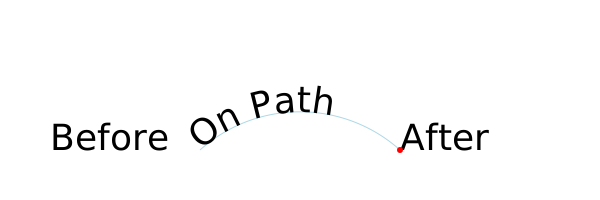
The starting point for text after the ‘textPath’ element without explicit positioning information is at the end of the path (red dot).
The choice of the end of the path over the position of the last character was chosen as it is more author predictable (not depending on font, etc.) Decided at theLondon (2016) editor's meeting. See alsoGitHub Issue 84.
11.9. Text rendering order
A ‘text’ element is rendered in one or more chunks. Each chunk (as produced by the text layout algorithm) is rendered, one after the other, in document order. Each rendered chunk, which consists of one or more glyphs, is filled and stroked as if it were a single path.
This means that all glyphs in the chunk should be filled, then all glyphs stroked at once, or the reverse according to the value of the paint-order property.
For the purposes of painting, a ‘text’ has zero, one, or moreequivalent paths, one for each chunk. Each equivalent path consists of one subpath per glyph within that chunk.
Since the fill-rule property does not apply to SVG text elements, the specific order of the subpaths within the equivalent path does not matter.
The specific position of the start of each subpath, and the direction that the path progresses around glyph shape, is not defined. However, user agents should be consistent for a given font and glyph.
This means that dashed strokes on text may not place the dash pattern at the same positions across different implementations.
11.10. Properties and pseudo-elements
CSS offers a multitude of properties for styling text. In general, only two sets of properties are applicable to SVG: those that determine which glyphs are to be rendered (font-family, font-style, etc.) and those that apply at the paragraph level (direction,writing-mode, line-height, letter-spacing, etc.).
The list of CSS properties that must be supported on SVG text elements can be found in theStyling chapter.
- Properties that apply only to pre-formatted text and auto-wrapped text where the wrapping area is defined by theinline-size property:
text-anchor. - Properties that apply only to auto-wrapped text except for text where the wrapping area is defined by theinline-size property:
text-align,text-align-last,text-justify, - Properties that apply only to auto-wrapped text:
text-indent,line-break,word-break,hyphens,word-wrap,overflow-wrap.
Additionally, the @font-face rule must be supported for font selection as well as the ::first-line and ::first-letter pseudo-elements must be supported on ‘text’ elements. In interactive modes, the ::selection pseudo-element must also be supported.
Other CSS properties that affect text layout and rendering may also be supported by an SVG user agent; their effect should be taken into account as part of the CSS text layout step of the overall SVG text layout process.
For example, while SVG 2 does not require support for thetext-combine-upright property, its behavior in an SVG context should be obvious.
A number of CSS properties must not have any effect on SVG text elements:
- Border properties (such as border-top-style). Boxes generated by the CSS layout process must not be sized as if they had any borders. The used value for all of the border-style component longhand properties on SVG text elements is none.
- Display property values other thannone andinline. Like all other SVG elements, any value of display on an SVG text element other than none is handled just as if it were inline. Thus it is not possible for a single ‘text’ element to have any block children.
- The float property, whose used value on SVG text elements is none.
- The position property, whose used value on SVG text elements is static.
- Margin properties (such as margin-top), whose used values on SVG text elements are0.
- The text-align property when text is pre-formatted, whose used value on such SVG text elements is start.
- The content property, whose used value on SVG text elements is none.
Additionally, the ::before and ::after generated content pseudo-elements must not apply to SVG text elements.
A future specification may introduce support for the ::before and ::after generated content pseudo-elements; authors should not rely on them being ignored.
11.10.1. SVG properties
This section covers properties that are not covered elsewhere in this specification and that are specific to SVG.
11.10.1.1. Text alignment, the ‘text-anchor’ property
The text-anchor property is used to align (start-, middle- or end-alignment) a string of pre-formatted text or auto-wrapped text where the wrapping area is determined from the inline-size property relative to a given point. It is not applicable to other types of_auto-wrapped text_, see instead text-align. For multi-line text, the alignment takes place for each line.
The text-anchor property is applied to each individualtext chunk within a given ‘text’ element. Each text chunk has an initial current text position, which represents the point in the user coordinate system resulting from (depending on context) application of the ‘x’ and ‘y’ attributes on the ‘text’ element, any ‘x’ or ‘y’ attribute values on a ‘tspan’ element assigned explicitly to the first rendered character in a text chunk, or determination of the initial current text position for a ‘textPath’ element. Each text chunk also has a final current text position which is thecurrent text position after placing the last glyph in the text chunk. The positions are determined before applying the text-anchor property.
| Name: | text-anchor | |
|---|---|---|
| Value: | start | middle | end |
| Initial: | start | |
| Applies to: | text content elements | |
| Inherited: | yes | |
| Percentages: | N/A | |
| Media: | visual | |
| Computed value: | as specified | |
| Animation type: | discrete |
Values have the following meanings:
start
The rendered characters are aligned such that the start of the resulting rendered text is at the initial current text position. For an element with a direction property value of "ltr" (typical for most European languages), the left side of the text is rendered at the initial text position. For an element with adirection property value of"rtl" (typical for Arabic and Hebrew), the right side of the text is rendered at the initial text position. For an element with a vertical primary text direction (often typical for Asian text), the top side of the text is rendered at the initial text position.
middle
The rendered characters are shifted such that the geometric middle of the resulting rendered text (determined from the initial and final current text position before applying the text-anchor property) is at the initial current text position.
end
The rendered characters are shifted such that the end of the resulting rendered text (final current text position before applying the text-anchor property) is at the initial current text position. For an element with a direction property value of "ltr" (typical for most European languages), the right side of the text is rendered at the initial text position. For an element with a direction property value of "rtl" (typical for Arabic and Hebrew), the left side of the text is rendered at the initial text position. For an element with a vertical primary text direction (often typical for Asian text), the bottom of the text is rendered at the initial text position.
An example of using text-anchor on multi-line text.
This multi-line text is anchored to the middle.
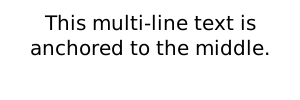
The preserved line-feed creates two text chunks, each anchored independently.
Another example of using text-anchor on multi-line text.
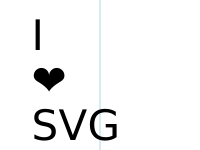
The text is divided into three text chunks (due to the three coordinates in the ‘x’ and ‘y’ attributes). Each text chunk is independently anchored.
11.10.1.2. The ‘glyph-orientation-horizontal’ property
This property has been removed in SVG 2.
11.10.1.3. The ‘glyph-orientation-vertical’ property
This property applies only to vertical text. It has been obsoleted in SVG 2 and partially replaced by the text-orientation property of CSS Writing Modes Level 3. The following SVG 1.1 values must still be supported by aliasing the property as a shorthand to text-orientation as follows:
- 'auto' to'mixed';
- '0deg', and'0', to'upright'.
- '90deg', and'90', to'sideways'.
Any other values must be treated as invalid.
11.10.1.4. The ‘kerning’ property
The ‘kerning’ property has been removed in SVG 2.
SVG 1.1 uses the 'kerning' property to determine if the font kerning tables should be used to adjust inter-glyph spacing. It also allows a value which if given is added to the spacing between glyphs (supplemental to any from the letter-spacing property). This property is replaced in SVG 2 by the CSS font-kerning property which solely controls turning on/off the use of the font kerning tables.
Chrome's UseCounter data showed a use of 0.01% in 2014. See GitHub issue 80.
11.10.2. SVG adaptions
This section covers CSS properties that are not covered elsewhere in this specification and have either SVG specific adaptions or are significantly altered from SVG 1.1.
| SVG 2 Requirement: | Reference CSS3 Fonts. |
|---|---|
| Resolution: | SVG 2 will depend on CSS3 Fonts. |
| Purpose: | Alignment with CSS 2.1 and CSS3 for Web font functionality, and to provide access to advanced typographic features of fonts. |
| Owner: | Chris (ACTION-3123) |
11.10.2.1. The ‘font-variant’ property
This section is not normative
The font-variant property gets defined by the CSS Font Module ([css-font-3]).
CSS Font Module changes the meaning of thefont-variant property from that defined by CSS 2.1. It has been repurposed (and its functionality greatly expanded) as a shorthand for selecting font variants from within a single font.
SVG 2 supports all font-variant longhand properties (e.g. font-variant-ligatures).
11.10.2.2. The ‘line-height’ property
SVG uses the line-height property to determine the amount of leading space which is added between lines in multi-line text (both for horizontal and vertical text). It is not applicable to text on a path.
Except for the additional information provided here, thenormative definition of the line-height property is in the CSS 2.1 specification ([CSS2]).
The CSS Inline Module Level 3 may update the definition of 'line-height'.
11.10.2.3. The ‘writing-mode’ property
This section is not normative.
The writing-mode property gets defined by the CSS Writing Modes Module ([css-writing-modes-3]).
This property sets the block-flow direction; or in-other-words, the direction in which lines of text are stacked. As a consequence it also determines if the text has a horizontal or vertical orientation.
SVG 2 referencesCSS Writing Modes Level 3 for the definition of the'writing-mode' property. That specification introduces new values for the property. The SVG 1.1 values are obsolete but must still be supported by converting the specified values to computed values as follows:
In SVG 1.0, this property could be interpreted as to also setting theinline-base direction leading to confusion about its role relative to the direction property. SVG 1.1 was a bit more specific about the role of direction (e.g. that direction set the reference point for the text-anchor property) but still was open to interpretation. The fact that neither SVG 1.0 nor SVG 1.1 allowed multi-line text added to the confusion.
11.10.2.4. The ‘direction’ property
The property specifies the inline-base direction of a‘text’ or ‘tspan’ element. It defines thestart and end points of a line of text as used by the text-anchor and inline-size properties. It also may affect the direction in which characters are positioned if the unicode-bidi property's value is eitherembed orbidi-override.
The direction property applies only to glyphs oriented perpendicular to the inline-base direction, which includes the usual case of horizontally-oriented Latin or Arabic text and the case of narrow-cell Latin or Arabic characters rotated 90 degrees clockwise relative to a top-to-bottominline-base direction.
Reviewers, please take special care to ensure this agrees with CSS3 Writing modes.
Except for the additional information provided here, thenormative definition of the direction property is in CSS Writing Modes Level 3 ([css-writing-modes-3]).
In many cases, the bidirectional algorithm from Unicode [UNICODE] produces the desired result automatically, and in such cases the author does not need to use these properties. For other cases, such as when using right-to-left languages, it may be sufficient to add thedirection property to the outermost svg element, and allow that direction to inherit to all text elements, as in the following example (which may be used as a template):
Right-to-left Text A simple example for using the 'direction' property in documents that predominantly use right-to-left languages.داستان SVG 1.1 SE طولا ني است.

Example
View this example as SVG (SVG-enabled browsers only)

Below is another example, where implicit bidi reordering is not sufficient:
Right-to-left Text An example for using the 'direction' and 'unicode-bidi' properties in documents that predominantly use right-to-left languages.כתובת MAC: 00-24-AF-2A-55-FC

Example
View this example as SVG (SVG-enabled browsers only)

11.10.2.5. The ‘dominant-baseline’ property
This property is defined in the CSS Line Layout Module 3 specification. See'dominant-baseline'. [css-inline-3]
SVG 2 introduces some changes to the definition of this property. In particular:
- The 'reset-size' value is no longer supported. Any change in font-size resets the dominant baseline table.
- The 'use-script' and 'no-change' values are no longer supported.
- The property is now inherited. (Behavior is effectively unchanged.)
SVG uses the value of the dominant-baseline property to align glyphs relative to the ‘x’ and ‘y’ attributes. For the text-orientation valuesideways, theauto value fordominant-baseline isalphabetic; however, for backwards compatibility, the glyphs should be aligned to the‘x’ and ‘y’ attributes using the value central.
We are interested in any actual use where one would prefer the old behavior.
11.10.2.6. The ‘alignment-baseline’ property
This property is defined in the CSS Line Layout Module 3 specification. See'alignment-baseline'. [css-inline-3]
The vertical-align property shorthand should be preferred in new content.
SVG 2 introduces some changes to the definition of this property. In particular: the values 'auto', 'before-edge', and 'after-edge' have been removed. For backwards compatibility, 'text-before-edge' should be mapped to 'text-top' and 'text-after-edge' should be mapped to 'text-bottom'. Neither 'text-before-edge' nor 'text-after-edge' should be used with the vertical-align property.
11.10.2.7. The ‘baseline-shift’ property
This property is defined in the CSS Line Layout Module 3 specification. See'baseline-shift'. [css-inline-3]
The vertical-align property shorthand should be preferred in new content.
The 'baseline' value was removed with the conversion of 'vertical-align' to a shorthand for 'alignment-baseline' and 'baseline-shift' as it is also a value for 'alignment-baseline' and it is redundant with a length value of '0'.
'baseline-shift' is important for aligning subscripts and superscripts (Inkscape relies on it for this purpose). It remains in the CSS Inline Layout Module Level 3.'vertical-align' is a shorthand for changing multiple properties at once, including 'baseline-shift'.
11.10.2.8. The ‘letter-spacing’ property
Except as noted, see CSS Text Level 3 for the definition of theletter-spacing.([css-text-3]).
SVG 1.1 allowed percentage values in the letter-spacing property. Percentage values based on the SVG viewport are not seen as useful, so this was removed in SVG 2. This brings the definition of 'letter-spacing' in line with CSS.
11.10.2.9. The ‘word-spacing’ property
Except as noted, see CSS Text Level 3 for the definition of theword-spacing.([css-text-3]).
SVG 2 changes the meaning of percentage values for theword-spacing property. In SVG 1.1, percentages define additional spacing as a percentage of the SVG viewport size. Percentage values based on the SVG viewport are not seen as useful. In SVG 2, following CSS Text Level 3, percentages define additional spacing as a percentage of the affected character's width. This brings the definition of 'word-spacing' in line with CSS.
11.10.2.10. The ‘text-overflow’ property
New in SVG 2. Added to allow user agents to handle text strings that overflow a predefined wrapping area in a more useful way. Aligns SVG and HTML/CSS text processing.
See the CSS3 Overflow specification for the definition of'text-overflow'. [css-overflow-3]
SVG uses the text-overflow property to control how text content block elements render when text overflows line boxes as, for example, can happen when thewhite-space property has the valuenowrap. The property does not apply to pre-formatted text or text-on-a-path.
In SVG text-overflow has an effect if there is a validly specified wrapping area, regardless of the computed value of the overflow property on the text content block element.
If the text-overflow property has the valueellipsis then if the text that is to be rendered overflows the wrapping area an ellipsis is rendered such that it fits within the given area. For the purposes of rendering, the ellipsis is treated as if it replaced the characters at the point where it is inserted.
If the text-overflow property has the valueclip then any text that overflows the wrapping area is clipped. Characters may be partially rendered.
Any other value for text-overflow is treated as if it wasn't specified.
Note that the effect of text-overflow is purely visual, the ellipsis itself does not become part of the DOM. For all the DOM methods it is as if text-overflow was not applied, and as if the wrapping area did not constrain the text.
The following example shows the use of text-overflow. The top line shows text as it would normally be rendered (text overflows due to white-space valuepre and is displayed due tooverflow value visible). The middle line shows text with text-overflow valueclip, and the bottom line shows text with text-overflow valueellipsis.
SVG is awesome SVG is awesome SVG is awesome
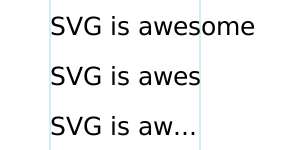
The text-overflow property used on text elements, the bottom line showing text with an ellipsis applied.
It has been argued that this property is useless. It would be of more use if coupled with a mechanism that would expose the hidden text (tool-tip on hovering over ellipses?). The text-overflow property only deals with text that overflows off the end of a line. It does not deal with text that overflows the off the end of the wrapping area.
11.10.3. White space
New in SVG 2. Added white-space to allow a more useful way to control white-space handling. Aligns SVG and HTML/CSS text processing. ‘xml:space’ deprecated in new content, retained for backwards compatibility.
11.10.3.1. SVG 2 Preferred white space handling, the ‘white-space’ property
Rendering of white space in SVG 2 is controlled by the white-space property. This specifies two things:
- whether and how white space inside the element is collapsed
- whether lines may wrap at unforced soft wrap opportunities
Values and their meanings are defined inCSS Text Module Level 3.[css-text-3]
An example of using the white-space value pre-line.
Example of multi-line vertical text with line breaks. The text is from the Japanese poem Iroha. The lines are broken at traditional places.
11.10.3.2. Legacy white-space handling, the ‘xml:space’ property
For compatibility, SVG 2 also supports the XML attribute‘xml:space’ to specify the handling of white space characters within a given ‘text’ element's character data. New content should not use ‘xml:space’ but instead, use the white-space property.
This section should be simplified to limit the discussion of xml:space and instead define it in the user agent style sheet using thewhite-space property. TheCSS Text 4 specification'spreserve-spaces value for the'white-space-collapse' property is intended to matchxml:space=preserve. (fantasai agreed to add an appropriate value for white-space to match SVG 1.1's odd xml:space="preserve" behavior.)
Note that any child element of a ‘text’ element may also have an ‘xml:space’ attribute which will apply to that child element's text content. The SVG user agent has special processing rules associated with this attribute as described below. These are behaviors that occur subsequent to XML parsing [XML] and any construction of a DOM.
‘xml:space’ is an inheritable attribute which can have one of two values:
'default'
(The initial/default value for ‘xml:space’.) Whenxml:space="default", the SVG user agent will do the following using a copy of the original character data content. First, it will remove all newline characters. Then it will convert all tab characters into space characters. Then, it will strip off all leading and trailing space characters. Then, all contiguous space characters will be consolidated.
'preserve'
When xml:space="preserve", the SVG user agent will do the following using a copy of the original character data content. It will convert all newline and tab characters into space characters. Then, it will draw all space characters, including leading, trailing and multiple contiguous space characters. Thus, when drawn withxml:space="preserve", the string"a b" (three spaces between "a" and "b") will produce a larger separation between "a" and "b" than "a b" (one space between "a" and "b").
The following example illustrates that line indentation can be important when usingxml:space="default". The fragment below show two pairs of similar ‘text’ elements, with both ‘text’ elements usingxml:space="default". For these examples, there is no extra white space at the end of any of the lines (i.e., the line break occurs immediately after the last visible character).
[01] [02] WS example [03] indented lines [04] [05] WS example indented lines [06] [07] [08]WS example [09]non-indented lines [10] [11] WS examplenon-indented lines
The first pair of ‘text’ elements above show the effect of indented character data. The attributexml:space="default" in the first‘text’ element instructs the user agent to:
- convert all tabs (if any) to space characters,
- strip out all line breaks (i.e., strip out the line breaks at the end of lines [01], [02] and [03]),
- strip out all leading space characters (i.e., strip out space characters before "WS example" on line [02]),
- strip out all trailing space characters (i.e., strip out space characters before "" on line [04]),
- consolidate all intermediate space characters (i.e., the space characters before "indented lines" on line [03]) into a single space character.
The second pair of ‘text’ elements above show the effect of non-indented character data. The attributexml:space="default" in the third‘text’ element instructs the user agent to:
- convert all tabs (if any) to space characters,
- strip out all line breaks (i.e., strip out the line breaks at the end of lines [07], [08] and [09]),
- strip out all leading space characters (there are no leading space characters in this example),
- strip out all trailing space characters (i.e., strip out space characters before "" on line [10]),
- consolidate all intermediate space characters into a single space character (in this example, there are no intermediate space characters).
Note that XML parsers are required to convert the standard representations for a newline indicator (e.g., the literal two-character sequence "U+000D U+000A", CARRIAGE-RETURN LINE-FEED or the stand-alone literals U+000D or U+000A) into the single character U+000A before passing character data to the application. Thus, each newline in SVG will be represented by the single character U+000A, no matter what representation for newlines might have been used in the original resource. (SeeXML end-of-line handling.)
Any features in the SVG language or the SVG DOM that are based on character position number, such as the ‘x’,‘y’, ‘dx’, ‘dy’ and‘rotate’ attributes on the ‘text’ and ‘tspan’ elements, are based on character position after applying the white space handling rules described here. In particular, if xml:space="default", it is often the case that white space characters are removed as part of processing. Character position numbers index into the text string after the white space characters have been removed per the rules in this section.
Note that a glyph corresponding to a white-space character should only be displayed as a visible but blank space, even if the glyph itself happens to be non-blank. See display of unsupported characters [UNICODE].
The ‘xml:space’ attribute is:
Animatable: no.
11.10.3.3. Duplicate white-space directives
Older, SVG 1.1 content will use ‘xml:space’. New content, and older content that is being reworked, will usewhite-space and remove any existing‘xml:space’. However, user agents may come across content which uses both methods on the same element. If the white-space property is set on any element, then the value of ‘xml:space’ is ignored.
11.11. Text decoration
Text in SVG can be decorated with an underline, overline, and/or strike-through. The position and style of the decoration is determined respectively by the text-decoration-line andtext-decoration-style properties, or by the text-decoration shorthand property as defined in theLine Decoration section of theCSS Text Decoration Module Level 3 [(css-text-decor-3)] specification.
The fill and stroke of the text decoration are given by the fill and stroke of the text at the point where the text decoration is declared (see example below).
The text-decoration-line andtext-decoration-style properties are new in SVG 2. The SVG 1.1/CSS 2.1 text-decoration property is transformed in a backwards compatible way to a short hand for these properties.
The order in which the text and decorations are drawn is defined by thePainting Order of Text Decorations section ofCSS Text Decoration Module Level 3. The paint order of the text decoration itself (fill/stroke) is determined by the value of thepaint-order property at the point where the text decoration is declared.
Example textdecoration01 provides examples for text-decoration. The first line of text has no value for text-decoration, so the initial value of text-decoration:none is used. The second line showstext-decoration:line-through. The third line showstext-decoration:underline. The fourth line illustrates the rule whereby decorations are rendered using the same fill and stroke properties as are present on the element for which the text-decoration is specified. Sincetext-decoration is specified on the ‘text’ element, all text within the ‘text’ element has its underline rendered with the same fill and stroke properties as exist on the ‘text’ element (i.e., blue fill, red stroke), even though the various words have different fill and stroke property values. However, the word "different" explicitly specifies a value for text-decoration; thus, its underline is rendered using the fill and stroke properties as the ‘tspan’ element that surrounds the word "different" (i.e., yellow fill, darkgreen stroke):
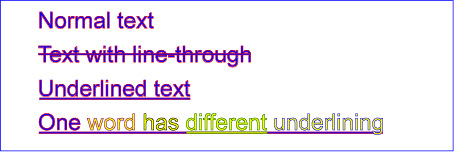
Example textdecoration01
View this example as SVG (SVG-enabled browsers only)

11.12. Text selection and clipboard operations
Conforming SVG viewers on systems which have the capacity for text selection (e.g., systems which are equipped with a pointer device such as a mouse) and which have system clipboards for copy/paste operations are required to support:
- user selection of text strings in SVG content
- the ability to copy selected text strings to the system clipboard
A text selection operation starts when all of the following occur:
- the user positions the pointing device over a glyph that has been rendered as part of a ‘text’ element, initiates a_select_ operation (e.g., pressing the standard system mouse button for select operations) and then moves the pointing device while continuing the select operation (e.g., continuing to press the standard system mouse button for select operations)
- no other visible graphics element has been painted above the glyph at the point at which the pointing device was clicked
- no links orevents have been assigned to the ‘text’, ‘tspan’ or‘textPath’ element(s) (or their ancestors) associated with the given glyph.
As the text selection operation proceeds (e.g., the user continues to press the given mouse button), all associated events with other graphics elements are ignored (i.e., the text selection operation is modal) and the SVG user agent shall dynamically indicate which characters are selected by applying styles for the ::selection pseudo-class. As the pointer is moved during the text selection process, the end glyph for the text selection operation is the glyph within the same ‘text’ element whose glyph cell is closest to the pointer. All characters within the ‘text’ element whose position within the ‘text’ element is between the start of selection and end of selection shall be highlighted, regardless of position on the canvas and regardless of any graphics elements that might be above the end of selection point.
Once the text selection operation ends (e.g., the user releases the given mouse button), the selected text will stay highlighted until an event occurs which cancels text selection, such as a pointer device activation event (e.g., pressing a mouse button).
Detailed rules for determining which characters to highlight during a text selection operation are provided inText selection implementation notes.
For systems which have system clipboards, the SVG user agent is required to provide a user interface for initiating a copy of the currently selected text to the system clipboard. It is sufficient for the SVG user agent to post the selected text string in the system's appropriate clipboard format for plain text, but it is preferable if the SVG user agent also posts a rich text alternative which captures the various font properties associated with the given text string.
For bidirectional text, the user agent must support text selection in logical order, which will result in discontinuous highlighting of glyphs due to the bidirectional reordering of characters. User agents can provide an alternative ability to select bidirectional text in visual rendering order (i.e., after bidirectional text layout algorithms have been applied), with the result that selected character data might be discontinuous logically. In this case, if the user requests that bidirectional text be copied to the clipboard, then the user agent is required to make appropriate adjustments to copy only the visually selected characters to the clipboard.
SVG authors and SVG generators should order their text strings to facilitate properly ordered text selection within SVG viewing applications such as Web browsers; in other words, the DOM order of the text should match the natural reading order of the text.
11.12.1. Text selection implementation notes
The following implementation notes describe the algorithm for deciding which characters are selected during a text selectionoperation.
As the text selection operation occurs (e.g., while the user clicks and drags the mouse to identify the selection), the user agent determines a start selection position and an_end selection position_, each of which represents a position in the text string between two characters. After determining start selection position and end selection position, the user agent selects the appropriate characters, where the resulting text selection consists of either:
- no selection or
- a start character, an end character (possibly the same character), and all of the characters within the same ‘text’ element whose position in the DOM is logically between the start character and end character.
On systems with pointer devices, to determine the start selection position, the SVG user agent determines which boundary between characters corresponding to rendered glyphs is the best target (e.g., closest) based on the current pointer location at the time of the event that initiates the selection operation (e.g., the mouse down event). The user agent then tracks the completion of the selection operation (e.g., the mouse drag, followed ultimately by the mouse up). At the end of the selection operation, the user agent determines which boundary between characters is the best target (e.g., closest) for the end selection position.
If no character reordering has occurred due to bidirectionality, then the selection consists of all characters between the_start selection position_ and end selection position. For example, if a ‘text’ element contains the string "abcdef" and the start selection position and end selection positions are 0 and 3 respectively (assuming the left side of the "a" is position zero), then the selection will consist of "abc".
When the user agent is implementing selection of bidirectional text, and when the selection starts (or ends) between characters which are not contiguous in logical order, then there might be multiple potential combinations of characters that can be considered part of the selection. The algorithms to choose among the combinations of potential selection options shall choose the selection option which most closely matches the text string's visual rendering order.
When multiple characters map inseparably to a given set of one or more glyphs, the user agent can either disallow the selection to start in the middle of the glyph set or can attempt to allocate portions of the area taken up by the glyph set to the characters that correspond to the glyph.
For systems which support pointer devices such as a mouse, the user agent is required to provide a mechanism for selecting text even when the given text has associated event handlers or links, which might block text selection due to event processing precedence rules (see Pointer events). One implementation option: For platforms which support a pointer device such as a mouse, the user agent may provide for a small additional region around character cells which initiates text selection operations but does not initiate event handlers or links.
11.13. DOM interfaces
11.13.1. Interface SVGTextContentElement
The SVGTextContentElement interface is implemented by elements that support rendering child text content.
For the methods on this interface that refer to an index to a character or a number of characters, these references are to be interpreted as an index to a UTF-16 code unit or a number of UTF-16 code units, respectively. This is for consistency with DOM Level 2 Core, where methods on the CharacterData interface use UTF-16 code units as indexes and counts within the character data. Thus for example, if the text content of a ‘text’element is a single non-BMP character, such as U+10000, then invoking getNumberOfChars on that element will return 2 since there are two UTF-16 code units (the surrogate pair) used to represent that one character.
[Exposed=Window] interface SVGTextContentElement : SVGGraphicsElement {
// lengthAdjust Types const unsigned short LENGTHADJUST_UNKNOWN = 0; const unsigned short LENGTHADJUST_SPACING = 1; const unsigned short LENGTHADJUST_SPACINGANDGLYPHS = 2;
[SameObject] readonly attribute SVGAnimatedLength textLength; [SameObject] readonly attribute SVGAnimatedEnumeration lengthAdjust;
long getNumberOfChars(); float getComputedTextLength(); float getSubStringLength(unsigned long charnum, unsigned long nchars); DOMPoint getStartPositionOfChar(unsigned long charnum); DOMPoint getEndPositionOfChar(unsigned long charnum); DOMRect getExtentOfChar(unsigned long charnum); float getRotationOfChar(unsigned long charnum); long getCharNumAtPosition(optional DOMPointInit point = {}); undefined selectSubString(unsigned long charnum, unsigned long nchars); };
The numeric length adjustment type constants defined on SVGTextContentElementare used to represent the keyword values that the ‘lengthAdjust’ attribute can take. Their meanings are as follows:
| Constant | Meaning |
|---|---|
| LENGTHADJUST_SPACING | The spacing keyword. |
| LENGTHADJUST_SPACINGANDGLYPHS | The spacingAndGlyphs keyword. |
| LENGTHADJUST_UNKNOWN | Some other value. |
The textLength IDL attributereflects the ‘textLength’ content attribute.
The initial value of the ‘textLength’ content attribute is defined to equal the user-agent's calculated length for the element. In other words, when the content attribute is not present, the IDL property is initialized with a base length equal to the return-value of getComputedTextLengthon the same element, as a length in user units.
The lengthAdjust IDL attributereflects the ‘lengthAdjust’ content attribute. The numeric type valuesfor ‘lengthAdjust’ are as described above in the numeric length adjust type constant table.
The getNumberOfCharsmethod returns the total number of addressable characters available for rendering within the current element, regardless of whether they will be rendered. When getNumberOfChars() is called, the following steps are run:
- Let node be the element or node upon which this method was called
- If node is a DOM text node, return the length of the text content ofnode, after normalizing whitespace according to the value of thewhite-space property on its parent element.
- If node is an Element:
- If the element is not rendered (e.g., because the display property has the used valuenone), then return 0;
- Otherwise, set count to 0, and for each child of node:
* Recursively call this algorithm and add the returned value to count.
Return count.
- For all other node types (e.g., DOM comments), return 0.
The getComputedTextLengthmethod is used to compute a "length" for the text within the element. When getComputedTextLength() is called, the following steps are run:
- Let count be the value that would be returned if the getNumberOfChars method were called on this element.
- Let length be the value that would be returned if the getSubStringLength method were called on this element, passing 0 and count as arguments.
- Return length.
The getSubStringLengthmethod is used to compute the formatted text advance distance for a substring of text within the element. When getSubStringLength(charnum, nchars) is called, the following steps are run:
- Assign an index to each addressable character in the DOM within this element, where the first character has index 0.
- If charnum is greater than the highest index assigned to a character or if nchars is negative, then throw an IndexSizeError.
- Let length be a length in user units, initialized to 0.
- For each addressable character in the DOM within this element that has an index such thatcharnum ≤ index < (charnum + nchars):
- If the character corresponds to a typographic character and it is the first character in document order to correspond to that typographic character, then:
- Add the advance of the typographic character to length, adjusted for any font kerning in effect.
- If the letter-spacing or word-spacing properties contributed space just after the typographic character, then add that space to length.
This means that, for example, if there is a ligature that is only partly included in the substring, then the advance of the typographic character and any subsequent letter-spacing orword-spacing space will be assigned to the first character's text length.
- If the character corresponds to a typographic character and it is the first character in document order to correspond to that typographic character, then:
- Return length.
Previous versions of SVG required that this method and getComputedTextLength also include positioning adjustments in the inline direction due to‘dx’ or ‘dy’ on child elements, so that the returned value would be equivalent to the user agent's calculation for ‘textLength’. However, it was poorly specified, poorly implemented, and of dubious benefit, so has been simplified to match implementations.
Change to text length methods resolved at August 2015 Paris face-to-face.
To find the typographic character for a character at index index within an element element, the following steps are run:
- Assign an index to each addressable character in the DOM within this element, where the first character has index 0.
- Let last be the highest index assigned to a character.
- While charnum < last and the character at index charnum does not correspond to a typographic character:
- Set charnum to charnum + 1.
- If charnum is greater than the highest index assigned to a character or, then return null.
- Otherwise, return the typographic character that corresponds tocharnum.
The getStartPositionOfCharmethod is used to get the position of a typographic character after text layout has been performed. When getStartPositionOfChar(charnum) is called, the following steps are run:
- Let cluster be the result offinding the typographic character for the character at index charnum within the current element.
- If cluster is null, then throw anIndexSizeError.
- Let p be thealignment point of the typographic character that correspond to the character at index charnum, in the coordinate system of the current element.
- Return a newly created, detached DOMPoint object representing the point p.
The getEndPositionOfCharmethod is used to get the trailing position of a typographic character after text layout has been performed. When getEndPositionOfChar(charnum) is called, the following steps are run:
- Let cluster be the result offinding the typographic character for the character at index charnum within the current element.
- If cluster is null, then throw anIndexSizeError.
- Let p be thealignment point of cluster that correspond to the character at index charnum, in the coordinate system of the current element.
- Let direction be a unit vector in the direction of the cluster's advance. This direction takes into account the writing mode being used, the direction of the character, the text-orientation, glyph-orientation-horizontal and glyph-orientation-vertical properties, any ‘rotate’ value that applies to cluster, and any rotation applied to due a ‘textPath’.
- Let advance be cluster's advance.
- Set p to p + advance · direction.
- Return a newly created, detached DOMPoint object representing the point p.
The getExtentOfCharmethod is used to compute a tight bounding box of the glyph cell that corresponds to a given typographic character. When getExtentOfChar(charnum) is called, the following steps are run:
- Let cluster be the result offinding the typographic character for the character at index charnum within the current element.
- If cluster is null, then throw anIndexSizeError.
- Let quad be the potentially rotated rectangle in the current element's coordinate system that is the glyph cell for cluster.
- Let rect be the rectangle that forms the tightest bounding box around quad in the current element's coordinate system.
- Return a newly created DOMRect object representing the rectangle rect.
The getRotationOfCharmethod is used to get the rotation of typographic character. When getRotationOfChar(charnum) is called, the following steps are run:
- Let cluster be the result offinding the typographic character for the character at index charnum within the current element.
- If cluster is null, then throw anIndexSizeError.
- Let direction be the angle in degrees that represents the direction of the cluster's advance. This direction takes into account the writing mode being used, the direction of the character, the text-orientation, glyph-orientation-horizontal and glyph-orientation-vertical properties, any ‘rotate’ value that applies to cluster, and any rotation applied to due a ‘textPath’.
- Return direction.
The getCharNumAtPositionmethod is used to find which character caused a text glyph to be rendered at a given position in the coordinate system. Because the relationship between characters and glyphs is not one-to-one, only the first character of the relevant typographic character is returned When getCharNumAtPosition(point) is called, the following steps are run:
- Assign an index to each character in the DOM within this element, where the first character has index 0.
- Let last be the highest index assigned to a character.
- Let charnum be 0.
- Let result be -1.
- While charnum < last:
- If the character at index charnum corresponds to a typographic character and it is the first character in document order to correspond to that typographic character, and point in this element's coordinate system is within the glyph cell for the typographic character, then set result to charnum.
- Return result.
The selectSubStringmethod is used to select text within the element. When selectSubString(charnum, nchars) is called, the following steps are run:
Selects a substring of the text in this element, beginning at character index charnum and extending forwards ncharscharacters. The following steps must be followed when this method is called:
- Let node be this text content element.
- Let count be the number of characters in this text content element.
- Let end = charnum + nchars.
- If charnum ≥ count or end ≥ count, then throw an IndexSizeError.
- Remove all ranges from the document's selection. [DOM][EDITING]
- Set the selection'sdirection to forwards.
- Add to the selection a new range whosestart is theboundary point tuple (node, charnum) and end is the boundary point tuple (node, end).
Ignoring the argument checking and exception throwing, this is equivalent to performing the following:
var selection = document.getSelection(); selection.removeAllRanges(); var range = new Range(); range.setStart(textContentElement, charnum); range.setEnd(textContentElement, charnum + nchars); selection.addRange(range);
This method is deprecated, as it duplicates functionality from the Selection API.