S&P 500 Companies Data Analysis Tutorial using R (original) (raw)
Last Updated : 23 Jul, 2025
R is a powerful programming language and environment for statistical computation and data analysis. It is backed by data scientists, accountants, and educators because of its various features and capabilities. This project will use R to search and analyze stock market data for S&P 500 companies.
Tidyverse, ggplot2, and dplyr are just a few of the many libraries provided by R Programming Language that simplify data processing, visualization, and statistical modeling. These libraries allow us to perform many tasks such as data cleaning, filtering, aggregation, and visualization.
In this work, we will analyze the S&P 500 stock market dataset using these packages using R capabilities.
**Hey! Hey! Hey! Welcome, adventurous data enthusiasts! Grab your virtual backpacks, put on your data detective hats, Ready to unravel this mysterious project journey with me.
- **Dataset introduction - All files contain the following column.
- **Date - In format: yy-mm-dd.
- **Open - Price of the stock at the market open (this is NYSE data so everything is in USD).
- **High - The highest value achieved for the day.
- **Low Close - The lowest price achieved on the day.
- **Volume - The number of transactions.
- **Name - The stock's ticker name.
**Installing and Loading the Tidyverse Package
Our adventure begins with the mysterious meta-package called “tidyverse.” With a simple incantation, “**library(tidyverse)**” we unlock the powerful tools and unleash the magic of data manipulation and visualization.:
R `
This R environment comes with many helpful analytics packages installed
library(tidyverse)
`
**Listing files in the “../input” directory.
As we explore further, we stumble upon a mystical directory known as “../input/”. With a flick of our code wand, we unleash its secrets and reveal a list of hidden files.
R `
Input data files are available in the read-only "../input/" directory
list.files(path = "../input")
`
── Attaching core tidyverse packages ──────────────────────── tidyverse 2.0.0 ──
✔ dplyr 1.1.2 ✔ readr 2.1.4
✔ forcats 1.0.0 ✔ stringr 1.5.0
✔ ggplot2 3.4.2 ✔ tibble 3.2.1
✔ lubridate 1.9.2 ✔ tidyr 1.3.0
✔ purrr 1.0.1
── Conflicts ────────────────────────────────────────── tidyverse_conflicts() ──
✖ dplyr::filter() masks stats::filter()
✖ dplyr::lag() masks stats::lag()
ℹ Use the conflicted package (<https://conflicted.r-lib.org/>) to force all conflicts to become errors
We stumbled upon a precious artifact—a CSV file named “**all_stocks_5yr.csv“. With a wave of our wand and the invocation of “**read.csv()“, we summon the data into our realm.
R `
reading dataset
data <- read.csv("all_stocks_5yr.csv")
`
**Data Exploration & Analysis
Our adventure begins with a simple task—discovering what lies within our dataset. We load the data and take a sneak peek. With the “**head()” function, we unveil the first 10 rows. We revel in the joy of exploring the dimensions of our dataset using “****dim()**“.
R `
giving first 10 rows
head(data,10)
`
**Output:
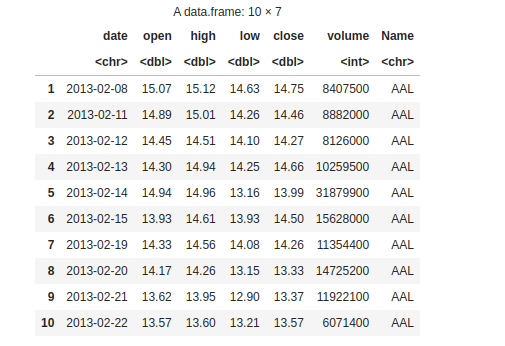
10 rows
R `
giving the dimension of the dataset
dim(data)
`
**Output:
619040 * 7
**Missing values
We’ve stumbled upon missing values! But fret not, we shall fill these gaps and restore balance to our dataset.
R `
See thr null values of columns
colSums(is.na(data))
`
**Output:
date 0 open 11 high 8 low 8 close 0 volume 0 Name 0
You have summoned the **names()function to reveal the secret names of the columns in your dataset. By capturing the output in the variable **variable_names and invoking the **print() spell, you have successfully unveiled the hidden names of the columns, allowing you to comprehend the structure of your dataset.
R `
displaying the column names
variable_names <- names(data) print(variable_names)
`
**Output:
"date" "open" "high" "low" "close" "volume" "Name"
Next, you cast the str() spell upon your dataset. This spell reveals the data types of each variable (column) granting you insight into their mystical nature. By deciphering the output of this spell, you can understand the types of variables present in your dataset
R `
giving the structure of data
str(data)
`
**Output:

structure
**Handling missing values
We fearlessly remove the voids using na.omit(), rescuing columns from emptiness. With a triumphant flourish, we check for any stragglers using colSums(is.na(data1)). Victory!
R `
#removing missing values data1 <- na.omit(data) #see if there is any missing values left colSums(is.na(data1))
`
**Output:
date 0 open 0 high 0 low 0 close 0 volume 0 Name 0
Checking the dimension after removing missing values warriors.
R `
#See the dimension of the new dataframe dim(data1)
`
**Output:
619029 * 7
The summary reflects the essence of our data, focusing on minimum and maximum values, mean and median, and first and third quartile.
R `
giving the summary of data
summary(data)
`
**Output:
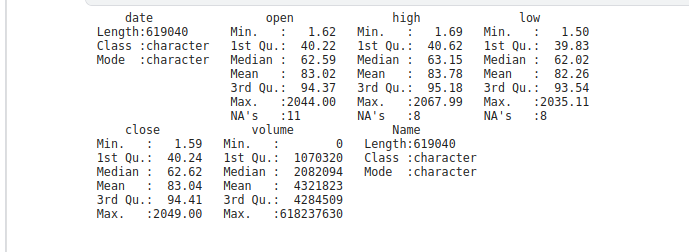
summary
**Data Visualization
"Histogram of Opening Prices" displays the frequency distribution of opening prices. The x-axis represents the opening price values, and the y-axis represents the count. The second Histogram "Histogram of Closing Prices" visualizes the distribution of closing prices. I x-axis represents the closing price values and the y -axis represents the count.
R `
Histogram of Opening Prices
ggplot(data1, aes(x = open)) + geom_histogram(binwidth = 1, fill = "steelblue", color = "white") + labs(title = "Histogram of Opening Prices", x = "Opening Price", y = "Count")
Histogram of Closing Prices
ggplot(data1, aes(x = close)) + geom_histogram(binwidth = 1, fill = "steelblue", color = "white") + labs(title = "Histogram of Closing Prices", x = "Closing Price", y = "Count")
`
**Output:
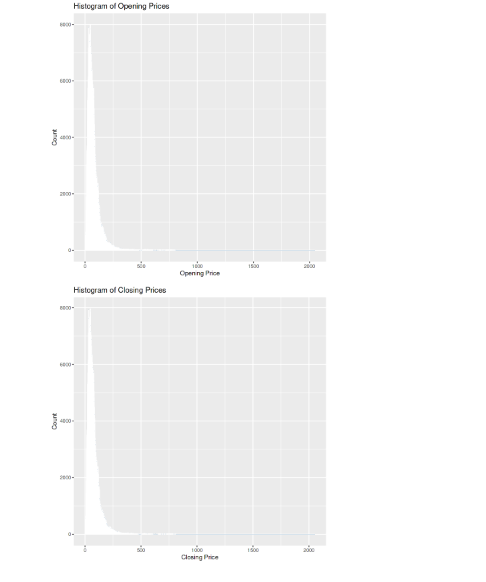
histogram
The scatter plot is named "High vs. Low Prices." It compares the high and low prices for each data point. The x-axis represents the low prices, and the y-axis represents the high prices.
R `
See the ggplot of coparasion high and low price
ggplot(data1, aes(x = low, y = high)) + geom_point() + labs(title = "High vs. Low Prices", x = "Low Price", y = "High Price")
`
**Output:
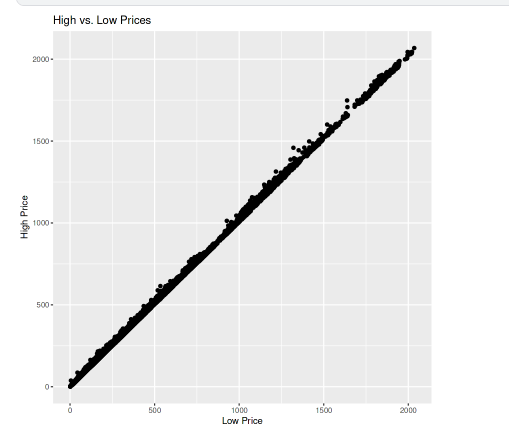
plot
**Data analysis
Telling the length or we can say the total number of unique companies in the dataset.
R `
#unique companies in the dataset companies <- length(unique(data1$Name)) companies
`
**Output:
505
Telling the lowest closing price in the dataset.
R `
Lowest closing price
price <- min(data1$close) price
`
**Output:
1.59
Telling the highest closing price in the dataset.
R `
Highest closing price
price <- max(data1$close) price
`
**Output:
2049
Giving the result of the company name with the highest shared volume.
R `
Company with maximum volume
maximum_volume <- data1$Name[which.max(data1$volume)] maximum_volume
`
**Output:
'VZ'
Giving the result of the company name with the minimum shared volume.
R `
Company with minimum volume
minimum_volume <- data1$Name[which.min(data1$volume)] minimum_volume
`
**Output:
'BHF'
We calculate the average closing price by taking the mean of the close column in the dataset data1
R `
Average price of closing
mean_price <- mean(data1$close) mean_price
`
**Output:
83.0433.49787651
We determine the total trading volume by summing up the values in the volume column of the dataset data1.
R `
Total volume
total_volume <- sum(data1$volume) total_volume
`
**Output:
2675376439690
We find the company with the longest consecutive days of price increases by identifying the corresponding "Name" value where the condition for consecutive price increases is met.
R `
We will see the Company which have the
longest consecutive days of price increases
price_increase <- data1$Name[rle(data1$close > lag(data1$close))$values & rle(data1$close > lag(data1$close))$lengths > 1][1] price_increase
`
**Output:
'AAL'
We find the company with the longest consecutive days of price decreases by identifying the corresponding "Name" value where the condition for consecutive price decreases is met.
R `
We will see the Company which have the longest consecutive days of price decreases
price_decrease <- data1$Name[rle(data1$close < lag(data1$close))$values & rle(data1$close < lag(data1$close))$lengths > 1][1] price_decrease
`
**Output:
'AAL'
Feature Engineering
Feature Engineeringhelps to derive some valuable features from the existing ones. We convert the "date" column to a character format then split the date using "/" as the delimiter then create a new data frame with columns for date, day, month, and year.
R ``
Feature engineering of date column
data1$date <- as.character(data1$date)
splitted <- strsplit(data1$date, "/")
df <- data.frame(
date = data1$date,
day = as.integer(sapply(splitted, [, 1)),
month = as.integer(sapply(splitted, [, 2)),
year = as.integer(sapply(splitted, [, 3)),
stringsAsFactors = FALSE
)
head(df)
``
**Output:
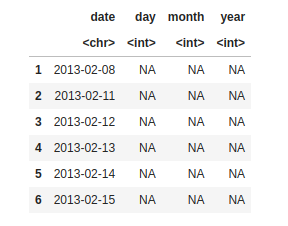
making column day, month, year
Now in this code, we are filling the column day, month, and year values from the date column.
R `
data from date will be filled in day,
month , year column
see_the_change <- data.frame( date = data1$date, day = day(data1$date), month = month(data1$date), year = year(data1$date), stringsAsFactors = FALSE )
head(see_the_change)
`
**Output:
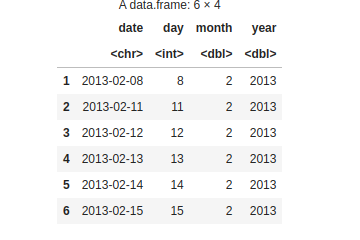
day, month, year changes
Now, we are including day, month, and year columns in the dataset data1.
R `
changes will be occur in data1 dataset
data1$day <- day(data1$date) data1$month <- month(data1$date) data1$year <- year(data1$date)
Viewing the updated dataframe
head(data1)
`
**Output:
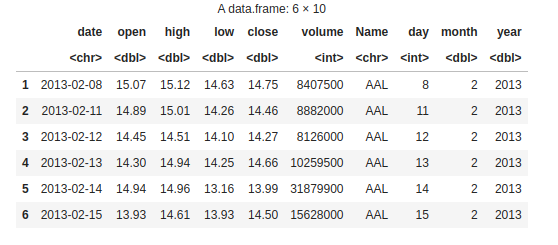
dataset data1
We create a new column "is_quarter_end" in data1 to see whether a particular date falls at the end of a quarter. Using the modulo operator (%%), we are checking if the month value is divisible by 3. If it is, we assign 1 to indicate it's a quarter-end otherwise, we assign 0.
R `
Quarterly data
data1$is_quarter_end <- ifelse(data1$month %% 3 == 0, 1, 0) head(data1 , 5)
`
**Output:
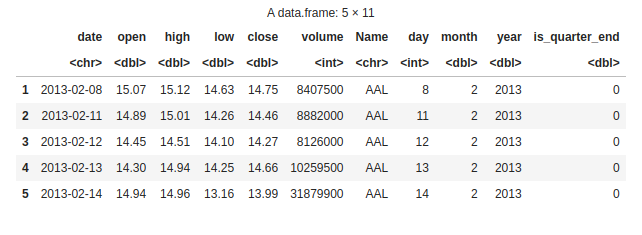
Quarterly data
First, we are taking the numeric columns (open, high, low, close) and the date column from "data1" to create a new data frame called "data_num", then we calculate the year from the "date" column using the "lubridate::year" function and add it as a new column in "data_num" then group the data by year and calculate the mean for each numeric column. Create a bar plot for each numeric column, displaying the mean values for each year.
R `
bar plot
nume_column <- c("open", "high", "low", "close") data_num <- data1[, c("date", nume_column)] data_num <- data_num[apply(data_num[, nume_column], 1, function(x) all(is.numeric(x))), ]
data_num$year <- lubridate::year(data_num$date)
data_grouped <- data_num %>% group_by(year) %>% summarise(across(all_of(nume_column), mean))
par(mfrow = c(2, 2), mar = c(4, 4, 2, 1))
for (i in 1:4) { col <- nume_column[i] barplot(data_grouped[[col]], main = col, xlab = "Year", ylab = "Mean") }
`
**Output:
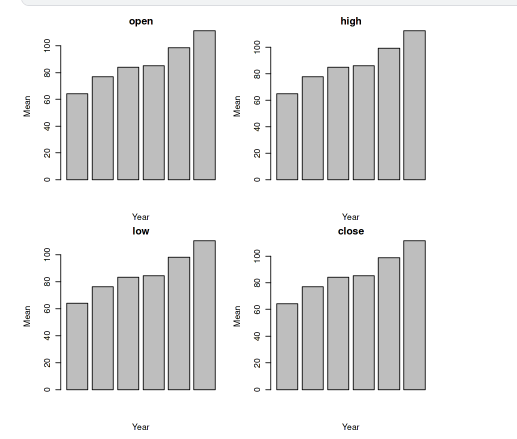
Bar plot
**And that’s a wrap! But remember, this is just the beginning of our data adventure.