Scrape Config in Prometheus (original) (raw)
Last Updated : 30 Apr, 2026
Prometheus follows a pull-based monitoring model, meaning it actively fetches metrics from configured targets rather than waiting for data to be pushed. This process is controlled by scrape configurations, one of the most critical components of a Prometheus setup. Without properly defined scrape configs, Prometheus would not know:
- Which systems to monitor.
- How frequently to collect metrics.
- What endpoints expose those metrics.
- How to label and organize the collected data.
Scrape Configuration
- Scrape configuration defines how Prometheus collects metrics from targets such as applications, services, or endpoints
- This configuration is vital for effectively tracking your infrastructure and applications
Core Elements
- **Job: A precise identifier for each scrape process. It helps label and organize the metrics gathered from one-of-a-kind sources.
- **Target: The endpoints exposing metrics for Prometheus to scrape, These are usually exporters, applications, or services.
- **Scrape_Interval: It defines how often Prometheus collects metrics, default value is 15 seconds.
- **Scrape_Timeout: The maximum time Prometheus waits for a response before marking the scrape as failed.
- **metrics_path: The HTTP path where metrics are exposed.
Static vs Dynamic Service Discovery
**Static Configurations:
A method to define a hard and fast set of targets that Prometheus will scrape for metrics. Used to explicitly specify the objectives to be monitored, especially useful in environments for better enterprise and filtering, permitting the amendment, addition, or removal of labels on the fly. Relabeling can be applied to both goal labels
Example:
static_configs:
- targets: ["localhost:9100"]
Dynamic Service Discovery:
Modern infrastructures are highly dynamic — containers spin up and down constantly, Prometheus integrates with platforms like kubernetes, AWS ,GCP. Prometheus automatically discovers new pods and begins scraping them without manual updates.
Example:
kubernetes_sd_configs:
- role: pod
Prometheus can Monitor the Apache Web Server
- **Prometheus: A central monitoring and alerting tool responsible for amassing, storing, and querying metrics from numerous targets.
- **Scrape Configuration: This specifies how Prometheus must scrape metrics from distinct objectives. It consists of process names, scrape intervals, scrape timeouts, metrics paths, schemes, labels, and so on.
- **Job: The Represents a set of configurations for scraping a selected endpoint or service. In this example, it's configured to scrape metrics from an Apache2 web server.
- **Apache2 Web Server: The goal endpoint from which Prometheus collects metrics. It serves net pages and applications over HTTP.
- **Apache Exporter: A middleman thing that exposes Apache2 metrics in a format Prometheus can understand. It listens on a unique port and presents metrics through HTTP.
- **Metrics Path: Specifies the URL route in which the Apache Exporter exposes metrics data for Prometheus to scrape.
- **Scheme: In Specifies the protocol used for scraping metrics, normally HTTP or HTTPS.
- **Labels: They provide additional metadata or context to the scraped metrics, permitting customers to organize and query metrics efficaciously.
Monitoring Apache Web Server using Promethueus
Step 1: Install the Apache Web Server in Ubuntu 22.04 LTS
- Update the package index.
sudo apt update
-(1).png)
sudo apt install apache2
- Start the Apache service.
sudo systemctl start apache2
- Enable Apache to start on boot.
sudo systemctl enable apache2
- Verify Apache is running.
sudo systemctl status apache2
-(1)-(1)-1024.png)
Step 2: Edit Configuration of Prometheus
- Open the Prometheus. yml configuration file
sudo nano /etc/prometheus/prometheus. yml
- Add a new scrape configuration for Apache metrics:
scrape_configs:
- job_name: 'apache'
static_configs:- targets: ['localhost:9117'] # assuming you'll use Apache Exporter on port 9117
-(1)-1024.png)
Save and close the file (Ctrl + X, then Y, then Enter).
Step 3: Install Apache Exporter In Prometheus
- Download the Apache Exporter binary:
- Extract the downloaded archive:
tar xvfz apache_exporter-0.10.0.linux-amd64.tar.gz
- Move the binary to /usr/local/bin:
sudo mv apache_exporter-0.10.0.linux-amd64/apache_exporter /usr/local/bin/
- Change the ownership of the binary:
sudo chown prometheus:prometheus /usr/local/bin/apache_exporter
- Start the Apache Exporter:
sudo -u prometheus /usr/local/bin/apache_exporter
Step 4: Install Apache Exporter as a System d Service
Create a new system d service unit file using a text editor like nano or vim:
sudo nano /etc/systemd/system/apache_exporter.service
[Unit]
Description=Apache Exporter
After=network. target
[Service]
User=Prometheus
Group=Prometheus
Type=simple
Exec Start=/usr/local/bin/Apache_ exporter
[Install]
Wanted By=multi-user. target
-(1)-1024.png)
Save the file and exit the text editor.
Reload system d to pick up the changes:
sudo systemctl daemon-reload
Now, you can start the Apache Exporter service using:
sudo systemctl start apache_exporter
You can also enable the service to start automatically on boot:
sudo systemctl enable apache_exporter
-(1)-1024.png)
Step 5: Verify Apache Exporter Integration and Prometheus
Check Prometheus status:
sudo systemctl status Prometheus
-(1)-1024.png)
Using static_configs and file_sd_configs for static targets.
In a static_config allows to specifying list targets and common label set of for them. It is the canonical way to the specify static targets in scrape of configuration.
job_name: cluster1
static_configs:
- targets:
- server1.example.com
- server2.example.com
- server3.example.com
labels:
database: mysql
some_carefully_chosen_property: its_value_for_these_targets
For Prometheus.yml in your local directory, to the check syntax, you can run.
docker run -it --rm --name prometheus_configcheck \
-v ${PWD}/prometheus.yml:/prometheus.yml \
--entrypoint /bin/promtool \
prom/prometheus:v2.40.6 \
check config /prometheus.yml
Using kubernetes_sd_configs, consul_sd_configs for dynamic targets
kubernetes_sd_configs
- job_name: monitoring/alertmanager/0
honor_timestamps: true
scrape_interval: 30s
scrape_timeout: 10s
metrics_path: /alertmanager/metrics
scheme: http
relabel_configs:
...
consul_sd_configs
consul_sd_configs:
- server: '{{ env "NOMAD_IP_prometheus_ui" }}:8500'
services: ['nomad-client', 'nomad']
Step 6: Prometheus scrape interval
By default the scraping of the interval is set to be 60s:
kc -n cattle-Prometheus exec -it prometheus-cluster-monitoring-0 ‘sh’
Defaulting container name to the Prometheus.
Use 'kubectl describe pod/prometheus-cluster-monitoring-0 -n cattle-Prometheus’ to see all of the containers in this pod.
/prometheus $ head /etc/prometheus/config_out/prometheus.env.yaml
global:
evaluation_interval: 60s
scrape_interval: 60s
external_labels:
prometheus: cattle-prometheus/cluster-monitoring
prometheus_from: cluster-dev0
prometheus_replica: prometheus-cluster-monitoring-0
This does the trick for the cluster level monitoring:
Prometheus. scrapeInterval =
Step 7: Prometheus scrape timeout
In a the Prometheus configuration I have a job with these specs.
- job_name: name_of_my_job
scrape_interval: 5m
scrape_timeout: 30s
metrics_path: /metrics
scheme: http
In the script that creates metrics takes 3 minutes to finish, but from Prometheus I don't see the metrics. What is the operation of the **scrape_timeout variable.
Step 8: Authentication of Scrape Configuration
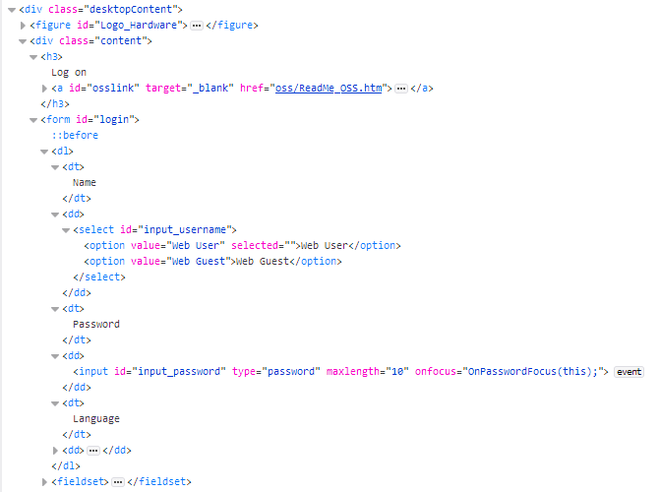
In a trying to get access to web data for my outdoor wood boiler's integrated web server. I access the data through web browser, but it requires authentication.
-660.png)
and the code:
using the SonarQube Enterprise 9.4.
Set up a scrape_config job to have my Prometheus server monitor SonarQube. We’ve decided go with using system passcode for the authenticating API calls the endpoint, /api/monitoring/metrics.
scrape_configs:
- job_name: 'sonarqube'
metrics_path: '/api/monitoring/metrics'
static_configs:- targets:
- :
authorization:
type: X-Sonar-Passcode
credentials:
- :
- targets:
When the testing out of this particular format using the X-Sonar-Passcode as the authorization type for the authorization section in scrape_config file, it returns a 403 error:
scrape_configs:
- job_name: 'sonarqube'
metrics_path: '/api/monitoring/metrics'
static_configs:- targets:
- :
authorization:
type: X-Sonar-Passcode
credentials:
- :
- targets: