Directory Operation Commands in Linux (original) (raw)
Last Updated : 18 Dec, 2025
Directory Operations Commands in Linux are used to manage directories within the filesystem, including navigating between directories and organizing folder structures. These commands help users efficiently create, list, search, and remove directories using the terminal.
- Used to navigate through directories and view directory contents.
- Helps create, rename, and remove directories in the filesystem.
- Supports searching and analyzing directory size and structure.
- Essential for organizing files and managing the Linux directory hierarchy.
List of Directory Operation Commands
Below is a list of directory operation commands that help in understanding how directories are created, managed, and navigated in Linux.
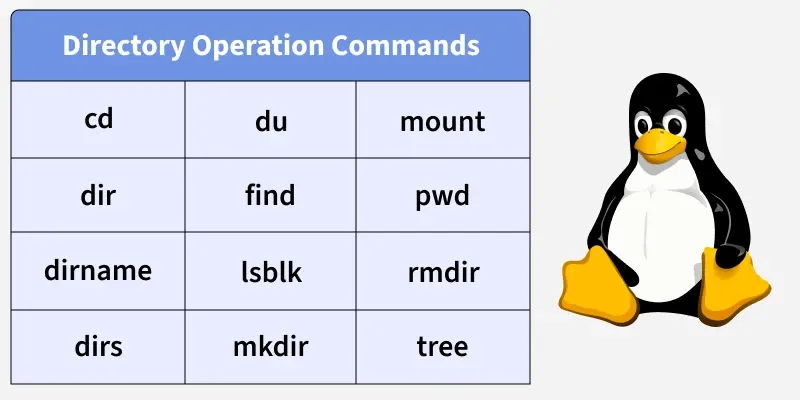
1. Cd
The cd command is used to move from one directory to another in Linux. It helps users navigate the file system easily.
- Used to change the current directory
- Helps move inside folders
- Without any argument, it takes you to the home directory
**Example:
cd Documents

Here, we have used the following commands:
- `ls` = To display all the files and directories in the current location (directory)
- `pwd` = to check the current location path or we can say the current directory name
2. Dir
The dir command is used to display the list of files and directories present in the current directory. It provides a simple view of directory contents.
- Displays files and folders
- Shows directory content quickly
- Works similar to the ls command
**Example:
dir -a
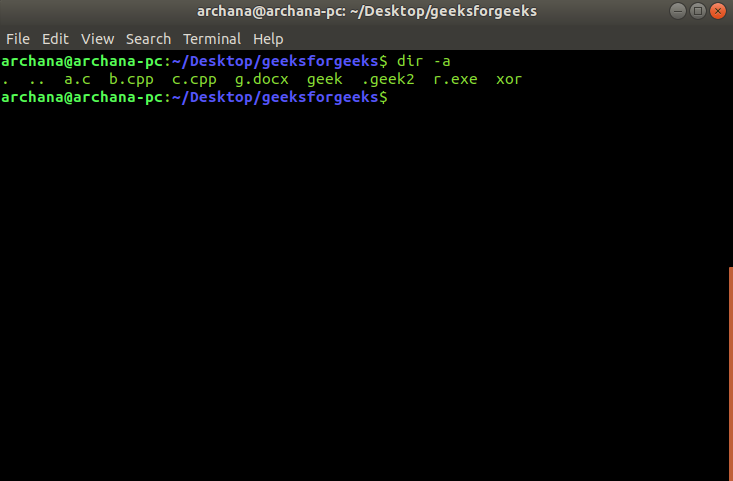
- It displays all the hidden files(starting with `.`) along with two files denoted by `.` and `..` which signals for current and previous directory respectively.
3. Dirname
The dirname command is used to extract the directory path from a full file path. It removes the file name and shows only the directory location.
- Extracts directory path from a file path
- Useful in shell scripts
- Helps identify parent directories
**Example:
dirname /Desktop/root/bash.sh

4. Dirs
The dirs command displays the list of directories stored in the directory stack. It helps track previously visited directories.
- Shows directory navigation history
- Useful for advanced directory movement
- Works with directory stack commands
**Example:
dirs
5. Du
The du command is used to show disk usage of directories and files. It helps identify folders that consume more disk space.
- Displays directory size
- Helps manage disk storage
- Useful for cleanup tasks
**Example:
du -h
6. Find
The find command is used to search for files and directories within a specified location. It can search based on name, type, or other conditions.
- Searches files and directories
- Works recursively inside folders
- Very powerful search command
**Example:
find ./gfg -name "sample.txt"

- This command will locate and display the path to the file if it exists in the specified directory or its subdirectories.
7. Lsblk
The lsblk command displays information about storage devices and their mount points. It shows disks and partitions in a structured format.
- Displays disk and partition details
- Shows mounted directories
- Useful for storage and disk management
**Example:
lsblk

- This command will display a hierarchical view of all block devices connected to your system, including information about partitions and mount points
8. Mkdir
The mkdir command is used to create new directories in Linux. It helps organize files into folders.
- Creates new directories
- Can create multiple folders
- Used for organizing files
**Example:
mkdir jayesh_gfg

9. Mount
The mount command is used to attach a filesystem to a directory. It allows access to storage devices like disks or USB drives.
- Makes storage devices accessible
- Used for partitions and drives
- Important system administration command
**Example:
mount /dev/sda1 /mnt
10. Pwd
The pwd command is used to display the current working directory. It shows the full path from the root directory.
- Displays current directory path
- Helps users know their location
- Simple and frequently used command
**Example:
pwd
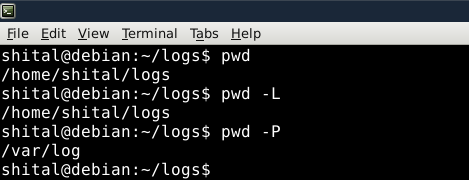
The output will be the absolute path of your current location in the file system
11. Rmdir
The rmdir command is used to delete empty directories from the system. It cannot remove directories that contain files.
- Deletes empty directories only
- Helps clean unused folders
- Safe directory removal command
**Example:
rmdir t
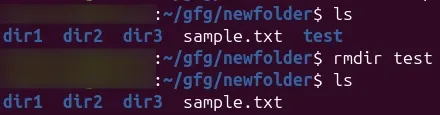
12. Tree
The tree command displays directories and subdirectories in a tree-like structure. It provides a clear visual view of folder hierarchy.
- Shows directory structure clearly
- Easy to understand folder layout
- Useful for projects and directories
**Example:
tree -a ./GFG
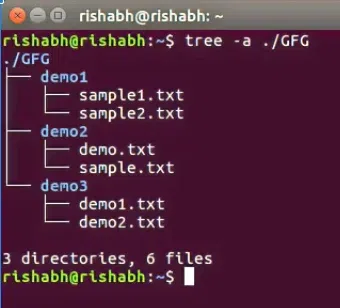
- This command displays the complete hierarchical structure of a directory, showing all its subdirectories and files in a tree-like format