scp Command for Secure File and Folder Transfer (original) (raw)
Last Updated : 2 May, 2026
The scp (Secure Copy Protocol) command is used to securely transfer files and directories between systems over a network. It works over SSH, which means all transferred data is encrypted. It is commonly used by system administrators to move backup files, fetch logs, copy configuration files, and transfer data between servers safely and quickly.
- Transfers files securely using SSH encryption
- Supports copying between local and remote systems
- Allows directory transfer using recursive mode
- Provides options for custom ports, metadata preservation, and quiet mode
Example: Copy File from Local to Remote
To copy a file named file.txt from your local machine to a remote server
**Command:
scp file.txt username@192.168.1.2:/home/username/
- file.txt is the local file
- username@192.168.1.2 is the remote server and user
- /home/username/ is the destination directory on the remote server.
Syntax
scp [options] [[user@]host1:]source_file_or_directory ... [[user@]host2:]destination
- **options: Modify command behavior (-P, -r, -p, -q, etc.)
- **[[user@]host1:]: Represents the source system.
- **user: Username on the remote system
- **host1: IP address or hostname of the remote system
- **The : - indicates that the source is on a remote machine If omitted, the source is assumed to be local
- **source: File or directory to be copied (can be local or remote)
- **[[user@]host2:]: Represents the destination system.
- **user: Username on the destination system
- **host2: IP address or hostname
- **The : - indicates that the destination is remote If omitted, the destination is assumed to be local
- ****... :** Multiple source files can be specified before the destination
Commonly Used SCP Commands in Linux
1. Securely Copying Files from Local to Remote Machine
**Syntax:
scp [file_name] remoteuser@remotehost:/remote/directory
Here,
- **file_name: The name of the file that needs to be copied.
- ****remoteuser:**The username of the remote host.
- **remotehost: The IP address or hostname of the remote host.
- ****/remote/directory:** The directory where the file should be copied on the remote machine.
**Example:
Suppose we want to copy a file named test.txt from your local system to a remote machine with the following details:
- **Remote user: jayesh
- **Remote host: 10.143.90.2
- **Destination directory: /home/jayesh/
**Command:
scp test.txt jayesh@10.143.90.2:/home/jayesh
.webp)
copied file from local system to remote system
- **To Verify: Use `ls` command in the location we copied file.

File that we have copied
2. Securely Copying Files From Remote Machine to Local Machine
To copy a file from a remote machine to your local system, you just reverse the source and destination, let's check out the syntax below:
**Syntax:
scp user@remotehost:/home/user/file_name
Here,
- ****"user":** username of remote system.
- ****"remotehost":** IP address (or hostname) of remote system.
- ****"/home/user/file_name":** path of file that has to be copied.
- ****".":** this means that we are copying that file in current location in local system.
**Example:
Suppose the remote system details are as follows:
- **User: jayesh
- **Remote host: 10.143.90.2
- **Remote file path: /home/jayesh/test1.txt
To copy this file from the remote machine to your current local directory, run:
**Command:
scp jayesh@10.143.90.2:/home/jayesh/test1.txt .
- **`.` : Current directory (local system)
**Output:

copied file from remote system to local system using scp
**Note: If . is not specified, SCP will fail because destination is mandatory.
- **To verify: use dir (in windows cmd)
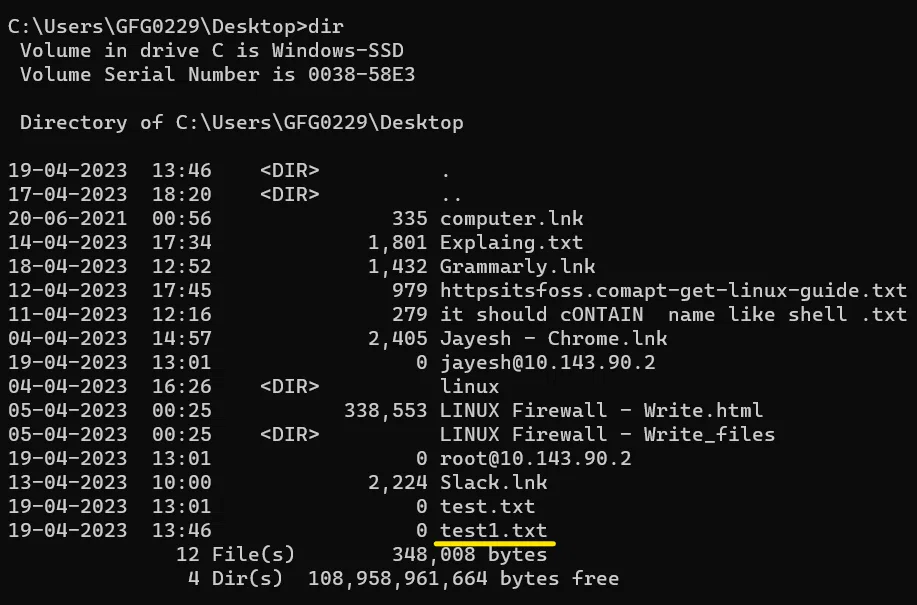
test1.txt successfully copied
Important SCP Command Options
1. -P (Specify Custom SSH Port)
It is used to Securely Copy File to a Remote Machine on a Non-Standard SSH Port and specify the port to connect on the remote host. It is useful when our SSH server is listening on a non-standard port.
**Syntax:
scp -P port source_file user@hostname:destination_file
**Example:
Suppose you want to copy a file named test2.txt from your local system to a remote machine with the following details:
- **User: jayesh
- **Remote host: 10.143.90.2
- **SSH port: 2222
- **Destination directory: /home/jayesh/
**Command:
scp -P 2222 test2.txt jayesh@10.143.90.2:/home/jayesh/
**Output:

copying file from local system to remote using -P option in scp
- **To Verify: Use `ls` command in remote system in the location we have copied the file.

test2.txt successfully copied
2. -p (Preserve File Metadata)
This option is used when we want the original metadata of the file that has been transferred. Basically, it preserves modification time, access time, and modes from the original file.
**Syntax:
scp -p source_file user@hostname:destination_file
**Example:
Suppose you want to copy a file named test3.txt from your local system to a remote machine with the following details:
- **User: jayesh
- **Remote host: 10.143.90.2
- **Destination directory: /home/jayesh/
**Command:
scp -p test3.txt jayesh@10.143.90.2:/home/jayesh/
**Output:

copying file from local system to remote using -p option in scp
3. -q (Quiet Mode)
It Securely Copy File with Quiet Mode - Disabling Progress Meter .This option hides the progress of the file transfer on the terminal.
**Syntax:
scp -q source_file user@hostname:destination_file
**Example:
Suppose you want to copy a file named test4.txt from your local system to a remote machine with the following details:
- **User: jayesh
- **Remote host: 10.143.90.2
- **Destination directory: /home/jayesh/
**Command:
scp -q test4.txt jayesh@10.143.90.2:/home/jayesh/
**Output:

As we can see there is no progress shown
- **To Verify: Use `ls` command in remote system in the location we have copied the file.

test4.txt successfully copied
4. -r (Copy Directory Recursively)
This option is used when we want to copy an entire directory and its contents. Which basically means copying entire directory recursively.
**Syntax:
scp -r Directory_name user@hostname:destination_file
**Example:
Suppose you want to copy a directory named new from your local system to a remote machine with the following details:
- **User: jayesh
- **Remote host: 10.143.90.2
- **Destination directory: /home/jayesh/new1/
**Command:
scp -r new jayesh@10.143.90.2:/home/jayesh/new1/
**Output:

copying entire directory and its file recursively using `-r` in scp
- **To Verify: Use `ls` command in remote system in the location we have copied the file.

new directory successfully copied.
Other Secure File Transfer Alternatives
While SCP is useful for direct secure file transfers, there are other powerful tools available in Linux depending on your requirements.
1. SFTP (SSH File Transfer Protocol)
SFTP is a secure file transfer tool that works over SSH and provides an interactive session for managing remote files. It allows users to browse directories, upload and download files, rename files, and manage folders directly from the terminal. SFTP also supports resuming interrupted transfers, making it reliable for unstable connections.
- Provides interactive file management over SSH
- Supports upload and download operations
- Allows directory navigation and file management
- Supports resuming interrupted transfers
**Example:
Connect to a remote system:
**Command:
sftp user@remotehost
After connecting, you can use:
put file_name
get file_name
ls
cd directory_name
Rsync (Remote Synchronization)
Rsync is a powerful file synchronization tool used for copying and syncing files or directories between systems. It transfers only the changed portions of files (delta transfer), which makes it efficient for backups and repeated transfers. Rsync also supports compression and resume functionality.
- Efficient directory synchronization
- Transfers only modified file portions
- Suitable for backups and large data transfers
- Supports compression and resume capability
**Example:
Sync a local file to a remote system:
**Command:
rsync -avz file user@remotehost:/destination
Improve the Security of SCP File Transfer
You must follow these practices to ensure that you're performing a secure file transfer using the SCP:
- Ensure to use a strong and unique SSH key to authenticate file transfers.
- Always ensure that you're transferring files to a trusted remote hosts by checking its fingerprints.
- Ensure that you're using a non-default SSH port (if possible) to prevent from any attacks.
- Cross verify that you're only transferring files to directories with limited access.
Troubleshooting While Copying Files in Linux: SCP Command
While performing this action, there are certain challenges that you might face, let's address them for better clarity:
1. Permission Denied Error
If such issue persists, ensure that all the permissions to read/write to both source and destination (or directories) are correct. Here's how you can check it:
transferring
2. Issue While Transferring Files
Check if the source file exists and is accessible, also ensure to have sufficient storage disk space on the remote server so that the files can be stored.
3. Connection Timeout
Ensure that the remote server is online and reachable and in case of custom SSH port, always make sure that you're using the correct port. You may verify it by using the -P option.