How to use the mouse to scale and rotate an image in PyGame ? (original) (raw)
Last Updated : 23 Jul, 2025
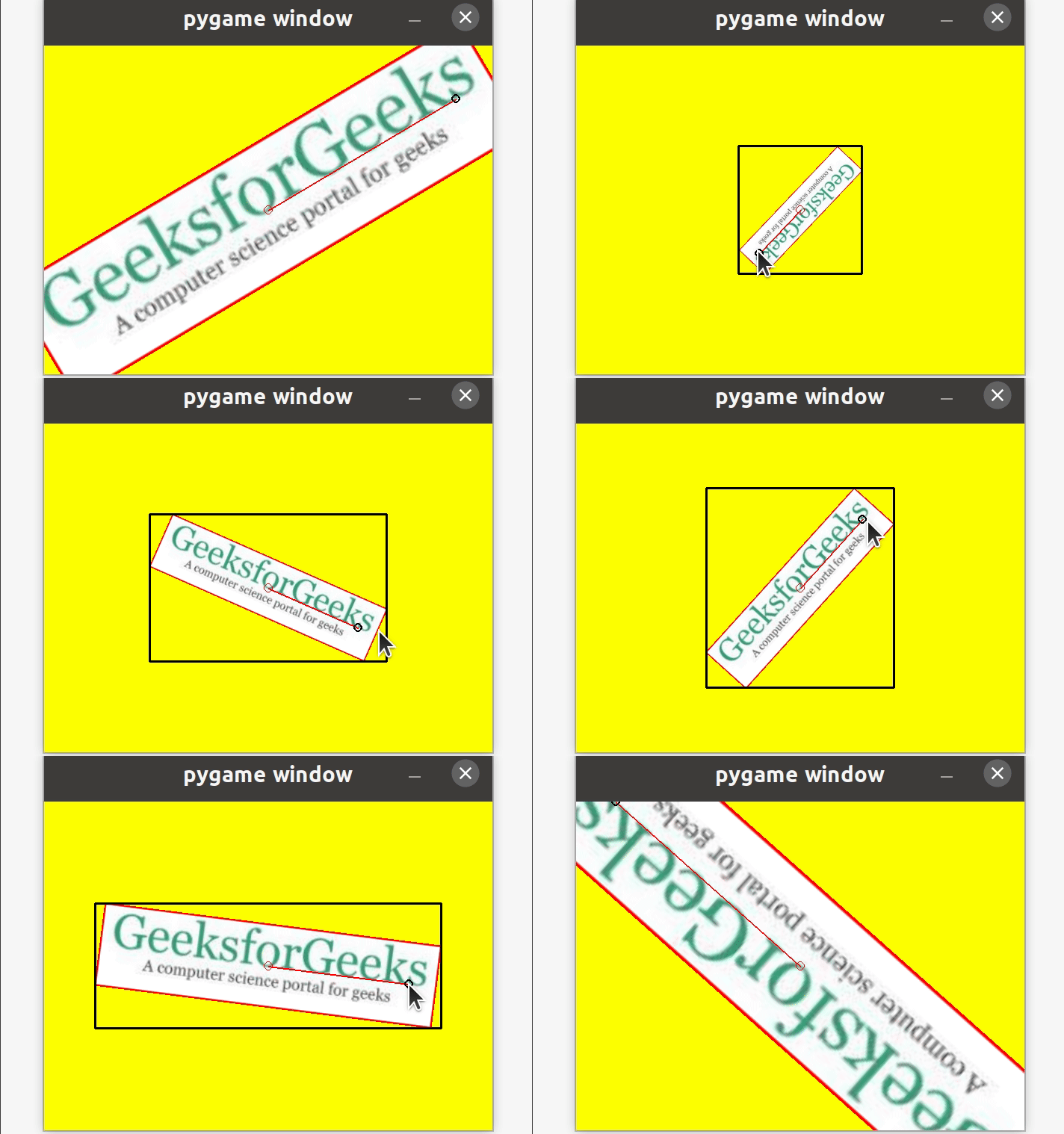
In this article, we will discuss how to transform the image i.e (scaling and rotating images) using the mouse in Pygame.
Approach
Step 1: First, import the libraries Pygame and math.
import pygame import math from pygame.locals import *
Step 2: Now, take the colors as input that we want to use in the game.
color_1 = #RGB value of color 1 color_2 = #RGB value of color 2 color_n = #RGB value of color n
Step 3: Then, initialize the constructor
pygame.init()
Step 4: Set the dimensions of your GUI game.
w, h = #Width dimension, #Height dimension screen = pygame.display.set_mode((w, h))
Step 5: Set the running value for running the game, the angle by which it can be moved.
running = True angle = 0 scale = 1
Step 6: Next, take the image as input which we want to move with the mouse
img_logo = pygame.image.load('#Enter the image url') img_logo.convert()
Step 7: Draw a border around an image.
rect_logo = img_logo.get_rect() pygame.draw.rect(img_logo, color_1, rect_logo, 1)
Step 8: Locate the center of the GUI game and get the position of the mouse.
center = w//2, h//2 mouse = pygame.mouse.get_pos()
Step 9: Store the image in a new variable and construct a rectangle around the image.
img = img_logo rect = img.get_rect() rect.center = center
Step 10: Set the things which you want your app to do when in running state.
while running: for event in pygame.event.get():
Step 10.1: Once the app is in a running state, make it quit if the user wants to quit.
  if event.type == QUIT:
      running = False
Step 10.2: In case, the user doesn't want to quit, set at what angle the image should rotate.
  if event.type == KEYDOWN:
      if event.key == K_ra:
          if event.mod & KMOD_SHIFT:

              # angle at which it should move left
              angle -=
          else:

              # angle at which it should move right
              angle +=
Step 10.3: Also, set at what ratio the image size should decrease or increase.
      elif event.key == K_sa:
          if event.mod & KMOD_SHIFT:
              scale /= #scale at which the image size should decrease
          else:
              scale *= #scale at which the image size should increase
Step 10.4: Set at what coordinates, angle, and scale the image will rotate or resize.
elif event.type == MOUSEMOTION:Step 10.4.1: Store the current position of the event in the new variable.
mouse = event.posStep 10.4.2: Locate the Cartesian coordinates with the help of the mouse variable and center of the image for rotating the image..
      x = mouse[0] - center[0]
      y = mouse[1] - center[1]
Step 10.4.3: Further, calculate the distance between the two points (0,0) and (x, y) with the help of formula √x2+y2
d = math.sqrt(x ** 2 + y ** 2)Step 10.4.4: Now, calculate the angle in degrees at which the image should rotate using the Python method math.atan2() which returns the arctangent of y/x, in radians.
angle = math.degrees(-math.atan2(y, x))Step 10.4.5: Calculate which scale the image size should decrease or increase using the function abs, which returns the magnitude of the number.
scale = abs(5 * d / w)Step 10.4.6: Calculate the updated position of the image in the running state using the rotozoom function which is a combined scale and rotation transform.
img = pygame.transform.rotozoom(img_logo, angle, scale)Step 10.4.7: Construct the rectangle around the updated image
      rect = img.get_rect()
      rect.center = center
Step 11: Next, you need to set the screen color and the image on the screen.
screen.fill(color_3)
screen.blit(img, rect)
Step 12: Later on, draw the rectangle, line,and circles which will help in moving the image.
pygame.draw.rect(screen, color_2, rect, #thickness of rectangle)
pygame.draw.line(screen, color_3, center, mouse, #Thickness of line)
pygame.draw.circle(screen, color_1, center, #radius of circle, #thickness of circumference)
pygame.draw.circle(screen, color_2, mouse, #radius of circle, #thickness of circumference)
Step 13: Furthermore, update the changes done in the GUI game.
pygame.display.update()
Step 14: Finally, quit the GUI game.
pygame.quit()
Below is the implementation.
Python `
Python program to transform the
image with the mouse
#Import the libraries pygame and math import pygame import math from pygame.locals import *
Take colors input
RED = (255, 0, 0) BLACK = (0, 0, 0) YELLOW = (255, 255, 0)
#Construct the GUI game pygame.init()
#Set dimensions of game GUI w, h = 600, 440 screen = pygame.display.set_mode((w, h))
Set running, angle and scale values
running = True angle = 0 scale = 1
Take image as input
img_logo = pygame.image.load('gfg_image.jpg') img_logo.convert()
Draw a rectangle around the image
rect_logo = img_logo.get_rect() pygame.draw.rect(img_logo, RED, rect_logo, 1)
Set the center and mouse position
center = w//2, h//2 mouse = pygame.mouse.get_pos()
#Store the image in a new variable #Construct the rectangle around image img = img_logo rect = img.get_rect() rect.center = center
Setting what happens when game is
in running state
while running: for event in pygame.event.get():
    # Close if the user quits the game
    if event.type == QUIT:
        running = False

    # Set at which angle the image will
    # move left or right
    if event.type == KEYDOWN:
        if event.key == K_ra:
            if event.mod & KMOD_SHIFT:
                angle -= 5
            else:
                angle += 5

        # Set at what ratio the image will
        # decrease or increase
        elif event.key == K_sa:
            if event.mod & KMOD_SHIFT:
                scale /= 1.5
            else:
                scale *= 1.5

    # Move the image with the specified coordinates,
    # angle and scale
    elif event.type == MOUSEMOTION:
        mouse = event.pos
        x = mouse[0] - center[0]
        y = mouse[1] - center[1]
        d = math.sqrt(x ** 2 + y ** 2)
        angle = math.degrees(-math.atan2(y, x))
        scale = abs(5 * d / w)
        img = pygame.transform.rotozoom(img_logo, angle, scale)
        rect = img.get_rect()
        rect.center = center

# Set screen color and image on screen
screen.fill(YELLOW)
screen.blit(img, rect)

# Draw the rectangle, line and circle through
# which image can be transformed
pygame.draw.rect(screen, BLACK, rect, 3)
pygame.draw.line(screen, RED, center, mouse, 2)
pygame.draw.circle(screen, RED, center, 6, 1)
pygame.draw.circle(screen, BLACK, mouse, 6, 2)

# Update the GUI game
pygame.display.update()
Quit the GUI game
pygame.quit()
`
Output: