Layouts in layouts (Multiple Layouts) in Kivy Python (original) (raw)
Last Updated : 13 Jan, 2026
Multiple layouts in Kivy means placing one layout inside another to create structured and organized screens. This is used when different parts of the screen need different layout behaviors such as rows, columns or fixed positions.
This program displays a TextInput box placed inside a BoxLayout to show how a layout can hold widgets.
Python `
from kivy.app import App from kivy.uix.boxlayout import BoxLayout from kivy.uix.textinput import TextInput
class MyApp(App): def build(self): a = BoxLayout() s = TextInput(text="Enter name") a.add_widget(s) return a
MyApp().run()
`
**Output:
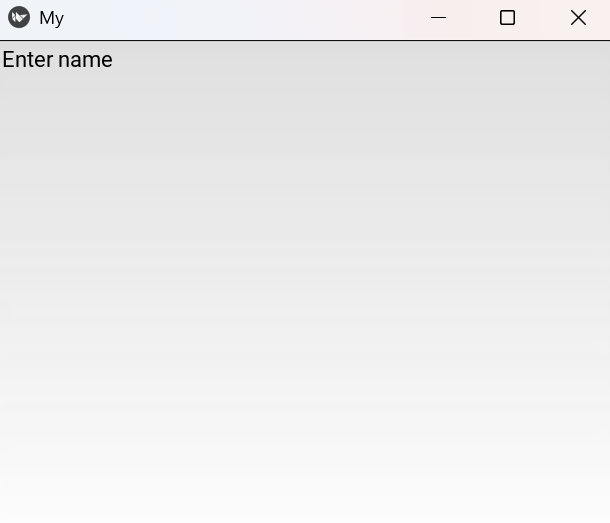
A text input box appears inside the Kivy window.
**Explanation:
- BoxLayout() creates the main container l and TextInput() creates the text box t
- l.add_widget(t) places t inside l
- return l sends the layout to the Kivy window
Syntax:
ParentLayout(parameters):
ChildLayout(parameters):
Widget(parameters)
A parent layout holds one or more child layouts, and each child layout can hold widgets.
**Parameters:
- **orientation: controls the direction in layouts like BoxLayout
- **size_hint: controls how much space a layout or widget takes
- **pos_hint: controls the position when used inside layouts like FloatLayout
- **add_widget(widget): is used to insert one layout or widget inside another
Examples
**Example 1: This code places a BoxLayout inside a FloatLayout to position grouped widgets freely.
Python `
from kivy.app import App from kivy.uix.floatlayout import FloatLayout from kivy.uix.boxlayout import BoxLayout from kivy.uix.button import Button
class MyApp(App): def build(self): f = FloatLayout() b = BoxLayout(size_hint=(.5, .3), pos_hint={'x': .25, 'y': .4}) b.add_widget(Button(text="A")) b.add_widget(Button(text="B")) f.add_widget(b) return f
MyApp().run()
`
**Output:
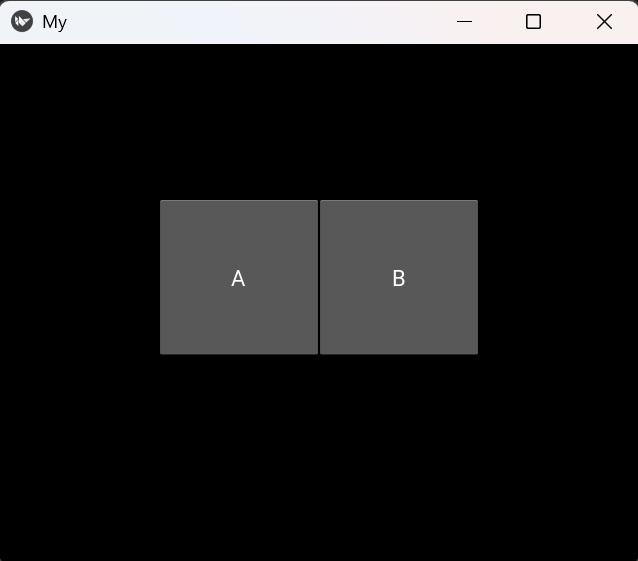
Two buttons appear inside a centered box layout.
**Explanation:
- FloatLayout() creates the outer layout f and BoxLayout() creates the inner layout b
- pos_hint moves b inside f
- b.add_widget() puts buttons inside b and f.add_widget(b) places b inside f
**Example 2: This code places a centered button inside a BoxLayout using AnchorLayout.
Python `
from kivy.app import App from kivy.uix.boxlayout import BoxLayout from kivy.uix.anchorlayout import AnchorLayout from kivy.uix.button import Button
class MyApp(App): def build(self): b = BoxLayout() a = AnchorLayout(anchor_x='center', anchor_y='center') a.add_widget(Button(text="Center")) b.add_widget(a) return b
MyApp().run()
`
**Output:
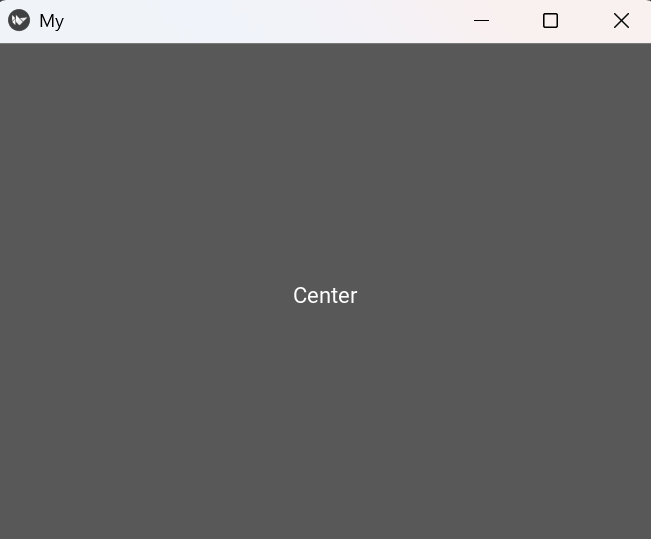
A button appears at the center of the window.
**Explanation:
- BoxLayout() creates the main container b.
- AnchorLayout() creates a to control alignment while anchor_x and anchor_y center the button.
- a.add_widget() adds the button and b.add_widget(a) places the anchor layout inside the box layout.