Python Web Scraping Tutorial (original) (raw)
Web scraping is the process of extracting data from websites automatically. Python is widely used for web scraping because of its easy syntax and powerful libraries like **BeautifulSoup, **Scrapy and **Selenium. In this tutorial, you'll learn how to use these Python tools to scrape data from websites and understand why Python 3 is a popular choice for web scraping tasks.
Requests Module
The requests library is used for making HTTP requests to a specific URL and returns the response. Python requests provide inbuilt functionalities for managing both the request and response.
If requests is not installed, install it using:
pip install requests
**Example: In this example, we are sending a GET request to a webpage using the requests.get() method, then printing the response status code and the page content returned by the server.
Python `
import requests res = requests.get('https://www.geeksforgeeks.org/python/python-programming-language-tutorial/') print(res.status_code) print(res.content)
`
Output

Snapshot of the raw html data using request module
**Explanation:
- **requests.get(url): Sends a GET request to the given URL.
- **response.status_code: Returns HTTP status code (200 = success).
- **response.content: Returns the raw HTML of the page in bytes.
For more information, refer to our Python Requests Tutorial.
Parsing HTML with BeautifulSoup
Once the raw HTML is fetched, the next step is to parse it into a readable structure. That’s where BeautifulSoup comes in. It helps convert the raw HTML into a searchable tree of elements.
If requests is not installed, install it using:
pip install beautifulsoup4
**Example: Here, we first send an HTTP request to the webpage, then use BeautifulSoup to parse the HTML content and format it in a clean, readable structure.
Python `
import requests from bs4 import BeautifulSoup
res = requests.get('https://www.geeksforgeeks.org/python/python-programming-language-tutorial/') soup = BeautifulSoup(res.content, 'html.parser') print(soup.prettify())
`
**Output

Snapshot of the beautified html response using beautifulsoap module
**Explanation:
- **BeautifulSoup(html, parser): Converts HTML into a searchable object. '**html.parser' is the built-in parser.
- **soup.prettify(): Formats the HTML nicely for easier reading.
At this point, the HTML is ready to be searched for tags, classes or content.
Extracting Content by Tag and Class
Once we have parsed the HTML using BeautifulSoup, the next step is to locate and extract specific content from the page. Websites usually wrap their main article content inside tags with identifiable classes like ****
**Example: In this example, we'll extract all paragraph (
) text from the main content section of the GeeksforGeeks Python Tutorial page.
Python `
import requests from bs4 import BeautifulSoup
Fetch and parse the page
res = requests.get('https://www.geeksforgeeks.org/python/python-programming-language-tutorial/') soup = BeautifulSoup(res.content, 'html.parser')
Find the main content container
content = soup.find('div', class_='article--viewer_content') if content: for para in content.find_all('p'): print(para.text.strip()) else: print("No article content found.")
`
**Output

Extracted text content from the given URL
Image of the actual GeeksforGeeks Python Tutorial page:

Snapshot of the actual webpage of the URL
Notice that the text output in the terminal contains the actual content from the web page.
For more information, refer to our Python BeautifulSoup.
Selenium
Some websites load their content dynamically using JavaScript. This means the data you're trying to scrape may not be present in the initial HTML source. In such cases, BeautifulSoup alone won’t work, because it only reads static HTML.
To handle this, we use Selenium that can automate browsers like Chrome or Firefox, wait for content to load, click buttons, scroll and extract fully rendered web pages just like a real user.
If selenium is not installed, install it using:
pip install selenium
What is a WebDriver
A WebDriver is a software component that Selenium uses to interact with a web browser. It acts as the bridge between your Python script and the actual browser window.
Each browser (Chrome, Firefox, Edge, etc.) has its own WebDriver:
- **Chrome: ChromeDriver
- **Firefox: GeckoDriver
- **Edge: EdgeDriver
Selenium uses this WebDriver to:
- Open and control the browser
- Load web pages
- Extract elements
- Simulate clicks, scrolls and inputs
**Note: You can either manually download the WebDriver or use **webdriver-manager which handles the download and setup automatically.
**Example 1: In this example, we're directing the browser to the Google search page with the query parameter "geeksforgeeks". The browser will load this page and we can then proceed to interact with it programmatically using Selenium. This interaction could involve tasks like extracting search results, clicking on links or scraping specific content from the page.
Python `
from selenium import webdriver driver = webdriver.Firefox() driver.get("https://www.google.co.in/search?q=geeksforgeeks")
`
**Output
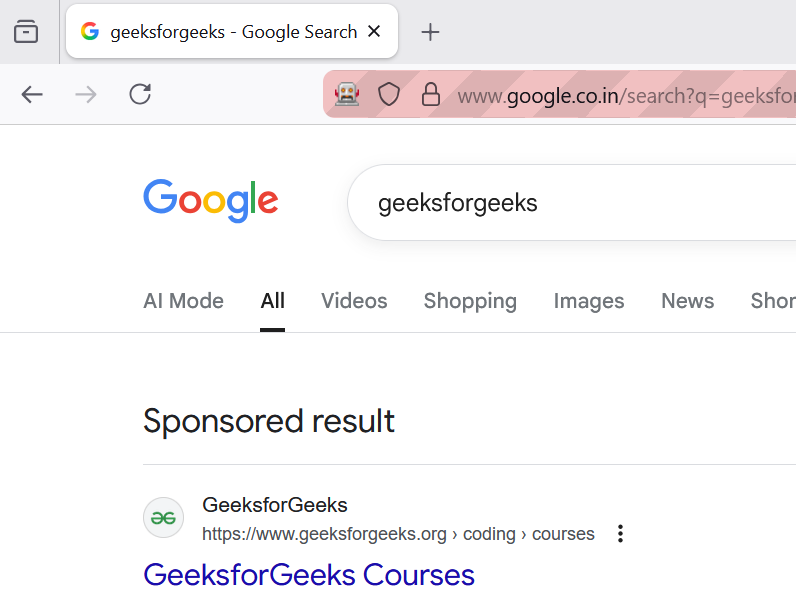
Output of Searching on Google with Firefox
**Explanation:
- **driver = webdriver.Firefox(): launches the Firefox browser using GeckoDriver. Selenium will now automate this browser window.
- **driver.get("https://www.google.co.in/search?q=geeksforgeeks"): directs the browser to open the Google search page with the query “geeksforgeeks” already filled in.
**Example 2: In this example, we automate a real e-commerce test website using Selenium and Chrome. The script opens each page, extracts laptop details such as title, price, description, and ratings, and stores everything in a structured list for further use.
Python `
from selenium import webdriver from selenium.webdriver.common.by import By from selenium.webdriver.chrome.service import Service from webdriver_manager.chrome import ChromeDriverManager import time
element_list = []
Set up Chrome options (optional)
options = webdriver.ChromeOptions() options.add_argument("--headless") # Run in headless mode (optional) options.add_argument("--no-sandbox") options.add_argument("--disable-dev-shm-usage")
Use a proper Service object
service = Service(ChromeDriverManager().install())
for page in range(1, 3): # Initialize driver properly driver = webdriver.Chrome(service=service, options=options)
# Load the URL
url = f"https://webscraper.io/test-sites/e-commerce/static/computers/laptops?page=%7Bpage%7D"
driver.get(url)
time.sleep(2)  # Optional wait to ensure page loads

# Extract product details
titles = driver.find_elements(By.CLASS_NAME, "title")
prices = driver.find_elements(By.CLASS_NAME, "price")
descriptions = driver.find_elements(By.CLASS_NAME, "description")
ratings = driver.find_elements(By.CLASS_NAME, "ratings")

# Store results in a list
for i in range(len(titles)):
    element_list.append([
        titles[i].text,
        prices[i].text,
        descriptions[i].text,
        ratings[i].text
    ])

driver.quit()
Display extracted data
for row in element_list: print(row)
`
**Output

Snapshot of the output in Terminal
**Explanation:
- **ChromeOptions() + --headless: Runs the browser in the background without opening a visible window ideal for automation and speed.
- **ChromeDriverManager().install(): Automatically downloads the correct version of ChromeDriver based on your Chrome browser.
- **Service(...): Wraps the ChromeDriver path for proper configuration with Selenium 4+.
- **webdriver.Chrome(service=..., options=...): Launches a Chrome browser instance with the given setup.
- **driver.get(url): Navigates to the specified page URL.
- **find_elements(By.CLASS_NAME, "class"): Extracts all elements matching the given class name like titles, prices, etc.
- ****.text:** Retrieves the visible text content from an HTML element.
- **element_list.append([...]): Stores each product's extracted data in a structured list.
- **driver.quit(): Closes the browser to free system resources.
For more information, refer to our Python Selenium.
Parsing HTML with lxml and XPath
The lxml library is a fast, powerful HTML/XML parser that supports XPath, making it ideal when you need accurate and targeted extraction from webpages. It helps convert raw HTML into a structured tree so you can fetch elements precisely much faster and more flexible than basic HTML parsing.
If lxml is not installed, install it using:
pip install lxml
**Example: In this example, we fetch a webpage using requests, parse the HTML using lxml.html, and use XPath to extract all link texts from tags.
Python `
from lxml import html import requests
url = "https://example.com/" res = requests.get(url) doc = html.fromstring(res.content)
Extract all link texts
links = doc.xpath('//a/text()')
for t in links: print(t)
`
Output
Learn more
Below is the snapshot of the actual webpage of the URL: ****'https://example.com/'**
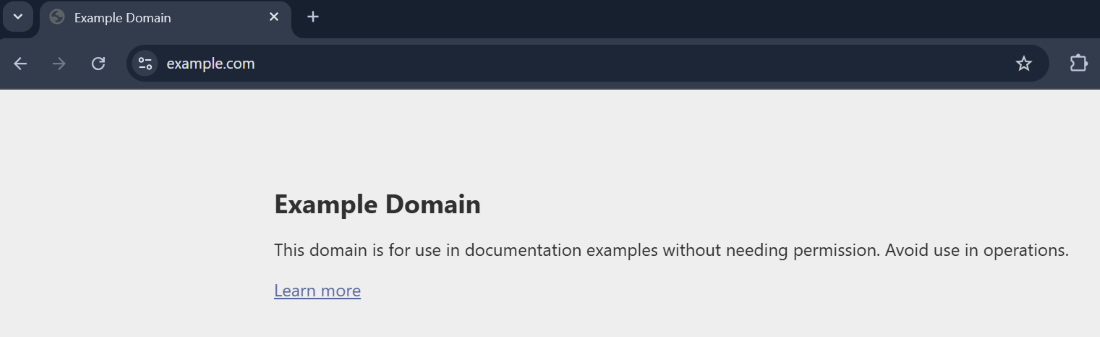
Snapshot of the webpage of URL used in the code
**Explanation:
- **html.fromstring() Converts the HTML content into a tree-like structure.
- **doc.xpath() Uses XPath expressions to extract specific HTML elements.
For more information, refer to our lxml
Urllib Module
The urllib module is a built-in Python library used for working with URLs. It helps you open web pages, read their data, parse URLs, and handle URL-related errors. It groups several useful submodules such as urllib.request, urllib.parse, urllib.error, and urllib.robotparser, making it easy to fetch and process online content.
If urllib is missing in your environment, install:
pip install urllib3
**Example: In this example, we open a webpage using urlopen(), read its HTML content, decode it into text and then print it.
Python `
import urllib.request url = 'https://www.example.com/'
try: res = urllib.request.urlopen(url) data = res.read() html = data.decode('utf-8') print(html)
except Exception as e: print("Error fetching URL:", e)
`
**Output

Snapshot of the terminal
**Explanation:
- **urlopen(url) Opens the webpage and returns a response object.
- **read() Reads the raw HTML data in bytes.
- **decode('utf-8') Converts bytes into a readable string.
- **print(html) Displays the webpage’s HTML content.
For more information, refer to urllib module
Automating UI Tasks with PyAutoGUI
PyAutoGUI allows you to automate on-screen mouse and keyboard actions. It is especially useful when Selenium cannot interact with certain elements like native pop-ups, custom menus or non-HTML components.
If PyAutoGUI is not installed, install it using:
pip install pyautogui
**Example: In this example, PyAutoGUI moves the mouse to specific screen positions and performs clicks, helping automate simple UI interactions.
Python `
import pyautogui
Move the mouse to a position on the screen
pyautogui.moveTo(519, 1060, duration=1) pyautogui.click()
Move to another position and click again
pyautogui.moveTo(1717, 352, duration=1) pyautogui.click()
`
Output

**Explanation:
- **moveTo(x, y, duration): Moves the mouse pointer to the given screen coordinates.
- **click(): Performs a left-mouse click at the current pointer location.
For more information, refer to PyAutoGUI
Scheduling Scraping Jobs with schedule
The schedule module allows you to run functions automatically at fixed time intervals. It is especially useful in web scraping when you want to collect data every few minutes, hourly, daily, or weekly without manually running the script each time.
If schedule is not installed, install it using:
pip install schedule
**Example: In this example, we schedule a simple function to run every minute. The loop keeps checking for pending jobs and executes them at the right time.
Python `
import schedule import time
def func(): print("Geeksforgeeks")
schedule.every(1).minutes.do(func)
while True: schedule.run_pending() time.sleep(1)
`
**Output

Snapshot of the terminal output after 4 minutes of running the program
**Explanation:
- **schedule.every(1).minutes.do(func): Schedules the function to run every minute.
- **run_pending(): Checks if any job is due and runs it.
- **time.sleep(1): Prevents the loop from wasting CPU by running continuously.
Why Python 3 for Web Scraping
Python 3 is the most modern and supported version of Python and it's ideal for web scraping because:
- **Readable syntax: Easy to learn and write.
- **Strong library support: Tools like BeautifulSoup and Selenium are built for it.
- **Active community: Tons of support and examples online.
- **Flexible: Can combine with data analysis, ML or APIs.