Handling WebTables in Selenium WebDriver (original) (raw)
Last Updated : 11 Aug, 2025
In Selenium WebDriver, handling web tables is a common task, especially when automating tests for web applications that display tabular data. Interacting with tables requires precise strategies to locate and interact with the rows and columns effectively.
In Selenium, the two main types of WebTables are:
1. Static WebTable
Static WebTables have a fixed structure and content that doesn't change after the page loads. The data is predefined, allowing for straightforward extraction and interaction since the number of rows and columns remains constant. Testing involves simply locating elements and retrieving values without concern for changes in the table’s structure.
2. Dynamic WebTable
Dynamic WebTables require more complex handling because the number of rows, columns, or even the data within them can vary. Selenium scripts need to account for these changes, often involving methods to wait for elements to load or to interact with controls that modify the table's content.
Handling WebTables in Selenium (For both static and Dynamic)
Create the table.html file in your local and save it with the same name. In the table.html file, include a dynamic web table. The table has an uneven arrangement of rows and columns, with the last row containing two columns and the other rows containing four columns
**table.html
HTML `
| BookName | Author | Subject | Price |
|---|---|---|---|
| Learn Selenium | John | Selenium | 100 |
| Learn Java | Joey | Java | 500 |
| Learn JS | Chandler | Javascript | 700 |
| Master In Selenium | Ross | Selenium | 1000 |
| Master In Java | Mike | JAVA | 2000 |
| Master In JS | Rachel |
`
Save the code as “.html”, then you will get an HTML table like below.
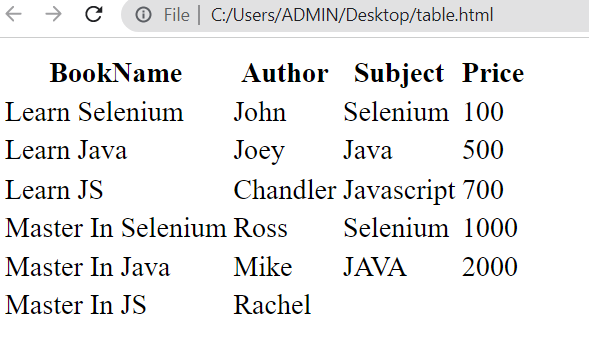
Table.html
The main problem that occurs during working with the Dynamic table is, that we cannot predict the number of rows and columns. So in this example, we will use the Selenium web driver to find the number of rows and columns. For computing the number of rows and columns, we require the Xpath of the web table.
Find the X-Path of the Table: Go to the website, Right-click on the table, and select inspect and copy the x-path.
X-Path for Columns:
/html/body/table/tbody/tr[1]/th
X-Path for Rows:
/html/body/table/tbody/tr/td[1]
Create the class with name Geeks.java and update the below code. We declared the selenium web driver object "driver" initialized it to chrome driver, and used the 'List' list of web element datatype to find the number of columns and rows.
**Geeks.java
Java `
package tests; import java.util.List; import org.openqa.selenium.By; import org.openqa.selenium.WebElement; import org.openqa.selenium.chrome.ChromeDriver; import org.testng.annotations.Test;
public class Geeks {
String columnXpath = "/html/body/table/tbody/tr[1]/th";
String rowXpath = "/html/body/table/tbody/tr/td[1]";
@Test
public void geeksforgeeks()
{
    // Please note that with Selenium 4.6.0 version, a
    // new feature is added called Selenium Manager With
    // Selenium Manager there is no need to use any
    // driver, rather Selenium can handle itself.
    System.setProperty("webdriver.chrome.driver", "C:\\Users\\path of chromedriver\\drivers\\chromedriver.exe");

    ChromeDriver driver = new ChromeDriver();

    // Maximize the browser
    driver.manage().window().maximize();

    // Launch Website
    driver.get(
        "C:\\Users\\path of file which is present\\src\\test\\java\\tests\\table.html");


    // Number of columns
    List<WebElement> col
        = driver.findElements(By.xpath(columnXpath));
    System.out.println("No of columns : " + col.size());

    // Number of rows
    List<WebElement> rows
        = driver.findElements(By.xpath(rowXpath));
    System.out.println("No of rows : " + rows.size());
    driver.close();
}
}
Python
from selenium import webdriver from selenium.webdriver.chrome.service import Service from selenium.webdriver.common.by import By
def geeksforgeeks(): # Set up the Chrome driver using Service to specify chromedriver path service = Service("C:\Users\path of chromedriver\drivers\chromedriver.exe") driver = webdriver.Chrome(service=service)
# Maximize the browser window
driver.maximize_window()

# Launch the website
driver.get("C:\\Users\\path of file\\src\\test\\java\\tests\\table.html")

# XPaths for columns and rows
columnXpath = "/html/body/table/tbody/tr[1]/th"
rowXpath = "/html/body/table/tbody/tr/td[1]"

# Find the number of columns
columns = driver.find_elements(By.XPATH, columnXpath)
print("No of columns:", len(columns))

# Find the number of rows
rows = driver.find_elements(By.XPATH, rowXpath)
print("No of rows:", len(rows))

# Close the driver
driver.quit()
Run the test
geeksforgeeks()
`
**Output:
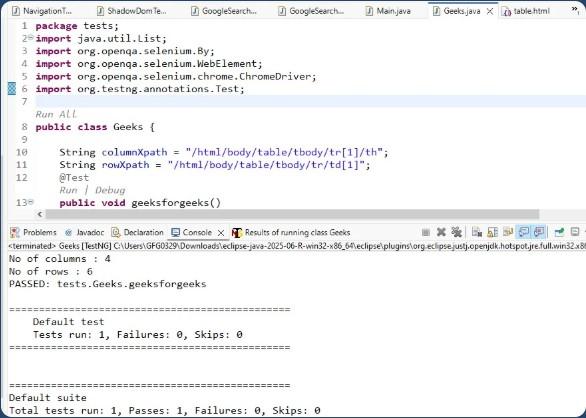
Output of handling web tables in selenium
**TestNG Tests Output:
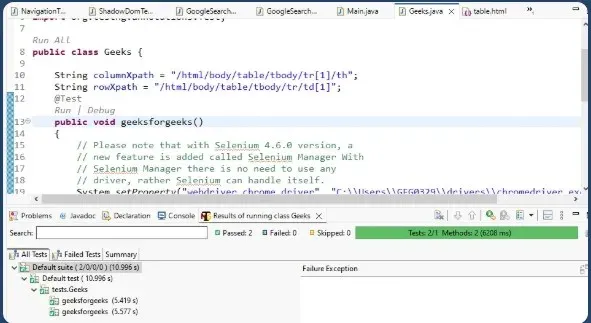
Output of handling web tables in selenium
**Python Terminal output:
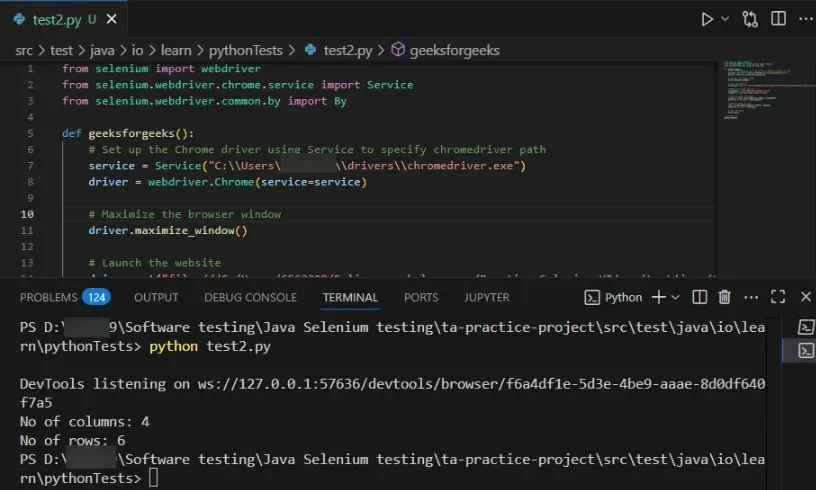
Output of handling web tables in selenium in Python
Handling web tables in Selenium WebDriver requires efficient element location strategies and the ability to navigate through rows and columns. By using WebDriver’s findElements() method you can locate the rows and columns, you can effectively interact with tables in your test automation scripts.
This approach is useful for verifying data, clicking on cells, and performing various actions on tables with dynamic content.