How to Factory Reset a Windows 11 PC? (original) (raw)
Last Updated : 23 Jul, 2025
In the ever-evolving landscape of technology, there comes a time **when you may need to factory reset a Windows 11 PC. Whether you're troubleshooting issues, preparing to sell your device, or simply looking to start fresh, a factory reset can restore your computer to its original state, wiping out all personal data and settings.
How to Factory reset a windows 11 PC?
In this comprehensive guide, we'll walk you through the process of **How to Factory Reset a Windows 11 PC, ensuring a smooth and hassle-free experience.
**Methods to Factory Reset a Windows 11 PC
- Method 1: How to Factory Reset a Windows 11 PC From Recovery Settings
- Method 2: How to Factory Reset a Windows 11 PC From the Sign-in Screen
- Method 3: How to factory reset Windows 11 using CMD
Do This Before Starting a Factory Reset!
It is important to take some precautions before jumping to factory reset.
- It is crucial to keep a copy of your valuable files and a checklist of the programs you have installed.
**Check out: Backup & Restore Files using Windows File History!
- Ensure you also have your Windows 11 license key ready as you might require it when reinstalling your computer.
Method 1: How to Factory Reset a Windows 11 PC From Recovery Settings
Reset a windows 11 is made easy via the Recovery Settings in Windows 11. The technique enables you to delete or keep private data depending on what you want. To avoid inconveniences during the process, remember to have your phone or PC connected beforehand.
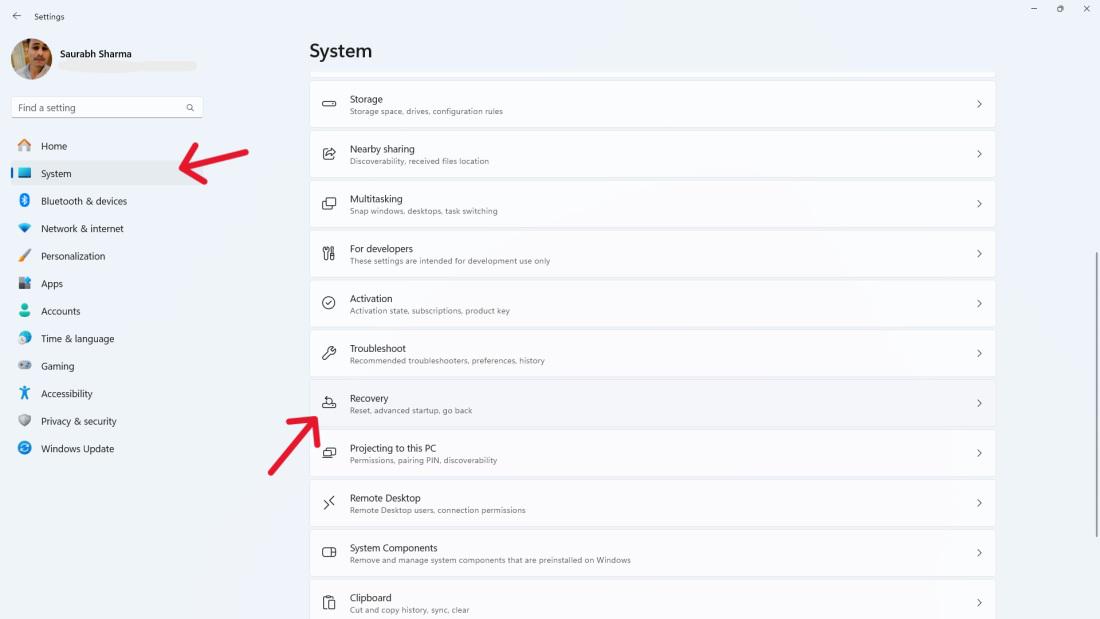
**Step 1: To begin the reset process, open settings by pressing **Win + I
**Step 2: Click on "**System," then "**Recovery" from the right-hand menu.
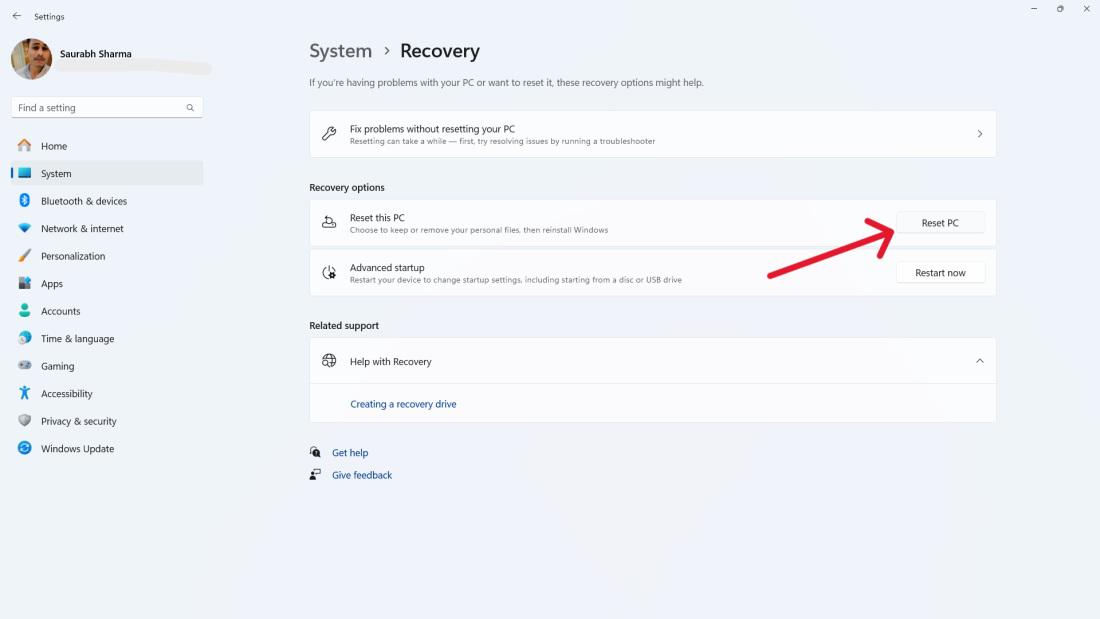
**Step 3: Click on "**Reset PC"
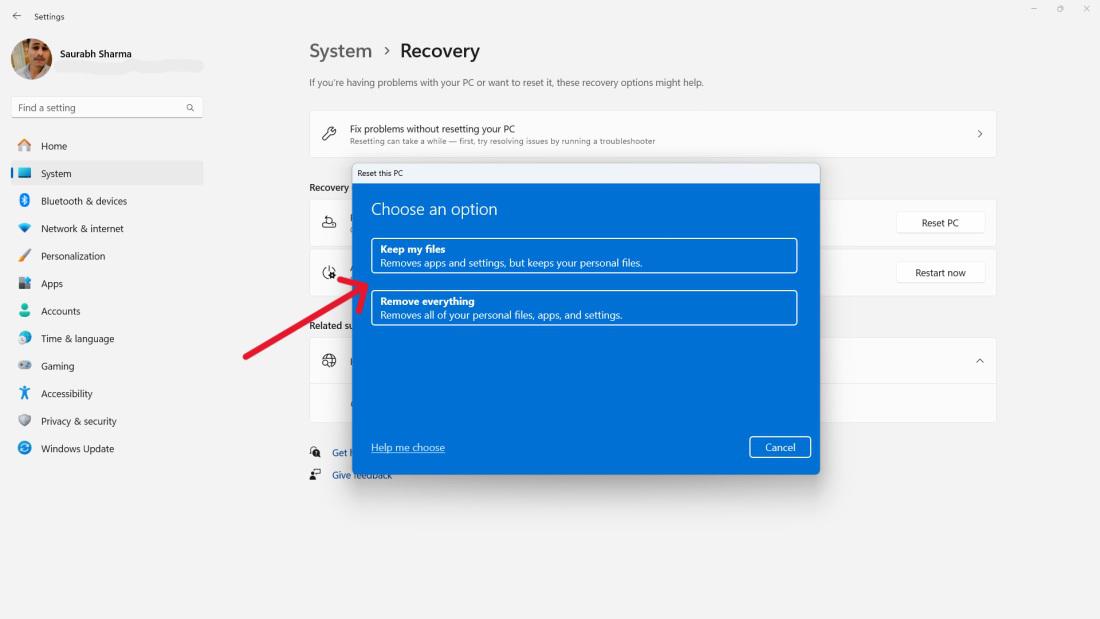
**Step 4: In the "**Reset this PC" window, choose:
- **Keep My Files: Deletes apps and settings, and keeps personal files.
- **Remove Everything: Erases apps, settings, and personal files. Use when selling or giving away your device.
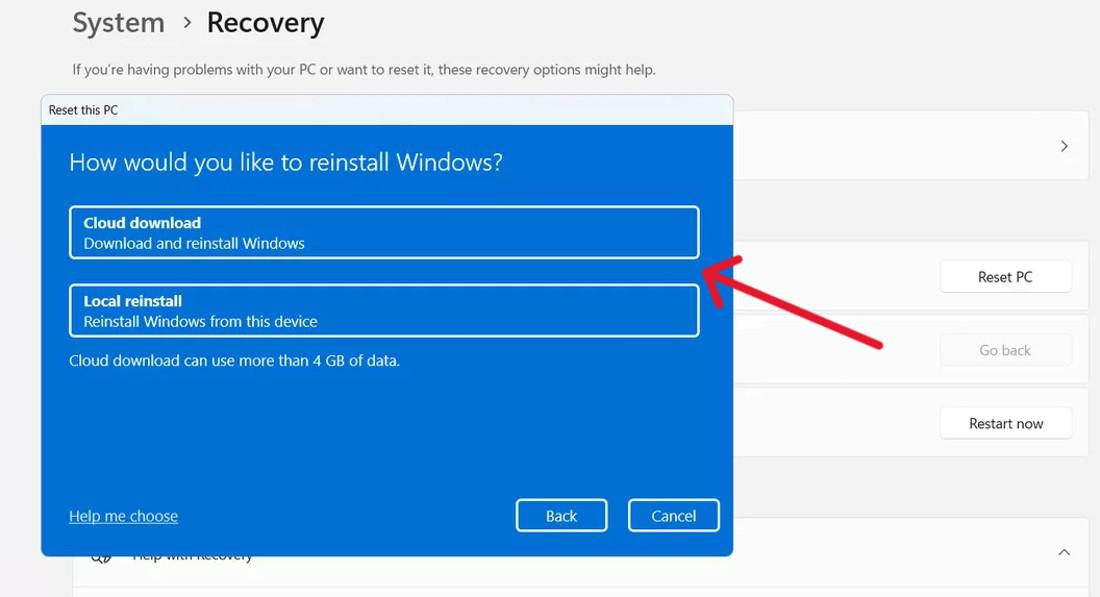
**Step 5: On the "**How Would You Like to Reinstall Windows" screen:
- **Cloud Download: To reinstall from the cloud, choose this.
- **Local Reinstall: Opt for this for a local reinstallation of Windows 11.
Method 2: How to Factory Reset a Windows 11 PC From the Sign-in Screen
**Step 1: Press **Win + L, then hold Shift, click Power, and choose **Restart.
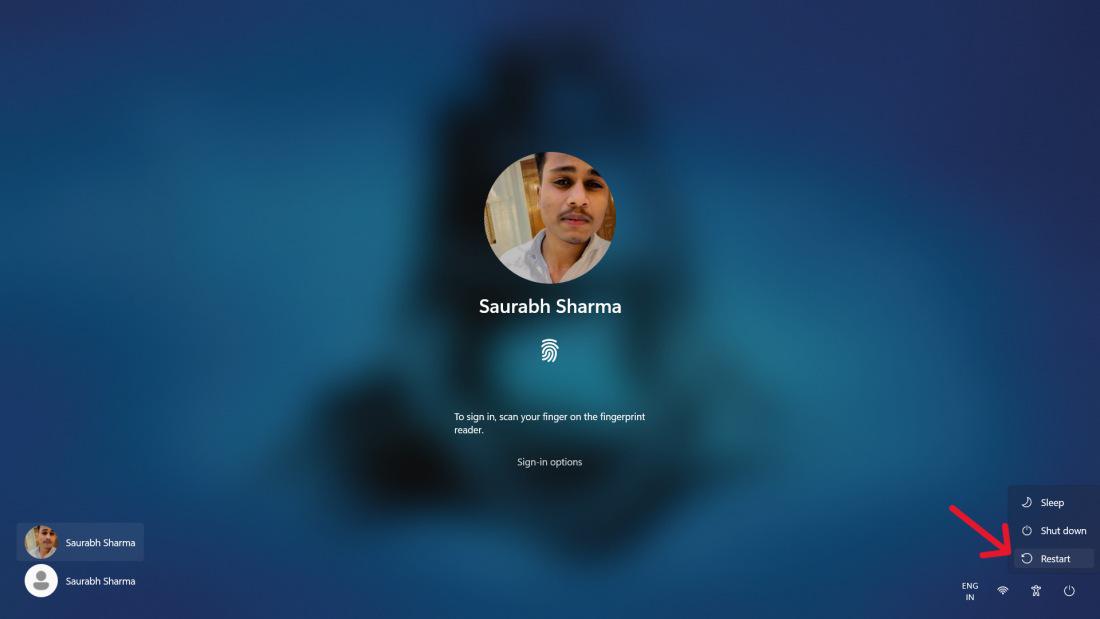
**Step 2: In Advanced Startup Options, pick **Troubleshoot > Reset this PC. Choose to keep files or remove everything, then follow earlier instructions to complete the reset.
Method 3: How to factory reset Windows 11 using CMD
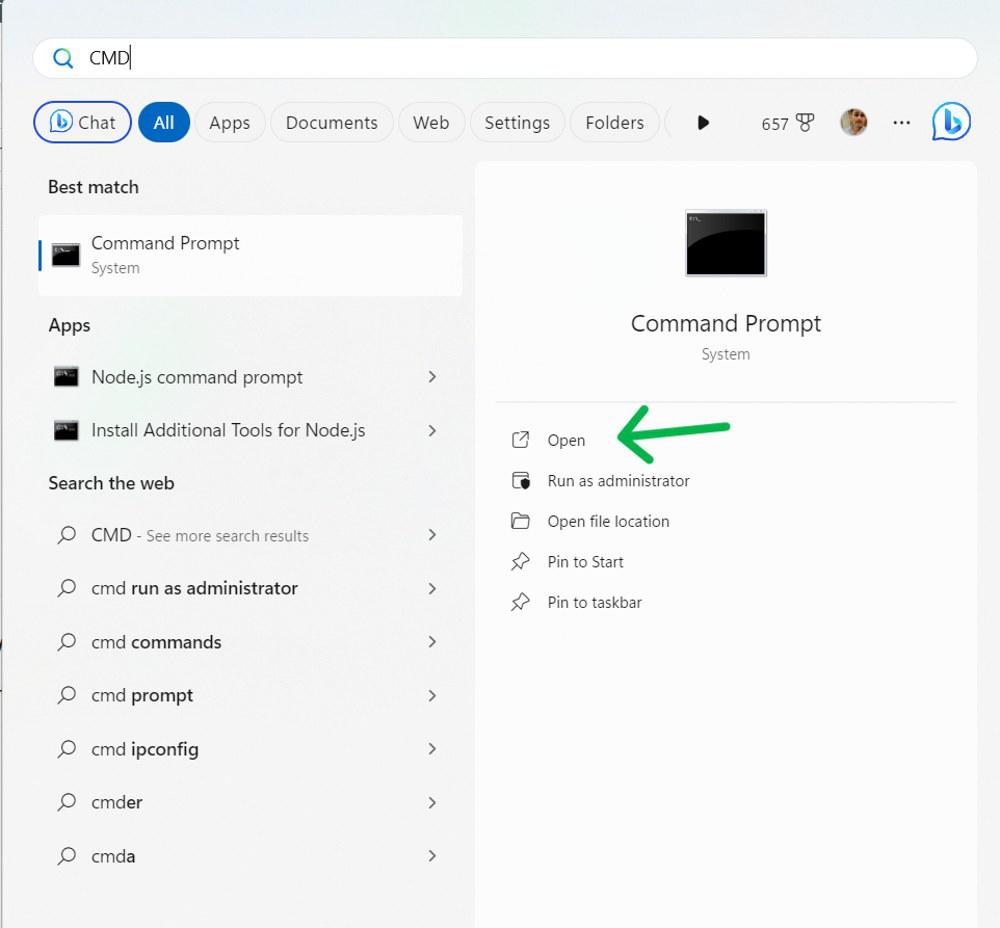
**Step 1: Click the Start button, type "**cmd" in the search bar,
**Step 2: Select "**Run as administrator" from the options.
**Step 3: Type this command and press Enter:
**Command: systemreset --factoryreset
**Step 4: You'll be presented with two options:
- **Keep my files: This moves Windows settings back to their defaults, but keeps your personal files.
- **Remove everything: This completely wipes out all data, and resets Windows to the state when it come off the assembly line.
.jpg)
**Step 5: Select the option you want and click "**Reset".
Conclusion
In Conclusion, Factory Reset a windows 11 is like starting afresh and resolves issues. Follow the steps carefully: during a reset process, you should backup your files before choosing between keeping or removing everything.
So after Factory reset your computer's performance should have improved, it will work smoothly. If not, you can enhance the performance of your PC or laptop in our next article.