How to Reinstall Windows 10 without Losing Data 3 Easy Methods (original) (raw)
Last Updated : 23 Jul, 2025
If you are facing performance issues with your PC or laptop and thinking about fixing them, then reinstalling your operating system is the best solution to fix any lagging and performance issues. But the question is, did you lose your data while performing the reinstallation of your Windows?
Well, the answer is no! You will reinstall your Windows 10 without losing a bit of data. And through this guide, you will learn various built-in methods to reinstall Windows 10 without losing data.
Table of Content
- How to Reinstall Windows 10 Without Losing Data - 3 Methods
- 1. Repair and Reinstall Windows 10 without losing Data
- 2. Reinstall Windows 10 without Losing Data
- 3. Clean & Reinstall Windows 10 without Losing Files
- Common Issues and Troubleshooting Tips During Windows Reinstallation
How to Reinstall Windows 10 Without Losing Data - 3 Methods
After applying multiple techniques to fix the system's internal difficulties, and none of them have truly worked, it could be time to completely reinstall Windows 10 to resolve all the internal issues without losing the required data. Here, we'll see 3 easy methods to reinstall Windows 10 without losing any internal data or files.
1. Repair and Reinstall Windows 10 without losing Data
Users can reinstall Windows 10 without losing internal data or programs if the system can boot up and they think everything that is installed is working. Now we'll see some easy steps to repair and install Windows 10 without losing internal data.
**Step 1: Initiate the Windows 10 Setup
Download the **Windows Media Creation tool > Create an **Installation ISO file.
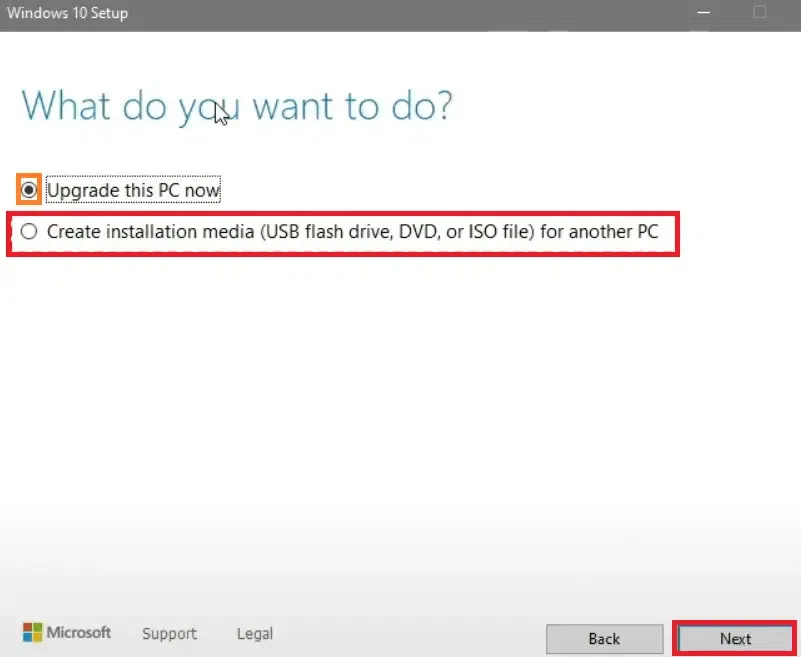
Windows Media
**Step 2: Run the EXE file
Double-click on **mount the ISO File > Double-click on run the Setup.exe file.
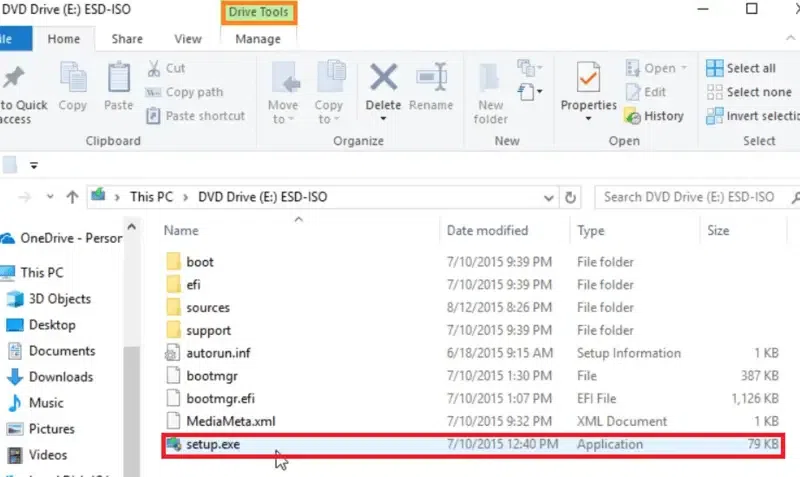
Run .exe file
**Step 3: Check for Updates
Windows 10 setup is ready > **Download Updates.
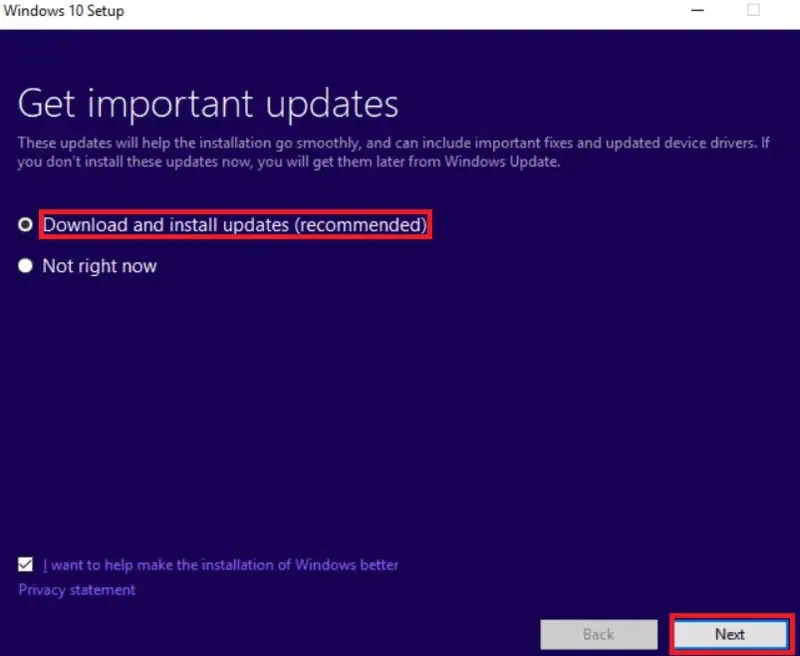
Get Important Updates
**Step 4: Confirm to Setup
Click on **Change what to keep option and select an option as per your preference, which shows "**Keep personal files, apps, and Windows settings", "**Keep personal files only", or "**Nothing".Confirm the selected option > Click on **Refresh.
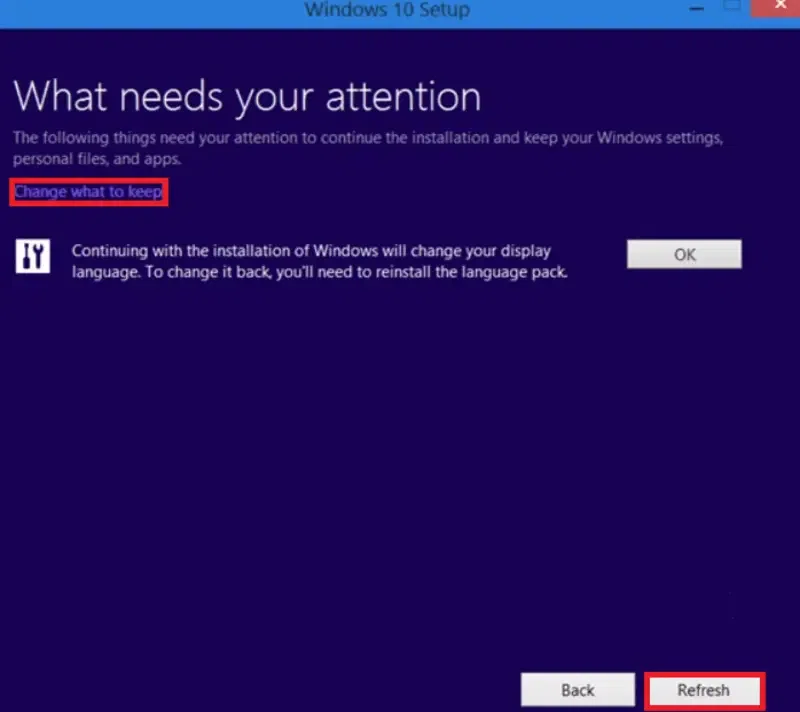
Change what to keep
2. Reinstall Windows 10 without Losing Data
With Windows 10, users may use the "**Reset this PC" tool to help fix system issues by returning the internal system to its original configuration and properties. Now, we'll see the required steps to install Windows 10 without losing personal files or data.
**Step 1: Go to Settings > Reset this PC
Go to **Settings > **Update & Security > **Recovery > **Reset your PC > **Get Started.
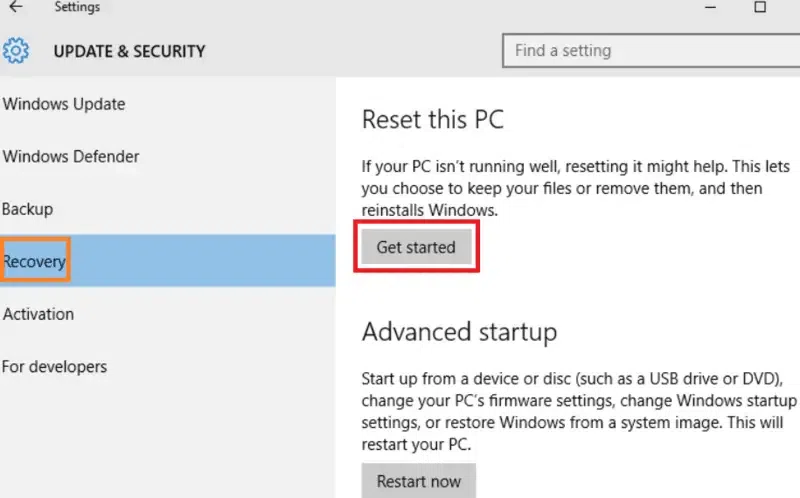
Recovery
**Step 2: Enter the Troubleshoot Mode
Another way, **Create a Recovery Drive > Choose **Keyboard Layout> Select **Troubleshoot > **Reset your PC.
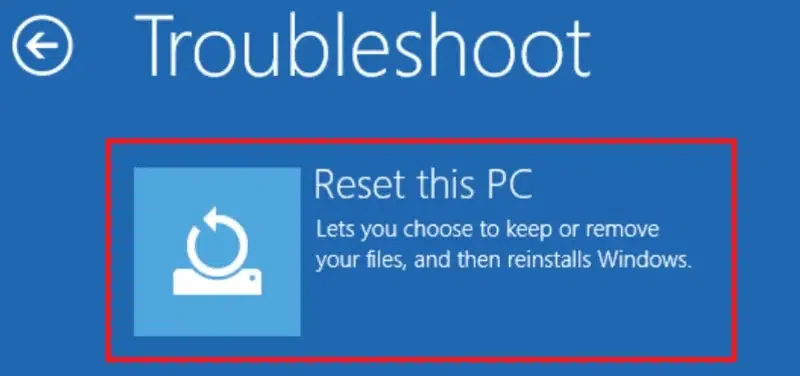
Troubleshoot
**Step 3: Choose to "Keep" or "Remove" files
When users select the Reset PC option, they can see two options "**Keep my Files" and "**Remove Everything" > Select the "**Keep my Files" option and click to "Reset".
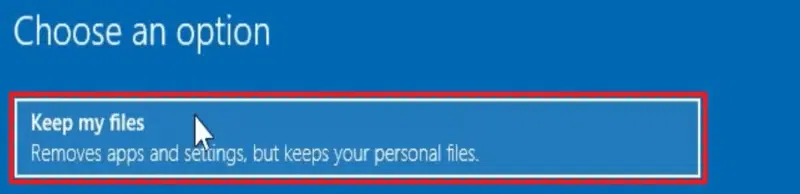
Choose an option
3. Clean & Reinstall Windows 10 without Losing Files
This method can be used to upgrade Windows 10 if users would rather not lose internal games or other important data from USB drives or installation disk management. Now we'll see some easy steps to clean and install Windows 10 without losing personal files.
**Step 1: Go to Windows Setup to start
Insert **Installation disc > Boot from it (If not present, user can install Windows media creation tool)
**Step 2: Select Language & Proceed to Install
Select **Language & Keyboard > Click on **Next. Now, Click on "**Install Now" > Type user **Product Key (or skip it).
**Step 3: Select the Dedicated Drive
Select the installation type as "**Custom" > Select the **C: proceed **Drive > Click **Next to proceed.
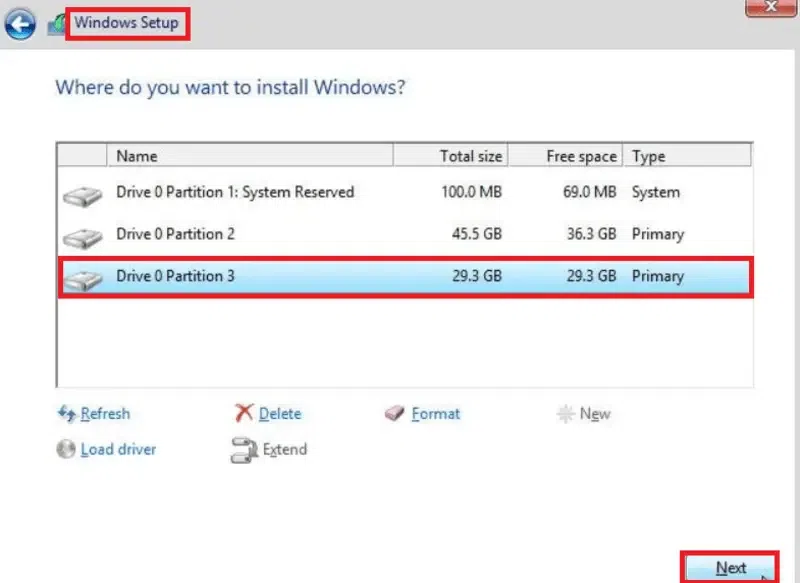
Windows setup
Common Issues and Troubleshooting Tips During Windows Reinstallation
While reinstalling Windows 10 without a CD or USB is generally straightforward, users may encounter some issues during the process. Below are some of the most common problems and troubleshooting tips to help you resolve them:
**1. Windows 10 Reset or Reinstall Fails to Start
When attempting to reset or reinstall Windows 10 via the "Reset this PC" option, you may see an error message or the process may fail to start.
**Possible Causes:
- Corrupted system files
- Issues with the recovery partition
- Lack of disk space or insufficient system resources
**Troubleshooting Tips:
- **Run Automatic Repair: If you cannot reset the PC normally, try booting into the **Windows Recovery Environment (WinRE) and select **Startup Repair.
- **Check Disk Space: Make sure your system partition has enough free space to complete the reinstallation. You can use a disk cleanup tool or external storage to free up space.
- **Use the Command Prompt: In WinRE, open **Command Prompt and run the following command to repair the system files:
sfc /scannow
This will check for any corrupted files and attempt to fix them.
2. **Error: "There was a problem resetting your PC"
During the reset process, you might encounter the error message, "There was a problem resetting your PC," preventing the reinstallation.
**Possible Causes:
- Corrupted or missing system files
- A damaged recovery partition
- Conflicting software or settings
**Troubleshooting Tips:
- **Check the Recovery Partition: Ensure that the recovery partition is intact. If it's missing or corrupted, you may not be able to use the reset function. In such cases, using the **Cloud Download method might be a viable solution.
- **Perform a System Restore: If the reset option doesn't work, try performing a system restore to a previous point where Windows was functioning properly.
- **Use DISM Tool: Open the **Command Prompt in WinRE and run the following command to fix corrupted system files:
DISM /Online /Cleanup-Image /RestoreHealth
3. **Reinstallation Process is Stuck or Frozen
The reinstallation process may get stuck or freeze during certain stages, such as "Preparing" or "Installing."
**Possible Causes:
- Slow or unstable internet connection (for cloud-based reinstallations)
- Insufficient hardware resources (RAM or CPU)
- Corrupted Windows installation files
**Troubleshooting Tips:
- **Check Your Internet Connection: If you're using **Cloud Download, ensure that your internet connection is stable and fast enough to download the necessary installation files. A slow connection could cause the process to freeze or fail.
- **Restart the Installation: If the process seems stuck, try restarting your computer and reattempting the reinstallation. If you're using a recovery partition, ensure it hasn't been altered or corrupted.
- **Use Safe Mode: If the system is stuck at a certain point, boot into **Safe Mode (press **F8 or **Shift + F8 during startup) and attempt the reset from there.
4. **Error Message: "Windows Cannot be Installed"
While trying to reinstall Windows 10, you may see an error message that says, "Windows cannot be installed" or "The installation cannot proceed."
**Possible Causes:
- Hard drive partitioning issues
- Compatibility problems with your system hardware
- A damaged or full hard drive
**Troubleshooting Tips:
- **Check Hard Drive Health: Use tools like **CHKDSK or **CrystalDiskInfo to check the health of your hard drive. If there are any issues, consider replacing the hard drive before proceeding with the installation.
- **Fix Partition Issues: If the problem is related to partitioning, boot into **Command Prompt and use **diskpart to clean the drive and create a new partition:
diskpart
list disk
select disk 0
clean
exit
After cleaning the disk, try the reinstallation again.
5. **Missing Drivers After Reinstallation
After reinstalling Windows 10, some drivers (like for graphics, Wi-Fi, or sound) may be missing or not functioning properly.
**Possible Causes:
- Windows did not automatically install the correct drivers
- Drivers were not included in the recovery partition or cloud installation
**Troubleshooting Tips:
- **Install Drivers Manually: Visit the official manufacturer's website for your PC or device and download the latest drivers. Install them manually to ensure full compatibility.
- **Use Windows Update: After reinstalling, check for updates by going to **Settings > Update & Security and selecting **Check for Updates. Sometimes, Windows Update will automatically detect and install missing drivers.
- **Driver Update Software: You can also use third-party software like **Driver Booster or **DriverPack Solution to find and install missing or outdated drivers.
6. **PC is Unable to Boot After Reinstallation
After reinstalling Windows 10, your PC might fail to boot up properly or enter into a boot loop.
**Possible Causes:
- Corrupted bootloader
- Incorrect boot settings in BIOS
- Issues with the hard drive or SSD
**Troubleshooting Tips:
- **Repair the Bootloader: Boot into **WinRE, open **Command Prompt, and run the following commands to fix the bootloader:
bootrec /fixmbr
bootrec /fixboot
bootrec /rebuildbcd - **Check Boot Order in BIOS: Ensure that your hard drive or SSD is set as the primary boot device in your BIOS settings.
- **Perform System Repair: Use the **Startup Repair option in WinRE to automatically detect and fix boot problems.
Conclusion
Reinstalling Windows 10 without losing your data is not only possible but also straightforward when you follow the correct procedures. By using the three methods explained above can help user also, you can address system issues, improve performance, and ensure a clean installation while keeping your files and applications safe. Regularly backing up your data and staying up to date about the latest Windows 10 features can further enhance your experience and prevent future bugs or problems.
Also Read