How to Reinstall Windows 10 without CD/USB Easily? (original) (raw)
Last Updated : 23 Jul, 2025
Reinstalling Windows 10 without a CD or USB might sound like a challenge, but it's actually more straightforward than you might think. In many cases, reinstalling the Windows system can help you, like if the PC is not working as normal, the computer is running slower than usual, you are encountering frequent errors, or you simply need a fresh start. Using the built-in recovery tools or cloud services can breathe new life into your system.
In this guide, we'll walk you through the step-by-step process to reinstall Windows 10 without a CD or USB, ensuring that you keep your system clean and will also address some common issues during reinstallation.
Table of Content
- Why Reinstall Windows 10?
- How to Reinstall Windows 10 Without CD or USB - 4 Methods
- 1. Using the "Reset This PC" Feature
- 2. Reinstall the Windows 10 OS with ISO Files
- 3. Using the "System Image Recovery" Tool
- 4. Reinstall Windows using the "WinRE"
Why Reinstall Windows 10?
Reinstalling Windows 10 can be a powerful solution for addressing a variety of issues and improving your computer's performance. Here are some common reasons why you might consider reinstalling the operating system:
**1. Fixing System Errors
Over time, Windows can encounter errors such as missing files, corrupted system components, or software conflicts. Reinstalling Windows can repair these problems by providing a fresh installation.
2. **Improving System Performance
A cluttered system with unnecessary files, outdated drivers, and residual software can slow down your PC. Reinstalling Windows can give your computer a clean slate, resulting in faster performance and improved responsiveness.
3. **Removing Malware or Viruses
If your computer has been infected with persistent malware or viruses that antivirus programs can't fully remove, reinstalling Windows is a sure way to eliminate these threats and ensure your system is secure.
3. **System Errors or Corruption
Windows files can become corrupted due to failed updates, hardware issues, or system crashes. If you’re experiencing frequent crashes or system instability, reinstalling Windows 10 can often resolve these issues by restoring the OS to a clean state.
4. **Recovering from Software Glitches
Issues like frequent crashes, system freezes, or applications not working as expected can often be resolved by reinstalling Windows, as it resets the system to its default state.
How to Reinstall Windows 10 Without CD or USB - 4 Methods
There are specific methods that you can try to reinstall the Windows 10 software version on your PC. The processes can get complex to handle for non-technical users. So, it is best to go through the steps carefully to avoid any errors.
1. **Using the "Reset This PC" Feature
One of the best options for reinstalling Windows 10 without losing any files is to try the Reset This PC feature. This is a preset feature Microsoft included in the Windows 10 software, which users can operate for this process without any key. Also, while using this method, you can choose to remove the files or keep them on the device. Let's break it down in easy steps to perform this method.
**Step 1: Go to **Settings > Update & Security > Recovery
- Click on the **Start menu and go to the **Settings option from the **search field.

Settings
- Under the Settings menu, click on Update & Security and choose the Recovery option.

Windows Update
**Step 2: **Select Reset this PC & click on "**Get Started"
- Next, tap on the **Get Started button under Reset this PC.

Recovery
- In case your system suffered from issues after Windows 10 upgrading, you should tap the Get Started button under Recovery for the earlier build/OS version available.
**Step 3: **Choose Your Option:
- **Keep my files: To reinstall Windows while keeping your personal files. (all apps and settings will be removed.)
- **Remove everything: For a Fresh Windows 10 Installation.
- Pick a selection for continuing ahead. Then, choose the **“Keep my files” option to save your data during the reinstallation process.
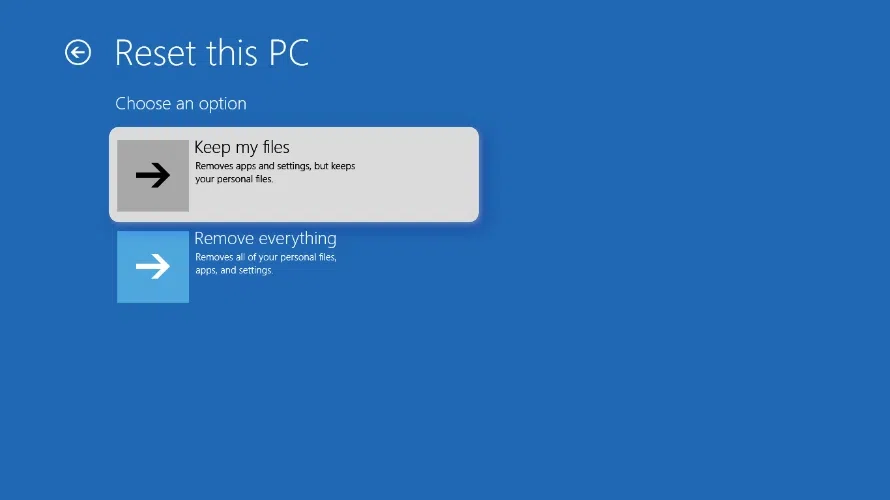
Reset This PC
**Step 4: Follow the on-screen Instructions
- In the next pop-up alert, tap on Next to open the “**Ready to reset this PC” window. Under this section, click on the Reset key to continue with the reinstallation process without losing personal files.

Ready to Reset
**2. Reinstall the Windows 10 OS with ISO Files
If your PC is bootable and the size of the internal hard drive is significantly large, users can use this method. You can save the ISO file type into the PC which is later used for making a DVD. There is no need to use a USB drive or CD, but users must download the EasyBCD software. This is a free app that is usable on different PC types. Let's check the detailed steps below:
**Step 1: Visit the Official Site and Download the ISO file
- Go to the official Microsoft website and **download the available media creation tool that will work on your PC. Next, the “What do you want to do?” interface will appear.

Windows 10 Setup
- Now, Click on the “**Create Installation media for another PC” option and then choose Next.
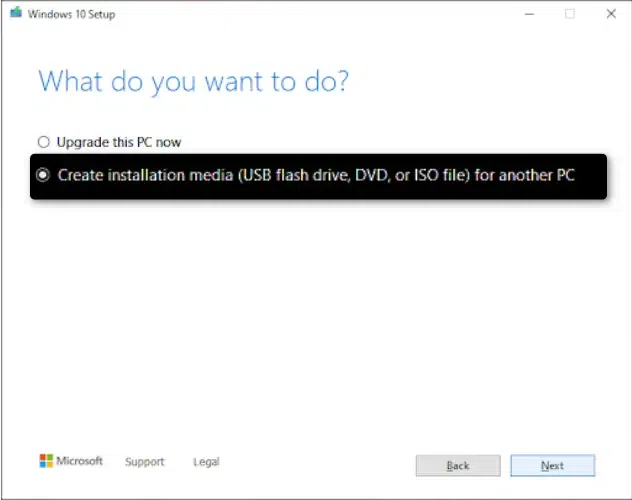
win 10 setup
**Step 2: Choose which Media to use
- Next, choose the Windows 10 edition, language, and architecture (32-bit/64-bit) fit for your PC click on the ISO file under the media type selection, and press **Next. Rename this file as Windows 10.
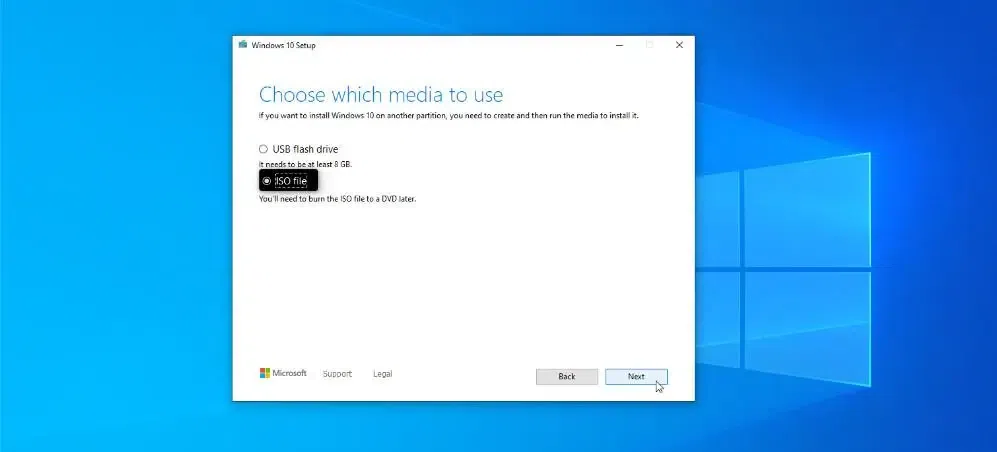
Choose Media
**Step 3: Proceed to Complete the Installation
- Proceed with the installation by following the on-screen prompts. Choose whether to keep your files or perform a clean install.
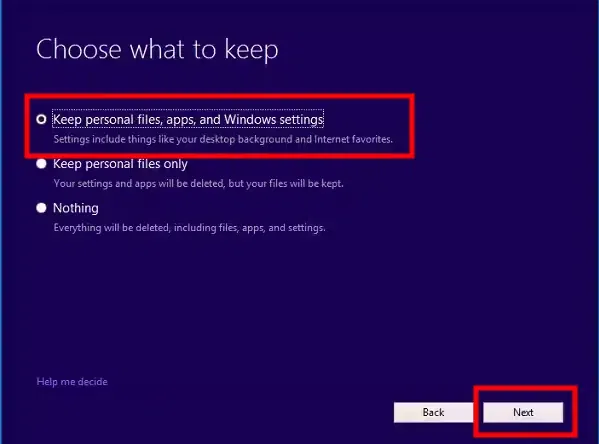
Proceed
**Note: This method requires a valid ISO file and enough free disk space to complete the Windows 10 Installation.
4. **Reinstall Windows using the "WinRE"
- If your system is not booting, the **Windows Recovery Environment (WinRE) offers tools to reinstall Windows without external media. Let's check out the steps below:
Step 1: Access WinRE (Windows Recovery Environment)
- If your system isn't booting, Windows will enter **WinRE after several failed boot attempts. Alternatively, hold **Shift and select **Restart.
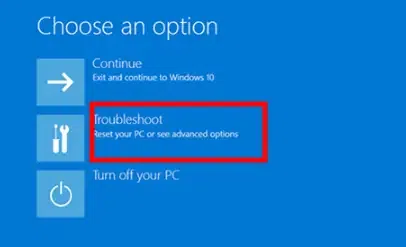
Troubleshoot
**Step 2: Choose Advanced Startup
- Once in WinRE, select **Troubleshoot > Reset this PC.
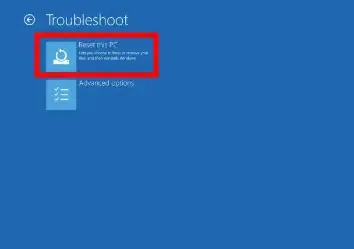
Reset this PC
Step 3: Follow the Prompts
- Choose whether to keep your files or remove everything, then select the User Account. It will now ask for Password to continue. Now, follow the instructions to reinstall Windows.
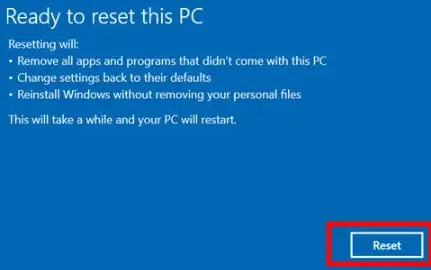
Ready to Reset
**Note: This method can be accessed even if Windows isn’t booting properly. Just ensure that the PC must be able to reach WinRE.
**4. Using the "System Image Recovery" Tool (Alternative Method)
- You can prepare a system image to reinstall Windows 10 and use it to process whether the PC boots up well or otherwise. But first, prepare a recovery drive using reliable third-party data backup software.
- After creating the backup of all of the available files in the system, you can restore it to the PC at a later time for suitable reinstallation. Let's check it out:
**Step 1: Launch the third-party tool > Create a backup
- Install and launch Backup software (such as Ease use, minitool, etc.) and choose Create a Backup. Then tap on the “Select backup contents” option.
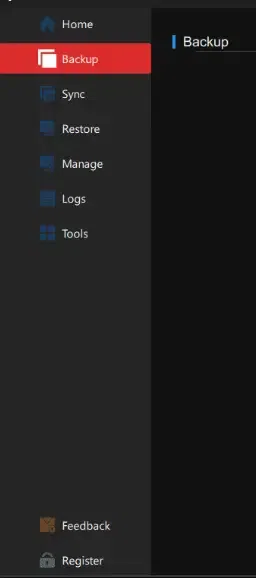
Create Backup
**Step 2: Choose Backup File & Prepare your System
- Next, choose the OS option to back up the Windows system.
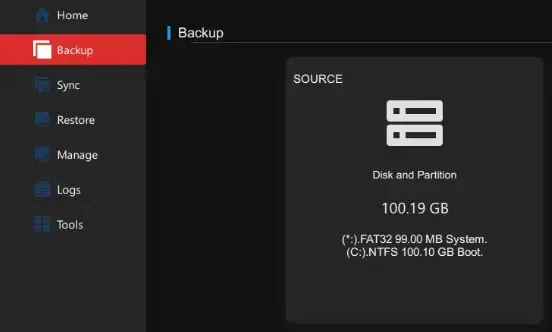
Choose Backup
All of the data in your system OS, type the system files/partitions will get selected automatically. Choose the saving destination location.
**Step 3: Proceed to Start the Backup
Make customization-based settings configurations like activation of the schedule for the automatic backup, like monthly, weekly, daily, or specific events. Then, tap on Backup Now.
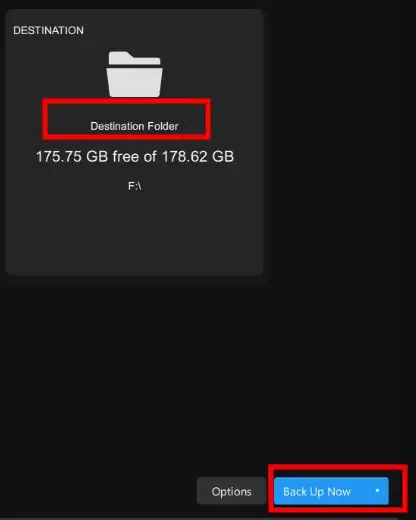
Backup Now
**Step 4: Schedule Backup for Future Reference
Go to the destination you selected for the backup and choose the backed-up pbd file. Press OK. Select the recovery disk, keeping the partition style the same as the source disk here. Make disk layout customization as needed and then click on “Back Up Now”.
**Conclusion
Reinstalling Windows 10 without a CD or USB is both convenient and effective, especially when your system is facing performance issues, malware infections, or corruption. With options like **Reset this PC, **WinRE, **System Image Recovery Tool & **ISO file installation, you have multiple ways to restore your system. Remember to back up your files before proceeding and follow the steps carefully to ensure a smooth process.
Whether you're aiming for better performance, removing viruses, or just cleaning up your system, reinstalling Windows 10 is a useful skill that will help extend the life of your PC and improve your user experience.