Data Visualization with Python (original) (raw)
Last Updated : 23 Jul, 2025
In today's world, a lot of data is being generated on a daily basis. And sometimes to analyze this data for certain trends, patterns may become difficult if the data is in its raw format. To overcome this data visualization comes into play. Data visualization provides a good, organized pictorial representation of the data which makes it easier to understand, observe, analyze. In this tutorial, we will discuss how to visualize data using Python.
Python provides various libraries that come with different features for visualizing data. All these libraries come with different features and can support various types of graphs. In this tutorial, we will be discussing four such libraries.
- Matplotlib
- Seaborn
- Bokeh
- Plotly
We will discuss these libraries one by one and will plot some most commonly used graphs.
Note: If you want to learn in-depth information about these libraries you can follow their complete tutorial.
Before diving into these libraries, at first, we will need a database to plot the data. We will be using the tips database for this complete tutorial. Let's discuss see a brief about this database.
Database Used
Tips Database
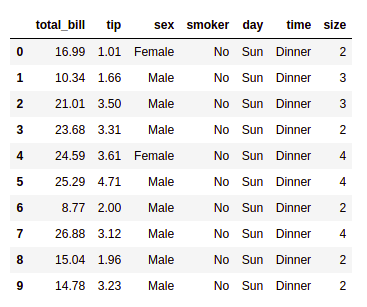
Tips database is the record of the tip given by the customers in a restaurant for two and a half months in the early 1990s. It contains 6 columns such as total_bill, tip, sex, smoker, day, time, size.
You can download the tips database from here.
Example:
Python3 `
import pandas as pd
reading the database
data = pd.read_csv("tips.csv")
printing the top 10 rows
display(data.head(10))
`
Output:
Matplotlib
Matplotlib is an easy-to-use, low-level data visualization library that is built on NumPy arrays. It consists of various plots like scatter plot, line plot, histogram, etc. Matplotlib provides a lot of flexibility.
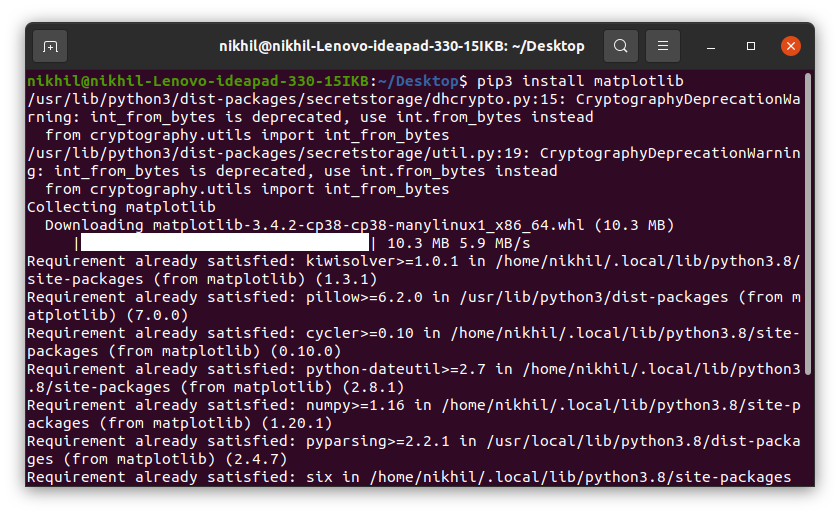
To install this type the below command in the terminal.
pip install matplotlib
Refer to the below articles to get more information setting up an environment with Matplotlib.
After installing Matplotlib, let's see the most commonly used plots using this library.
Scatter Plot
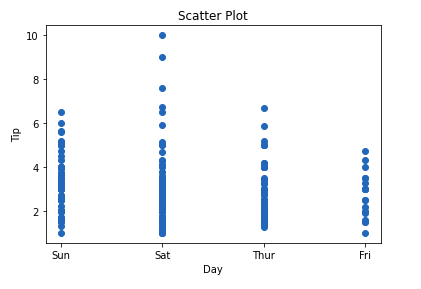
Scatter plots are used to observe relationships between variables and uses dots to represent the relationship between them. The scatter() method in the matplotlib library is used to draw a scatter plot.
Example:
Python3 `
import pandas as pd import matplotlib.pyplot as plt
reading the database
data = pd.read_csv("tips.csv")
Scatter plot with day against tip
plt.scatter(data['day'], data['tip'])
Adding Title to the Plot
plt.title("Scatter Plot")
Setting the X and Y labels
plt.xlabel('Day') plt.ylabel('Tip')
plt.show()
`
Output:
This graph can be more meaningful if we can add colors and also change the size of the points. We can do this by using the c and s parameterrespectivelyof the scatter function. We can also show the color bar using the colorbar() method.
Example:
Python3 `
import pandas as pd import matplotlib.pyplot as plt
reading the database
data = pd.read_csv("tips.csv")
Scatter plot with day against tip
plt.scatter(data['day'], data['tip'], c=data['size'], s=data['total_bill'])
Adding Title to the Plot
plt.title("Scatter Plot")
Setting the X and Y labels
plt.xlabel('Day') plt.ylabel('Tip')
plt.colorbar()
plt.show()
`
Output:
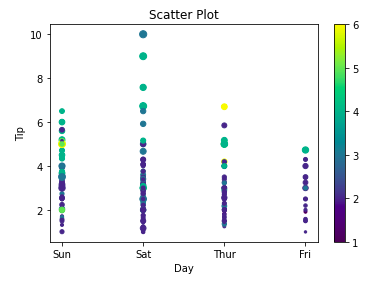
Line Chart
Line Chart is used to represent a relationship between two data X and Y on a different axis. It is plotted using the plot() function. Let’s see the below example.
Example:
Python3 `
import pandas as pd import matplotlib.pyplot as plt
reading the database
data = pd.read_csv("tips.csv")
Scatter plot with day against tip
plt.plot(data['tip']) plt.plot(data['size'])
Adding Title to the Plot
plt.title("Scatter Plot")
Setting the X and Y labels
plt.xlabel('Day') plt.ylabel('Tip')
plt.show()
`
Output:
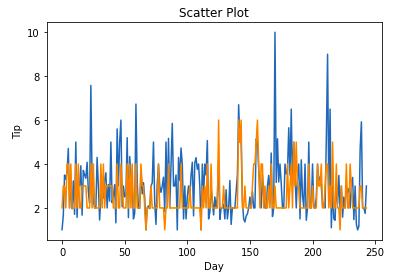
Bar Chart
A bar plot or bar chart is a graph that represents the category of data with rectangular bars with lengths and heights that is proportional to the values which they represent. It can be created using the bar() method.
Example:
Python3 `
import pandas as pd import matplotlib.pyplot as plt
reading the database
data = pd.read_csv("tips.csv")
Bar chart with day against tip
plt.bar(data['day'], data['tip'])
plt.title("Bar Chart")
Setting the X and Y labels
plt.xlabel('Day') plt.ylabel('Tip')
Adding the legends
plt.show()
`
Output:
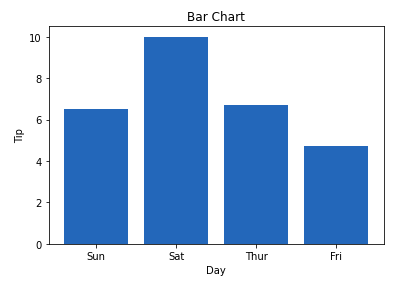
Histogram
A histogram is basically used to represent data in the form of some groups. It is a type of bar plot where the X-axis represents the bin ranges while the Y-axis gives information about frequency. The hist() function is used to compute and create a histogram. In histogram, if we pass categorical data then it will automatically compute the frequency of that data i.e. how often each value occurred.
Example:
Python3 `
import pandas as pd import matplotlib.pyplot as plt
reading the database
data = pd.read_csv("tips.csv")
histogram of total_bills
plt.hist(data['total_bill'])
plt.title("Histogram")
Adding the legends
plt.show()
`
Output:
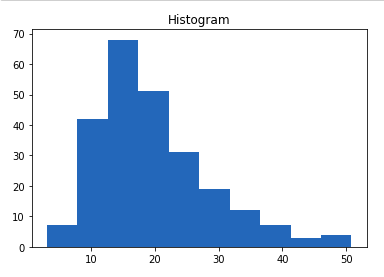
Note: For complete Matplotlib Tutorial, refer Matplotlib Tutorial
Seaborn
Seaborn is a high-level interface built on top of the Matplotlib. It provides beautiful design styles and color palettes to make more attractive graphs.
To install seaborn type the below command in the terminal.
pip install seaborn
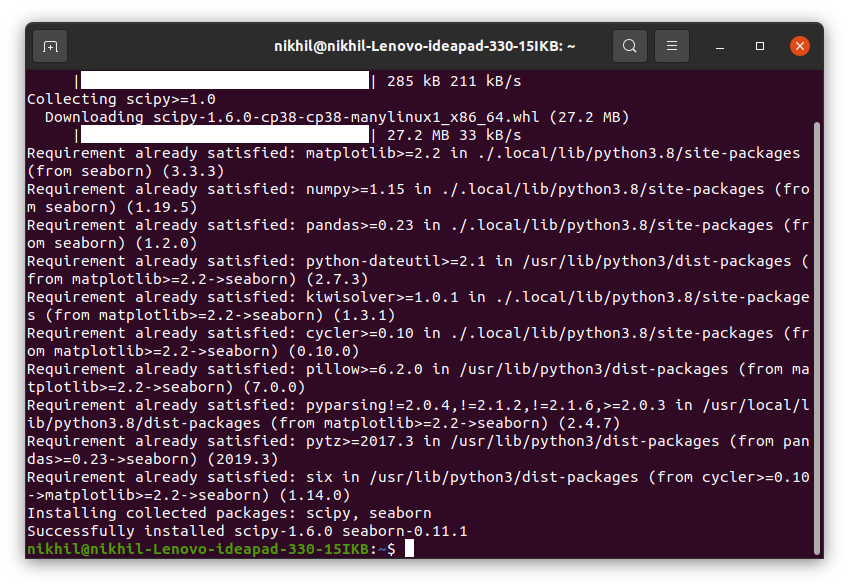
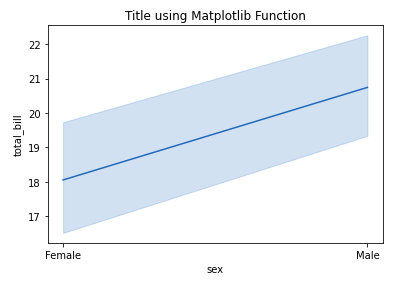
Seaborn is built on the top of Matplotlib, therefore it can be used with the Matplotlib as well. Using both Matplotlib and Seaborn together is a very simple process. We just have to invoke the Seaborn Plotting function as normal, and then we can use Matplotlib’s customization function.
Note: Seaborn comes loaded with dataset such as tips, iris, etc. but for the sake of this tutorial we will use Pandas for loading these datasets.
Example:
Python3 `
importing packages
import seaborn as sns import matplotlib.pyplot as plt import pandas as pd
reading the database
data = pd.read_csv("tips.csv")
draw lineplot
sns.lineplot(x="sex", y="total_bill", data=data)
setting the title using Matplotlib
plt.title('Title using Matplotlib Function')
plt.show()
`
Output:
Scatter Plot
Scatter plot is plotted using the scatterplot() method. This is similar to Matplotlib, but additional argument data is required.
Example:
Python3 `
importing packages
import seaborn as sns import matplotlib.pyplot as plt import pandas as pd
reading the database
data = pd.read_csv("tips.csv")
sns.scatterplot(x='day', y='tip', data=data,) plt.show()
`
Output:
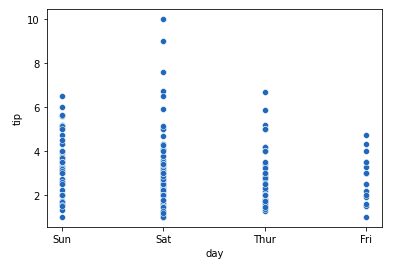
You will find that while using Matplotlib it will a lot difficult if you want to color each point of this plot according to the sex. But in scatter plot it can be done with the help of hue argument.
Example:
Python3 `
importing packages
import seaborn as sns import matplotlib.pyplot as plt import pandas as pd
reading the database
data = pd.read_csv("tips.csv")
sns.scatterplot(x='day', y='tip', data=data, hue='sex') plt.show()
`
Output:

Line Plot
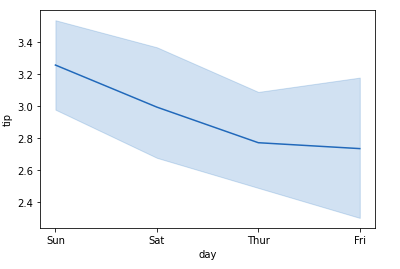
Line Plot in Seaborn plotted using the lineplot() method. In this, we can pass only the data argument also.
Example:
Python3 `
importing packages
import seaborn as sns import matplotlib.pyplot as plt import pandas as pd
reading the database
data = pd.read_csv("tips.csv")
sns.lineplot(x='day', y='tip', data=data) plt.show()
`
Output:
Example 2:
Python3 `
importing packages
import seaborn as sns import matplotlib.pyplot as plt import pandas as pd
reading the database
data = pd.read_csv("tips.csv")
using only data attribute
sns.lineplot(data=data.drop(['total_bill'], axis=1)) plt.show()
`
Output:
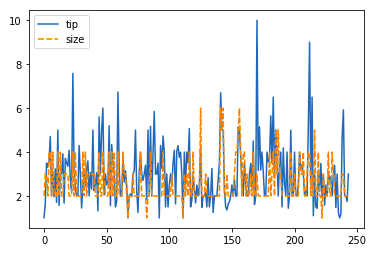
Bar Plot
Bar Plot in Seaborn can be created using the barplot() method.
Example:
Python3 `
importing packages
import seaborn as sns import matplotlib.pyplot as plt import pandas as pd
reading the database
data = pd.read_csv("tips.csv")
sns.barplot(x='day',y='tip', data=data, hue='sex')
plt.show()
`
Output:
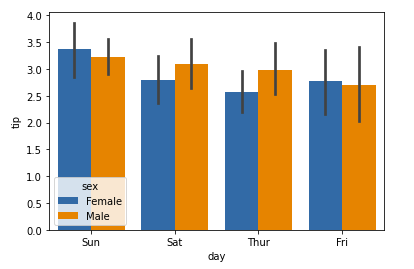
Histogram
The histogram in Seaborn can be plotted using the histplot() function.
Example:
Python3 `
importing packages
import seaborn as sns import matplotlib.pyplot as plt import pandas as pd
reading the database
data = pd.read_csv("tips.csv")
sns.histplot(x='total_bill', data=data, kde=True, hue='sex')
plt.show()
`
Output:
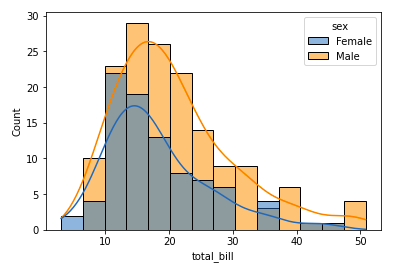
After going through all these plots you must have noticed that customizing plots using Seaborn is a lot more easier than using Matplotlib. And it is also built over matplotlib then we can also use matplotlib functions while using Seaborn.
Note: For complete Seaborn Tutorial, refer Python Seaborn Tutorial
Bokeh
Let's move on to the third library of our list. Bokeh is mainly famous for its interactive charts visualization. Bokeh renders its plots using HTML and JavaScript that uses modern web browsers for presenting elegant, concise construction of novel graphics with high-level interactivity.
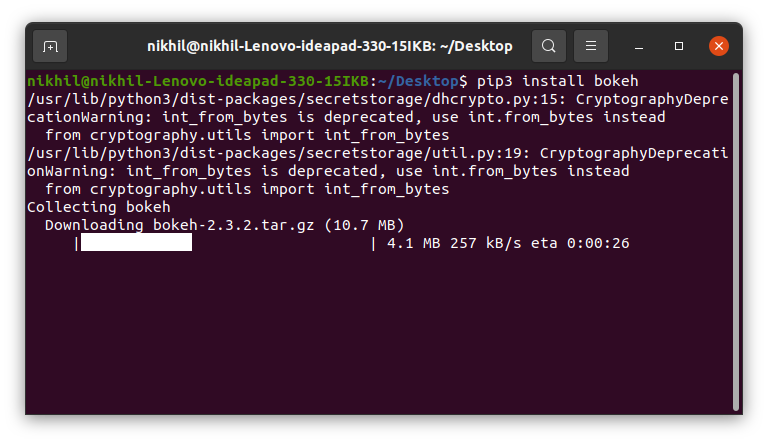
To install this type the below command in the terminal.
pip install bokeh
Scatter Plot
Scatter Plot in Bokeh can be plotted using the scatter() method of the plotting module. Here pass the x and y coordinates respectively.
Example:
Python3 `
importing the modules
from bokeh.plotting import figure, output_file, show from bokeh.palettes import magma import pandas as pd
instantiating the figure object
graph = figure(title = "Bokeh Scatter Graph")
reading the database
data = pd.read_csv("tips.csv")
color = magma(256)
plotting the graph
graph.scatter(data['total_bill'], data['tip'], color=color)
displaying the model
show(graph)
`
Output:
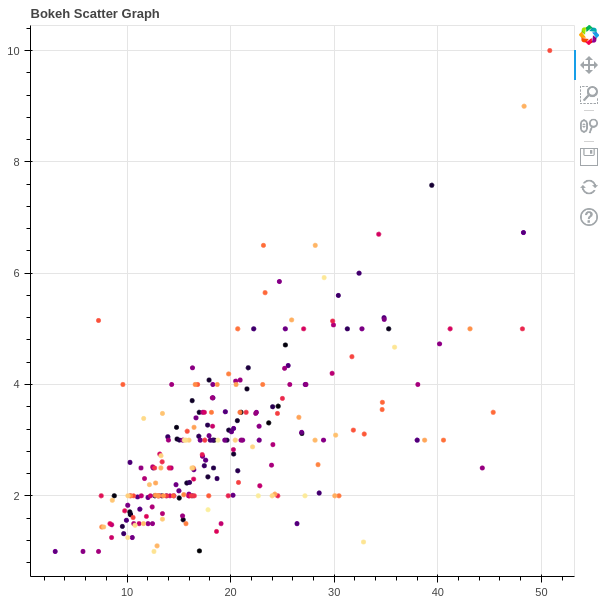
Line Chart
A line plot can be created using the line() method of the plotting module.
Example:
Python3 `
importing the modules
from bokeh.plotting import figure, output_file, show import pandas as pd
instantiating the figure object
graph = figure(title = "Bokeh Bar Chart")
reading the database
data = pd.read_csv("tips.csv")
Count of each unique value of
tip column
df = data['tip'].value_counts()
plotting the graph
graph.line(df, data['tip'])
displaying the model
show(graph)
`
Output:
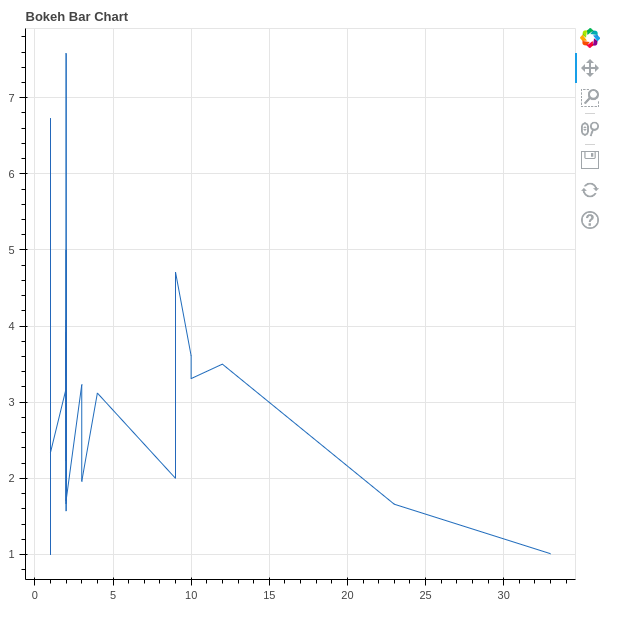
Bar Chart
Bar Chart can be of two types horizontal bars and vertical bars. Each can be created using the hbar() and vbar() functions of the plotting interface respectively.
Example:
Python3 `
importing the modules
from bokeh.plotting import figure, output_file, show import pandas as pd
instantiating the figure object
graph = figure(title = "Bokeh Bar Chart")
reading the database
data = pd.read_csv("tips.csv")
plotting the graph
graph.vbar(data['total_bill'], top=data['tip'])
displaying the model
show(graph)
`
Output:
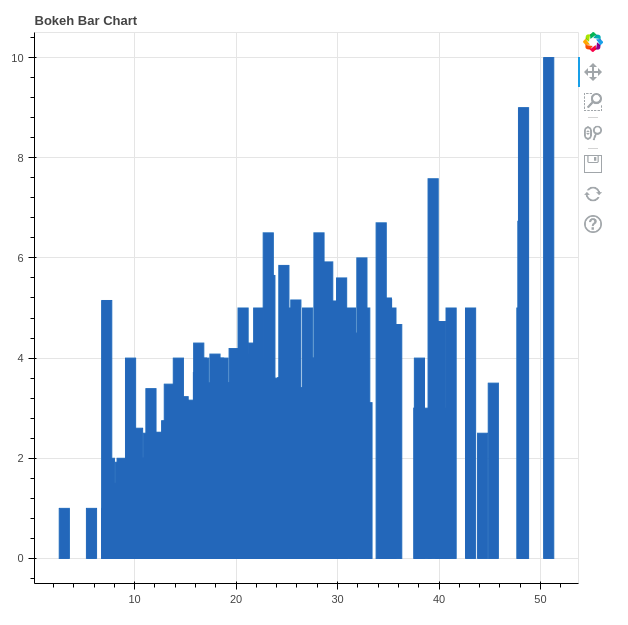
Interactive Data Visualization
One of the key features of Bokeh is to add interaction to the plots. Let's see various interactions that can be added.
Interactive Legends
click_policy property makes the legend interactive. There are two types of interactivity –
- Hiding: Hides the Glyphs.
- Muting: Hiding the glyph makes it vanish completely, on the other hand, muting the glyph just de-emphasizes the glyph based on the parameters.
Example:
Python3 `
importing the modules
from bokeh.plotting import figure, output_file, show import pandas as pd
instantiating the figure object
graph = figure(title = "Bokeh Bar Chart")
reading the database
data = pd.read_csv("tips.csv")
plotting the graph
graph.vbar(data['total_bill'], top=data['tip'], legend_label = "Bill VS Tips", color='green')
graph.vbar(data['tip'], top=data['size'], legend_label = "Tips VS Size", color='red')
graph.legend.click_policy = "hide"
displaying the model
show(graph)
`
Output:
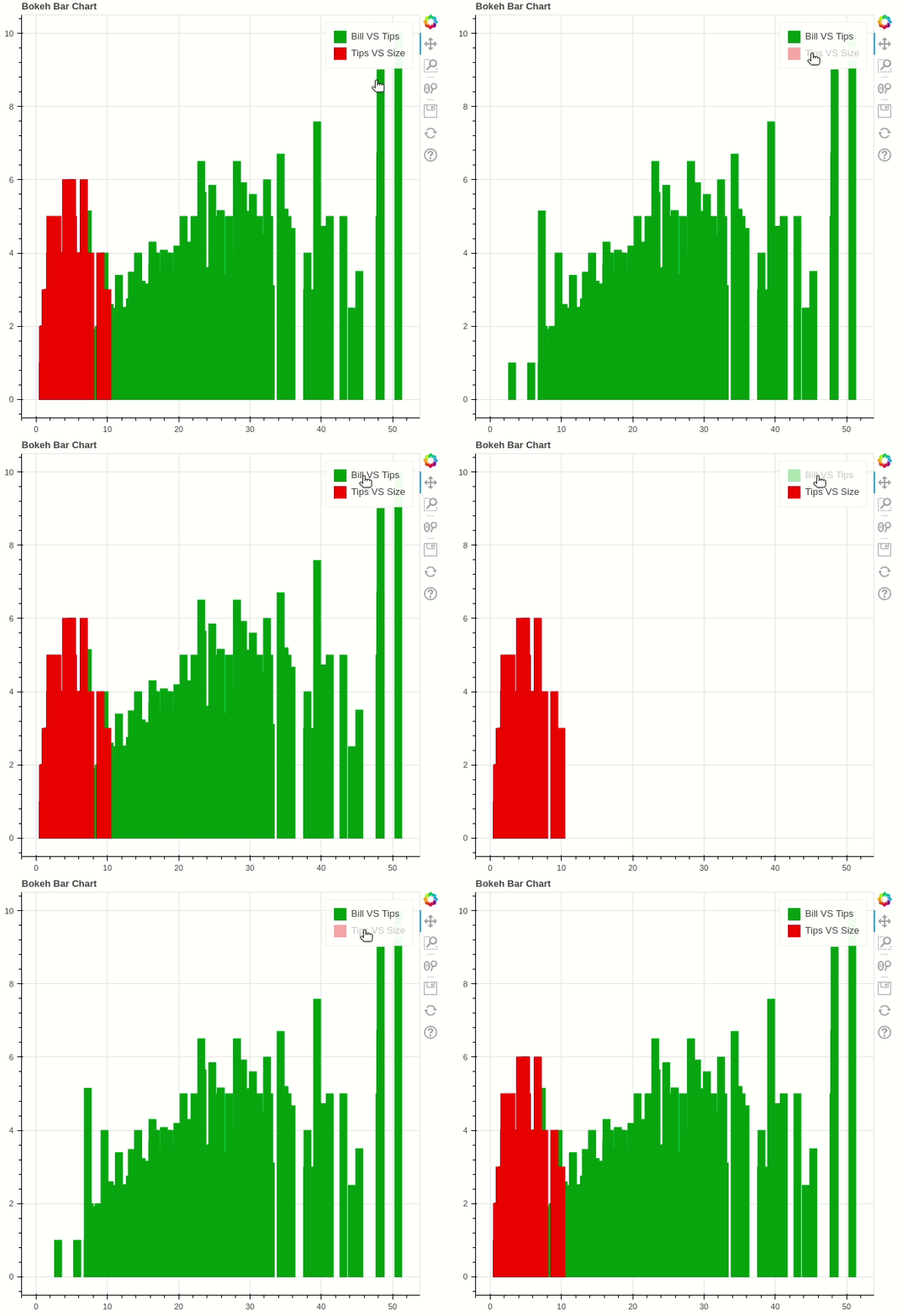
Adding Widgets
Bokeh provides GUI features similar to HTML forms like buttons, sliders, checkboxes, etc. These provide an interactive interface to the plot that allows changing the parameters of the plot, modifying plot data, etc. Let’s see how to use and add some commonly used widgets.
- Buttons: This widget adds a simple button widget to the plot. We have to pass a custom JavaScript function to the CustomJS() method of the models class.
- CheckboxGroup: Adds a standard check box to the plot. Similarly to buttons we have to pass the custom JavaScript function to the CustomJS() method of the models class.
- RadioGroup: Adds a simple radio button and accepts a custom JavaScript function.
Example:
Python3 `
from bokeh.io import show from bokeh.models import Button, CheckboxGroup, RadioGroup, CustomJS
button = Button(label="GFG")
button.js_on_click(CustomJS( code="console.log('button: click!', this.toString())"))
Labels for checkbox and radio
buttons
L = ["First", "Second", "Third"]
the active parameter sets checks the selected value
by default
checkbox_group = CheckboxGroup(labels=L, active=[0, 2])
checkbox_group.js_on_click(CustomJS(code=""" console.log('checkbox_group: active=' + this.active, this.toString()) """))
the active parameter sets checks the selected value
by default
radio_group = RadioGroup(labels=L, active=1)
radio_group.js_on_click(CustomJS(code=""" console.log('radio_group: active=' + this.active, this.toString()) """))
show(button) show(checkbox_group) show(radio_group)
`
Output:



Note: All these buttons will be opened on a new tab.
- Sliders: Adds a slider to the plot. It also needs a custom JavaScript function.
Example:
Python3 `
from bokeh.io import show from bokeh.models import CustomJS, Slider
slider = Slider(start=1, end=20, value=1, step=2, title="Slider")
slider.js_on_change("value", CustomJS(code=""" console.log('slider: value=' + this.value, this.toString()) """))
show(slider)
`
Output:
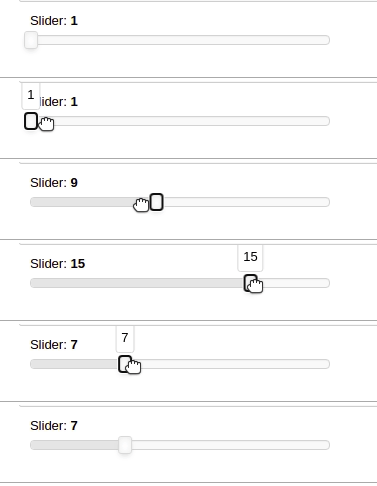
Similarly, much more widgets are available like a dropdown menu or tabs widgets can be added.
Note: For complete Bokeh tutorial, refer Python Bokeh tutorial – Interactive Data Visualization with Bokeh
Plotly
This is the last library of our list and you might be wondering why plotly. Here's why -
- Plotly has hover tool capabilities that allow us to detect any outliers or anomalies in numerous data points.
- It allows more customization.
- It makes the graph visually more attractive.
To install it type the below command in the terminal.
pip install plotly
Scatter Plot
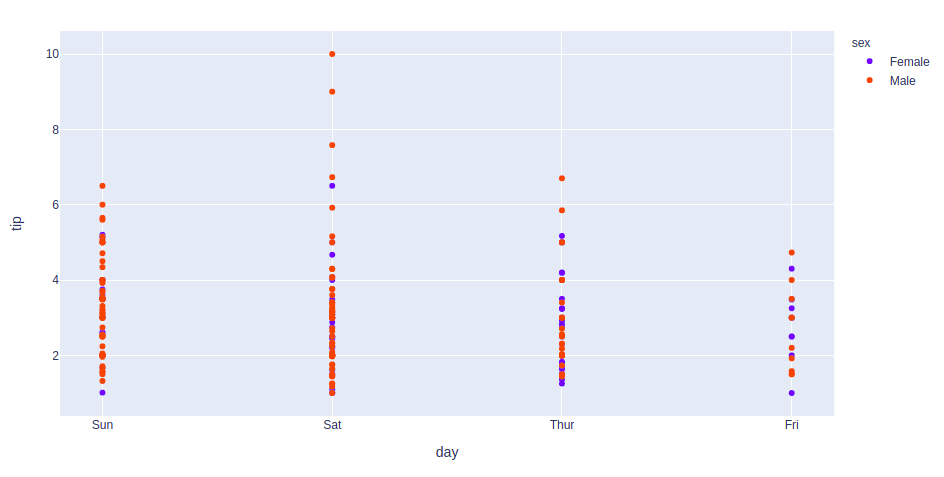
Scatter plot in Plotly can be created using the scatter() method of plotly.express. Like Seaborn, an extra data argument is also required here.
Example:
Python3 `
import plotly.express as px import pandas as pd
reading the database
data = pd.read_csv("tips.csv")
plotting the scatter chart
fig = px.scatter(data, x="day", y="tip", color='sex')
showing the plot
fig.show()
`
Output:
Line Chart
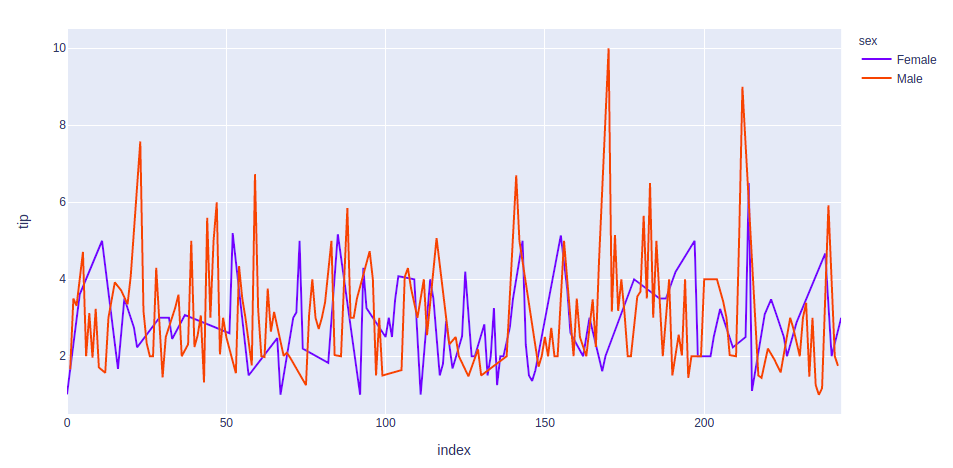
Line plot in Plotly is much accessible and illustrious annexation to plotly which manage a variety of types of data and assemble easy-to-style statistic. With px.line each data position is represented as a vertex
Example:
Python3 `
import plotly.express as px import pandas as pd
reading the database
data = pd.read_csv("tips.csv")
plotting the scatter chart
fig = px.line(data, y='tip', color='sex')
showing the plot
fig.show()
`
Output:
Bar Chart
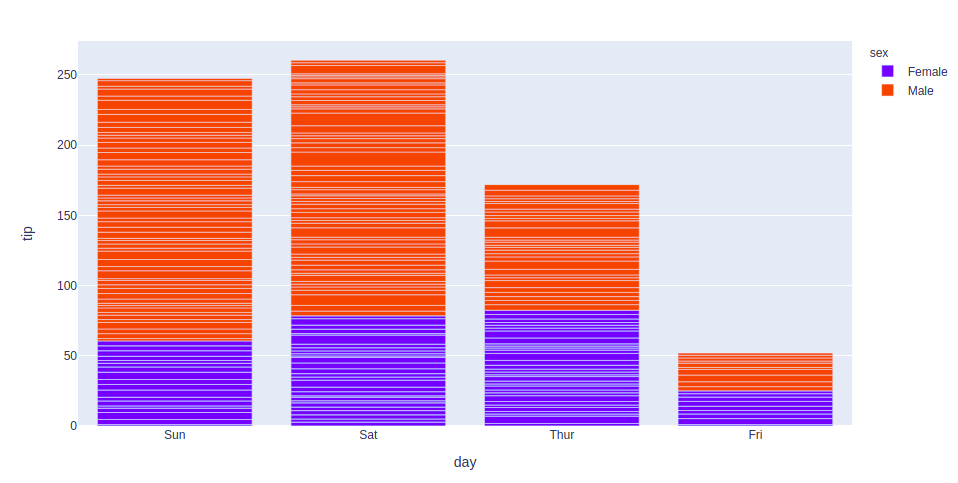
Bar Chart in Plotly can be created using the bar() method of plotly.express class.
Example:
Python3 `
import plotly.express as px import pandas as pd
reading the database
data = pd.read_csv("tips.csv")
plotting the scatter chart
fig = px.bar(data, x='day', y='tip', color='sex')
showing the plot
fig.show()
`
Output:
Histogram
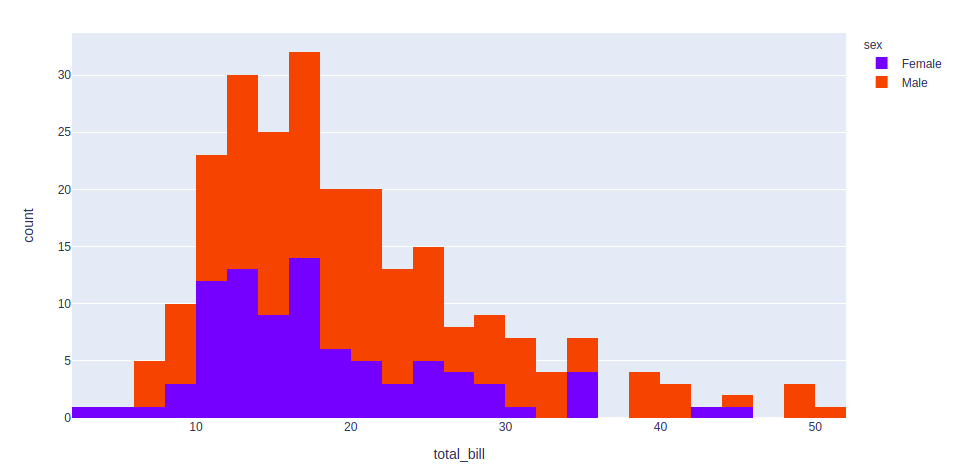
In plotly, histograms can be created using the histogram() function of the plotly.express class.
Example:
Python3 `
import plotly.express as px import pandas as pd
reading the database
data = pd.read_csv("tips.csv")
plotting the scatter chart
fig = px.histogram(data, x='total_bill', color='sex')
showing the plot
fig.show()
`
Output:
Adding interaction
Just like Bokeh, plotly also provides various interactions. Let's discuss a few of them.
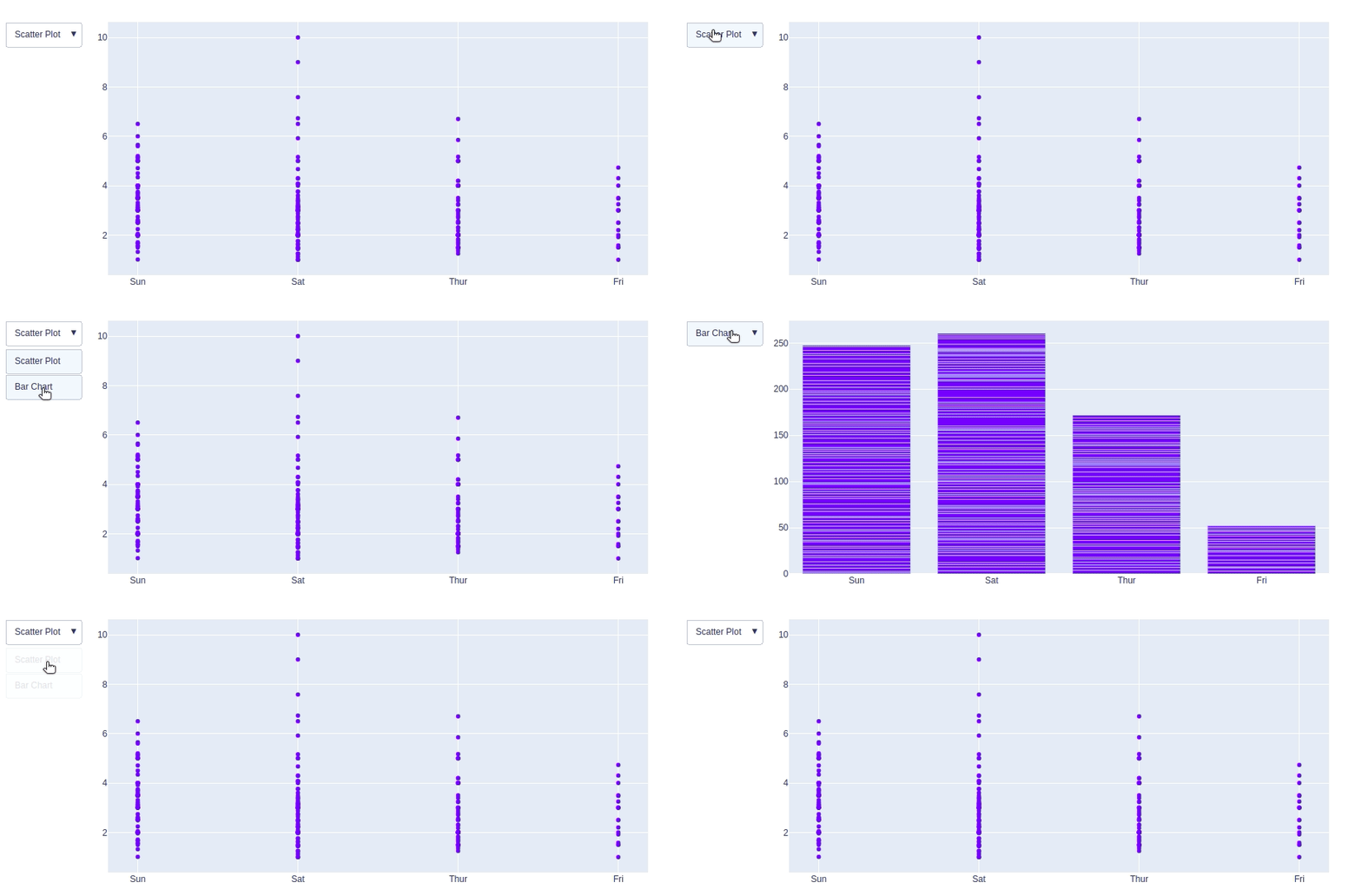
Creating Dropdown Menu: A drop-down menu is a part of the menu-button which is displayed on a screen all the time. Every menu button is associated with a Menu widget that can display the choices for that menu button when clicked on it. In plotly, there are 4 possible methods to modify the charts by using updatemenu method.
- restyle: modify data or data attributes
- relayout: modify layout attributes
- update: modify data and layout attributes
- animate: start or pause an animation
Example:
Python3 `
import plotly.graph_objects as px import pandas as pd
reading the database
data = pd.read_csv("tips.csv")
plot = px.Figure(data=[px.Scatter( x=data['day'], y=data['tip'], mode='markers',) ])
Add dropdown
plot.update_layout( updatemenus=[ dict( buttons=list([ dict( args=["type", "scatter"], label="Scatter Plot", method="restyle" ), dict( args=["type", "bar"], label="Bar Chart", method="restyle" ) ]), direction="down", ), ] )
plot.show()
`
Output:
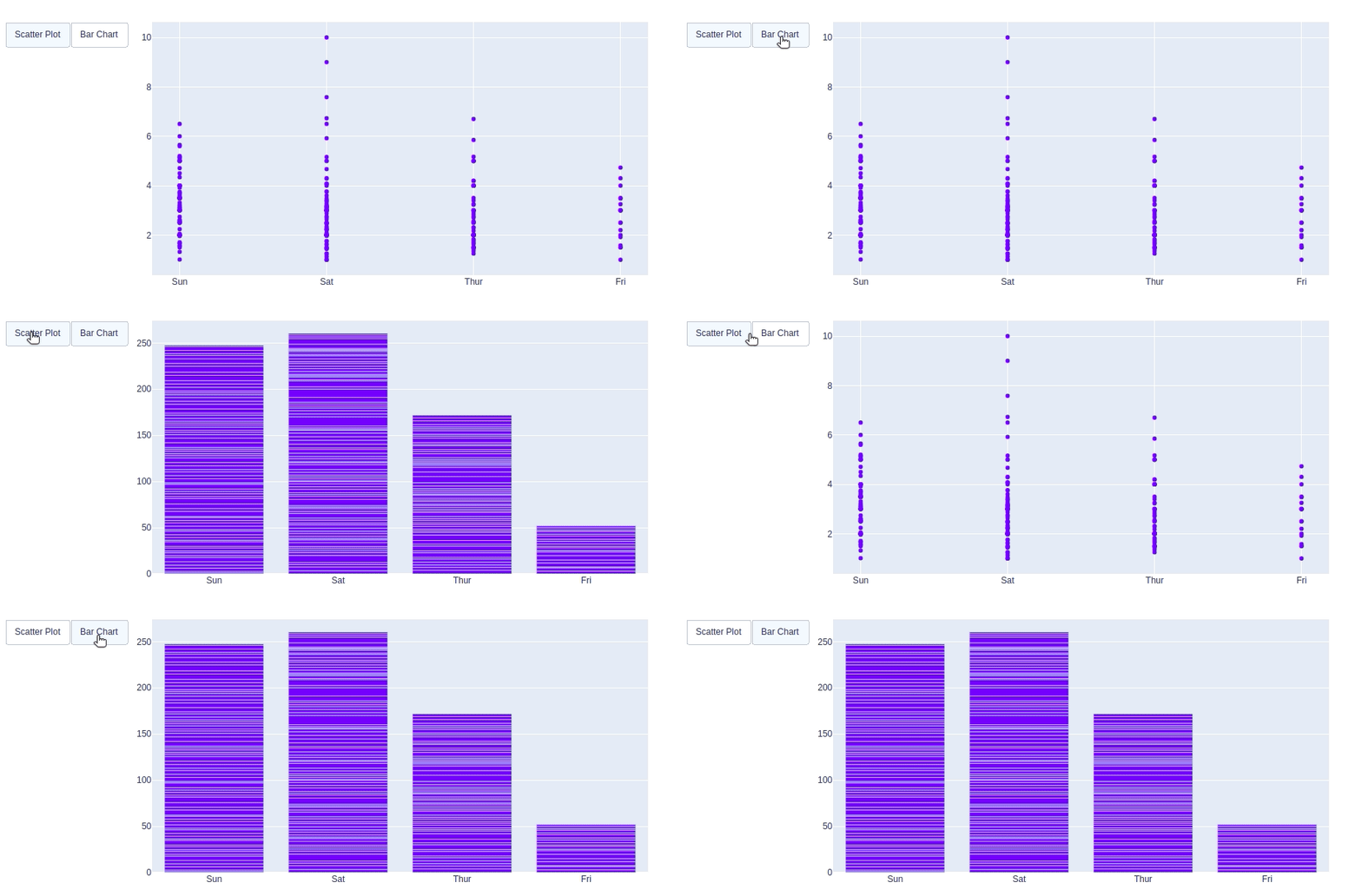
Adding Buttons: In plotly, actions custom Buttons are used to quickly make actions directly from a record. Custom Buttons can be added to page layouts in CRM, Marketing, and Custom Apps. There are also 4 possible methods that can be applied in custom buttons:
- restyle: modify data or data attributes
- relayout: modify layout attributes
- update: modify data and layout attributes
- animate: start or pause an animation
Example:
Python3 `
import plotly.graph_objects as px import pandas as pd
reading the database
data = pd.read_csv("tips.csv")
plot = px.Figure(data=[px.Scatter( x=data['day'], y=data['tip'], mode='markers',) ])
Add dropdown
plot.update_layout( updatemenus=[ dict( type="buttons", direction="left", buttons=list([ dict( args=["type", "scatter"], label="Scatter Plot", method="restyle" ), dict( args=["type", "bar"], label="Bar Chart", method="restyle" ) ]), ), ] )
plot.show()
`
Output:
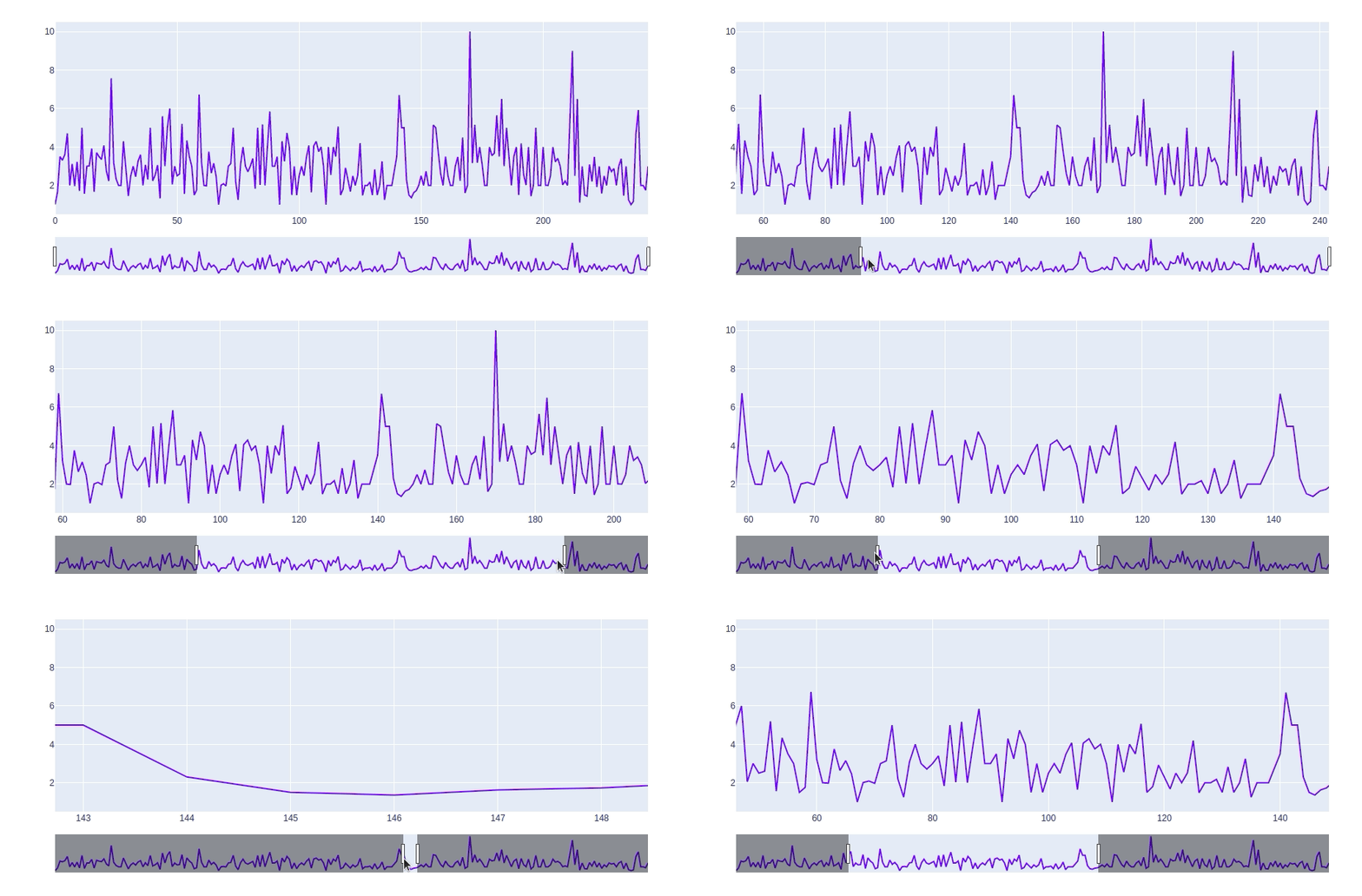
Creating Sliders and Selectors:
In plotly, the range slider is a custom range-type input control. It allows selecting a value or a range of values between a specified minimum and maximum range. And the range selector is a tool for selecting ranges to display within the chart. It provides buttons to select pre-configured ranges in the chart. It also provides input boxes where the minimum and maximum dates can be manually input
Example:
Python3 `
import plotly.graph_objects as px import pandas as pd
reading the database
data = pd.read_csv("tips.csv")
plot = px.Figure(data=[px.Scatter( y=data['tip'], mode='lines',) ])
plot.update_layout( xaxis=dict( rangeselector=dict( buttons=list([ dict(count=1, step="day", stepmode="backward"), ]) ), rangeslider=dict( visible=True ), ) )
plot.show()
`
Output:
Note: For complete Plotly tutorial, refer Python Plotly tutorial
Conclusion
In this tutorial, we have plotted the tips dataset with the help of the four different plotting modules of Python namely Matplotlib, Seaborn, Bokeh, and Plotly. Each module showed the plot in its own unique way and each one has its own set of features like Matplotlib provides more flexibility but at the cost of writing more code whereas Seaborn being a high-level language provides allows one to achieve the same goal with a small amount of code. Each module can be used depending on the task we want to do.