Create AWS EC2 using Terraform (original) (raw)
Last Updated : 30 Apr, 2026
Amazon EC2 is a web service presented by Amazon Web Services (AWS) that gives resizable compute capacity in the cloud. It permits clients to run virtual servers, known as EC2 instances, in a versatile and flexible manner. EC2 instances can be handily provisioned and designed to meet changing jobs, making them suitable for a wide range of applications.
- **Scalability: You can easily increase or decrease the number of instances based on demand.
- **Instance Types: Choose from compute-optimized, memory-optimized, or storage-optimized instance types that are optimized for various use cases.
- **AMI (**Amazon Machine Image): Launch instances with particular software and operating system configurations by utilizing pre-configured images.
- **Elastic Load Balancing: Circulate approaching traffic across different examples to ensure high accessibility and adaptation to non-critical failure.
Using Terraform to create AWS EC2 Instances
Now install and configuring Terraform
1. Go to browser and search for terraform official site in that official site is there terraform download link as shown in below commands and Open a terminal or command prompt and run the command terraform version to verify the installation.
sudo yum install -y yum-utils shadow-utils
sudo yum-config-manager --add-repo https://rpm.releases.hashicorp.com/AmazonLinux/hashicorp.repo
sudo yum -y install terraform

2. After installed and configured terraform, Now make a new directory and navigate to it, Terraform file must should be save with **filename.tf.
3. Additional files can be created to modularize your code or to store provider-specific configurations. You will define the infrastructure resources you want to create in the main.tf file, such as VPCs, subnets, security groups, and AWS EC2 terraform instances.
4. Terraforms declarative language is used to define each resource, allowing you to declare the desired state of the resource.
Authentication with AWS
1. Go to AWS Management Console.
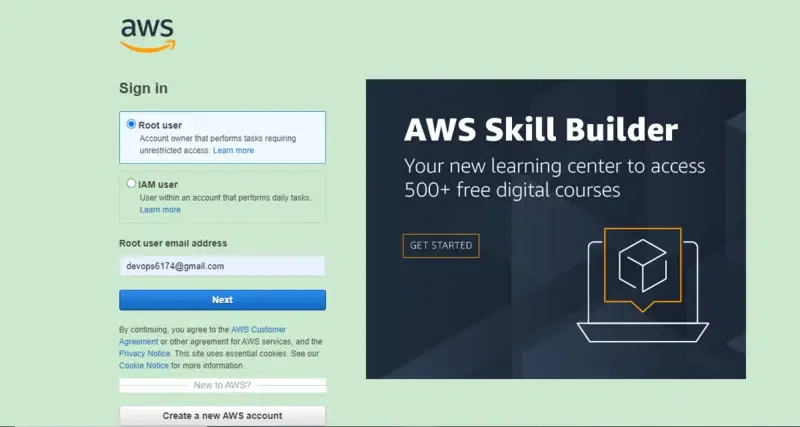
2. Login with by using your credentials.
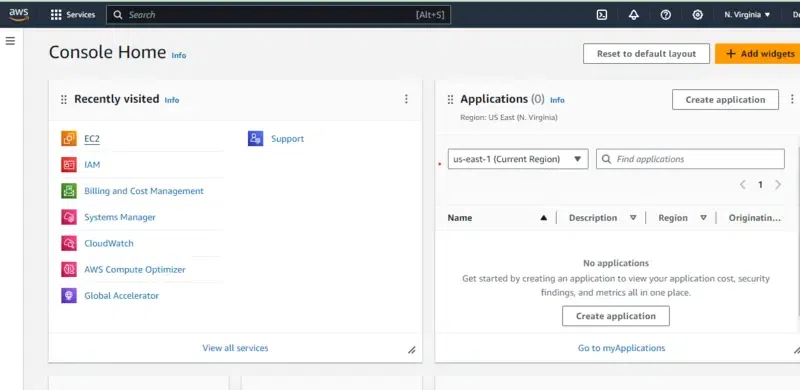
3. Generate access key to authenticate Terraform with your AWS account.
4. In AWS management console in home screen search for IAM ( Identity and Access Management ) service. Choose Users and click on Add user. Give a username and select administration access as the access type. Attach necessary permissions to the user.
5. Review the user details and create the user. You will see the access key ID and secret access key. Save this information securely as it will be required when configure Terraform.
For more detail understanding to install the AWS CLI refer this - Article
Create an EC2 instance using Terraform configuration files
Now that we have the networking infrastructure and security groups set up, let’s define the EC2 terraform instance itself. Here’s an example:
resource "aws_instance" "my_instance" {
ami = var.ec2_ami
instance_type = var.ec2_instance_type
subnet_id = aws_subnet.my_subnet.id
vpc_security_group_ids = [aws_security_group.my_sg.id
tags = {
Name = "my-ec2-instance"
}
}
In the above code, we define an AWS EC2 terraform instance resource with the specified AMI (Amazon Machine Image), instance type, subnet, and security group. Also, we assigned a tag to the instance for identification.
Terraform Block and AWS Provider Configuration
Terraform block it was describe the cloud required version and the required credentials. The following example shows that aws provider
terraform {
required_providers {
aws = {
source = "hashicorp/aws"
version = "~> 4.16"
}
}
required_version = ">= 1.2.0"
}
provider "aws" {
region = "us-west-2"
profile = "jack.roper"
}
resource "aws_instance" "example_server" {
ami = "ami-04e914639d0cca79a"
instance_type = "t2.micro"
tags = {
Name = "JacksBlogExample"
}
}
Creating a VPC Using Terraform
VPC (Virtual Private Cloud) is isolated section in aws cloud where your resources can be launched. We can create VPC by using terraform.
For example to creating a VPC and Subnet, you would define a resource block like this:
resource "aws_vpc" "sada" {
cidr_block = "10.0.0.0/16"
instance_tenancy = "default"
tags = {
Name = "siva"
}
}
In this example, we specify the vpc with cidr block, subnet ID, and tags for the EC2 instance. Terraform will use this configuration to create the specified EC2 instance when you apply the configuration.
Complete Infrastructure Example
Below is a complete Terraform configuration demonstrating provider setup, variables, networking resources, and an EC2 instance.
provider block defines the cloud provider and its configuration
provider "aws" {
region = "us-east-1"
}
variable block allows you to define variables for reusability
variable "instance_type" {
description = "Type of EC2 instance"
default = "t2.micro"
}
variable "ami" {
description = "Amazon Machine Image ID"
default = "ami-12345678"
}
resource block defines the AWS resources to be created
resource "aws_vpc" "my_vpc" {
cidr_block = "10.0.0.0/16"
other VPC configurations...
}
resource "aws_security_group" "my_security_group" {
vpc_id = aws_vpc.my_vpc.id
other security group configurations...
}
resource "aws_instance" "my_instance" {
ami = var.ami
instance_type = var.instance_type
subnet_id = aws_subnet.my_subnet.id
security_group = [aws_security_group.my_security_group.id]
other instance configurations...
}
resource "aws_subnet" "my_subnet" {
vpc_id = aws_vpc.my_vpc.id
cidr_block = "10.0.1.0/24"
availability_zone = "us-east-1a"
map_public_ip_on_launch = true
other subnet configurations...
}
output block allows you to define values to be displayed after apply
output "instance_ip" {
value = aws_instance.my_instance.public_ip
}
Terraform will use this configuration to provision the VPC, subnet, security group, and EC2 instance when you run terraform apply.
Terraform Blocks
**Providers Block
- Providers block is utilized to design the Providers, which is liable for overseeing assets in a particular cloud environment (e.g., AWS, Azure, and so on.).
- It remembers subtleties, for example, the district for which assets ought to be made.
**Variable Block
- Input variables that can be used throughout your Terraform configuration can be defined using the variable block.
- Helps in defining your design and making it more adaptable.
- You can set default values, depictions, and different qualities for factors.
**Resource Block
- Resource block is the most key structure block in Terraform.
- It proclaims an asset type (e.g., aws_instance, aws_vpc) and its particular setups.
- Every asset block makes an occurrence of the asset it depicts.
**Output Block
- Output block characterizes values that will be displayed subsequent to applying the Terraform arrangement.
- Valuable for showing data like IP addresses, DNS names, and so on.
- Gives a method for uncovering explicit data for outside use
Creating a Security Group Using Terraform
Configuring Security Groups, Security is most important due to it acts as a virtual firewalls, its controlling inbound and outbound traffic for your AWS EC2 terraform instance.
resource "aws_security_group" "my_sg" {
name = "my-security-group"
description = "Allow inbound SSH and HTTP traffic"
inbound {
from_port = 22
to_port = 22
protocol = "tcp"
cidr_blocks = ["0.0.0.0/0"]
}
inbound {
from_port = 80
to_port = 80
protocol = "tcp"
cidr_blocks = ["0.0.0.0/0"]
}
outbound {
from_port = 0
to_port = 0
protocol = "-1"
cidr_blocks = ["0.0.0.0/0"]
}
}
Initialize the Terraform directory
Now it's time to Initializing and applying the terraform configuration after writing the terraform code code by using following code:
terraform init
When using Terraform, the terraform init command is a crucial step. It initializing a working directory, setting up the fundamental parts for Terraform to collaborate with the specified backend (like AWS, Azure , or local), and download any expected supplier modules.
Run terraform plan and apply
To apply the terraform configuration and create the EC2 terraform instance, to run the following command:
terraform apply
Cleaning up and destroying AWS resources is a fundamental stage to prevent unnecessary costs and keep a clean infrastructure. This is the way you can tidy up the assets made by your AWS EC2 terraform example.
Create an EC2 instance with user_data
**Define your Terraform configuration: Create a .tf file, for example, ec2_instance.tf, and define your EC2 instance configuration along with user data:
provider "aws" {
region = "your_aws_region"
}
resource "aws_instance" "example" {
ami = "your_ami_id"
instance_type = "t2.micro"
key_name = "your_key_pair_name"
security_groups = ["your_security_group_name"]
subnet_id = "your_subnet_id"
user_data = <<-EOF
#!/bin/bash
# Update package repositories
apt-get update -y

# Install nginx
apt-get install nginx -y

# Start nginx service
systemctl start nginx

# Enable nginx to start on boot
systemctl enable nginx
EOF
}
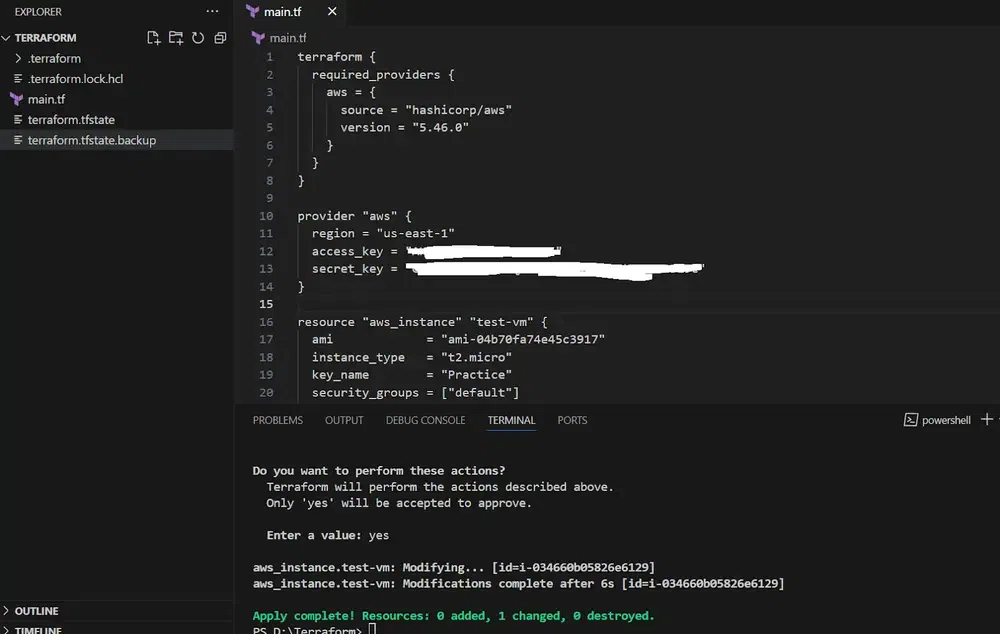
Here is the Terraform code to create the ec2 instance on the aws.
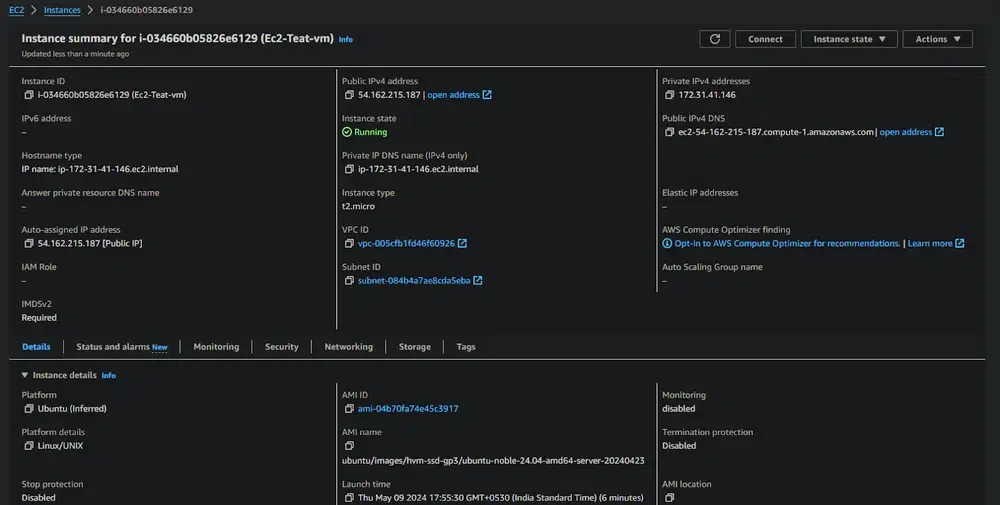
Here is the aws Instance created on the aws console.
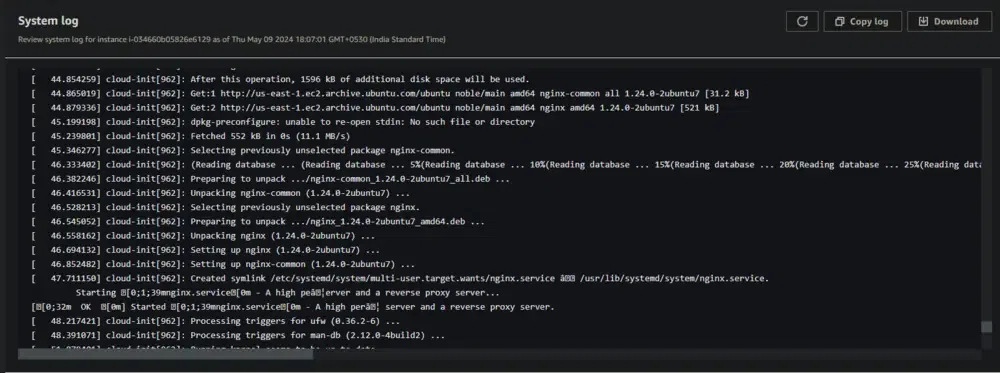
Here is the system log the userdata commands executed while creating the container.
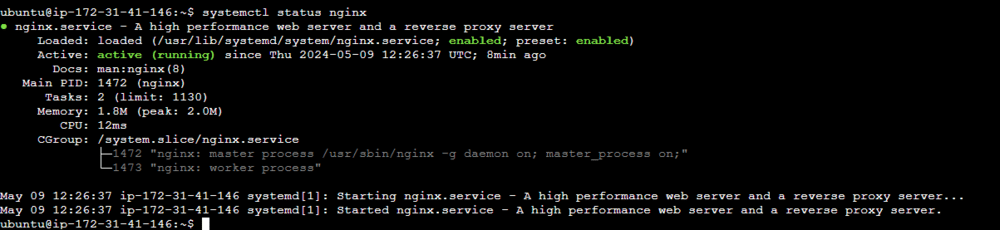
The service status of the nginx was successfully running on the instance.
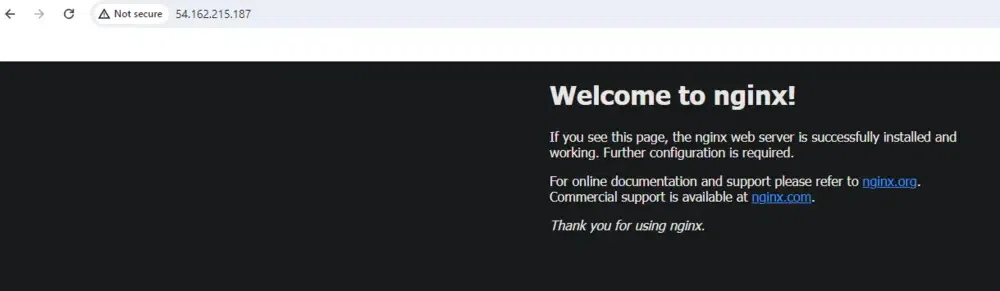
Accessed the nginx using the IP of the address.
Create Multiple EC2 Instances With Different Configurations
To create multiple EC2 instances with different configurations using Terraform, you can define multiple instances within your Terraform configuration, each with its own set of parameters. Here's an example:
provider "aws" {
region = "your_aws_region"
}
Define the first EC2 instance
resource "aws_instance" "instance1" {
ami = "ami-xxxxxxxx" # AMI ID for the first instance
instance_type = "t2.micro"
key_name = "your_key_pair_name"
security_groups = ["your_security_group_name"]
subnet_id = "your_subnet_id"
User data script for the first instance
user_data = <<-EOF
#!/bin/bash
# User data commands for the first instance EOF
}
Define the second EC2 instance
resource "aws_instance" "instance2" {
ami = "ami-yyyyyyyy" # AMI ID for the second instance
instance_type = "t2.nano"
key_name = "your_key_pair_name"
security_groups = ["your_security_group_name"]
subnet_id = "your_subnet_id"
User data script for the second instance
user_data = <<-EOF
#!/bin/bash
# User data commands for the second instance EOF
}
Define more instances as needed...
Terminating the EC2 Occurrence
Terminating the terraform EC2 instance will remove it for all time, including any related storage and data. Make a point to take backups if necessary prior to terminating the instance.
**Removing Terraform Resources: Removing command is necessary in order to ensure that all Terraform resources are properly destroyed. This order will dissect the Terraform state and eliminate every one of the assets oversaw by Terraform, including the VPC, subnet, security groups, and some other resources defined in your Terraform setup.
- Run the following command in the directory where terraform project is located.
terraform destroy

Best Practices of using Terraform to Create Amazon EC2
The following are the best practices of using Terraform to create Amazon EC2:
- **Version Control and State Management: Try to use version control and secure to store state files with remote backends like Amazon S3.
- **Modular Configuration: By organizing the configurations into reusable modules with consistent naming and conventions.
- **Security Best Practices: Ensure to implement the security measures such as IAM roles and encryption for sensitive data.
- **Testing and Validation: By previewing the changes with `terraform plan` and use automated testing tools like Terratest.
TroubleShooting Tips of Terraform to Create Amazon EC2
The following are the troubleshooting tips of terraform to create Amazon EC2:
- **Error Messages and Logs: For resolving issues read the error messages and enabling the detailed logging for more information.
- **Resource Dependencies: By ensuring correct resource dependencies and use depends_on when needed.
- **Configuration Syntax and Formatting: To on validating the syntax with `terraform validate` and format code with terraform fmt.
- **State File Consistency: By regularly backuping the state files, can help in resolving the conflicts with terraform refresh.