How to Create and Use Alias Command in Linux (original) (raw)
Last Updated : 11 Jul, 2025
Imagine you're lost in a maze of complicated Linux commands. You stumble upon a secret doorway marked "Alias," and inside you find shortcuts to all your favorite commands! That's what creating aliases is like. You get to make your own mini-commands for the long ones you use all the time, making things simpler and faster. This article guides you through building these shortcuts, turning you into a master of the Linux command jungle! No need for fancy tech words, we'll keep it clear and fun, like chatting with a friend.
What is an alias in Linux?
In Linux, an alias is a user-defined shorthand for a longer command or sequence of commands. These aliases can be created and customized according to user preferences, making the command-line interface more user-friendly. The aliascommand instructs the shell to replace one string with another string while executing the commands.
When we often have to use a single big command multiple times, in those cases, we create something called an **alias for that command. _Alias is like a shortcut command, which will have the same functionality as if we were writing the whole command.
How does alias Command in Linux Work?
The alias command in Linux allows users to create shortcuts for long or complex commands, simplifying command-line usage. By defining an alias, you can substitute a shorter or more intuitive name for a lengthy command sequence. For example, you can set alias ll='ls -la' to make ll a shortcut for ls -la, which lists directory contents in detail. Aliases are typically defined in shell configuration files like .bashrc or .zshrc, ensuring they persist across sessions. This command enhances productivity by reducing the amount of typing and minimizing the chances of errors in frequently used commands.
Linux alias Syntax
- The Basic syntax of the alias command in Linux is as follows:
alias shortname='longer command'
Here,
- **shortname - represents to that we can give any name we want.
- **longer command - represents to where we type our command.

**Options Available for Alias Command
The following are the some of the options available for alias command:
| Option | Description |
|---|---|
| alias | Displays all current aliases |
| alias name='value' | Creates a new alias with the specified name and command |
| unalias name | Removes a specific alias |
| unalias -a | Removes all aliases |
| alias --help | Displays help information about the alias command |
| alias -p | Prints all defined aliases in a reusable format |
| alias -t | Temporarily creates an alias that lasts only for the current shell session (if supported by the shell) |
How to Create and Use Alias Command in Linux ?
- To create an alias, open your terminal and use the following syntax:
alias shortname='longer command'
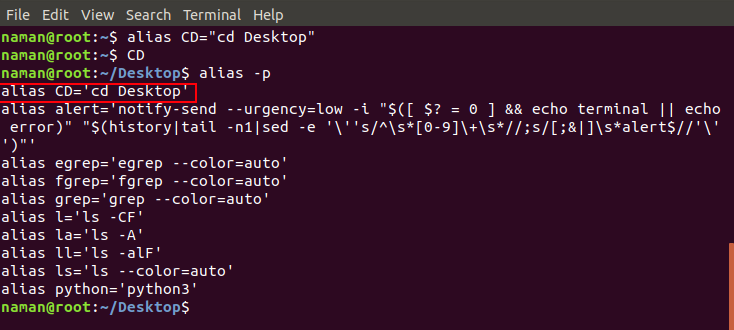
- The following screenshot illustrates on successfully creation of alias for shortname variable.
**For example
- If we want to create an alias for the 'cd Desktop' command (which is to move into Desktop directory using cd command), you can use:
alias CD="cd Desktop"
- Here we have give shortname= CD and our longer command = cd Desktop
- This alias allows you to type 'CD' instead of 'cd Desktop' for the same result.
List All Aliases in Linux
To list all aliases in Linux, you can use the alias command without any arguments. This will display all the currently defined aliases in your shell session. Here's how it works:
- **Open Terminal: Launch your terminal.
- **Run the Command: Type
aliasand press Enter.
alias
This will output a list of all aliases, showing their names and the commands they represent. For example:
alias ll='ls -la'
alias gs='git status'
alias ..='cd ..'
Each line shows an alias name followed by the command it represents, making it easy to see and manage your shortcuts.
How to Remove an Alias?
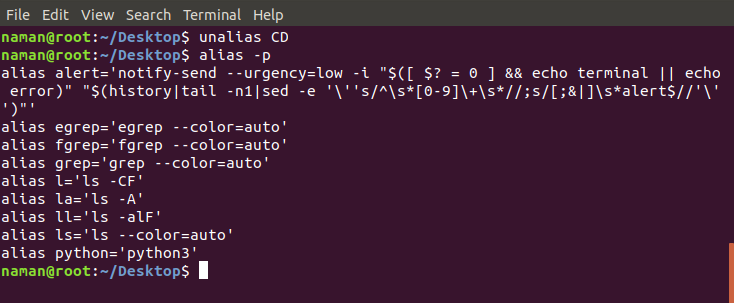
- The removing an existing alias is known as unaliasing. It following is the syntax of it.
**Syntax
unalias [alias name]
- This accurately reflects the process of removing an alias using the 'unalias' command in Linux.
How to create an Aliases Persistent?
While creating an alias in the terminal is useful for the current session, users may want to make aliases persistent across sessions. To do this, add the alias command to your shell configuration file (e.g., '.bashrc' for Bash or '.zshrc' for Zsh). This ensures that your aliases are loaded each time you start a new terminal session.
echo "alias lsa='ls -la'" >> ~/.bashrc
Using Alias Command Effectively
Once aliases are set up, incorporating them into your workflow can significantly enhance productivity. Users can create aliases for commonly used commands, complex sequences, or even personalized shortcuts. For example, an alias like 'update' for the system update command could be:
alias update='sudo apt update && sudo apt upgrade'

- With this alias, typing 'update' in the terminal will execute both update and upgrade commands in sequence.
How to remove all aliases at once using unalias?
**Step 1: Open terminal for accessing command line interface.
**Step 2: Execute the following command to unlias all the aliases:
unlias - a

**Step 3: Verify Removal, to ensure all the aliases are been removed with the following command
alias

- On displaying no output confirms that all aliases have been successfully removed.
Commonly used Aliases Command Examples with Options
The following are the some of the commonly used aliases command:
1. Directory Navigation
alias ..='cd ..'

- This allows users to move up one directory level by typing '..' instead of 'cd ..'.
2. **List Files with Details
alias ll='ls -l'
- Shortening the 'ls -l' command for a detailed file list.
3. **Clearing the Screen
alias cls='clear'

- Typing 'cls' clears the terminal screen.
Best practices of using Alias Command
The following are the best practices of using alias command:
- Keep the aliases simple and easy to remember for frequent commands.
- Document aliases for clarity and future reference.
- Avoid overriding system commands to prevent confusion or errors.
- Ensure aliases are defined persistently in shell startup files.
- Use aliases sparingly to maintain a clean and manageable command-line environment.
Conclusion
In this article we discussed "Alias" command which transforming long, winding paths into nimble shortcuts. This article equips you with the tools to craft your own mini-commands, making you a master of the command jungle. Ditch the tech jargon, this guide is like chatting with a friend, making things clear and fun.
So grab your machete of aliases and hack through directories, update systems with ease, and navigate this digital wilderness like a pro! Remember, the FAQs are your compass, always ready to guide you deeper into the jungle of Linux mastery. Step out of the shadows, wield your newfound skills, and make the command-line your domain!