File System Navigation Commands in Linux (original) (raw)
Last Updated : 12 May, 2026
Linux file system navigation commands are used to move through directories and explore the file structure using the command line. They help users locate, access, and manage files and folders efficiently within the Linux operating system.
Commonly Used File System Navigation Commands
These commands help you navigate, organize, and manage files and directories within the Linux file system.
1. pwd (print working directory)
The pwd command shows the current location in the system. It tells you which folder you're currently in.
pwd

- The current directory is /home/kali/Templates
2. ls (list files and directories)
The ls command is used to list the files and directories in the current directory. It provides an overview of what is inside a folder.
ls

- All the files and folders present inside the current folder are listed.
3. cd (change directory)
The cd command is used to move between folders. You can tell it exactly which folder you want to go to (like giving it an address), or you can use shortcuts to get around. Let's look into both the methods.
moving to a nearby folder
If you want to move into a folder that's within the one you're already in, you can just use its name. For instance, if you're in your home directory and want to reach downloads.
cd [directory name]
cd Downloads

- Checking the current directory
- Using cd command to change the directory
- Observe the updated directory
Going to a Specific Folder
Imagine telling someone the full address to find your house. Similarly, you can do the same by giving the complete path to the folder. For example, you want to access the documents folder inside the username folder.
cd [directory path]
cd /home/username/documents
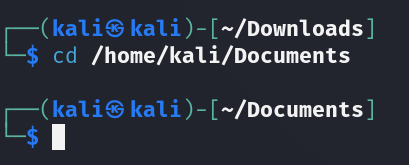
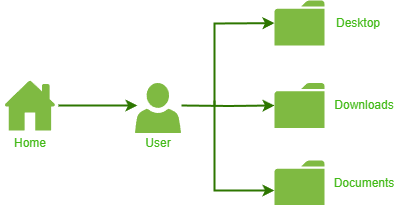
Directory Structure
- Considering the above directory structure, the active directory was changed from Downloads to Documents by traversing from the home directory.
4. mkdir (make directory)
The mkdir command, an abbreviation for "make directory," allows you to create new folders within your existing file system. This provides a structured way to categorize and store your files.
**Syntax:
mkdir [directory name]
**Command:
mkdir GeeksForGeeks

- User tried to create a new folder named GeeksForGeeks
- Changed the directory to newly created directory
- The active directory is updated
5. rmdir (remove empty directory)
The rmdir command, short for "remove directory," enables you to delete empty directories. This is useful for cleaning up unused folders and maintaining a streamlined file system.
**Syntax:
rmdir [directory_name]
**Command:
rmdir GeeksForGeeks

- Observe that the empty directory was removed.
6. cp (copy)
The cp command in Linux is used to copy files and directories from one location to another.
**Syntax:
cp [source_file] [location]
**Command:
cp ~/Downloads/image.jpg ~/Pictures
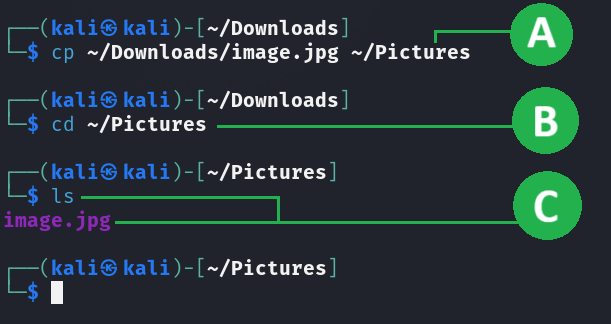
- Here, copy "image.jpg" from Downloads to Pictures while keeping the original.
- Executing the copying command.
- Changing the current active directory for checking.
- Using the list command, we can observe that the image.jpg was copied.
7. mv (move)
The mv command in Linux is used to move or rename files and directories from one location to another.
**Syntax:
mv [source_file] [location]
For instance, to move a file named "image.jpg" from your Downloads folder to Documents, you'd use
mv ~/Downloads/image.jpg ~/Pictures
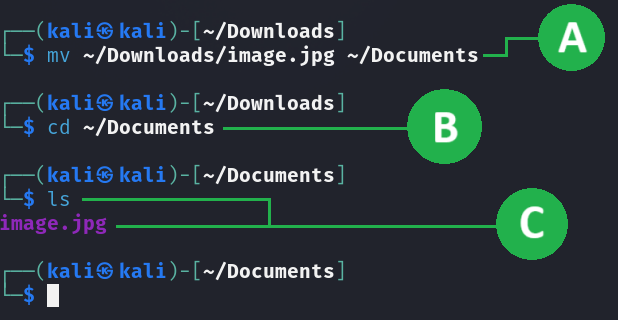
- Executing the mv (move) command.
- Changing the current active directory.
- After executing ls (list) command, we can observe that the file has been transferred.
Difference between Windows and Linux File System
Windows and Linux differ significantly in how they organize, access, and manage files within their operating systems.
Windows File System
- Uses a drive-based structure such as C:, D:, and E:, where each drive is treated separately.
- File names are not case-sensitive, meaning File.txt and file.txt are considered the same.
- Provides simpler file permission management, mainly based on user accounts.
- Primarily uses the NTFS file system for storing and managing data.
- Designed to be user-friendly and easy to use, especially for beginners.
Linux File System
- Follows a single, unified directory tree structure starting from the root directory (/).
- File names are case-sensitive, so File.txt and file.txt are treated as different files.
- Offers advanced and granular permission control for users, groups, and others.
- Commonly uses the Ext4 file system, along with support for many other file systems.
- Highly flexible and powerful, making it suitable for advanced users and system administrators.
Additional Shortcut Tips
These quick symbols help you navigate the Linux file system more efficiently.
1. ~ (tilde)
This symbol is like a shortcut to your home base. No matter where you are, typing tilde will always bring you back to your home folder.
cd ~
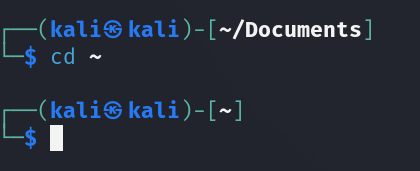
- The active directory was updated to home.
2. . (dot)
This simply means the folder you're in right now. If you're already inside a folder and want to work with something there, you can use the dot symbol.
3. .. (double dot)
This means the folder one level above the one you're in, like going up a floor in a building. If you're deep inside folders and want to go back a step, this will take you to the bigger folder that contains the one you're in.
cd ..
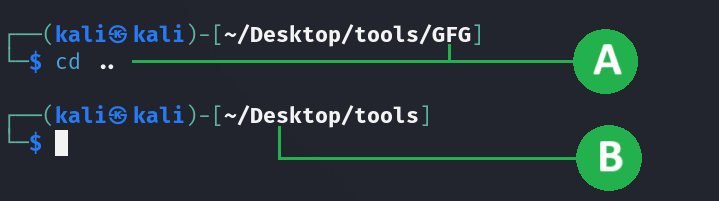
- The current directory is visible, and we execute the command.
- The active directory is updated.
4. tree (directory structure view)
This command isn't exactly for moving around, but it helps you see all the folders at once. It shows how all the folders are connected, like a family tree, so you can understand the bigger picture.
tree
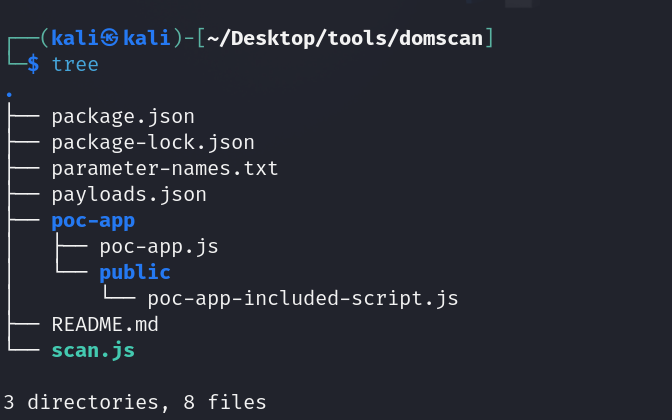
- All the files and folders of the active directory are listed
- command may require installation