How to Install and Configure Docker in Ubuntu? (original) (raw)
Last Updated : 27 Aug, 2025
Docker can be installed in two versions Docker CE(Community Edition) and Docker EE(Enterprise Edition). For small-scale projects or learning, we can use Docker CE.
Before installing Docker on Ubuntu, We have to ensure that the system meets the following requirements:
- It should have supported versions such as Ubuntu 22.04 (TLS), Ubuntu 20.04 (LTS), Ubuntu 18.04 (LTS)
- The Architecture of system should be x86_64 (64-bit) or arm64
- The Linux Kernel Version should be 3.10 or higher. This is necessary for proper Docker functionality. This kernel version provides features such as namespaces and cgroups.
**Tip for Optimized Hosting:
**Hostinger offers high-performance cloud servers and **Linux-based VPS hosting that are ideal for Docker environments. These hosting plans ensure that your infrastructure meets the kernel version and resource requirements needed for smooth Docker operation. With **24/7 support and **scalable performance, you can efficiently deploy Docker containers on a server tailored for **growth and reliability.
For seamless Docker deployment,
For Example my system configuration are as follows:

Steps for Installing Docker on Ubuntu
The following are the steps that guides you in installing the Docker on Ubuntu:
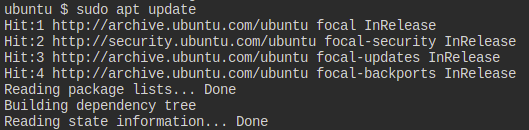
**Step 1: Update Software Repositories using the following command on the terminal.
sudo apt update
**Step 2: Install Docker using the following command
sudo apt install docker.io -y

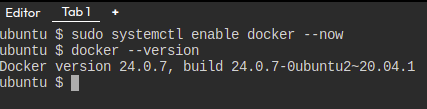
**Step 3: Enable and start the docker service by using the following commands.
sudo systemctl enable docker --now
**Step 4: Check Docker Version.
docker --version
Executing the Docker Command Without Sudo
We will get a permission denied error as a regular user doesn't have permission to execute docker commands. Know we need to add the the user to the required group.
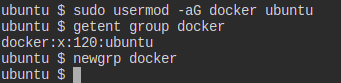
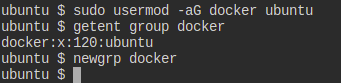
**Step 1: So we need to add an Ubuntu user to the docker group.
#sudo usermod -aG docker $USER
or
#sudo usermod -aG docker ubuntu
- The following command helps in knowing whether current add user assigned to docker group or not:
getent group docker
- Refresh the group permission to use updated one with running following command:
newgrp docker
**Step 2: Restart the docker daemon which is already running. After restarting only the changes will comes into effect.
sudo service docker restart
**Step 3: Leave the current SSH terminal and re-login with SSH. then carry out.
docker ps
Using the Docker Commands
You need to master the docker commands to work more efficiently in the docker following are the some of the commands which are used in docker on daily bases.
Docker Build Command
After writing the dockerfile know you need to build the dockerfile into the docker image. This is docker image is further used to run the docker containers. Foillowing is the command which is used to build the docker image.
- Here take sample Dockerfile as below:
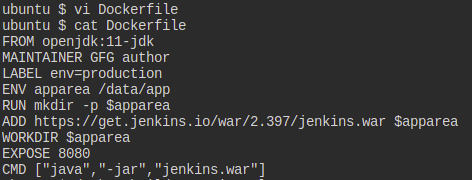
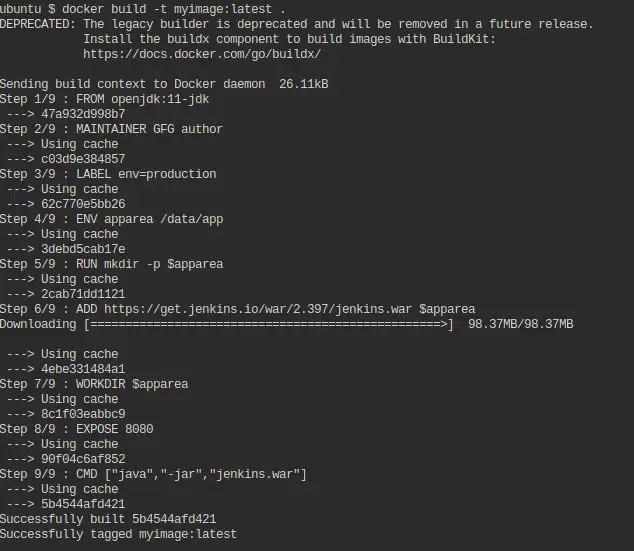
- Using the following command build the docker image from the Dockerfile:
docker build -t
**Example:
docker build -t myimg:latest .
Docker Run Command
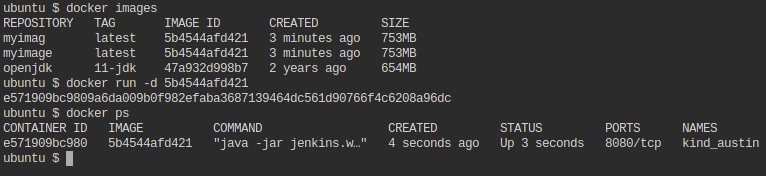
This command is used to run a container from an image. The docker run command is a combination of the docker create and docker start commands. It creates a new container from the image specified and starts that container. if the docker image is not present, then the docker run pulls that.
$ docker run
To give name of container
$ docker run --name
**Example:
docker run myimg
- To Know more docker commands read Docker Commands.
Working with Docker Images
If you are a Docker developer, you might have noticed that working with multiple Docker Images at the same time might be quite overwhelming sometimes. Managing numerous Docker Images all through a single command line is a very hefty task and consumes a lot of time. In this article, we are going to discuss some important Docker Images commands that would make your life easier. Managing Images with the help of these commands will be very easy and will save you a lot of time.
Following are the some of the docker images which are used on the daily bases.
- **List Docker images: ****"docker images"** this command will list all the docker images which are available in the docker.
- **To Pull Docker Images: "docker pull " it will pull the required images which are stored in the docker hub registry or repository.
To know more commands which are used to work with docker images refer to the "Working with Docker Images".
Docker Network Commands
Docker Networking allows you to create a Network of Docker Containers managed by a master node called the manager. Containers inside the Docker Network can talk to each other by sharing packets of information. In this article, we will discuss some basic commands that would help you get started with Docker Networking. To know more about Docker networking refer to the Docker Networking.
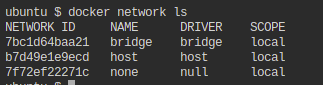
- The following command is used for listing the docker networks:
docker network ls
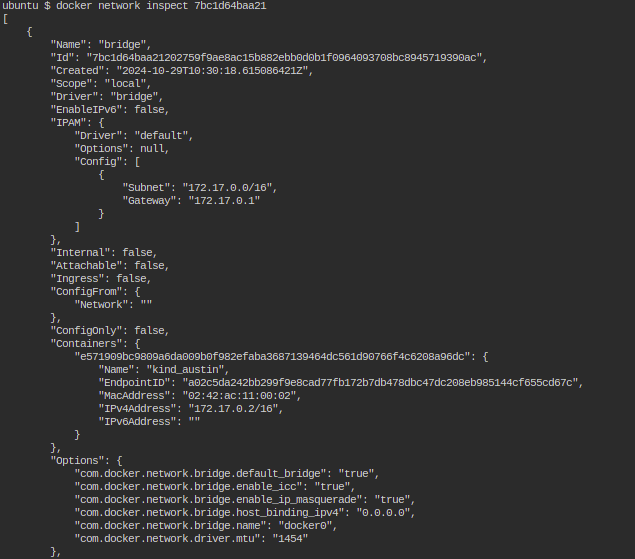
- The following command is used for detailing docker network driver:
How to Commit Changes in a Docker Container?
Docker commit command is used to convert the current state of docker container to the docker new image.
First you need to know the ID of the docker container which you want to the docker images after that run the following command.
docker commit
Example of Commit a Docker Container
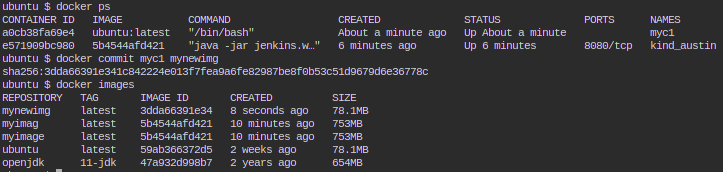
- Firstly run a docker container, the following command helps in running ubuntu container:
docker run -dit --name myc1 ubuntu:latest

- Commit the docker container with using its container name or id:
docker commit myc1 mynewimg
- Verify whether it successfully created new image or not with listing all the images using the following command:
docker images