Linux command in DevOps (original) (raw)
Last Updated : 5 May, 2026
Linux commands are the foundation of DevOps operations used for system administration, automation and troubleshooting. They help engineers manage files, processes, users, networks and system resources efficiently. These commands are widely used in servers, cloud environments and CI/CD pipelines.
- Manage and control running processes and services
- Automate repetitive tasks using shell scripting
- Debug issues using logs and system monitoring tools
- Enable secure remote server access (e.g., SSH)
- Configure system components like permissions, storage and networks
Basic Commands
1. pwd
The pwd command helps you identify your current location in the file system:
The pwd command is used to display the current working directory.
**Command:
pwd

pwd
2. ls
The ls command is used to list files and directories in the current location.
**Command:
ls - List Files and Directories
| Command | Description |
|---|---|
| ls |
Lists all files and directories in the specified path. |
| ls -l | Lists directory contents in long format with details like permissions, owner, size and modification time. |
| ls -a | Shows all files and folders, including hidden files (dotfiles). |
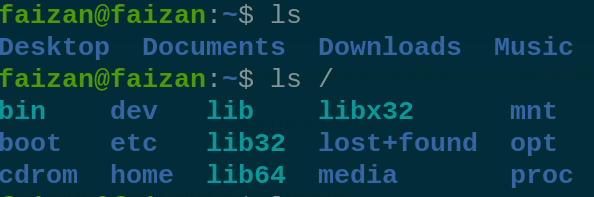
List Files and Directories
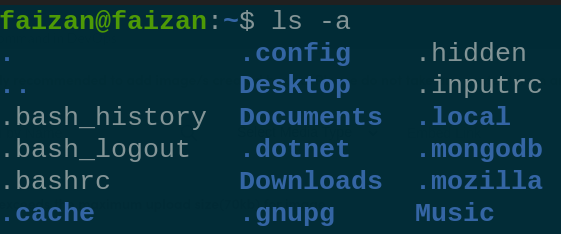
Display hidden file
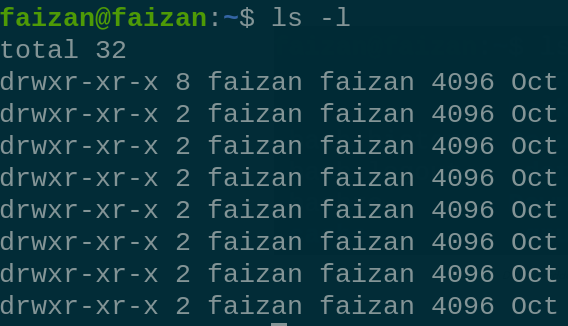
permission of all file
3. uname
The uname command is used to display system information.
**Command:
uname
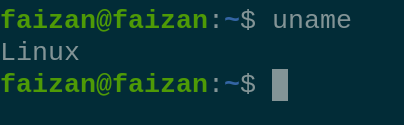
uname
**Note: uname -r shows the kernel release version.
**Command:
uname -r

uname -r
4. cd
The cd command is used to change the current directory.
**Command:
cd
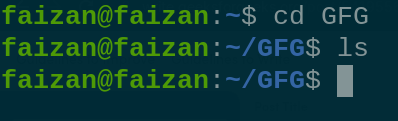
Cd
5. clear
The clear command clears the terminal screen, providing a clean workspace.
**Command:
clear
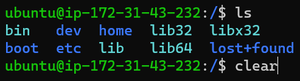
clear
6. whoami
The whoami command displays the current logged-in user.
**Command:
whoami

whoami
7. history
The history command shows previously executed commands.
**Command:
history
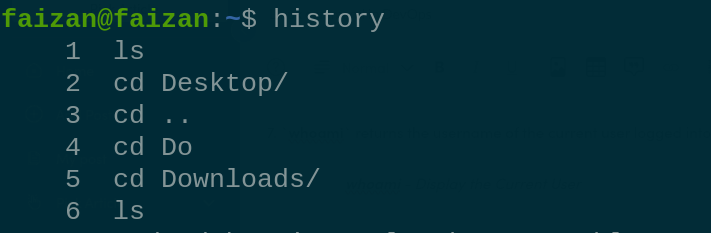
History
8. free
The free command is used to check memory usage.
**Command:
free
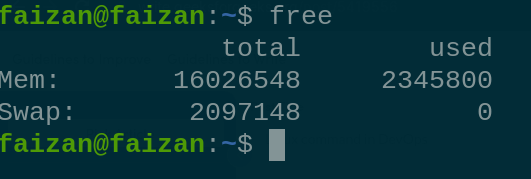
free
9. nslookup
nslookup is used to obtain information for DNS server. It stands for Name Server Lookup.
**Command:
nslookup
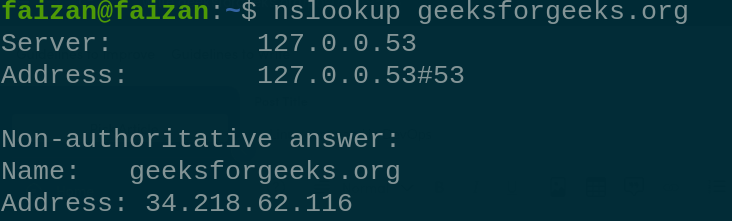
nslookup
10. ssh-keygen
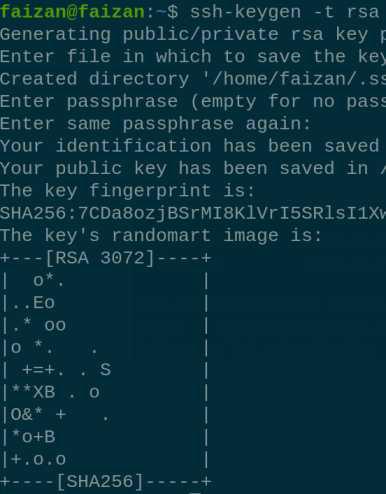
The ssh-keygen command generates SSH public/private key pairs.
**Command:
ssh-keygen -t rsa
11. curl
The curl command is used to transfer data from or to a server.
**Syntax:
curl [options] [URL]
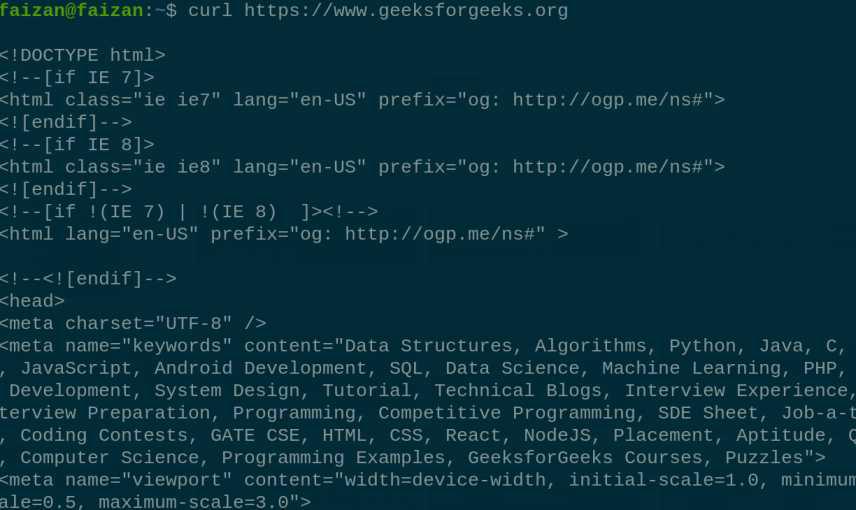
curl
12. curl -o
curl -o flag saves the data into a file on the local machine.
**Syntax:
curl -o [file_name] [URL...]
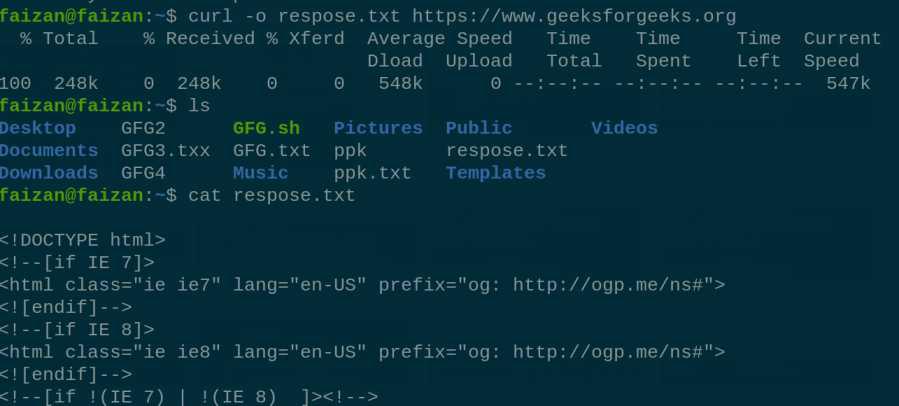
store response on local machine
13. apt-get
apt-get command used to manage packages in the linux. APT stand for the Advanced Packaging Tool and its main used of install, update, upgrade and remove the packages.
**Syntax:
apt-get [options] command
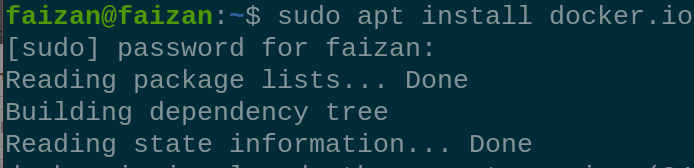
apt
14. du
du command is used to check disk usage space.
**Command:
du
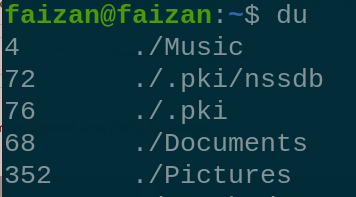
du
15. df
df command is used to check the available disk space in system.
**Command:
df -h
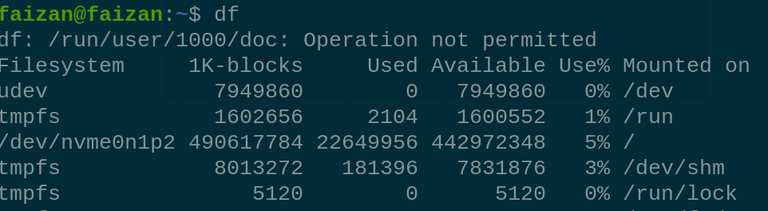
df
16. ifconfig
ifconfig command is used to view the information about your network interface.
**Syntax:
ifconfig [OPTIONS] [INTERFACE]
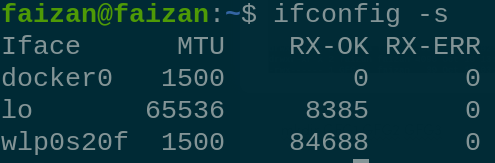
ifconfig
17. ip
ip command is a modern replacement of ifconfig command. It is used to view and manage network settings. You can check Ip addresses, configure network interfaces, view routing tables by this command.
**Syntax:
ip [OPTIONS] OBJECT {COMMAND | help}
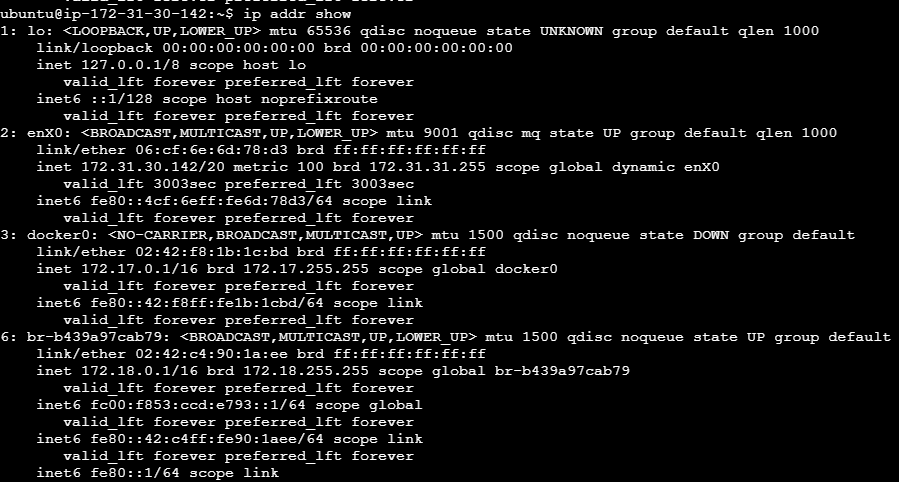
Creating Files and Directories
In DevOps, creating and managing files and directories is a common task. Here are some essential commands:
For Creating Directories
1. Create a Single Directory
**Command:
mkdir GFG
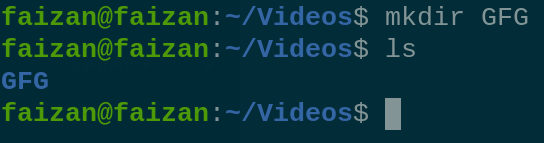
mkdir
2. Create Multiple Directories
**Command:
mkdir GFG1 GFG2 GFG3

mkdir gfg1 gfg2 gfg3
3. Create Nested Directories (directories inside directories)
**Command:
mkdir -p /GFG/GFG1/GFG2
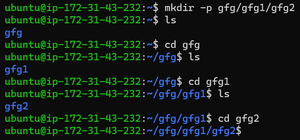
mkdir -p
4. For creating a series of numbered directories
**Command:
mkdir gfg{1..3}

mkdir gfg{1..3}
For Creating Files
We can create file in linux by using various commands like vi, touch, echo, nano etc. The following table will explain the use case of each command:
| Command | Purpose | Example |
|---|---|---|
| touch | Creates an empty file | touch file.txt |
| echo | Creates a file with content | echo "Hello" > hello.txt |
| cat | Creates/writes to a file via input | cat > notes.txt (Ctrl + D to save) |
| nano | Opens a simple terminal editor | nano file.txt |
| vi / vim | Opens a powerful terminal editor | vi file.txt |
Copying and Pasting Files and Directories
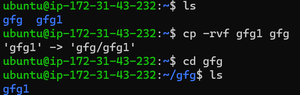
The cp command is used in Linux to copy files and directories. Below are common options and examples
**Command (verbose, recursive, force overwrite):
cp -rvf gfg1 gfg
cp -rvf
Removing Files and Directories
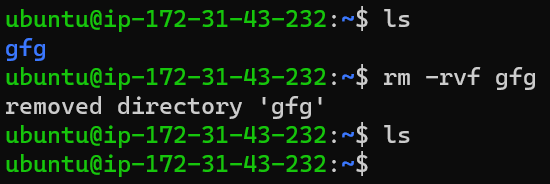
In Linux (and DevOps environments), the rm command is used to delete files and directories. Use it carefully, as deletion is permanent.
- For removing a directory and its contents
**Command:
rm -rvf gfg
rm
Renaming Files and Directories
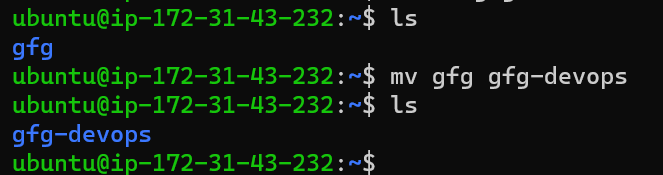
The mv command in Linux is used to rename files or directories (and also to move them).
**Command:
mv gfg gfg-devop
mv
User Management
User management in Linux is a crucial aspect of DevOps and system administration. Managing users and their permissions ensures that your systems are secure, organized and meet the needs of your organization. Heres an overview of user management in Linux within a DevOps context:
1. Creating a User
To create a new user in Linux, you can use the useradd command. For example:
**Syntax:
sudo useradd [username]

sudo useradd GEEKSFORGEEKS

GEEKSFORGEEKS user created
2. Setting a Password
After creating a user, set a password using the passwd command:
**Syntax:
sudo passwd [username]
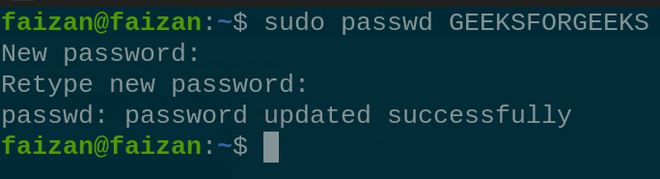
setting password for GEEKSFORGEEKS user
3. Deleting a User
To delete a user, use the userdel command:
**Command:
sudo userdel [username]

deleting user GEEKSFORGEEKS
4. Switch to Another User
The su command allows you to switch to another users account by providing the username as an argument. To exit from the users account and return to your original session, you can simply type exit.
**Syntax:
su [USER NAME]
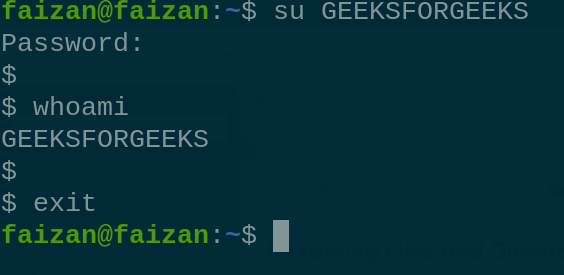
Switch to user GEEKSFORGEEKS
5. Rename the User
To change the username from the current name (oldname) to the new name (newname), use the following command.
**Command:
sudo usermod -l [newname] [oldname]

change the user name from GEEKSFORGEEKS to GFG
Group Management
A group is a collection of user accounts that is very useful to administrators for managing and applying permission to a number users.
| Command | Description |
|---|---|
| sudo groupadd | Creates a new group |
| sudo groupdel | Deletes an existing group |
| sudo usermod -g | Adds/assigns a user to a group |
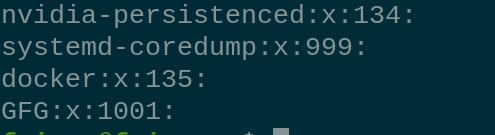
create the new Group called GFG

Process Management
A process management is the process of controlling and monitoring the process running on a Linux system.
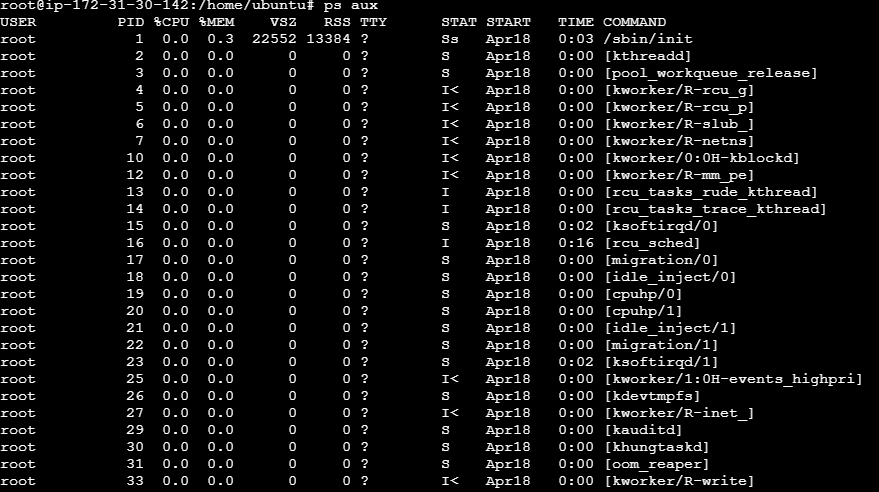
1. ps
ps command displays currently running processes.
**Command:
ps aux
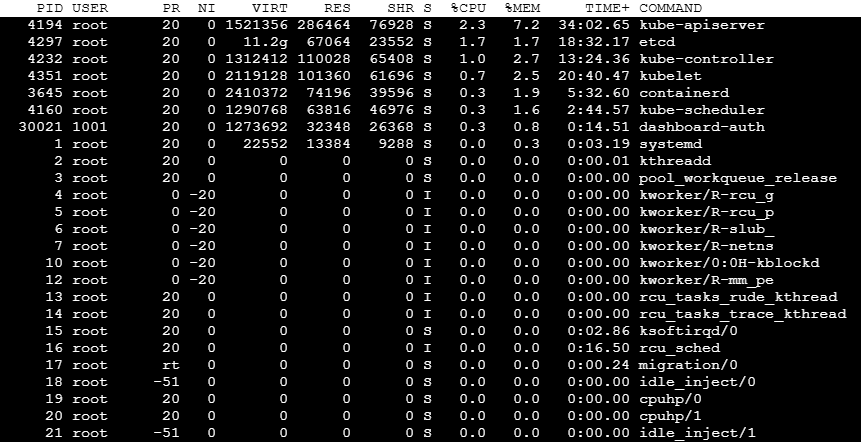
2. top
The top command is used for memory monitoring. It shows a real-time view of system processes.
**Command:
top
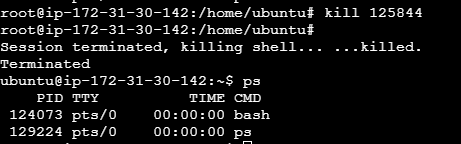
3. kill
The kill command is used to terminate a process using its PID.
**Command:
kill 1234
4. pidof
The pidof command is used to gets the PID of a running process by name.
**Command:
pidof bash

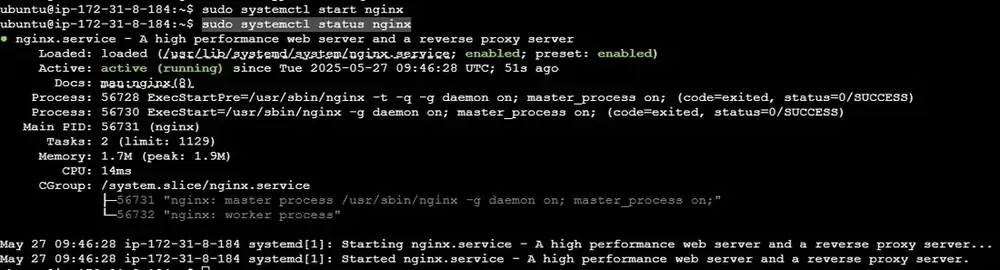
5. systemctl
The systemctl command is used to start/stop/restart systemd-managed services (like Docker, Nginx etc.)
**Command:
sudo systemctl status nginx
Linux File System Permission
In Linux, file and directory permissions are used to improve system security.
There are three main types of permissions:
- **Read (r): View file contents
- **Write (w): Modify file contents
- **Execute (x): Run a file or access a directory
Permissions are assigned to three categories of users:
- **User (u): Owner of the file
- **Group (g): Users who are part of the file’s group
- **Others (o): All other users
**Example:
If a file has read permission only for the user, then:
- The user can read the file
- The group cannot access it
- others cannot access it either
1. ls -ld
It is used to check the permission of directory
**Command:
ls -ld
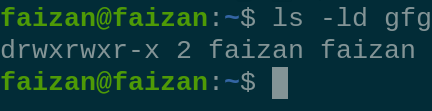
check the permission of directory
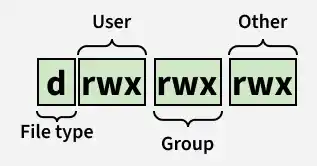
Permission with numeric & symbol
| Number | Permission Type | Symbol |
|---|---|---|
| 0 | No permission | --- |
| 1 | Execute | --x |
| 2 | Write | -w- |
| 3 | Write + Execute | -wx |
| 4 | Read | r-- |
| 5 | Read + Execute | r-x |
| 6 | Read + Write | rw- |
| 7 | Read + Write + Execute | rwx |
2. chmod (Change Mode)
This command is used to change the permission of file and directory.
**Syntax:
chmod [permissions] filename
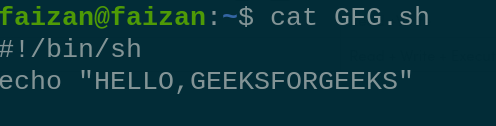
GFG file
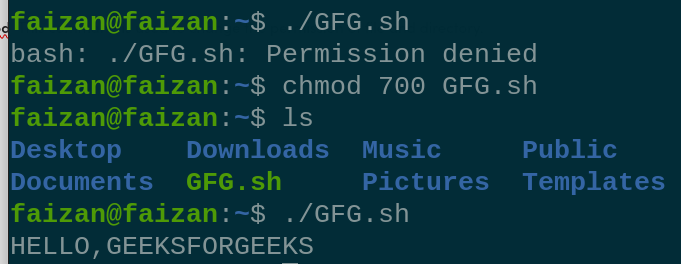
Give execution permission
3. chown (Change Owner)
It is used to change the owner of the file and directory.
**Syntax:
chown [owner_name] [file name]
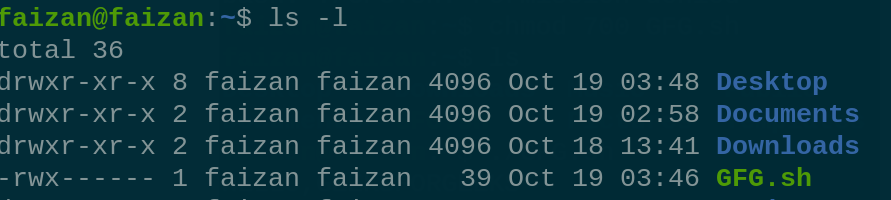
current ownership is faizan

ownership change to GFG user
4. cat
It is used to read and concatenate the text inside the files. with help of this command we can displays the content inside the file.
**Syntax:
cat {filename}
| Command | Description |
|---|---|
| cat -b | This flag adds number to the text line. |
| cat -E | This flag add $ at the end of each line. |
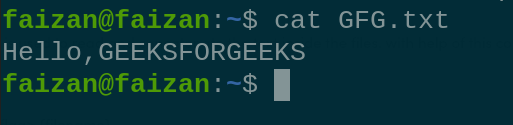
Display the contain the file GFG
5. Grep (Global Regular Expression Print)
It filter and searches a file for a particular pattern of characters and displays all lines that contain the pattern.
**Command:
grep {file name}
| Command | Description |
|---|---|
| grep -i | Delivers results for case-insensitive strings. |
| grep -n | Retrieve the corresponding strings and their respective line numbers. |
| grep -v | Provides the output of lines that do not contain the search string. |
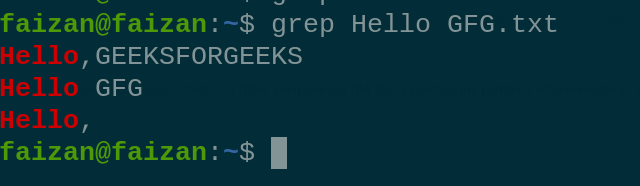
Search key word Hello from GFG.txt
6. Sort
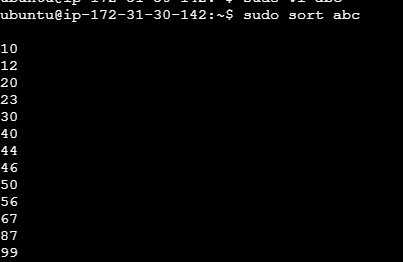
It print the output of a file, either alphabetically, numerically or by other specified way.
**Command:
sort filename
7. head
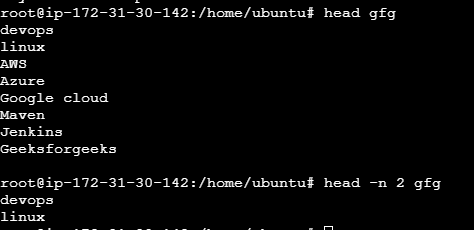
The head command is used to display the first few lines of one or more text files.
**Command:
head -n 2 gfg
8. tail
The tail command is used to display the last few lines of one or more text files.
**Command:
tail -n 3 gfg

9. find
The find command is used to search files and directories based on different criteria such as name, size, type and modification date.
**Command:
find [path] [expression]

10. stat
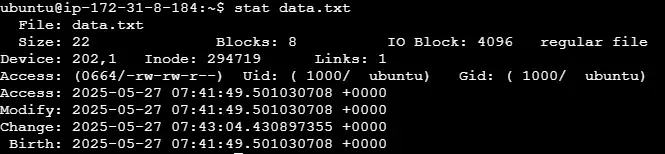
The stat command is used to display detailed permission and ownership metadata.
**Command:
stat data.txt