Tar Command in Linux (original) (raw)
Last Updated : 13 May, 2026
The tar command in Linux (short for Tape Archive) is a powerful tool used to create, view, extract, and manage archive files. It allows you to bundle multiple files and directories into a single archive while preserving permissions and directory structure. Tar can also compress archives using gzip, bzip2, or xz.
- Used to create backups and archive files.
- Supports compression using gzip (-z), bzip2 (-j), or xz (-J).
- Preserves file permissions and structure.
- Works with single or multiple files and directories.
Example 1: Create a simple tar archive
**Command:
tar -cvf file.tar *.c
**Output:
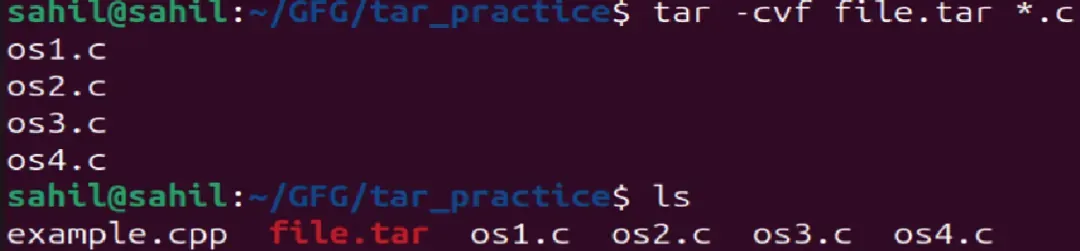
Create tar archive
Example 2: Extract a tar Archive
tar -xvf file.tar

Extract a tar Archive
Syntax:
tar [options] [archive-file] [file or directory to be archived]
- tar: The command itself.
- [options]: Flags to control behavior (create, extract, list, compress etc.)
- [archive-file]: Name of tar archive file.
- [file or directory to be archived]: The file or directory you want to include in the archive.
Examples of tar Command Using Options
1. Creating an uncompressed tar Archive using option -cvf
This tar command creates a tar file called file.tar which is the archive of all .c files in the current directory
tar -cvf file.tar *.c
- ****'-c':** Creates a new archive.
- ****'-v':** Displays verbose output, showing the progress of the archiving process.
- ****'-f':** Specifies the filename of the archive
**Output:
Output
This Linux tar command extracts files from archives.
tar -xvf file.tar
- ****'-x':** Extracts files from an archive.
- ****'-v':** Displays verbose output during the extraction process.
- ****'-f':** Specifies the filename of the archive.
**Output:
Output
3. Using gzip compression with tar
The -z option in the tar command is used to create a gzip-compressed archive. This command creates a compressed file named file.tar.gz containing all .c files from the current directory.
tar -cvzf file.tar.gz *.c
- **-c: Creates a new archive
- **-v: Displays the archiving process
- **-z: Applies gzip compression
- **-f: Specifies the name of the archive file
Output:
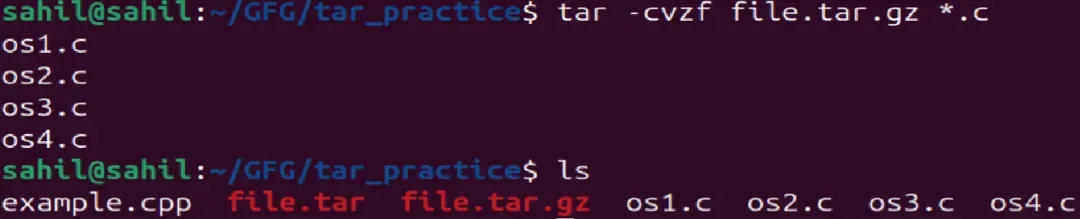
Output
This tar command extracts files from tar.gz archive.
tar -xvzf file.tar.gz
**Output:

Output
5. Creating compressed tar archive file in Linux using option -j
This Linux tar command compresses and creates a bzip2-compressed tar archive, which is generally smaller than a gzip-compressed archive. Bzip2 provides better compression than gzip, though both compression and decompression take more time than gzip.
After creating the archive, you can verify its content using the -tvf option:
tar -cvjf file.tar.tbz example.cpp
**Output:
6. Untar single tar file or specified directory in Linux:
This tar command extracts a bzip2-compressed tar archive (.tar.tbz) into the current directory or into a specified directory using the -C option.
tar -xvjf file.tar.tbz or tar -xvjf file.tar.tbz -C /path/to/directory
**Output:
7. Untar multiple .tar, .tar.gz, .tar.tbz file in Linux:
This tar command in Linux is used to extract specific files from different types of archive files such as .tar, .tar.gz, and .tar.tbz. In the following examples, we are extracting os1.c and os2.c from the respective archives.
tar -xvf file.tar os1.c os2.c or tar -zxvf file.tar.gz os1.c os2.c or tar -jxvf file.tar.tbz os1.c os2.c
**Output:

Output
8. Check size of existing tar, tar.gz, tar.tbz file in Linux:
This tar command will display the size of an archive file in bytes.
wc -c file.tar or wc -c file.tar.gz or wc -c file.tar.tbz
**Output:
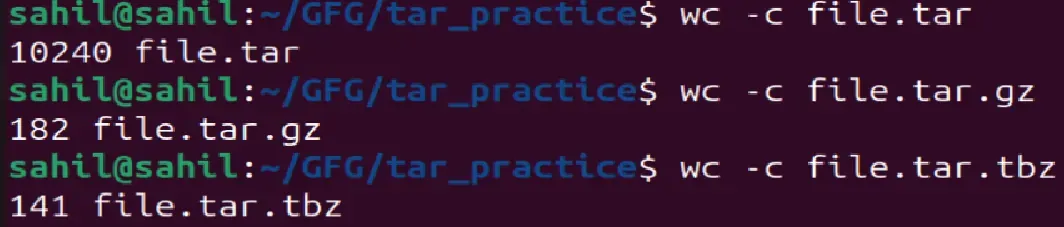
Output
9. Update existing tar file in Linux
This Linux tar command updates an existing archive.
tar -rvf file.tar *.c
**Output:
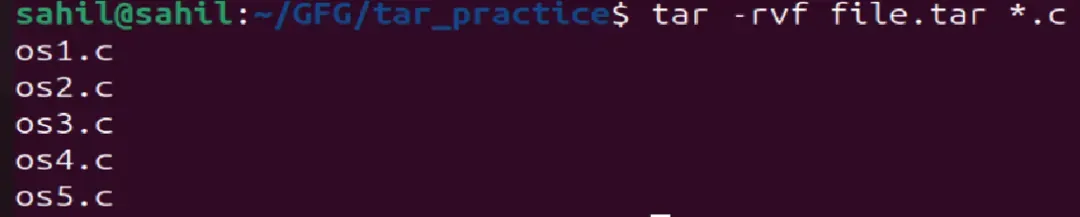
Output
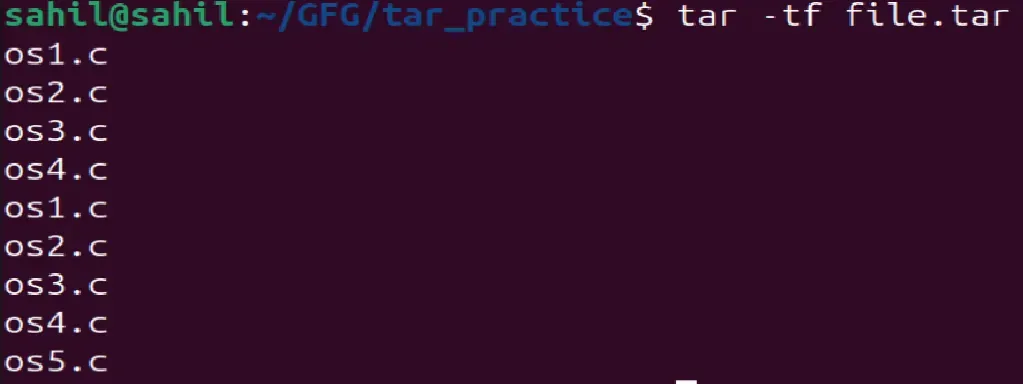
10. List the contents and specify the tarfile using option -tf
This tar command Linux will list the contents in a tar file.
tar -tf file.tar
**Output:
Output
11. Using pipe with grep command to find what we are looking for
This tar command in Linux will list only the mentioned text or image in grep from an archived file.
tar -tvf file.tar | grep "text to find" or tar -tvf file.tar | grep "filename.file extension"
**Output:

Output
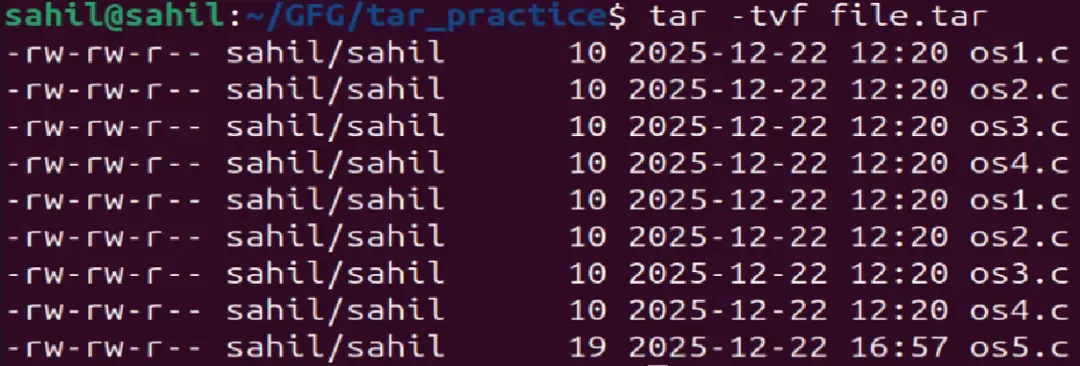
12. Viewing the Archive using option -tvf
This tar command displays the archive contents.
tar -tvf file.tar
**Output:
What are wildcards in Linux
Alternatively referred to as a 'wild character' or 'wildcard character', a wildcard is a symbol used to replace or represent one or more characters. Wildcards are typically either:
- An asterisk (*), which represents zero or more characters.
- A question mark (?), which represents exactly one character.
13. To search for an image in .png format:
This command lists only files with the .png extension inside the archive file.tar. The --wildcards option tells tar to interpret wildcards in the filenames to be listed; the filename (*.png) is enclosed in single quotes to protect the wildcard (*) from being expanded by the shell.
tar tvf file.tar --wildcards '*.png'
- --wildcards tells tar to interpret the * as a wildcard, rather than as a literal character.
- The *.png is in single quotes to prevent your shell from expanding it before tar sees it.
**Output:
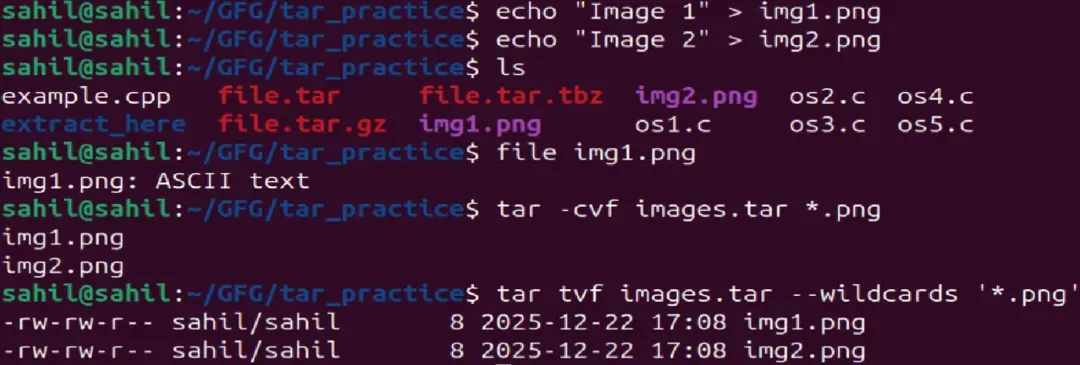
**Note: On many systems, you might see the same result even without --wildcards, because newer versions of tar handle wildcards by default. Including --wildcards makes the intention explicit and ensures it works across different systems.
An Archive file is a file that is composed of one or more files along with metadata. Archive files are used to collect multiple data files together into a single file for easier portability and storage, or simply to compress files to use less storage space.
Zip Command to Compress Files in Linux
The zip command in Linux is a simple and user-friendly tool for creating compressed archives. Unlike tar, zip directly creates compressed files while keeping the original files unchanged.
**Syntax:
zip [options] zipfile files/directories
- **zipfile: The name of the ZIP archive to be created.
- **[options]: Optional flags or settings for the zip command.
- **files/directories: Files or folders to compress.
Example:
zip ./bigfile.zip bigfile
This compresses bigfile into bigfile.zip while preserving the original file. Because of its simplicity, zip is widely used to compress single or multiple files efficiently.
Gzip Command to Compress Files in Linux
The gzip command is a fast and efficient compression tool in Linux. It compresses files in-place, meaning the original file is replaced by its compressed version.
**Syntax:
gzip [options] filename
- **[options]: Optional flags or settings you may want to apply.
- **filename: The name of the file you wish to compress.
**Example:
gzip bigfile
This compresses the file and produces bigfile.gz . Its speed and ease of use make gzip ideal for quick file compression tasks.
Bzip2 Command to Compress Files in Linux
The bzip2 command works similarly to gzip, but generally provides better compression ratios, though it may be slower. It also replaces the original file with the compressed version.
**Syntax:
bzip2 [options] filename
- **[options]: Optional flags or settings you may want to apply.
- **filename: The name of the file you wish to compress.
**Example:
bzip2 bigfile
This creates bigfile.bz2. Users prefer bzip2 when they need higher compression and are okay with slightly slower performance.
XZ Command to Compress Files in Linux
The xz command is known for delivering very high compression efficiency, especially for large files. It may take longer, but it significantly reduces file size.
**Syntax:
xz [options] filename
- **[options]: Optional flags or settings you may want to apply.
- **filename: The name of the file you wish to compress.
xz bigfile
This produces bigfile.xz, offering excellent compression results, making it popular for advanced storage and distribution needs.
Real-World Scenarios
1. System and Project Backup
Tar is commonly used to back up system files, user data, and project directories because it preserves file permissions and directory structure.
tar cvzf system_backup.tar.gz /home/user/
This helps students and administrators safely store important data.
2. Software Packaging and Distribution
Many Linux software packages and source codes are distributed as .tar.gz, .tar.bz2, or .tar.xz. Developers can pack entire applications and configuration files into a single archive:
tar cvzf app_package.tar.gz app_folder/
This ensures everything is bundled together for installation or sharing.
3. Compressing and Managing Log Files
System administrators use tar to compress large log directories to save storage space and maintain organized records.
tar cvzf logs.tar.gz /var/log
This keeps servers efficient and prevents unnecessary disk usage.
4. File Transfer and Sharing
Instead of transferring many files individually, tar combines them into a single archive. This reduces transfer time and avoids file corruption issues.
tar cvf assignment.tar assignment_folder/
Very useful for students sharing project submissions or datasets.