How to Format a Hard Drive in Windows? (original) (raw)
Last Updated : 23 Jul, 2025
Formatting a hard drive in Windows is a crucial task that prepares the drive for data storage, resolves system errors, and clears unwanted data. Whether you're setting up a new hard drive, cleaning an old one, or solving file system issues, knowing how to format your drive correctly is essential. This guide will walk you through the steps to format a hard drive in Windows safely and efficiently, ensuring your drive is ready for use.
This process erases everything on the drive, so it's crucial to back up any important files before you begin.
Steps to Format a Hard Drive in Windows
**Step 1: Open Disk Management Settings
- Go to the search bar and type D**isk Management then Click on Create and format hard disk partitions.
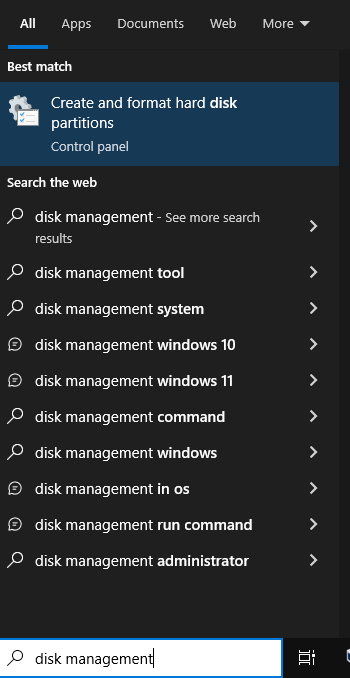
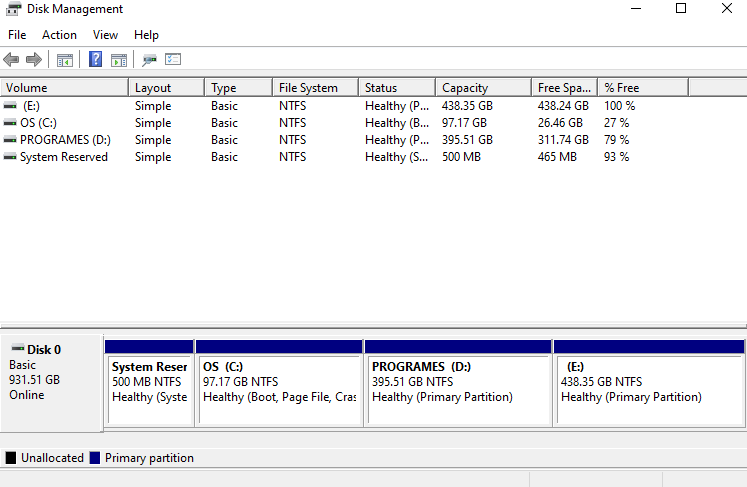
- That will open Disk Management settings.
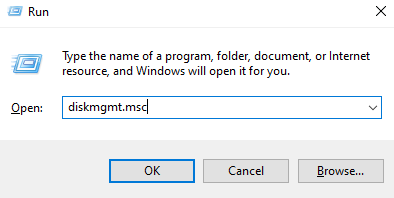
- Alternatively, You can also open the disk management setting by using Run. You need to open run and then type **diskmgmt.msc in the Run dialog box and hit ok button.
**Step 2: Select the Drive you want to Format
- In the Disk Management window, you'll see a list of all the drives connected to your computer. **Right click on the drive you want to format in the Disk Management window and then select Format from the context menu.
**Note: C drive cannot be formatted as windows is installed in that Drive.
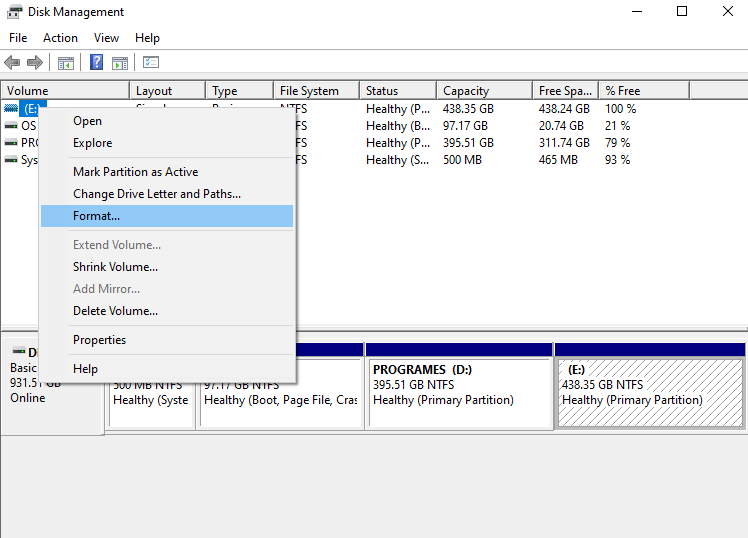
**Step 3: Rename the Hard Drive Name
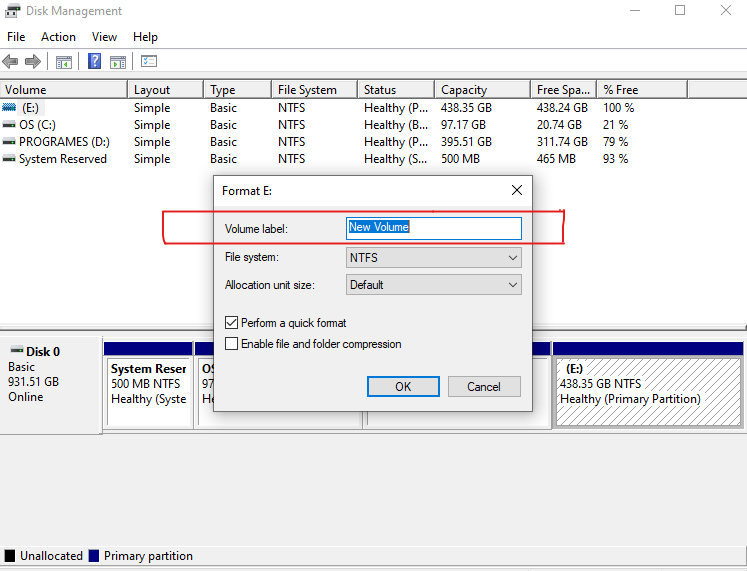
- After clicking on format option Format window will open then in the **Volume label textbox enter whatever name you'd like to give to the drive.
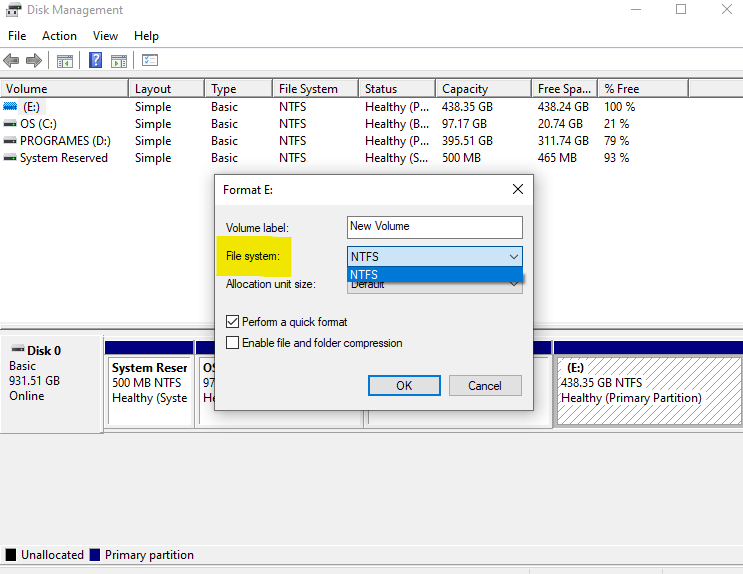
- Next up is the file system choice. In the **File system textbox, choose **NTFS.
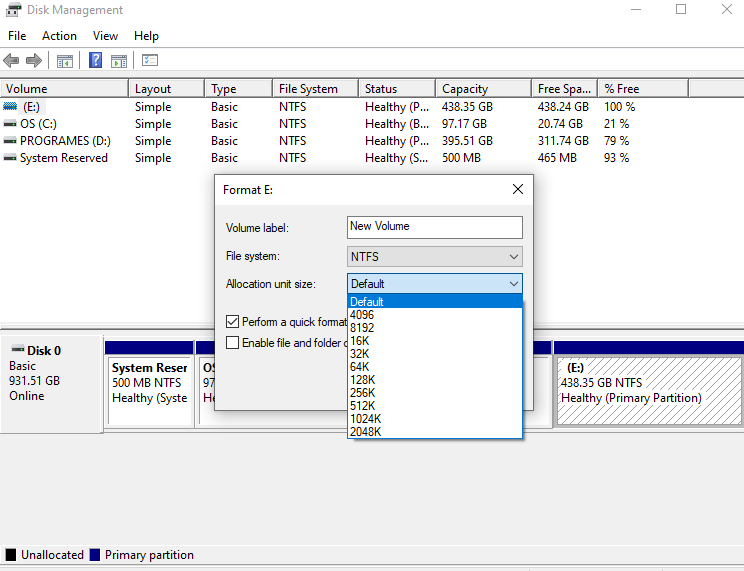
- In the **Allocation unit size textbox, choose Default. The best allocation size based on the size of the hard drive will be chosen.
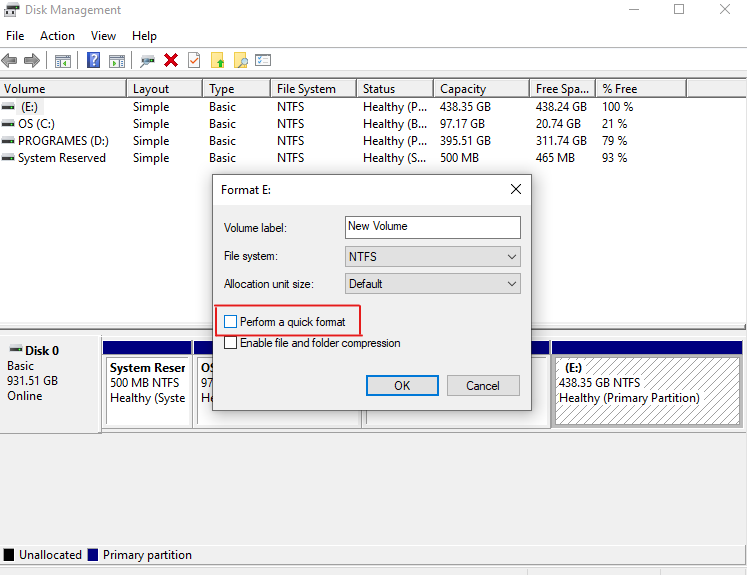
- The next step is to uncheck Perform a quick format checkbox. Windows will check this box by default. This option will erase the drive faster but may not thoroughly check for errors. If you want to be more thorough, leave this option unchecked.
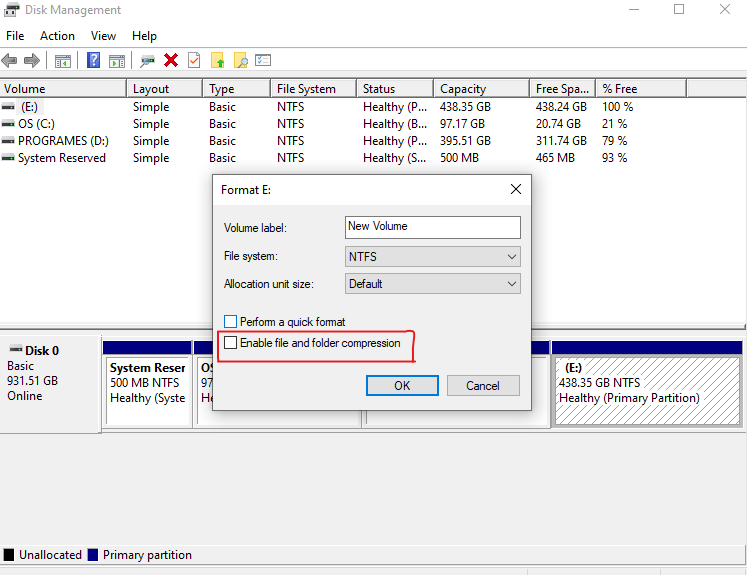
- The final format option is the **Enable file and folder compression setting that is unchecked by default, which we recommend sticking with.
**Step 4: Confirm your Choice
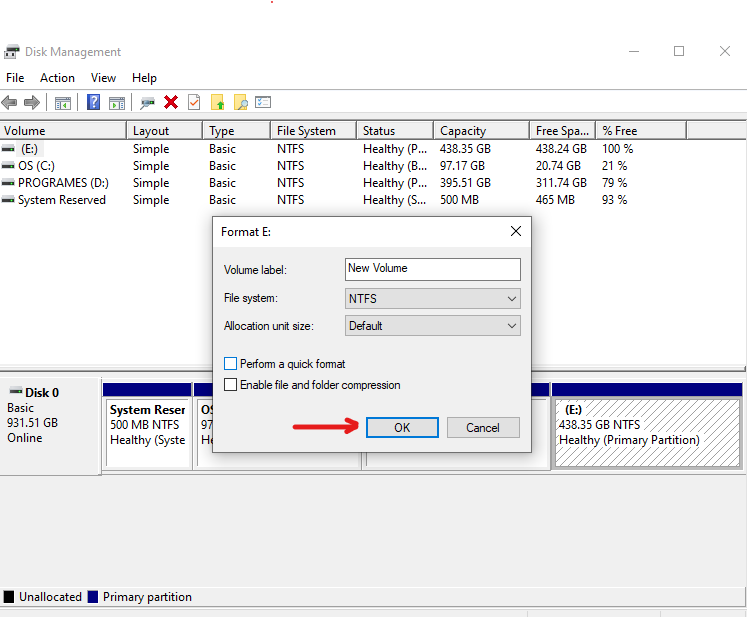
- Click the "OK" button to confirm your choices.
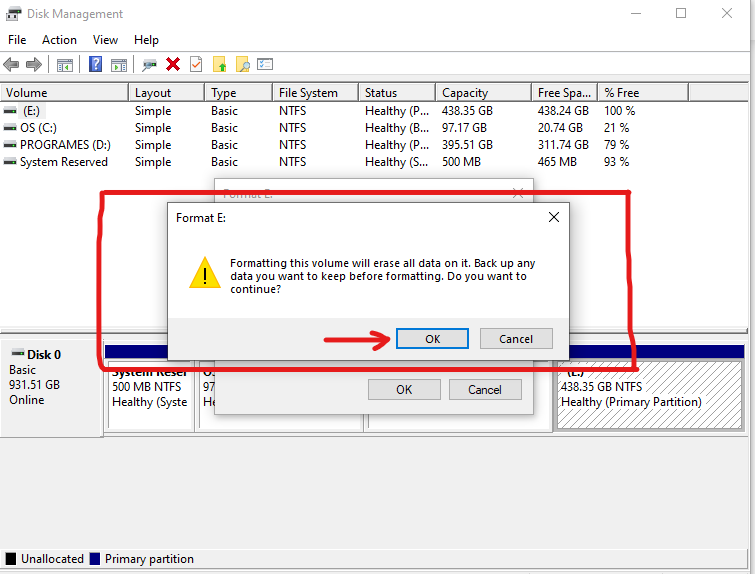
- A warning will pop up, reminding you that all data on the drive will be deleted. Make sure you have backed up any essential data and then click "OK" to proceed.
- The formatting process will begin, and it may take a few minutes, depending on the size of the drive. When it's finished, you'll see a message indicating that the formatting is complete.
Formatting a hard drive in Windows is a straightforward process that can enhance your system's performance and reliability. By following the steps outlined in this guide, you can easily format any hard drive, whether it's an internal HDD, SSD, or external drive. Regular formatting can help maintain your drive's health, organize your data, and improve your overall computing experience. Always remember to back up important data before formatting to avoid data loss.
**Note: These steps will delete all your files from the drive, So keep the copy of files you may require in future for safety before formatting.