How to Open Command Prompt with Keyboard Shortcuts (original) (raw)
Last Updated : 5 Dec, 2025
The Command Prompt is one of the most useful tools on Windows whether you're running system scans, fixing errors, or managing files. But if your mouse stops working or your touchpad becomes unresponsive, knowing how to open CMD using only keyboard shortcuts becomes extremely handy.
Keyboard shortcuts can help you:
- Open tools like CMD instantly without touching the mouse
- Save time while troubleshooting or performing admin tasks
- Navigate Windows more efficiently
- Create custom workflows for faster productivity
7 Methods to Open Command Prompt Using Keyboard Only
1. Using Windows Key (Windows 10 and 11)
The fastest way to launch CMD is through the Windows Search bar.
**Step 1:
- Press Windows Key
- Type CMD
- Press Enter
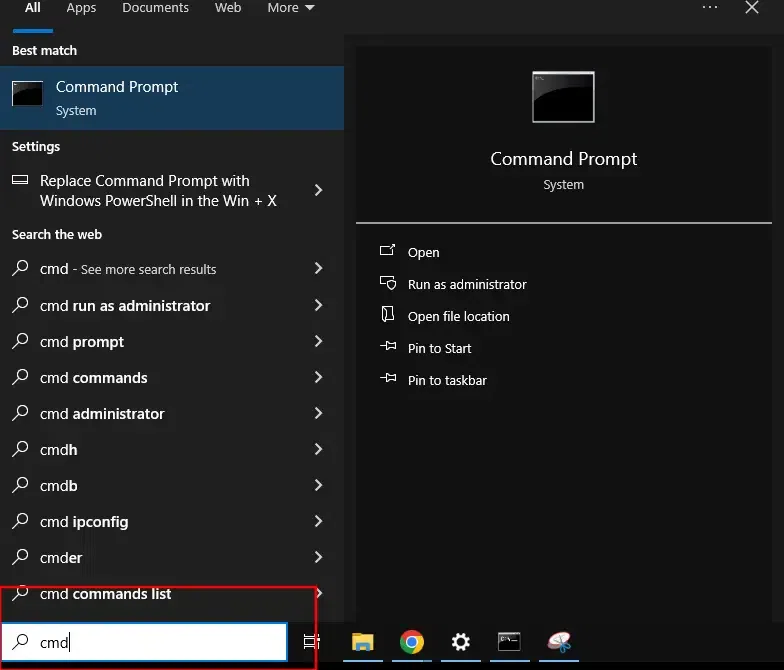
Open CMD
CMD will open immediately.
2. Open CMD Using the Run Dialog Box
This method works on every Windows version from Windows 7 to 11.
**Steps:
- Press Windows + R to open Run
- Type cmd
- Press Enter
Instant CMD launch no mouse required.
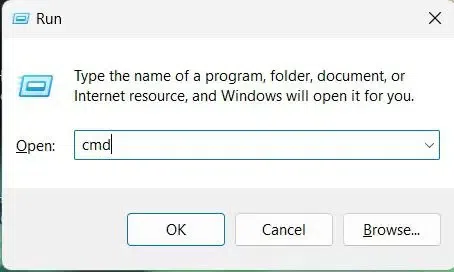
Run
3. Pin CMD to Taskbar (and Open It With a Number Shortcut)
Once pinned, you can launch CMD using a number key combination.
**Steps:
- First open CMD using any method above
- Right click the CMD icon on the taskbar
- Select Pin to Taskbar
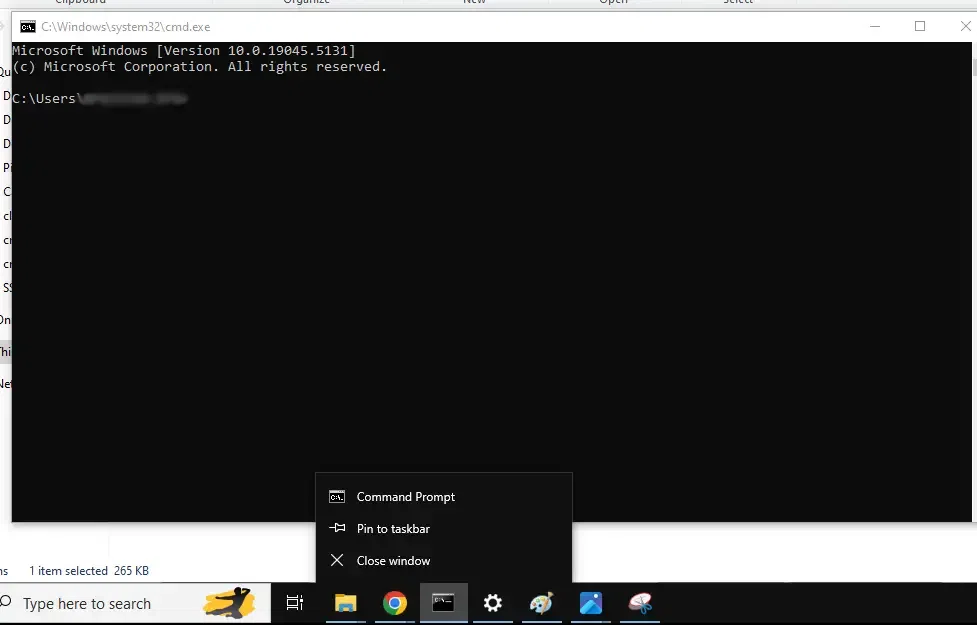
Pin to Taskbar
**Note: From now on Press Windows Key + [Taskbar Number]
(Example: If CMD is the 3rd icon → press Windows + 3)
4. Use the Context Menu in File Explorer (Windows 10 & 11)
You can open CMD inside any folder using the keyboard.
**Steps:
- Open File Explorer (Windows Key + E)
- Hold Shift, then right-click inside the folder
- Select Open Command Window Here
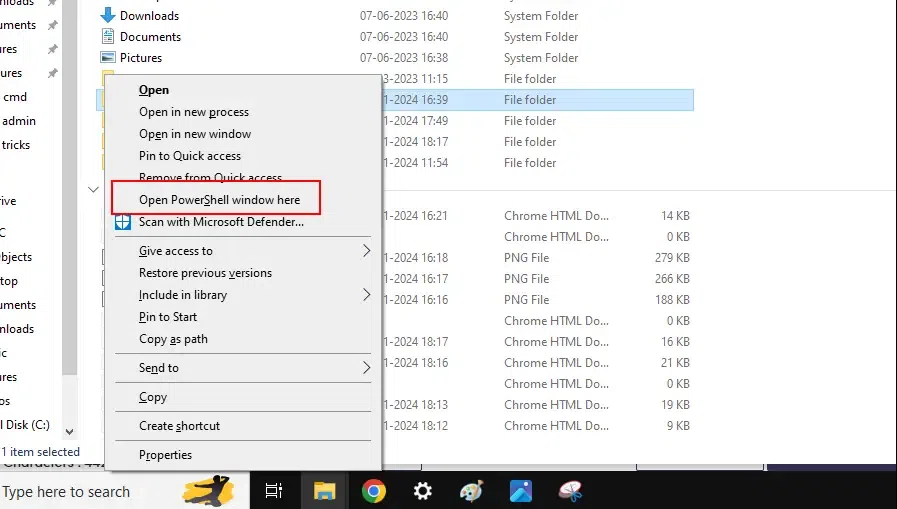
File Explorer
Note: Some versions show _Open PowerShell window here instead.
5. Create a Custom Keyboard Shortcut for CMD
You can assign your own hotkey to open Command Prompt anytime.
**Steps:
- Right-click on your Desktop → choose New > Shortcut
- Enter this as the location:
cmd.exe
- Name it CMD and finish
- Right-click the new shortcut → Properties
- In Shortcut key, press your preferred combination (e.g., Ctrl + Alt + C)
- Click Apply > OK
Now your custom shortcut opens CMD instantly.
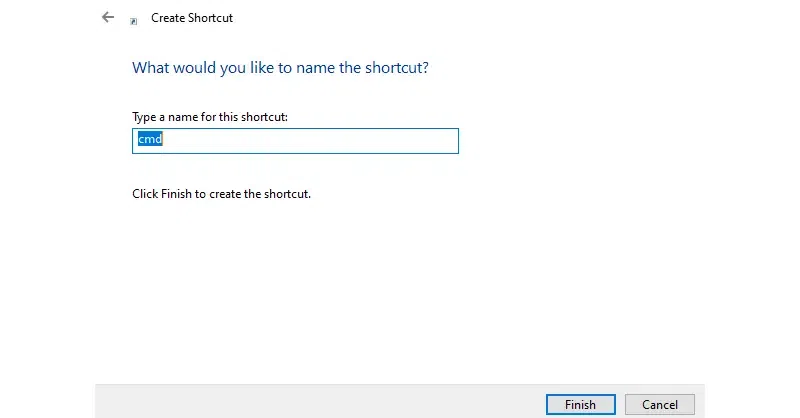
Create CMD Shortcut
This method gives quick access to CMD or CMD (Admin).
**Steps:
- Press Windows + X
- Select Command Prompt or Command Prompt (Admin)
In Windows 8, 10, or 11, you will see options to open either **Command Prompt or **Command Prompt (Admin).
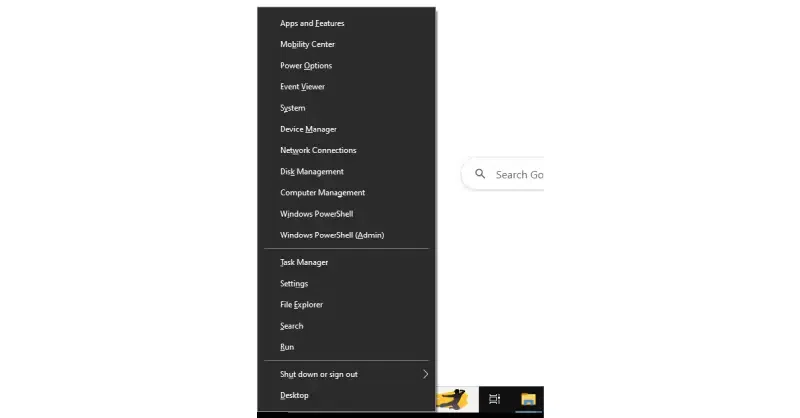
Quick Access
**Note: If you see PowerShell instead, you can switch it back in **Settings > Personalization > Taskbar.
7. Use Third-Party Tools (For Windows 7)
Older versions like Windows 7 allow custom shortcuts using AutoHotkey.
**Steps:
- Install AutoHotkey
- Create a new script containing:
#C::Run, cmd.exe- Run the script to launch CMD by pressing **Windows + C

AutoHotKey
**Also Read: