Mounting a Volume Inside Docker Container (original) (raw)
Last Updated : 2 Sep, 2025
When you are working on a micro-service architecture using Docker containers, you create multiple Docker containers to create and test different components of your application. Now, some of those components might require sharing files and directories. If you copy the same files in all the containers separately, it might lead to an unnecessary increase in the image size, and also, changing a file in one container will not create the corresponding change in the same file in other containers.

Hence, you required a shared directory or volume that you can mount on multiple Docker Containers, and all of them have shared access to a particular file or directory. Docker allows you to mount shared volumes in multiple containers. In this article, we will mount a volume to different containers and check whether the changes in the file are shared among all the containers or not.
Volumes
Volumes in docker are the preferred way to deploy a stateful set application in the form of containers. You can manage and persist the docker data outside of the docker life cycle. Volumes are completely managed by docker, unlike the bind mounts. Docker volumes will allow you to share the data between the docker containers and the docker host. They are two types of volumes in the docker. You store the data in Docker.
- Named volumes.
- Bind volumes.
Create and manage volumes | Step By Step Instructions
To know more about Docker commands refer to the Docker – Instruction Commands.
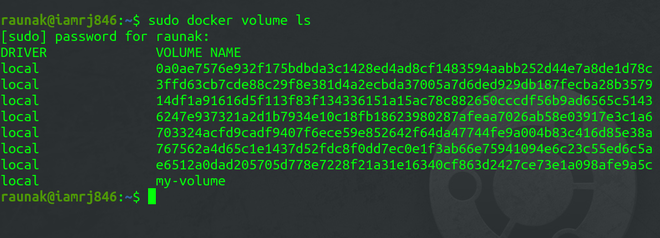
**Step 1: Display all the existing Docker Volumes
To display all the existing Docker Volumes, you can use the list command as follows.
sudo docker volume ls
**Step 2: Creating a Volume
To create a new Docker Volume, you can use the Volume Create Command.
sudo docker volume create geeksforgeeks
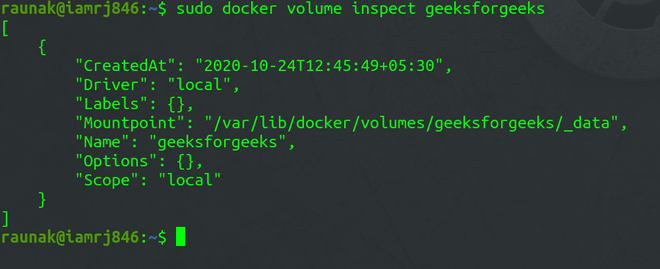
**Step 3: Inspecting Docker Volumes
To get the details of the Volumes you have created, you can use the Volume Inspect Command.
sudo docker volume inspect geeksforgeeks
**Step 4: Mounting Docker Volumes
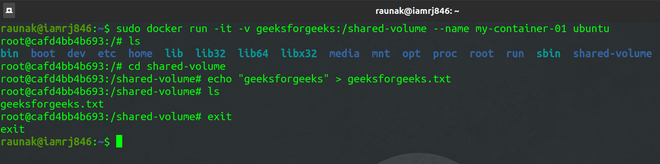
After creating the Volume, the next step is to mount the Volume to Docker Containers. We will create a Docker Container with the Ubuntu base Image which you will mention in Dockerfile and mount the _**geeksforgeeks_Volume to that Container using the -v flag. You can install the Linux package by using the Dockerfile.
sudo docker run -it -v geeksforgeeks:/shared-volume --name my-container-01 ubuntu
The above command mounts the _**geeksforgeeks_volume to a directory called **shared-volume inside the Docker Container named **my-container-01.

**Step 5: Create a file inside the Docker Volume
Inside the bash of the Container, create a new file and add some content.
ls
cd /shared-volume
echo “GeeksforGeeks” > geeksforgeeks.txt
ls
exit
**Step 6: Create another Container and Mount the Volume
Create another Docker Container called **my-container-02 geeks for geeksinside the Container.
sudo docker run -it -v geeksforgeeks:/shared-volume --name my-container-02 ubuntu

If you go to the **shared-volume directory and list the files, you will find the **geeksforgeeks.txt file that you had created in the same volume but mounted in **my-container-01 earlier and it also has the same content inside it. This is so because the volume is shared among the two Containers.
Step 7: Remove a volume
Before removing the volume you should make sure you have taken the backup of the volume because it is going to delete permanently the data stored in it. By using the following command you can remove the docker volume. To know more commands in Docker refer to Docker Commands.
docker volume rm volume_name_or_id
In the place of volume_name_ or _id, you should use your volume name and volume id.
Step 8: Start a Container With a Volume
Before starting a container with the help of volume you should create volume first. After that, you use the following command to create a container. Before creating a container you need a Docker image.
docker run -d --name mongo -v mongovol:/data/db -e MONGO_INITDB_ROOT_USERNAME=devdb -e MONGO_INITDB_ROOT_PASSWORD=devdb123
"-v mongovol:/data/db" represents the name of the volume and "/data/db" represents the directory with which the volume is going to be mounted "-e" represents the environmental variable which is written by the developers them selfs it can "user name and password".
**Step 9: Use a Volume With Docker Compose
While writing the docker-compose file you canmount the volume which is created to store the data as shown following.
services:
frontend:
image: node:lts
volumes:
- mongovol:/data/db
volumes:
mongovol:
services: This section defines the services or containers that compose your application. In this case, there's one service named "frontend."frontend: This is the name of the service. It could be any name you choose to represent this container within your application.image:node:lts: Specifies the Docker image used to create the container. Here, it's using the official Node.js image tagged with "lts" (Long-Term Support), which typically includes the latest LTS version of Node.js.volumes: This subsection specifies any volumes that should be mounted into the container. Volumes allow for persistent data storage that persists even if the container is removed.- mongovol:/data/db: This line defines the volume named "mongovol" to be mounted into the container at the path "/data/db". Here, "/data/db" likely represents the default data directory for a MongoDB container. This volume mounting ensures that data stored within the container at "/data/db" is persisted outside of the container's lifecycle.volumes: This section defines named volumes that can be used by the services defined above.mongovol: This line defines a named volume named "mongovol." Named volumes provide a way to persist data beyond the lifetime of a single container. This volume can be shared among multiple containers or services, allowing data to be shared and persisted across them.
In the above compose file you can see the column "**volumes" In that area you should mention the name of the volume and directory or the path of the volume you should mention.
Differences between -v and --mount behavior
The -v and --mount options in Docker both serve the purpose of attaching volumes to containers, but they have some key differences in behavior and capabilities:
- **Syntax:
- **-v: The
-voption is the shorthand syntax for specifying volume attachments. It takes two arguments: the volume name or host directory path, and the container directory path. - **--mount: The
--mountoption provides a more explicit and flexible way to attach volumes. It allows for finer control over volume options and can be used to mount volumes from various sources.
- **-v: The
- **Capabilities:
- **-v: The
-voption is more straightforward and suitable for basic volume mounting. It supports mounting volumes from the local host machine or named volumes created usingdocker volume create. - **--mount: The
--mountoption is more versatile and powerful. It allows for specifying various options such as volume driver, read-only mounts, mount propagation, and more. This option can mount volumes from different sources like local directories, named volumes, or remote volume services like AWS EBS or Azure File Storage.
- **-v: The
- **Volume Options:
- **-v: With the
-voption, you can only specify basic volume options such as read-only mounts and caching behavior. - **--mount: The
--mountoption offers a broader range of volume options, including specifying volume drivers, read-only mounts, mount propagation modes, and more advanced options like specifying volume labels and setting custom volume permissions.
- **-v: With the
- **Flexibility:
- **-v: The
-voption is more concise and easier to use for simple volume mounting tasks. - **--mount: The
--mountoption provides more flexibility and control, making it suitable for complex volume mounting scenarios where specific configurations are required.
- **-v: The
Populate a Volume Using a Container
You can populate the volume by following the below steps.
**Step 1: Create a docker volume.
docker volume create my_volume
**Step 2: Create a container to populate the volume.
docker run -d --name mongo -v mongovol:/data/db
-e MONGO_INITDB_ROOT_USERNAME=devdb MONGO_INITDB_ROOT_PASSWORD=devdb123
**Step 3: Verify the populated volume.
docker run --rm -v mongovol:/data/db busybox ls /data/db
When you deploy a fault tolerance application you need to give permission to the multiple replicas of the same service to the same files for that you can use some services like S3, NFS, and so on as shown in the following figure.
Use a volume driver
You can create the docker volumes by using the following command before creating a container. If you want to create a volume while creating the container you achieve that by using the volume drivers in the docker. You can create a volume by using a volume driver as shown in the following.
docker volume create --driver vieux/sshfs
Create a Service Which Creates an NFS Volume
You can create an NFS volume while creating the service as mentioned below.
version: '3'
services:
nfs-server:
image: tomact:latest
container_name: nfs_container
volumes:
- /data:/nfs_share
nfs-client:
image: busybox
container_name: nfs_client
command: tail -f /dev/null
volumes:
- nfs-data:/data
volumes:
nfs-data:
driver_opts:
type: nfs
- **NFS Server:
- **Image: Uses an image named "tomact" (probably a typo for "tomcat") with the latest version.
- **Container Name: Sets the name of the container running the NFS server to "nfs_container".
- **Volumes: Maps the host directory "/data" to the container directory "/nfs_share", allowing data to be shared between the host and the container.
- **NFS Client:
- **Image: Uses the "busybox" image, which provides a minimal Linux environment.
- **Container Name: Sets the name of the container running the NFS client to "nfs_client".
- **Command: Specifies a command to keep the container running ("tail -f /dev/null").
- **Volumes: Creates a named volume named "nfs-data" and mounts it to the "/data" directory inside the container. This volume uses the NFS driver for sharing data with the NFS server.
- **Volumes:
- **nfs-data: Defines a named volume named "nfs-data".
- **Driver Options: Specifies options for the volume driver, setting the type to "nfs". This indicates that the volume will be managed by the NFS (Network File System) driver, allowing the container to access files stored remotely on an NFS server.
How to Use Docker Volumes to Persist Changes
Using Docker volumes is a fundamental technique to persist changes made within containers. Here's how you can do it:
- **Create a Volume: First, create a Docker volume using the
docker volume createcommand. For example:
docker volume create my_volume
- **Mount the Volume to a Container: When running a container, use the
-vflag to mount the volume to a specific directory within the container. For example:
docker run -d -v my_volume:/app my_image
- **Make Changes Inside the Container: Access the running container using
docker exec -it <container_id> /bin/bashor similar commands. Then, make changes to files or directories within the mounted volume. - **Verify Persistence: Exit the container and start another instance using the same volume. Verify that the changes made in the previous container are persisted. For example:
docker run -d -v my_volume:/app my_image